
How to Diagnose and Fix White Lines on Your Screen
To determine if your screen is physically broken or suffering from a software glitch, perform the Screenshot Test . Take a screenshot of your display and view it on a different device. If the white lines appear in the screenshot, the issue is software or GPU-related. If the screenshot is clear, your physical display panel or internal ribbon cable is failing and likely requires hardware repair.
Discovering white lines across your smartphone, laptop, or monitor can be a distressing experience. These visual artifacts often appear without warning, cutting through your content and making it difficult to read text or view images. While many users assume a total hardware failure is the only explanation, the reality is more nuanced. Depending on the pattern and behavior of the lines, the culprit could range from a simple driver conflict to a loose internal connection.
In this guide, we will explore the diagnostic steps necessary to isolate the root cause. By following a systematic approach, you can avoid unnecessary repair costs and determine whether a DIY fix is possible or if professional intervention is required. Whether you are dealing with a single vertical line on an iPhone or flickering horizontal bands on a gaming monitor, these steps provide a clear path forward.
Start Here to See if Your Screen Is Actually Broken
Before you commit to a costly screen replacement, you must rule out software anomalies. Modern operating systems and graphics drivers can occasionally produce visual artifacts that mimic hardware failure. Use these four tests to categorize your issue in under 60 seconds.
The 10-Second Screenshot Test
This is widely considered one of the most reliable ways to differentiate between "logical" errors and "physical" damage. When you take a screenshot, the device captures the image data exactly as it is processed by the Graphics Processing Unit (GPU). If the white lines are part of that data, they will show up in the image file. According to DIYFixTool , a clean screenshot viewed on another device confirms that the physical LCD or OLED panel is the source of the problem.
The BIOS and Boot Screen Check
Software-based lines are usually tied to the operating system or specific drivers. To test this, restart your computer and enter the BIOS or UEFI settings (usually by tapping F2, F10, or Del during startup). If the lines persist in this environment, the issue is hardware-related. As noted in Microsoft Advanced Support , lines appearing before the OS loads indicate a failure in the display panel, the cable, or the GPU hardware itself.
The External Monitor Rule
For laptop and desktop users, connecting to an external display is a critical diagnostic step. Use an HDMI or DisplayPort cable to link your device to a TV or secondary monitor. If the external screen is perfectly clear while the primary screen shows lines, you have isolated the fault to the laptop's display panel or the internal ribbon cable. However, if the lines appear on both screens, your graphics card is likely failing or overheating.
The Flex Test for Physical Connections
Sometimes, white lines are caused by a "loose" connection rather than a broken panel. For laptops, try gently opening and closing the lid while watching the lines. For phones, apply very light pressure to the bezels (the edges) of the screen. If the lines flicker, change color, or disappear momentarily, the internal flex cable is likely unseated or frayed. This is a common occurrence in devices that have been dropped or subjected to heavy vibration.
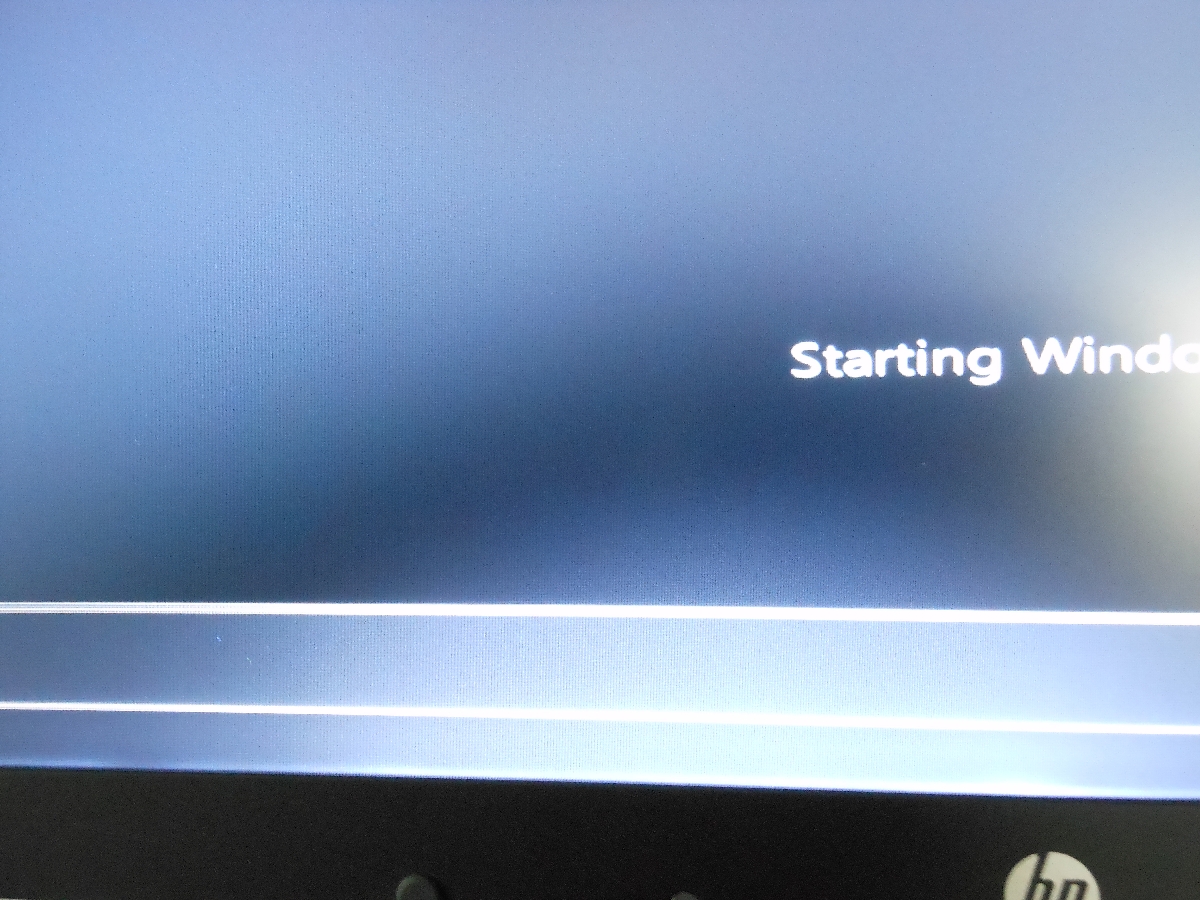
Image source: HP Community
Why Are These White Lines Appearing on My Display?
Understanding the "why" behind screen failure can help you prevent future occurrences. While a direct drop is the most obvious cause, several "invisible" factors can lead to the same result over time.
- Physical Impact and Pressure Damage
- Even if the glass isn't cracked, a sharp impact can damage the delicate "gate drivers" along the edge of the LCD. These components control rows and columns of pixels; when they fail, a perfectly straight line appears.
- The Delayed Reaction Phenomenon
- Many users are surprised when lines appear days after a minor incident. According to research from Panox Display , pressure damage—such as sitting on a phone in a back pocket—can cause microscopic fractures in the display's internal layers that only manifest as visible lines after the device heats up and expands during use.
- Liquid Damage and Corrosion
- Moisture doesn't have to submerge a device to cause damage. High humidity or a single drop of water seeping into the bottom bezel can corrode the pins on the display connector. This corrosion disrupts the electrical signals, leading to persistent white or colored bands.
- Overheating and GPU Stress
- In high-performance laptops and gaming PCs, excessive heat can cause the solder joints on the graphics chip to weaken. This is known as "artifacting." If your lines only appear during intense gaming or video editing, heat management is likely the primary concern.
"A single vertical line is often a sign of a failed 'COF' (Chip-on-Film) connector, whereas multiple flickering lines usually point toward a broader power supply or controller board issue."
How to Fix White Lines on a Phone Screen
Mobile devices are particularly susceptible to screen lines due to their portable nature and frequent handling. If your screenshot test was clean, try these steps to resolve the issue.
Software Troubleshooting First
Before opening the device, attempt these non-invasive fixes:
- Boot into Safe Mode: This disables all third-party apps. If the lines disappear, a recently installed app was causing a display rendering conflict.
- Use Pixel Repair Apps: Tools like Dead Pixels Test and Fix or Display Tester can sometimes "unstuck" pixels by cycling through rapid color changes. While this ranks among the top solutions for stuck pixels, it rarely fixes lines caused by physical damage.
- Factory Reset: As a last resort, a full wipe can clear deep-seated system glitches. Ensure you have a backup before proceeding.
Hardware Fixes for Mobile Devices
If software fixes fail, the problem is likely the flex cable or the panel itself. For those with the technical skill and the right tools (Pentalobe screwdrivers, spudgers, and suction cups), reseating the flex cable is a viable DIY attempt. Over time, the connector that links the screen to the motherboard can wiggle loose. Opening the phone and firmly pressing the connector back into its socket can occasionally restore the display to perfect condition. However, if the internal LCD layers are fractured, a full screen assembly replacement is the only permanent solution.
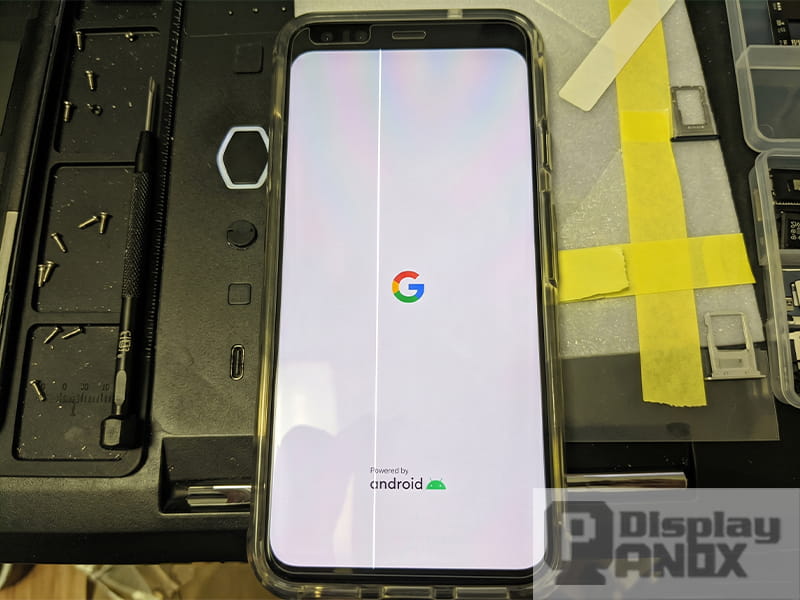
Image source: Panox Display
Troubleshooting White Lines on Laptop and Desktop Monitors
Laptops and monitors offer more troubleshooting flexibility because you can interact with the drivers and external cabling more directly than on a smartphone.
Driver and Software Solutions
If the lines appear only after Windows or macOS loads, the driver is the likely culprit. Simply "updating" the driver via Device Manager is often insufficient. Instead, use the Clean Install method:
- Download the latest driver from your GPU manufacturer (NVIDIA, AMD, or Intel).
- Use a tool like Display Driver Uninstaller (DDU) to completely strip the old driver from your system in Safe Mode.
- Restart and install the new driver. This ensures no corrupted files remain to interfere with the display signal.
Physical Cable and Hinge Issues
For desktop monitors, the problem is frequently the cable. HDMI and DisplayPort cables can suffer from internal wire breaks or bent pins. Always test with a known-working cable before assuming the monitor is dead. For laptops, the video cable runs through the hinge. The constant mechanical stress of opening and closing the lid can fray this cable over several years. If the lines change when you tilt the screen, the hinge cable is almost certainly the cause.
Refresh Rate Adjustments
In some cases, a failing monitor can no longer handle high refresh rates. If you are using a 144Hz or 240Hz monitor, try lowering the refresh rate to 60Hz in your display settings. This reduces the bandwidth required for the signal and can sometimes "hide" failing pixels or synchronization errors, extending the usable life of the monitor for a few more months.
What to Do if White Lines Appear on Your Projector or Car Display
While less common, white lines on specialized displays like projectors and automotive infotainment systems require a different approach.
DLP Projector Specifics
White lines or "dots" on a DLP projector usually indicate a failing DLP chip. This chip contains millions of microscopic mirrors. When the chip's communication with the driver board is disrupted—often due to heat—the mirrors can get stuck in the "on" position, creating white lines. Cleaning the internal cooling fans and ensuring proper airflow is a top-tier preventative measure, but a failing chip usually requires a professional replacement.
Automotive Infotainment Screens
Car screens are exposed to extreme temperature fluctuations, from freezing winters to scorching summers. This can cause the adhesive layers of the screen to delaminate, resulting in white lines or "ghost" touches. Before seeking a dealership repair (which can cost upwards of $1,000), try a Hard Reset of the head unit. This usually involves holding the power and volume buttons simultaneously for 10-15 seconds. If the lines are caused by a software hang in the car's operating system, this will often clear them.
| Device Type | Common Cause | Repair Difficulty | Estimated Cost |
|---|---|---|---|
| Smartphone | Pressure / Drops | High (DIY) | $80 - $300 |
| Laptop | Hinge Wear / Drivers | Medium | $150 - $400 |
| Desktop Monitor | Cable / Panel Failure | Low (Cable) / High (Panel) | $20 - $500 |
| DLP Projector | DLP Chip Overheating | Very High | $200 - $600 |
When Should You Replace the Screen Instead of Repairing It?
Not every white line necessitates an immediate trip to the repair shop. If the line is a single, thin vertical strand that doesn't flicker and doesn't interfere with your work, it may be a "cosmetic defect." In many cases, these lines can remain stable for years without worsening. However, if the lines are multiplying, flickering, or accompanied by "ink spots" (bleeding liquid crystal), the panel is in the process of a total failure.
When considering a repair, follow the 50% Rule : if the cost of the repair exceeds 50% of the device's current market value, it is generally more sensible to invest that money into a new device. Furthermore, be cautious of extremely cheap aftermarket screens. While they may fix the lines initially, they often lack the color accuracy and durability of OEM (Original Equipment Manufacturer) parts, leading to recurrent issues within months.
The Bottom Line
White lines on a screen are a signal that the communication between your device's brain and its eyes has been disrupted. While software fixes are rare for this specific symptom, they are worth testing to save time and money.
- Perform the Screenshot Test immediately to isolate hardware from software.
- Check the BIOS to rule out operating system and driver conflicts.
- Test external connections with new cables or secondary monitors.
- Inspect for pressure damage , keeping in mind that symptoms can be delayed by several days.
- Evaluate the cost-benefit ratio before committing to expensive panel replacements.
- Lower the refresh rate on monitors to potentially extend the life of a failing panel.
If your diagnostic tests confirm a hardware failure, your next step should be contacting a certified technician to discuss panel replacement options.
Frequently Asked Questions
Is a white line on a screen permanent?
In most cases involving hardware damage, the line is permanent unless the faulty component is replaced. If the line is caused by a loose ribbon cable, it can be fixed by reseating the connection. However, if the internal LCD or OLED layers are fractured, the damage is physical and cannot be "healed" by software or apps.
Can a factory reset fix white lines on my phone?
A factory reset will only fix white lines if they are caused by a severe software corruption or a malicious app. This is rare. If you perform the "Screenshot Test" and the lines do not appear in the photo, a factory reset will not help, as the problem is in the physical hardware of the screen.
Will a screen protector prevent these lines from appearing?
A screen protector is excellent for preventing scratches and minor surface cracks, but it offers very little protection against the internal pressure damage that causes white lines. Dropping a phone flat on its face can still shock the internal display drivers even if the glass remains perfectly intact thanks to a protector.
Why do the lines on my screen disappear and then come back?
Intermittent lines usually indicate a loose connection or a heat-related issue. As your device warms up, materials expand slightly, which can either break or restore a weak electrical connection. This behavior is a classic sign of a failing ribbon cable or a "cold" solder joint on the graphics chip.
Does a cracked screen always have lines?
No. You can have a "spiderweb" crack in the outer glass while the underlying display panel remains perfectly functional. Conversely, you can have a flawless outer glass with a "bleeding" LCD or white lines underneath. The two layers are separate components, though they are often fused together in modern devices.
-
Topic: Random white lines and random quick blackout on my ...https://www.reddit.com/r/buildapc/comments/zbkaxq/random_white_lines_and_random_quick_blackout_on/
-
Topic: What Causes White Horizontal Lines on Phone Screens?https://www.panoxdisplay.com/knowledge/what-causes-white-horizontal-lines-on-phone-screens.html
-
Topic: Fixing Thin White Line on Phone Screen | Q&Ahttps://www.justanswer.com/cell-phones/qz4ck-noticed-thin-3-4-inch-ish-line.html