
How to Find and Manage Recent Downloads on Any Device
To find your most recent downloads instantly on a computer, use the universal keyboard shortcut Ctrl + J (Windows) or Cmd + Shift + J (Mac). This opens your browser's download history. For files already saved to your hard drive, the default location is typically the Downloads folder , accessible via File Explorer (Windows) or Finder (Mac).
Where Do My Downloads Go?
The "moment of friction" occurs for many users the second a download finishes. You see the progress bar complete, but the file seems to vanish into the digital ether. This confusion often stems from the distinction between browser history and local storage . While your browser (Chrome, Safari, Edge) keeps a log of what you have downloaded, the actual file resides in a specific directory on your device's physical or cloud storage.
Understanding this distinction is essential for efficient file management. When you click a download link, your browser acts as the courier, fetching the data and placing it in a default "landing zone." If you haven't changed your settings, this is almost always a folder named "Downloads." However, modern operating systems and browsers have introduced new UI elements—like Chrome's top-right download bubble—that can sometimes obscure the path to the actual file.
According to DMU LibAnswers , the first line of defense should always be the browser's internal manager. This interface not only shows you the file but usually provides a "Show in Folder" option that bridges the gap between the browser and your computer's file system. If you are in a hurry, remember the 5-second rule: look for the downward-facing arrow icon in the top right of your browser window immediately after the download completes.
How to Open Recent Downloads in Your Web Browser
Web browsers have evolved their interfaces significantly in recent years. Google Chrome, for instance, recently moved its download notifications from the bottom shelf to a "bubble" in the top-right corner, a change that has met with mixed reactions from long-time users. Accessing your history remains straightforward, but the steps vary slightly depending on your software of choice.
Google Chrome and the New Download Bubble
In current versions of Chrome, active and recent downloads appear in a small tray near the extensions icon. If you prefer the classic experience, there is a technical workaround. By navigating to
chrome://flags/#download-bubble
, you can set the "Enable download bubble" flag to "Disabled," which forces Chrome to return to the traditional bottom-bar notification system. This is a popular choice for power users who find the new bubble less intuitive for drag-and-drop workflows.
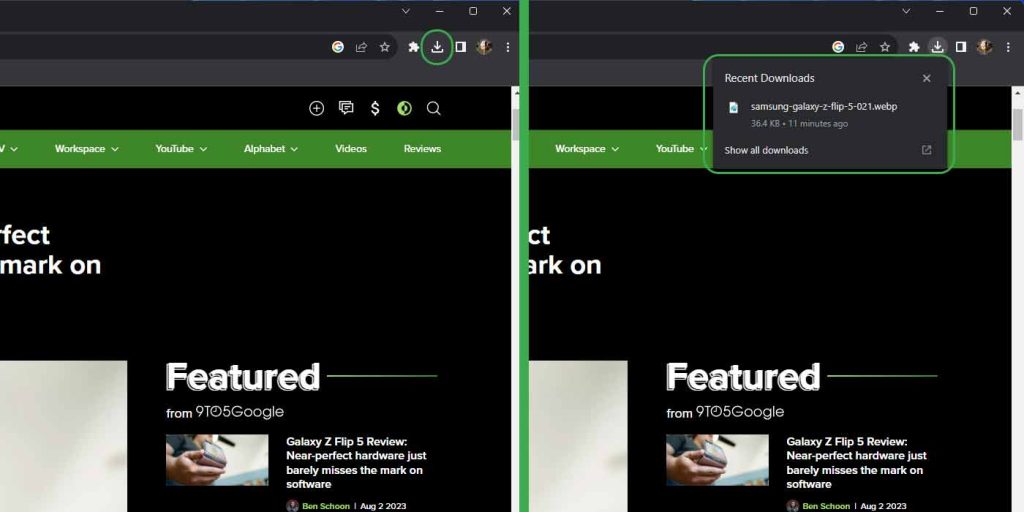
Image source: 9to5Google
Microsoft Edge and Firefox
Microsoft Edge follows a similar pattern to Chrome, utilizing a "Downloads" button in the top toolbar. You can pin this button so it stays visible even when you aren't actively downloading files. Firefox, meanwhile, uses a "Library" system. You can access your recent downloads by clicking the three-line menu icon and selecting "Downloads," or by clicking the arrow icon that appears in the toolbar. According to Mozilla , the download window provides a clean, chronological view of all recent activity.
Safari’s Unique Interface on Mac
Safari handles downloads with a minimalist approach. The download icon (a circle with a downward arrow) only appears in the toolbar when there is an active download or a recent one in the current session. If you close Safari and reopen it, that icon may disappear. To find your history in Safari at any time, use the shortcut
Command + Option + L
. Safari also has a unique behavior where it may automatically open "safe" files, such as PDFs or images, which can sometimes lead users to believe the file wasn't saved when it actually was.
How to Find Recent Downloads on a Windows PC
Windows 10 and 11 offer several ways to access your files, but the Downloads folder remains the primary repository. The standard path is
C:\Users\[YourName]\Downloads
. You can reach this by pressing
Windows Key + E
to open File Explorer and selecting "Downloads" from the Quick Access sidebar on the left.
The Power User Shortcut
For those who want to bypass several clicks, the "Run" command is a highly effective tool. Press
Windows Key + R
, type
shell:Downloads
, and hit Enter. This command works regardless of how your File Explorer is configured and will jump you directly to the folder. This is one of the fastest ways to locate your files when the standard UI feels cluttered.
Fixing the Windows Sorting Bug
A common frustration for Windows users is when recent downloads do not appear at the top of the list, even after clicking the "Date" column. This is often due to Windows' default "Group by" settings, which categorize files into "Today," "Last Week," and "Earlier this Month." To fix this and ensure the newest files are always visible, follow these steps recommended by Windows MVPs:
- Open your Downloads folder and set the View to Details .
- Right-click any empty space, hover over Group by , and select (None) . This removes the annoying date headers.
- Click the Date Created column header (you may need to right-click the headers and add "Date Created" if it isn't visible).
- Ensure the arrow is pointing down for Descending order.
According to Microsoft Learn , using "Date Created" instead of just "Date" is more reliable because "Date" can be modified by file edits, whereas "Date Created" remains static to the moment the file landed on your PC.
Where to Find Downloaded Files on a Mac
macOS provides a very consistent experience for finding files. The Downloads folder is located in your User directory, and there are three primary ways to access it quickly.
Open any Finder window (Cmd + N) and look for the Downloads icon in the Favorites section on the left. This is the standard method for most users.
By default, macOS places a Downloads "stack" next to the Trash in your Dock. Clicking this provides a fan or grid view of your most recent files for one-click access.
If your folder is a mess, press Cmd + Space and type the filename. Spotlight is exceptionally strong at indexing downloads by content and metadata.
One nuance of macOS is how it handles different file types. If you download an application (.dmg), it stays in Downloads until you move it to the Applications folder. However, if you download a "safe" file like a PDF, Safari might open it in a Preview window. Even if it opens automatically, the file is still sitting in your Downloads folder unless you manually move it.
How to Access Recent Downloads on iPhone and iPad
Finding downloads on mobile devices was historically difficult, but the introduction of the
Files app
in iOS 11 changed that. On an iPhone or iPad, your browser downloads are centrally managed within this app. To find them, open the Files app, tap the "Browse" tab at the bottom, and navigate to
iCloud Drive > Downloads
or
On My iPhone > Downloads
.
The "Missing File" Problem on iOS
A frequent point of confusion for iPhone users is when a file doesn't appear in the Files app. This usually happens with media. If you long-press an image in Safari and select "Save to Photos," that file goes to the Photos app , not the Files app. Only files where you select "Save to Files" or actual document downloads (like PDFs or Zip files) will appear in the Downloads folder. According to Apple Support , you can also check Safari's own download manager by tapping the "AA" or arrow icon in the search bar to see active progress.
Where to Find Downloads on Android Devices
Android devices vary by manufacturer, but the core logic remains the same. Whether you use a Samsung Galaxy or a Google Pixel, there is a dedicated file management app. On Pixel devices, it is simply called "Files," while Samsung uses "My Files."
Most Android users find that the Files by Google app is a top choice for managing downloads. It categorizes files by type (Images, Videos, Documents) and has a dedicated "Downloads" section that sorts everything chronologically. This is particularly useful because Android apps like WhatsApp or Telegram often create their own sub-folders in the internal storage, making files hard to find. Files by Google aggregates these into a single view.
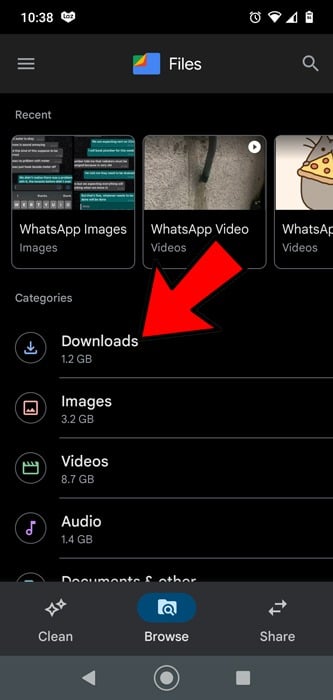
Image source: Make Tech Easier
Why Can't I Find My Recent Downloads?
If you have checked the standard folders and still can't find your file, several technical factors might be at play. Understanding these can save you from the frustration of re-downloading the same file multiple times.
- Failed or Interrupted Downloads
-
Look for files with extensions like
.crdownload(Chrome) or.part(Firefox). These are temporary files. If you see one, it means the download didn't finish. You may need to resume it in your browser's history tab. - Antivirus Quarantine
- Sometimes security software flags a download as suspicious and moves it to a "Vault" or "Quarantine" folder before you even see it. Check your antivirus logs if a file disappears instantly after completion.
- Browser "Save As" Settings
- Check your browser settings to see if "Ask where to save each file before downloading" is toggled on. If it is, and you accidentally hit "Cancel" or picked an obscure folder, the file won't be in the default location.
- Network Issues
- If a download is stuck at 99%, it might be a DNS or router memory leak. A common fix is the "30-second router reset"—unplugging your router for exactly 30 seconds to clear the cache and refresh the connection to your ISP.
How to Organize and Clean Up Your Downloads Folder
The Downloads folder often becomes a "digital junk drawer." To prevent this, many productivity experts recommend the "Zero Downloads" workflow . The core idea is to treat the Downloads folder as a temporary transit zone rather than permanent storage. Once a file is downloaded, it should be moved to its final destination (e.g., a "Work," "Taxes," or "Photos" folder) or deleted immediately after use.
Automated Cleanup Tools
Both Windows and macOS offer built-in tools to help manage clutter. In Windows, you can use Storage Sense (Settings > System > Storage) to automatically delete files in your Downloads folder that haven't been opened in 30 days. On a Mac, you can set Finder preferences to clear the download list after one day, though this only clears the *list* in the browser, not the actual files.
Comparison of Platform Shortcuts
| Platform | Primary Shortcut | Default Folder Path |
|---|---|---|
| Windows (Browser) | Ctrl + J | C:\Users\[User]\Downloads |
| Windows (Explorer) | Win + R > shell:Downloads | N/A |
| macOS (Safari) | Cmd + Opt + L | /Users/[User]/Downloads |
| macOS (Finder) | Cmd + Option + L | Sidebar > Downloads |
| iPhone / iPad | N/A | Files App > iCloud > Downloads |
Frequently Asked Questions
How do I change my default download location?
In Google Chrome, click the three dots in the top right, go to Settings > Downloads , and click "Change" next to the Location field. In Safari on Mac, go to Safari > Settings > General and use the "File download location" dropdown menu. Changing this is a great way to send files directly to your Desktop or a specific cloud-synced folder like Dropbox or OneDrive.
Can I recover a deleted download?
If you deleted the file from your computer, check the Recycle Bin (Windows) or Trash (Mac) first. If you cleared the file but still have the browser open, you can often go to your download history (Ctrl+J) and click the original download link to fetch the file again without searching the web for the source page.
Why is my download folder taking so long to load?
This usually happens because Windows is trying to generate "Large Icon" previews for hundreds of files. To speed it up, change the view to List or Details . Additionally, if the folder contains many installers or high-resolution images, Windows may struggle to index them. Moving files to sub-folders or running a disk cleanup can significantly improve performance.
Do downloads stay on my phone forever?
Yes, unless you manually delete them or your phone runs out of storage and triggers an automatic cleanup of "cache" files. On iPhone, files in the "Downloads" folder of iCloud Drive count against your storage limit. It is a good practice to periodically check the Files app or "Files by Google" on Android to delete large installers or documents you no longer need.
Why did my download open automatically and then disappear?
This often happens with "Temporary Files." Some applications open a file in a temporary state to show you a preview. If you don't select "Save As," the file may be purged when you close the application. Always check your browser's download history to see the actual path where the file was stored before it was opened.
Key Takeaways
- Use universal shortcuts like Ctrl + J or Cmd + Shift + J to find browser history instantly.
-
Master the shell command
shell:Downloadsto jump to the Windows folder without clicking through menus. - Fix Windows sorting by setting "Group by" to None and sorting by "Date Created" in descending order.
- Check the Files app on iPhone for documents, but look in the Photos app for saved images.
-
Disable the Chrome bubble
via
chrome://flagsif you prefer the classic bottom-bar download notification. - Adopt the Zero Downloads workflow to keep your device organized and prevent storage bloat.
- Verify file extensions like .crdownload to identify failed or incomplete transfers.
Start by clearing out your current Downloads folder today to create a cleaner, more efficient digital workspace.
-
Topic: Where to find downloads on your iPhone or iPadhttps://support.apple.com/en-us/102440
-
Topic: Most recent files not showing up at the top in my ...https://learn.microsoft.com/en-us/answers/questions/4330857/most-recent-files-not-showing-up-at-the-top-in-my
-
Topic: Where downloads appear in the browser - Google Chrome ...https://support.google.com/chrome/thread/242125369/where-downloads-appear-in-the-browser?hl=en

How to Access, Manage, and Fix Internal Storage on Your Device
Learn how to access internal storage, clear system data, and fix storage full errors on Android and iPhone. Manage WhatsApp bloat and hidden files.

How to Find and Use Apple Game Center on Your iPhone and Mac
Learn how to access the new Games app, fix sign-in errors, and manage your Apple Game Center profile and achievements on iPhone, Mac, and iPad.


How to Choose the Best Music Player App for Your Offline Library
Find a top-rated music player app for Android and iOS. Compare ad-free MP3 players, FLAC support, and learn to sync your local library.