
How to Get a Google API Key and Secure It for Gemini, Maps, or Cloud
To get a Google API key, you must visit one of two primary portals depending on your project:
- For Gemini AI: Go to Google AI Studio . This is the fastest path for developers building AI-driven applications.
- For Maps, YouTube, or Cloud Services: Use the Google Cloud Console . This provides enterprise-grade control and granular billing management.
Critical Note: As of August 2026, all Gemini API users should be transitioning to Authorization Keys to meet the mandatory September 2026 security deadline.
Navigating the Google ecosystem to obtain an API key can feel overwhelming due to the fragmentation between different platforms. Whether you are integrating a map into a local business website, pulling data from YouTube, or building a sophisticated chatbot using the Gemini 1.5 Pro model, the process starts with a unique alphanumeric string known as an API key. While the key itself is generated at no cost, the services it facilitates often operate on a usage-based billing model.
In this guide, we will walk through the specific steps to generate these credentials, explain the vital security restrictions needed to prevent financial loss, and address the technical transitions occurring in 2026 that affect how these keys function in production environments.
Which Google API Key Do You Actually Need?
Before you begin clicking through menus, it is essential to identify which environment matches your development goals. Google has split its API management into three distinct dashboards, each serving a specific audience. Choosing the wrong one can lead to unnecessary complexity or missing features.
The Three Primary Dashboards
- Google AI Studio: Designed for rapid prototyping with Gemini. It is a lightweight interface that sits on top of Google Cloud projects but removes much of the enterprise overhead. It is widely considered a top choice for individual developers and AI researchers.
- Google Cloud Console: The full-scale management hub for over 200 Google services, including the Maps JavaScript API, Vision API, and BigQuery. This is where you manage billing, IAM (Identity and Access Management) roles, and complex project structures.
- Firebase Console: Specifically for mobile and web app developers. When you create a key here, Google often enables a suite of 24 default APIs to ensure the Firebase SDKs work out of the box.
| Feature | Google AI Studio | Google Cloud Console | Firebase Console |
|---|---|---|---|
| Primary Use | Gemini / AI Models | Maps, YouTube, Enterprise | Mobile/Web App Backend |
| Setup Speed | Fastest (Seconds) | Moderate (Minutes) | Moderate (Minutes) |
| Key Type | Auth Keys (Default) | Standard API Keys | Standard API Keys |
| Billing Required? | No (for free tier) | Yes (for most APIs) | Yes (for Blaze plan) |
According to official Google AI documentation , the Gemini API is increasingly prioritizing Authorization Keys over Standard keys. If you are starting a new AI project today, AI Studio is the recommended starting point to ensure compatibility with future security standards.
How to Generate a Google API Key in the Cloud Console
The Google Cloud Console is the standard environment for most professional integrations. If you need a key for Google Maps or YouTube, follow these steps to ensure your project is configured correctly.
Step 1: Create or Select a Project
All API keys must belong to a "Project." A project acts as a container for your resources, billing, and permissions. Navigate to the project selector in the top navigation bar and click "New Project." Give it a descriptive name like "Production-Maps-Web-App" to distinguish it from testing environments.
Step 2: Enable the Specific API
A common mistake is generating a key without enabling the service it is meant to call. Even with a valid key, your requests will fail with a
403 Forbidden
error if the API is not active. Go to
APIs & Services > Library
. Search for the service you need (e.g., "Maps JavaScript API") and click
Enable
. This step is mandatory for every service you plan to use.
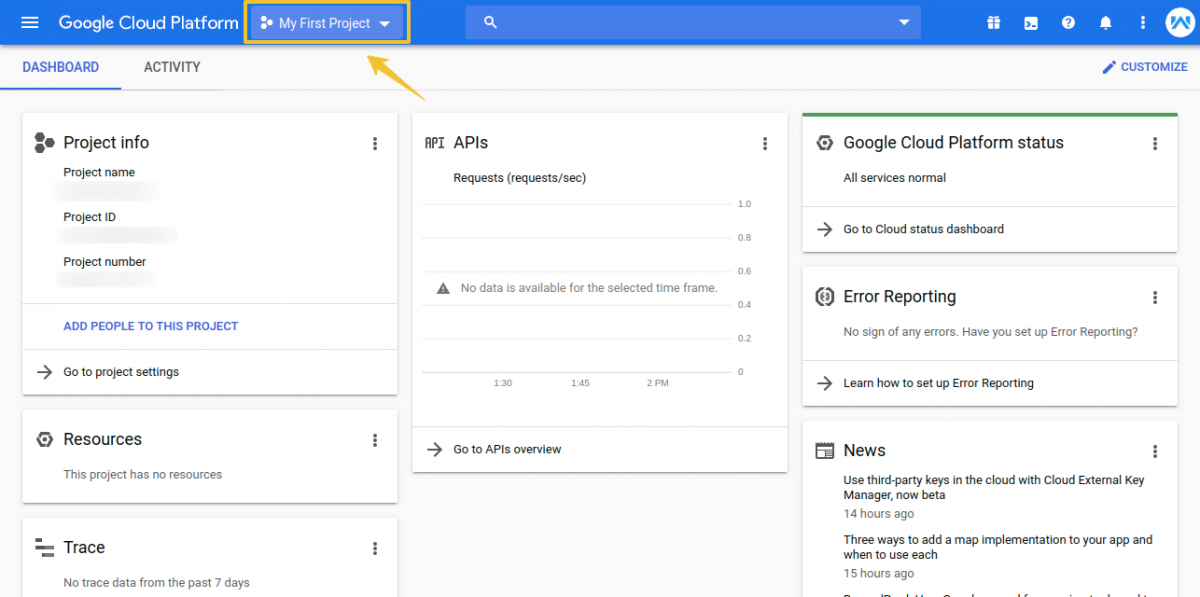
Image source: Webkul
Step 3: Create the Credentials
- Navigate to APIs & Services > Credentials in the left-hand sidebar.
- Click the + Create Credentials button at the top of the screen.
- Select API Key from the dropdown menu.
- A dialog box will appear with your new key. Do not close this yet. You must immediately click "Edit Key" or "Restrict Key" to secure it.
While the key is now active, leaving it "Unrestricted" is a significant security risk. An unrestricted key can be stolen from your website's source code and used by third parties, potentially leading to thousands of dollars in unauthorized charges on your billing account.
Getting a Gemini API Key in Google AI Studio
For developers focused on generative AI, Google AI Studio offers a significantly more streamlined experience. It removes the need to navigate the complex IAM hierarchies of the full Cloud Console, making it a top-tier option for rapid development.
The Lightweight Path
When you visit Google AI Studio , you can generate a key with a single click. These keys are automatically associated with a "default" Google Cloud project created in the background. This allows you to start prompting Gemini 1.5 Flash or Pro immediately without setting up a billing account, provided you stay within the free tier limits.
Standard vs. Authorization Keys
In 2026, the distinction between key types has become critical. Standard API keys simply identify the project making the request. However, Authorization Keys (Auth Keys) are bound to specific service accounts. As noted in recent Google Cloud security updates , Auth keys provide "fast-acting leaked key enforcement." If Google's systems detect your Auth key has been published to a public GitHub repository, it can be revoked almost instantly, whereas Standard keys may have a longer enforcement lag.
Environment Variable Best Practices
To avoid hardcoding your key into your scripts—a primary cause of credential leaks—you should store it as an environment variable. In your terminal, you can set it like this:
export GOOGLE_API_KEY="your_actual_key_here"
Gemini client libraries for Python, Node.js, and Go are programmed to look for the
GOOGLE_API_KEY
variable by default. If you also have
GEMINI_API_KEY
set, most libraries will prioritize the
GOOGLE_API_KEY
value, so consistency in naming is important for troubleshooting.
Why Your Google API Key Is Not Working
Even after following the setup steps, many developers encounter errors. Addressing these "Ghost Key" and "Billing Lag" issues requires looking beyond the basic documentation.
The "Billing Lag" Phenomenon
One of the most frequent complaints in developer communities is that a key remains inactive even after a balance is paid. This often occurs because the billing account is not explicitly linked to the specific project. Paying your overall Google Cloud bill does not automatically re-enable a suspended project. You must navigate to Billing > Account Management and ensure the project in question is listed under the active billing account. According to user reports, it can take up to 24 hours for services to resume after a billing link is restored.
The Greyed-Out "Create" Button
If you find that the "Create Credentials" button is disabled, you are likely facing a permission deadlock. To create an API key, your user account requires five specific IAM permissions that are not always included in standard "Editor" roles:
-
resourcemanager.projects.get -
apikeys.keys.create -
serviceusage.services.enable -
iam.serviceAccounts.create -
iam.serviceAccountApiKeyBindings.create
If you are working within a corporate organization, you will need to ask your Workspace Administrator to grant you these specific permissions or assign the "API Keys Admin" role.
The "Ghost Key" Issue
Some developers report that their applications are successfully using an API key that does not appear in their Cloud Console dashboard. This "Ghost Key" phenomenon usually happens when a project was migrated between organizations or when a key was created via a third-party integration (like a WordPress plugin) that used a different project ID. To find these keys, you may need to use the
gcloud
CLI to list all keys across all projects you have access to.
Essential Security Steps to Prevent Unauthorized Billing
Security is not just a best practice; it is a financial necessity. A leaked Maps key can be used to scrape location data at your expense, while a leaked Gemini key could allow others to train models using your tokens.
Implementing Application Restrictions
Application restrictions define where the key can be used. You should never leave this set to "None."
-
HTTP Referrers:
For web apps, lock the key to your specific domain (e.g.,
*.yourwebsite.com/*). This prevents other websites from using your key in their own code. - IP Addresses: For server-side scripts or cron jobs, restrict the key to your server's static IP.
- Android/iOS Apps: Use the SHA-1 fingerprint of your app's signing certificate to ensure only your official app build can make requests.
API Restrictions: The Second Layer
API restrictions define what the key can do. A top-tier security strategy involves creating a separate key for every service. For example, do not use the same key for Google Maps and the Gemini API. If your Maps key is compromised via a frontend leak, the attacker would still be unable to access your AI models if you have properly restricted that key to only the "Maps JavaScript API."
The September 2026 Gemini Transition Explained
Google has announced a significant shift in how AI credentials are handled. This transition is designed to move the industry toward more secure, identity-based authentication.
401 Unauthorized
errors.
The primary reason for this change is granular control. Standard keys are "all or nothing." Authorization keys, however, allow you to use IAM policies to say, "This key can only use Gemini 1.5 Flash, but not Gemini 1.5 Pro," or "This key can only be used between 9 AM and 5 PM."
How to Audit Your Exposure
You can use the
gcloud
CLI to check if your current keys are at risk of expiring in 2026. Run the following command to see the metadata of your keys:
gcloud alpha services api-keys list --project=[YOUR_PROJECT_ID]
Look for the
keyType
field. If it says
STANDARD
, you should begin the migration process to an
AUTH_KEY
or Service Account credential as soon as possible to avoid production downtime.
Advanced Key Management for Production Environments
For enterprise-level applications, simply restricting a key is not enough. You must manage the lifecycle of the credential itself.
Moving Beyond Hardcoding: Google Secret Manager
Instead of storing keys in
.env
files that might accidentally be committed to version control, professional teams use
Google Secret Manager
. This service encrypts your API keys at rest and allows your application to fetch them at runtime using a secure identity. This means the actual API key string never exists on a developer's local machine or in the application's source code.
Key Rotation Strategy
Security experts recommend rotating your API keys every 90 days. The Google Cloud Console makes this easier with the "Rotate Key" feature. When you rotate a key, Google generates a new string but keeps the old one active for a 24-hour "grace period." This allows you to update your application code and deploy it without any service interruption. Once the new key is confirmed to be working, you can manually delete the old one.
Frequently Asked Questions
The generation of the API key string is free, and Google does not charge for the credential itself. However, the services you access with that key often have costs. For instance, Google Maps Platform provides a $200 monthly credit, but usage beyond that is billed. Gemini has a free tier for developers, but high-volume production use requires a paid plan. Always check the specific pricing page for the API you are enabling.
It depends on the platform. If you use Google AI Studio for Gemini, you can get a key without a credit card for the free tier. However, if you use the Google Cloud Console for Maps or YouTube, you are generally required to link a valid billing instrument (credit card or bank account) even if you only intend to stay within the free usage limits.
Google typically allows up to 300 API keys per project. However, having this many keys is generally considered a poor practice. A more effective strategy is to have one key per platform (e.g., one for your iOS app, one for your Android app, and one for your website). This makes it much easier to identify the source of a leak if one occurs.
Technically, yes, you can enable multiple APIs (like Maps and YouTube) and use a single unrestricted key for both. However, this is a significant security risk. If that key is compromised, the attacker gains access to every service enabled on it. It is widely regarded as a best practice to use "API Restrictions" to limit each key to exactly one service.
If you suspect your key has been compromised, you must act immediately. First, go to the Credentials dashboard and "Restrict" the key if you haven't already. Second, generate a new API key and update your application code. Finally, delete the old, compromised key. You should also check your billing dashboard for any unusual spikes in usage and contact Google Cloud Support if you find unauthorized charges.
Securing a Google API key is a foundational step for modern web and AI development. By following a structured approach, you can ensure your applications remain functional and your billing remains protected.
- Choose the right portal: Use AI Studio for Gemini and Cloud Console for Maps or YouTube.
- Enable before you create: Always enable the specific API in the Library before generating credentials.
- Apply dual restrictions: Lock your keys by both Application (URL/IP) and API (Service type).
- Audit Firebase keys: Manually disable the 24 default APIs that Firebase enables by default.
- Prepare for 2026: Migrate Gemini integrations to Authorization Keys before the September 2026 deadline.
- Use Secret Manager: Avoid hardcoding keys in your source code to prevent accidental leaks.
Start by auditing your current keys in the Google Cloud Console to ensure no "Unrestricted" credentials are currently active in your production environment.

How to Get Gemini Advanced Free with Student Verification
Get Gemini Advanced for free with student verification. Fix ineligible errors, bind cards, and maximize your 1-year Google AI Premium subscription.

How to Use Google AI Studio to Build and Prototype with Gemini 1.5 Pro
Master Google AI Studio for Gemini 1.5 Pro. Fix access issues, understand privacy tiers, and build apps with Vibe Coding.


How to Use the new.slides Shortcut to Create Google Slides Instantly
Use new.slides to launch Google Slides instantly. Learn Gemini AI workflows, account-switching hacks, and 2026 template tips in this guide.