Why Is My Camera Not Working? How to Fix Your Camera on Any Device
If your camera is not working, the issue typically stems from physical obstructions , privacy permissions , or outdated drivers . Before diving into complex repairs, perform these three steps: 1. Check for a physical privacy slider or lens smudge. 2. Restart your device to clear temporary software glitches. 3. Verify that your operating system has granted the specific app permission to access the camera hardware. Most black screen issues are resolved by these simple actions.
Few technical issues are as frustrating as a camera failure right before an important video call or a once-in-a-lifetime photo opportunity. Whether you are facing a persistent black screen, an "app not found" error, or a blurry image that refuses to focus, the root cause is often less catastrophic than it seems. Camera systems are a complex interplay between delicate hardware sensors and deep-level software permissions.
This guide provides a comprehensive diagnostic hub to help you identify why your camera is not working across Windows, iOS, Android, and even vehicle systems. By following a structured triage process, you can determine if your device requires a simple settings adjustment or a professional hardware repair.
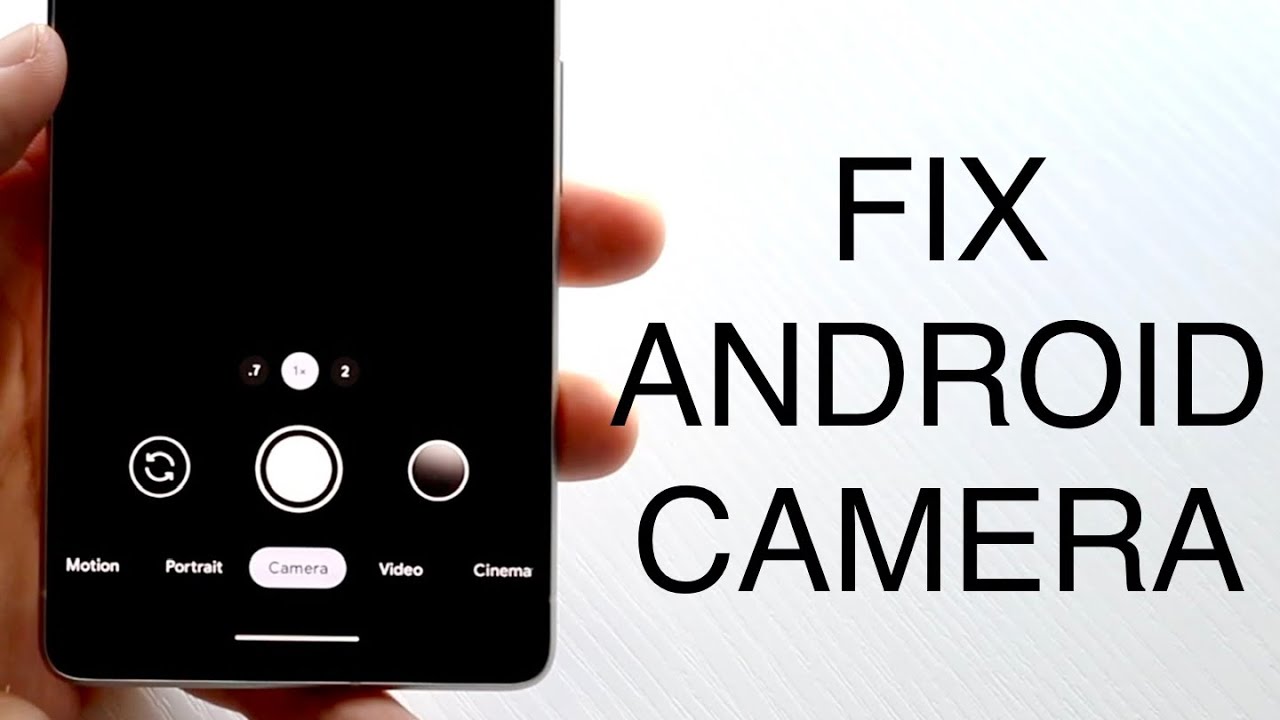
Image source: YouTube
The 60-Second Quick Check
Before exploring deep system settings, rule out the most common "hidden" culprits. Many modern laptops and webcams feature physical security measures that are easily overlooked.
- Check for Physical Privacy Shutters: Many recent laptop models from Lenovo, HP, and Dell include a tiny sliding plastic cover over the webcam lens. If you see a solid red or black circle where the lens should be, slide the shutter open.
- Clean the Lens: A smudge of finger oil or pocket lint can scatter light so severely that the sensor appears to be failing. Use a clean microfiber cloth to gently wipe the lens.
- The Universal Restart: It sounds cliché, but restarting your device reinitializes the camera driver and releases any "locks" placed on the hardware by background processes that may have crashed.
According to Microsoft Support , physical switches and privacy settings are among the most frequent reasons users report camera failures in Windows 10 and 11.
How to Tell if Your Camera Problem Is Software or Hardware
Determining the nature of the failure is the most critical step in your triage. Software issues can be fixed for free in minutes, while hardware failures may require a component replacement.
| Symptom | Likely Cause | First Action |
|---|---|---|
| App crashes immediately upon opening | Software / Permission | Clear app cache/Reset permissions |
| Black screen but UI buttons are visible | Software / Privacy Switch | Check privacy slider or driver |
| Purple lines, static, or permanent blur | Hardware Damage | Inspect for lens cracks |
| "Camera Not Found" error code | Driver / Connection | Reinstall driver in Device Manager |
The Flashlight Test
For smartphone users, a simple way to test hardware vitality is the "Flashlight Test." On an iPhone or Android device, try to turn on the LED flashlight from the control center. If the flashlight refuses to turn on or the icon is grayed out, it often indicates that the entire camera module is not receiving power or has been disabled by the system due to a hardware fault. If the flashlight works but the camera app shows a black screen, the problem is more likely isolated to the sensor or the software layer.
Safe Mode Isolation
If you suspect a third-party app (like a recently installed QR scanner or social media filter) is hijacking your camera, boot your device into Safe Mode. In Safe Mode, only essential system apps run. If the camera works perfectly in Safe Mode, you have confirmed that a third-party application is the culprit and should be uninstalled.
Fix Your Camera on Windows 10 and Windows 11 Laptops
Windows camera issues are frequently tied to the complex permission architecture introduced in recent updates. Even if the hardware is functional, Windows may block access to protect your privacy.

Image source: YouTube
Check Your Privacy and App Permissions
Navigate to
Settings > Privacy & security > Camera
. Ensure that "Camera access" is toggled to
On
. Crucially, scroll down to "Let desktop apps access your camera." Many users find that while the main switch is on, this specific toggle is off, preventing programs like Zoom, Microsoft Teams, or Slack from seeing the hardware.
Use the Device Manager for Driver Triage
If the software settings are correct but the camera remains unresponsive, the driver—the software that allows Windows to talk to the camera—may be corrupted. Right-click the Start button and select Device Manager . Expand the "Cameras" or "Imaging devices" section. If you see a yellow exclamation mark, right-click the device and select "Uninstall device." Restart your computer; Windows will automatically attempt to reinstall a clean version of the driver upon reboot.
If manufacturer-specific drivers continue to fail, you can manually switch to the generic "USB Video Device" driver. In Device Manager, right-click your camera > Update Driver > Browse my computer > Let me pick from a list. Select "USB Video Device." This ranks among the top methods for restoring basic functionality, though it may disable specialized features like Windows Hello facial recognition.
Physical Kill-Switches and Function Keys
Modern laptops often have an "electronic kill-switch." Look at your keyboard's top row (F1-F12). Look for an icon that looks like a camera with a slash through it. Pressing this key (sometimes in combination with the 'Fn' key) electronically disconnects the camera. Windows will often report this as "Camera not connected," leading users to believe the hardware has died.
Fix Your iPhone or iPad Camera Issues
Apple devices are known for their tightly integrated hardware, but they are not immune to glitches. Most iOS camera issues are related to environmental factors or software states.
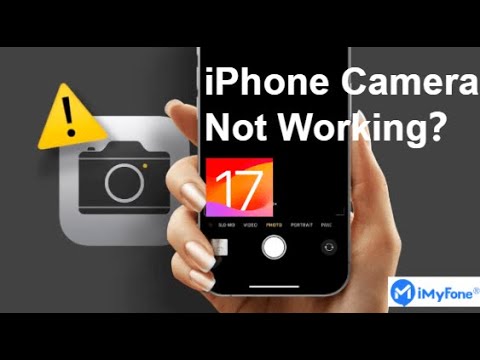
Image source: YouTube
Remove Magnetic Accessories and Metallic Cases
A little-known fact highlighted by Apple Support is that magnets can interfere with the Optical Image Stabilization (OIS) in your iPhone. If you use a magnetic lens attachment or a heavy-duty metallic case, the magnets can cause the internal lens to vibrate or fail to focus, resulting in a blurry or black image. Remove all accessories and test the camera again.
Force Restarting the Camera App vs. The Device
If the camera app is frozen, swipe up from the bottom of the screen and hold to see the App Switcher, then swipe the Camera app away to kill the process. If this fails, perform a hard reset. For most modern iPhones, this involves quickly pressing Volume Up, then Volume Down, then holding the Side Button until the Apple logo appears. This clears the system's temporary memory and reinitializes the camera sensor's power state.
Fix Your Android Phone Camera "Warning: Camera Failed" Errors
Android devices offer more flexibility but can suffer from "permission hijacking" where one app refuses to release the camera for use by another.
Clear Cache vs. Clear Data
If your camera app is acting up, navigate to
Settings > Apps > Camera > Storage
. You will see two options: "Clear Cache" and "Clear Data." Clearing the cache is a safe first step. If that fails, "Clear Data" will reset the camera app to its factory settings.
Note:
This will not delete your photos, but it will reset your preferences, such as resolution settings or timer defaults.
The Loose Connector Reality
For older Android phones or those with plastic backs, a minor drop can sometimes unseat the internal ribbon cable that connects the camera module to the motherboard. Community repair forums often suggest that if a phone shows a "Camera Failed" message after a drop, the connector might simply be loose. While a professional repair is recommended, this insight helps explain why software fixes sometimes fail to resolve the issue on older hardware.
Why Your Camera Isn't Working in Chrome or Safari
Sometimes the camera works in the dedicated app but fails within a web browser. This is almost always a security-related block.
"Web browsers require an encrypted connection (HTTPS) to access your camera. If you are visiting an older 'HTTP' site, the browser will block camera access by default to prevent unauthorized streaming."
Browser-Level Permissions
When you are on a site like Google Meet or Zoom in your browser, look at the address bar. Click the Lock icon (or the settings icon) to the left of the URL. Ensure that the "Camera" toggle is set to "Allow." If it is already allowed but not working, try clicking "Reset permission" and refreshing the page to trigger the prompt again.
Antivirus and Firewall Webcam Protection
Security suites like Bitdefender, Kaspersky, or Norton often include a "Webcam Protection" feature. This software acts as a gatekeeper, blocking any application—including your browser—from accessing the camera unless you explicitly whitelist it. Check your antivirus settings to ensure it isn't silently blocking your video stream.
Troubleshooting Car Backup Cameras
If your vehicle's backup camera is showing a black screen or a "No Signal" message, the troubleshooting steps differ significantly from consumer electronics.
Common Causes for a Black Backup Screen
Unlike smartphones, car cameras are exposed to extreme weather. A blurry image is often caused by a failed seal that has allowed moisture to condense inside the lens. A total black screen, however, often points to the Totally Integrated Power Module (TIPM) or a blown fuse. According to discussions on Jeep Garage , wiring harnesses that run through the trunk or tailgate are prone to fraying over time due to the constant opening and closing of the rear hatch.
When to Give Up and Seek Professional Repair
If you have performed a factory reset and the camera still shows a black screen or a "Hardware Not Found" error, the sensor itself may have reached the end of its lifespan. Digital sensors are sensitive to heat and physical shock. If you see permanent purple tinting or "dead pixels" (static dots that never move), the sensor is likely damaged beyond software repair. For older devices, the cost of replacing a camera module may exceed the value of the device, making a replacement a more logical choice.
Key Takeaways for Fixing Your Camera
- Inspect the hardware for physical shutters, dirt, or magnetic interference from cases.
- Perform a full restart to clear temporary software locks and driver glitches.
- Verify privacy settings in your OS to ensure apps have permission to use the sensor.
- Update or reinstall drivers via the Device Manager on Windows systems.
- Test in Safe Mode to identify if a third-party app is causing the conflict.
- Check browser settings for HTTPS requirements and site-specific permissions.
- Consider hardware failure if the LED flash/flashlight also fails to function.
Most camera issues are resolved through these software-based steps; if the problem persists after a factory reset, consult a certified technician for a hardware diagnostic.
Frequently Asked Questions
Why is my camera showing a black screen but the app is open?
A black screen usually indicates that the app is running but cannot receive a video feed. This is commonly caused by a physical privacy shutter being closed, another app already using the camera in the background, or a privacy setting in Windows or macOS that is blocking the feed. Check your physical lens and privacy permissions first.
Can a low battery prevent my camera from working?
Yes, many smartphones and laptops enter a "Power Saving Mode" when the battery drops below a certain percentage (typically 5% to 10%). In this state, the system may disable high-drain hardware like the camera sensor or the flash to preserve the remaining power for essential functions. Plug in your device and try again.
How do I reset my camera settings to default?
On Android, go to Settings > Apps > Camera > Storage and select "Clear Data." On an iPhone, there is no specific "Reset Camera" button, but you can go to Settings > General > Transfer or Reset iPhone > Reset > Reset All Settings. This will return your camera and system preferences to factory defaults without deleting your photos.
Why does my camera work in Zoom but not in my web browser?
This is typically a browser permission issue. Browsers like Chrome and Safari require you to grant permission for each specific website. Click the lock icon in the address bar to check permissions. Additionally, ensure the website is using a secure HTTPS connection, as most browsers block camera access on unencrypted HTTP sites.
Is it safe to replace a phone camera myself?
Replacing a camera module is a delicate process that involves opening the device and handling tiny ribbon cables. While it is possible for those with the right tools and patience, modern smartphones are often held together with strong adhesives that require heat to remove. If your device is under warranty, a DIY attempt will void it. For most users, professional repair is a safer choice.
- UVC (USB Video Class)
- A standard protocol that allows video devices to work with computers without needing to install manual drivers. Most modern webcams are UVC-compliant.
- OIS (Optical Image Stabilization)
- A hardware mechanism that moves the camera lens to compensate for hand tremors. It can be disrupted by external magnets.
- TIPM (Totally Integrated Power Module)
- The computer-controlled fuse box in many modern vehicles that manages power distribution to components like the backup camera.
-
Topic: If the camera or flash on your iPhone, iPad, or iPod touch ...https://support.apple.com/en-us/102514
-
Topic: How To Fix Camera Not Working On Android Phonehttps://www.youtube.com/watch?v=WEWWxwrBfpY
-
Topic: Camera doesn't work in Windowshttps://support.microsoft.com/en-us/windows/hardware/camera/camera-doesn-t-work-in-windows

How to Record Your iPhone Screen With or Without Audio
Learn to record your iPhone screen with audio. Fix missing buttons, black screens, and iOS 18 bugs on iPhone 16 and older models.


How to Test Your Webcam and Fix Common Video Quality Issues
Quickly test your webcam online, troubleshoot black screens, and optimize video quality for Zoom or Teams on Windows, Mac, and Linux.

How to Access, Manage, and Fix Internal Storage on Your Device
Learn how to access internal storage, clear system data, and fix storage full errors on Android and iPhone. Manage WhatsApp bloat and hidden files.