How to Fix the DPC Watchdog Violation Blue Screen Error in Windows
The DPC Watchdog Violation (Error Code 0x00000133) is typically caused by a driver or hardware component that fails to complete its task within the allotted time frame. To resolve this immediately, update your SATA AHCI controller driver to the "Standard" version, check for SSD firmware updates , and disconnect non-essential USB peripherals. If the crash persists, use WinDbg to identify the specific kernel-level driver causing the timeout.
What Is a DPC Watchdog Violation and Why Does It Happen?
In the complex architecture of the Windows operating system, the Deferred Procedure Call (DPC) mechanism plays a vital role in managing system efficiency. When hardware requires attention, it issues an interrupt. However, to keep the system responsive, Windows defers lower-priority tasks to a DPC queue. The "Watchdog" is a background timer that monitors these tasks to ensure they don't hog the processor for too long.
According to technical documentation, the system expects DPC routines to execute within a very tight window—often cited as the 100-microsecond rule . If a driver or software process exceeds this threshold or if the system remains at a high interrupt level for an extended period, the Watchdog timer triggers a Blue Screen of Death (BSOD) to prevent a total system lockup. This results in the 0x133 bug check code.
While this error can feel catastrophic, it is rarely a sign of permanent hardware failure. Instead, it usually points to a "timing" conflict where a driver is waiting for a response that never comes, or a piece of software is interfering with kernel-level operations. Common culprits include outdated Solid State Drive (SSD) firmware, incompatible network drivers, and even third-party security software that operates deep within the Windows kernel.
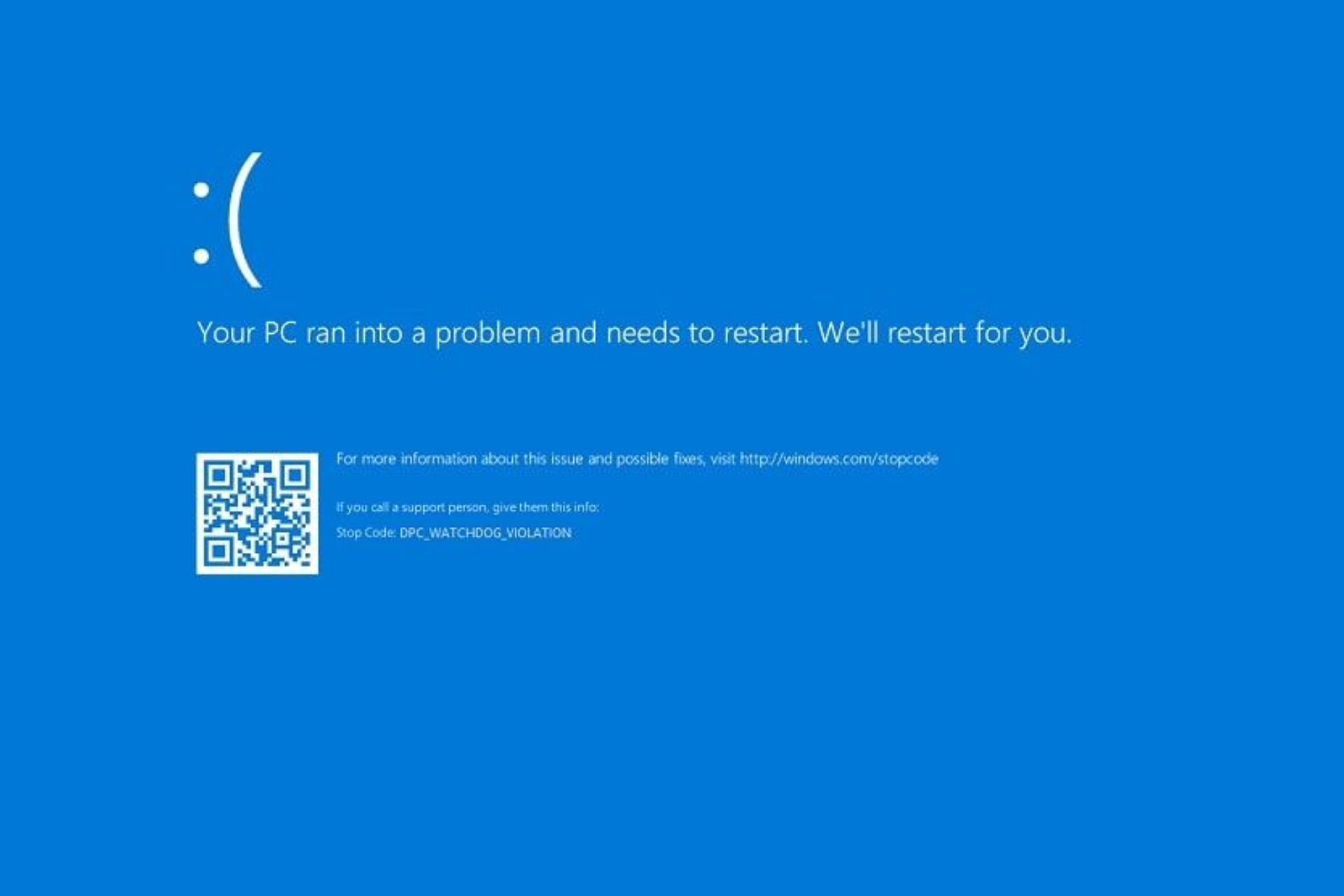
Image source: Windows Report
Start With These Quick Fixes to Stop the Crashing Immediately
Before diving into advanced diagnostics, you should rule out simple environmental factors that frequently trigger timing instabilities. These steps are designed to stabilize the system so you can perform more permanent repairs.
Disconnect External Peripherals
External hardware like webcams, printers, and especially external hard drives can cause DPC timeouts if their drivers are poorly optimized for modern Windows power states. Unplug everything except your mouse and keyboard, then restart your computer. If the crashes stop, reconnect devices one by one to identify the offender.
Disable Overclocking and Revert BIOS Settings
If you have manually adjusted your CPU or RAM speeds, you may have introduced subtle timing errors that the Watchdog timer detects as a violation. Intel recommends reverting your BIOS or UEFI settings to their default values to rule out hardware instability. Look for "Load Setup Defaults" or "Reset to Optimized Defaults" in your BIOS menu.
Boot into Safe Mode
Safe Mode loads only the essential drivers required for Windows to run. If your PC is stable in Safe Mode, you can be confident that the issue is a third-party driver or software conflict rather than a core hardware failure. To enter Safe Mode, hold the Shift key while clicking Restart from the Power menu, then navigate to Troubleshoot > Advanced options > Startup Settings > Restart and press 4 or F4.
How to Update the SATA AHCI Controller Driver Manually
One of the most effective solutions for the DPC Watchdog Violation involves the SATA AHCI controller . Many systems ship with manufacturer-specific drivers (like Intel Rapid Storage Technology) that can occasionally fall out of sync with Windows updates, leading to SSD communication delays.
Switching to the "Standard" Windows driver is widely considered a top choice for stability. Follow these steps to perform the manual override:
- Press Windows Key + X and select Device Manager .
- Expand the IDE ATA/ATAPI controllers section.
- Right-click on the controller (e.g., "Intel(R) 6th Generation Core Processor Family Platform I/O SATA AHCI Controller") and select Update driver .
- Choose Browse my computer for drivers .
- Select Let me pick from a list of available drivers on my computer .
- Choose Standard SATA AHCI Controller from the list and click Next .
- Restart your computer to apply the changes.
Check Your SSD Firmware and Hardware Health
Because the DPC Watchdog Violation is so closely tied to storage timing, an SSD with outdated firmware is a frequent culprit. Firmware is the low-level software that tells the drive how to communicate with the motherboard. If the firmware has a bug that causes it to "hang" for even a fraction of a second, Windows will trigger a BSOD.
Using Manufacturer Tools
Most major SSD brands provide dedicated software to manage health and updates. You should download the tool specific to your drive brand:
- Samsung: Samsung Magician
- Crucial: Storage Executive
- Western Digital: WD Dashboard
- Kingston: SSD Manager
Monitoring SMART Thresholds
If your firmware is up to date but the crashes continue, your drive might be physically failing. Use a tool like CrystalDiskInfo to check the SMART (Self-Monitoring, Analysis, and Reporting Technology) status. Pay close attention to the "Health Status" indicator.
| Health Status | Meaning | Recommended Action |
|---|---|---|
| Good | Drive is operating within normal parameters. | Focus on software and driver fixes. |
| Caution | Reallocated sectors or wear-leveling issues detected. | Back up data immediately; replace the drive soon. |
| Bad | Drive failure is imminent or has already occurred. | Replace hardware immediately. |
How to Use WinDbg to Find the Specific Driver Causing the Crash
When generic fixes fail, you must stop guessing and start analyzing. WinDbg (Windows Debugger) is a powerful tool provided by Microsoft that can read the "minidump" files created during a crash to tell you exactly which file failed.
Step-by-Step Minidump Analysis
- Download WinDbg Preview from the Microsoft Store.
- Launch WinDbg as an Administrator .
- Go to File > Start debugging > Open dump file .
-
Navigate to
C:\Windows\Minidumpand select the most recent.dmpfile. -
In the command bar at the bottom, type
!analyze -vand press Enter. - Wait for the analysis to complete. Look for the MODULE_NAME or IMAGE_NAME fields.
If the analysis points to
ntoskrnl.exe
, the error is generic. However, if it points to a specific file like
nvlddmkm.sys
(Nvidia),
rtwlane.sys
(Realtek), or
iqvw64e.sys
(Corsair), you have found your culprit. You can then focus on updating or removing that specific driver.

Image source: Microsoft Learn
Fixing Conflicts With Anti-Cheat Software and VPNs
In recent years, a significant number of DPC Watchdog errors have been traced back to kernel-level software used in gaming and security. Because these programs operate at the same priority level as hardware drivers, they can easily interfere with the Watchdog timer.
The Kernel-Level Problem
Software like Riot Vanguard (Valorant) or Easy Anti-Cheat runs from the moment your computer boots. If these programs are outdated, they may conflict with Windows Security features like Memory Integrity (HVCI). Many users find that disabling "Memory Integrity" in the Windows Security > Device Security > Core Isolation menu resolves the conflict, though this does slightly reduce system security.
VPN and Network Drivers
Network-level drivers, particularly those used by Bitdefender VPN or older Cisco clients, are known to hog DPC time during high-bandwidth tasks. If your BSOD occurs while downloading files or streaming, try uninstalling your VPN software temporarily to see if the system stabilizes. According to Microsoft community reports , updating these specific network components is often the key to a permanent fix.
Use Windows Driver Verifier to Identify Intermittent Failures
If your crashes are random and WinDbg is inconclusive, you can use Driver Verifier . This tool is built into Windows and is designed to "stress test" drivers to force a crash if any illegal operations are detected. This makes the resulting dump file much more accurate.
To start the process, open Command Prompt as Administrator and type:
verifier /standard /all /bootmode resetonbootfail
Restart your computer. If a driver is faulty, Windows will crash during the boot process or shortly after. The blue screen will likely display the name of the driver file. To stop the test, boot into Safe Mode, open Command Prompt, and type
verifier /reset
.
Update Windows and Check for Optional Driver Updates
Microsoft often releases microcode updates and driver stubs through the "Optional Updates" menu. These are not installed automatically but frequently contain the specific fixes needed for DPC timing issues on newer hardware like Intel 12th-14th Gen processors.
Windows 11 Path
Navigate to Settings > Windows Update > Advanced options > Optional updates . Look for any driver updates related to "Intel," "Realtek," or "Firmware."
Windows 10 Path
Navigate to Settings > Update & Security > Windows Update > View optional updates . Expand the "Driver updates" section and install all available items.
Run System File Checker and Check Disk Commands
While less common, corruption within the Windows system files themselves can lead to scheduling errors that trigger the Watchdog. You should run the repair tools in a specific order for the best results.
-
DISM:
Open Command Prompt (Admin) and type
DISM /Online /Cleanup-Image /RestoreHealth. This repairs the local image Windows uses to fix itself. -
SFC:
Type
sfc /scannow. This compares your system files against the healthy image and replaces corrupted ones. -
CHKDSK:
Type
chkdsk /f /r. You will be asked to schedule this for the next restart. This scans the physical surface of your drive for errors.
Frequently Asked Questions
- Is a DPC Watchdog Violation serious hardware damage?
- Usually, no. It is a software-level timing error. However, frequent crashing can lead to data corruption if the system loses power while writing to the disk. It is a signal that your drivers or firmware need immediate attention rather than a sign that your PC is "dying."
- Can faulty RAM cause this specific BSOD?
-
While RAM issues usually trigger codes like
MEMORY_MANAGEMENT, severe memory corruption can lead to DPC timeouts. If driver fixes fail, running MemTest86 for several passes is a recommended diagnostic step to rule out hardware defects. - Why does this error happen specifically when using Wi-Fi?
- This is often caused by aggressive power management settings in the network driver. In Device Manager, right-click your Wi-Fi adapter, go to Properties > Power Management , and uncheck "Allow the computer to turn off this device to save power."
- Do I need to reinstall Windows to fix this?
-
A clean install is a last resort. If WinDbg consistently points to
ntoskrnl.exeand all hardware tests pass, it suggests deep OS corruption thatsfc /scannowcannot fix. In such cases, a fresh installation can provide a clean slate. - What is the difference between an ISR and a DPC?
- An Interrupt Service Routine (ISR) is a high-priority task that stops everything to handle hardware needs immediately. A DPC is a "deferred" task that the ISR schedules to run slightly later at a lower priority. The Watchdog monitors the DPC because it is allowed to run longer, but still has strict limits.
Key Takeaways for Fixing DPC Watchdog Errors
- Update the SATA AHCI driver to the "Standard" version in Device Manager to resolve the most common SSD-related cause.
- Check SSD firmware using manufacturer-specific tools like Samsung Magician or WD Dashboard.
-
Analyze minidumps with WinDbg
to identify the specific
.sysfile responsible for the crash. - Disable kernel-level conflicts by checking anti-cheat software and VPN drivers for updates.
- Revert BIOS settings to default to eliminate timing instabilities caused by overclocking.
- Install optional Windows updates to receive the latest microcode and driver patches from Microsoft.
By following these steps systematically, you can identify whether your DPC Watchdog Violation is a simple driver mismatch or a more complex software conflict requiring targeted removal.
-
Topic: DPC Watchdog Violation BSOD : r/techsupporthttps://www.reddit.com/r/techsupport/comments/16ohs3c/dpc_watchdog_violation_bsod/
-
Topic: DPC WATCHDOG VIOLATION BSOD hitting PC over and ...https://learn.microsoft.com/en-us/answers/questions/3884044/dpc-watchdog-violation-bsod-hitting-pc-over-and-ov
-
Topic: [SOLVED] Windows 11/10 DPC Watchdog Violation Fixhttps://www.youtube.com/watch?v=1lAQcGNVLyE

How to Use CHKDSK Commands to Repair Windows Drive Errors
Fix drive errors with CHKDSK commands like /f and /r. Learn SSD optimization, Event Viewer logs, and Status 50 fixes for Windows 10 and 11.


How to Update Drivers in Windows 10 and 11 for Peak Performance
Learn to update drivers manually or with tools. Fix internet issues, improve FPS, and use clean installs for stability in Windows 10 and 11.


How to Use Disk Cleanup to Safely Free Up Space in Windows 10 and 11
Learn how to use Disk Cleanup in Windows 10 and 11 safely. Clear system files, fix low disk space, and discover modern Storage Sense alternatives.