
How to Update Drivers in Windows 10 and 11 for Peak Performance
To update drivers in 2026, start with Windows Update (Settings > Update & Security) for general stability. For gaming or creative work, download the latest software directly from NVIDIA, AMD, or Intel . If a specific device is failing, use Device Manager to manually search for files or roll back a problematic update. For bulk maintenance, highly rated tools like Driver Booster can automate the process safely.
In the modern computing landscape of 2026, hardware has become incredibly sophisticated, but it still relies on a critical piece of software to function: the driver. Think of your computer hardware as a massive, high-tech factory. The driver is the lead engineer . Without the engineer, the factory workers (your GPU cores, CPU cycles, and Wi-Fi chips) don't know how to coordinate their efforts. An update isn't just a "fix"; it's a new set of blueprints that teaches the engineer more efficient ways to manage the factory floor.
While Windows has become much better at managing these "engineers" automatically, knowing how to manually intervene is essential for troubleshooting, maximizing gaming frame rates, and ensuring system security. This guide explores the most reliable methods to keep your system running smoothly.
Image source: Licendi
Why Your Computer Needs Driver Updates to Stay Fast
Many users follow the philosophy of "if it isn't broken, don't fix it." While this applies to some legacy peripherals, it is a risky strategy for core components. Modern drivers are additive ; they contain cumulative code designed to optimize performance for thousands of individual software titles and applications. According to technical discussions on platforms like Reddit , GPU updates often include specific "game-ready" profiles that can increase performance by significant margins in newly released titles.
The Importance of WHQL Certification
When you see a driver labeled as WHQL (Windows Hardware Quality Labs) , it means Microsoft has rigorously tested that specific version for stability and compatibility. Using WHQL-certified drivers is a top-tier strategy for preventing the dreaded Blue Screen of Death (BSOD). Most automated tools, such as Driver Booster , prioritize these certified versions to ensure user safety.
Security and Kernel-Level Protection
Drivers operate at the "kernel level" of your operating system—the most privileged layer of software. Outdated drivers can harbor vulnerabilities that allow malicious actors to bypass standard security measures. Regular updates often include patches for these deep-level security flaws, making driver maintenance a key part of your overall cybersecurity hygiene.
How to Update Drivers Using Windows Update
For the vast majority of users, Windows Update is the safest and most convenient path. Microsoft works closely with manufacturers like HP, Dell, and Logitech to distribute stable versions of their software directly through the OS.
- Open Settings: Click the Start button and select the gear icon (Settings). On Windows 11, you can also search for "Windows Update Settings" directly.
- Check for Updates: Click the "Check for updates" button. Windows will scan Microsoft's servers for any new signatures matching your hardware.
- The "Optional Updates" Trap: This is where many users miss out. Often, Windows won't automatically install drivers for printers, specialized sensors, or older peripherals. You must navigate to Advanced Options > Optional Updates to find these hidden gems.
How to Manually Update Drivers Through Device Manager
Device Manager is the "command center" for your hardware. It allows you to see every component connected to your motherboard and manage them individually. This method is particularly useful when a specific piece of hardware is acting up, but the rest of the system is fine.
Accessing the Hardware List
To open Device Manager, right-click the Start button and select
Device Manager
, or press
Win + R
, type
devmgmt.msc
, and hit Enter. You will see a categorized list of everything from your processor to your Bluetooth radio.
The Right-Click Method
If you suspect a driver is outdated, right-click the device and select "Update driver." You will be given two choices:
- Search automatically for drivers: Windows will look online for you.
- Browse my computer for drivers: Use this if you have already downloaded a specific file from a manufacturer's website.
How to Roll Back a Driver
One of the most important safety features in Windows is the Roll Back Driver option. If you install a new version and your system starts crashing, you can return to the previous, stable version. In Device Manager, right-click the device, select Properties , go to the Driver tab, and click "Roll Back Driver." This feature requires administrative permissions but is a lifesaver for system stability.
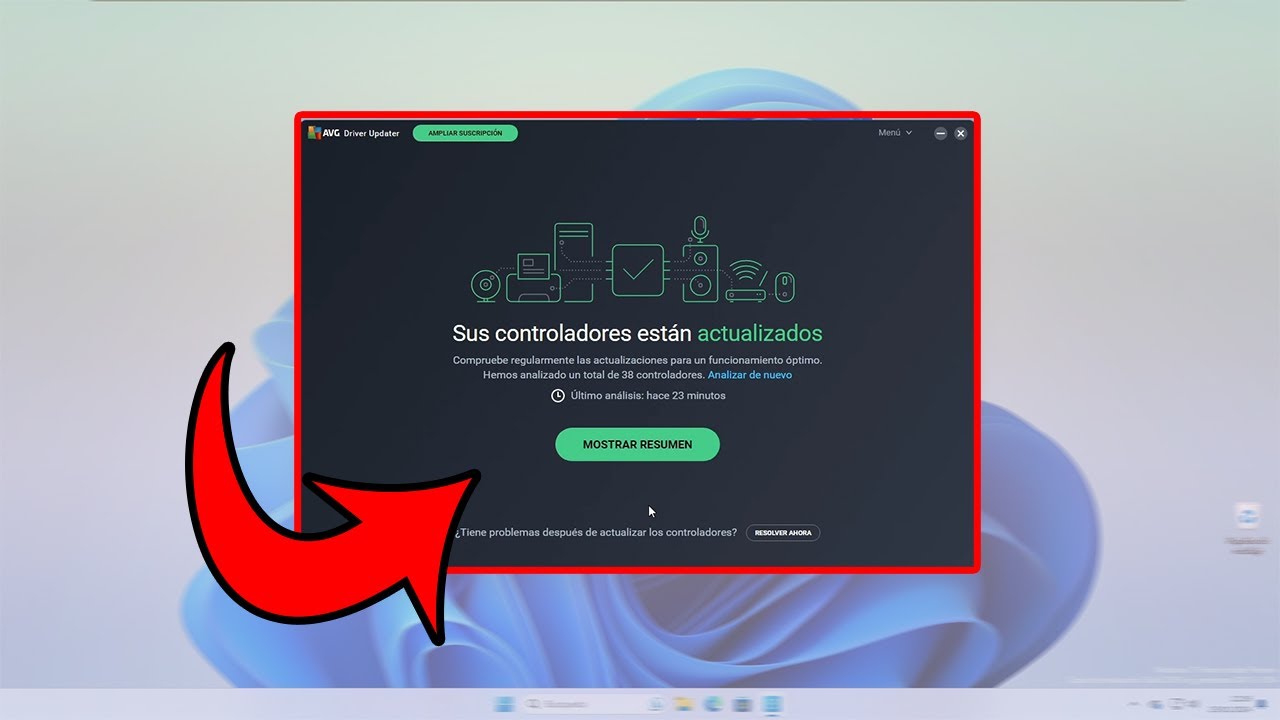
Image source: YouTube
Where to Find Official Drivers from NVIDIA AMD and Intel
For gamers, video editors, and power users, Windows Update is often too slow. Manufacturers like NVIDIA and AMD release updates much faster than Microsoft can certify them. To get the absolute best performance, you should go straight to the source.
GPU-Specific Logic: Game Ready vs. Studio
NVIDIA offers two distinct paths. Game Ready Drivers are optimized for the latest titles and are released frequently. Studio Drivers are tested against creative apps like Adobe Premiere and AutoCAD; they are updated less often but offer a higher standard of stability for professional work. According to NVIDIA Support , choosing the right path depends entirely on your primary use case.
The Intel ARC Nuance
If you own an Intel ARC graphics card, frequent updates are mandatory. Because the ARC architecture is relatively new compared to NVIDIA's decades of refinement, Intel is currently finding "substantial uplifts" in performance with almost every new release. While an NVIDIA user might see a 2% gain, an ARC user might see a 20% boost in specific games after an update.
The "Clean Install" Secret
When installing a new graphics driver, many experts recommend the Clean Install method. Instead of simply overwriting old files—which can lead to conflicts and "ghost" settings—a clean install wipes the previous driver profile entirely before applying the new one. This is often a checkbox option during the installation process of NVIDIA GeForce Experience or AMD Adrenalin software.
Best Automatic Driver Updater Tools for Windows in 2026
For users who don't want to spend hours hunting for individual files, third-party automation tools have become a popular choice. These tools scan your entire system and compare your versions against a massive cloud database.
| Method | Difficulty | Speed | Best For |
|---|---|---|---|
| Windows Update | Very Easy | Slow | General Users |
| Manufacturer Apps | Medium | Fast | Gamers & Pros |
| Third-Party Tools | Easy | Very Fast | Bulk Maintenance |
Top Tool Recommendations
- Driver Booster: Known for its massive database of over 12 million drivers. It is a highly effective option for finding obscure drivers that Windows Update might miss.
- DriversCloud: Offers a unique Offline Detection feature. This is essential if you have a fresh Windows install and your Wi-Fi driver is missing, preventing you from going online to fix it. You can scan the PC, save the log to a USB, and download the driver from another device.
- PC HelpSoft: A user-friendly subscription-based model that simplifies the process for non-technical users who want a "set it and forget it" solution.
How to Fix Common Driver Problems and Installation Failures
Sometimes, the update process itself fails. This can be due to corrupted files, internet issues, or "kernel binding" errors where the OS refuses to let go of the old driver.
The "No Internet" Catch-22
It is a common frustration: you need a driver to get your Wi-Fi working, but you need the internet to download the driver. As noted by
DriversCloud
, the best solution is to use a mobile phone or a second computer. Download the network driver (usually a
.exe
or
.inf
file) to a USB drive, then plug it into the "dark" computer to restore connectivity.
Forcing an Update with .inf Files
If a standard installer fails, you can often "force" the update. Extract the driver package using a tool like 7-Zip. In Device Manager, choose "Browse my computer for drivers," then select "Let me pick from a list of available drivers on my computer." Click "Have Disk" and point it to the
.inf
file in the extracted folder. This bypasses the manufacturer's installer and speaks directly to the Windows kernel.
"Hardware is only as good as the software telling it what to do. A top-tier GPU with a five-year-old driver is essentially a paperweight in the eyes of a modern game engine."
Frequently Asked Questions
Is it safe to use free driver updaters?
Yes, provided you use reputable brands like IObit or DriversCloud. These tools typically use WHQL-certified drivers, which have been tested for stability. However, avoid "no-name" updaters found in pop-up ads, as they may contain bloatware. Always verify that the tool allows you to create a backup or restore point before proceeding.
Do I need to pay for driver updates?
No. Drivers are always provided for free by the hardware manufacturers (NVIDIA, Intel, etc.). When you pay for a tool like PC HelpSoft, you are paying for the automation and convenience of not having to find the files yourself, not for the drivers themselves.
Why is my driver file so large?
Modern GPU drivers can exceed 600MB because they are "additive." They contain specific code optimizations for thousands of different games. Every time a major game is released, the driver grows slightly to include the "engineer's instructions" for that specific title.
Can a driver update break my computer?
While rare, a driver can occasionally cause system instability or a BSOD if it conflicts with other software. This is why Windows includes the "Roll Back Driver" feature in Device Manager. As long as you know how to use this feature or have a System Restore point, the risk is very manageable.
What happens if I never update my drivers?
Your computer will still work, but you will likely experience lower performance in new software, potential security vulnerabilities, and occasional bugs that have already been fixed in newer versions. For basic office work, it's less critical, but for gaming or security-sensitive tasks, it is highly discouraged.
The Bottom Line on Keeping Your System Updated
Maintaining your drivers is the most effective way to ensure your hardware lives up to its potential. Here are the key takeaways for a stable system:
- Prioritize Windows Update for general system stability and non-critical peripherals.
- Use Manufacturer Apps (like GeForce Experience) for your GPU to ensure you have the latest game optimizations.
- Perform a "Clean Install" when switching between major GPU driver versions to avoid file conflicts.
- Keep a backup of your network (Wi-Fi/Ethernet) driver on a USB drive in case of emergencies.
- Don't over-optimize: If a legacy device like an old keyboard is working fine, there is no need to hunt for a 2026 update that might not exist.
- Use automation wisely: Third-party tools are excellent for bulk updates but should always be used alongside a System Restore point.
By balancing automated convenience with manual oversight, you can keep your "factory engineer" working at peak efficiency for years to come.
Start by checking your Windows Update settings today to see if any critical patches are waiting for your system.
-
Topic: Update drivers through Device Manager in Windowshttps://support.microsoft.com/en-us/windows/update-drivers-through-device-manager-in-windows-ec62f46c-ff14-c91d-eead-d7126dc1f7b6
-
Topic: Driver Booster 13 Free: Actualizar controlador de PC gratis ...https://www.iobit.com/es/driver-booster.php
-
Topic: Actualización de NVIDIAhttps://www.nvidia.com/es-la/drivers/nvidia-update/

How to Use CHKDSK Commands to Repair Windows Drive Errors
Fix drive errors with CHKDSK commands like /f and /r. Learn SSD optimization, Event Viewer logs, and Status 50 fixes for Windows 10 and 11.


How to Fix the DPC Watchdog Violation Blue Screen Error in Windows
Stop the DPC Watchdog Violation blue screen on Windows 10 and 11. Learn to fix drivers, update SSD firmware, and analyze minidumps like a pro.


How to Find and Activate Your Windows 10 Product Key
Learn to find your Windows 10 product key, use generic keys, and fix activation errors using PowerShell and digital licenses.