
How to Reformat Your ASUS Laptop and Restore Factory Settings
To reformat an ASUS laptop, the most effective method is using the Windows Recovery Environment . Navigate to Settings > System > Recovery > Reset PC (Windows 11) or Settings > Update & Security > Recovery (Windows 10). If you are locked out, hold the Shift key while clicking Restart on the login screen to access the reset menu. For a deeper clean, modern ASUS devices offer Cloud Recovery within the BIOS (F2 at boot), which restores the original factory image and drivers.
Understanding Why You Might Need to Reformat Your ASUS Device
Reformatting your ASUS laptop is a powerful way to resolve persistent software issues and restore the device to its original performance levels. However, it is important to distinguish between a "Hard Reset" and a "Factory Reset" or "Reformat." According to A-Accessories , a hard reset is essentially a power cycle that clears the CMOS and drains residual electricity, which does not delete your data. A reformat, conversely, involves reinstalling the entire Operating System (OS), which typically wipes the storage drive.
Common scenarios that necessitate a full reformat include:
- Performance Degradation: Over time, Windows can become cluttered with registry errors, fragmented files, and background processes that slow down even high-end ROG or Zenbook models.
- Malware Infection: If a virus or ransomware has deeply embedded itself into the system files, a clean wipe is often the safest way to ensure the threat is eliminated.
- Preparing for Resale: When selling or gifting your laptop, reformatting ensures your personal data, saved passwords, and private files are unrecoverable by the next owner.
- Persistent BSOD Errors: If you frequently encounter the "Blue Screen of Death" and software updates haven't fixed it, a corrupted OS image may be the culprit.
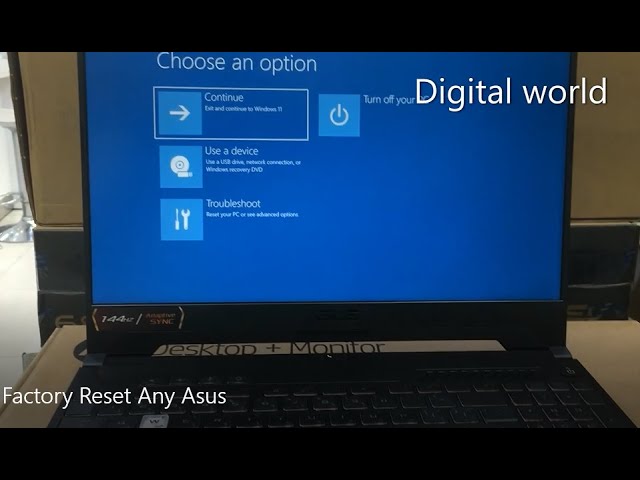
Image source: YouTube
Essential Checklist Before You Begin the Format Process
Before you initiate the reformat, you must take several precautions to avoid "bricking" your device or losing access to your data permanently. ASUS official documentation emphasizes that a power failure during a reformat can cause severe system corruption.
1. The Power Rule
Always keep your AC adapter plugged in. Reformatting can take anywhere from 30 minutes to several hours depending on your hardware. If the battery dies mid-process, the OS installation may fail, leaving you with a device that won't boot at all.
2. The BitLocker Trap
Many modern ASUS laptops come with BitLocker encryption enabled by default. As noted by ASUS Official Support , the system may demand a 48-digit recovery key after a reset. Before you start, log into your Microsoft account on another device and save your BitLocker Recovery Key. Without this, you may be permanently locked out of your own hardware.
3. Data Backup and Driver Preparation
Choosing the "Remove Everything" option is permanent. Back up your documents, photos, and game saves to an external drive or cloud service. Additionally, use the MyASUS app to export your current drivers. This is particularly vital for ROG and TUF users who rely on specific drivers for the Armoury Crate software and specialized cooling profiles.
Choosing the Right Reformat Method for Your Situation
Not all reformat methods are equal. Depending on whether your Windows OS is still functional or if you are dealing with deep system corruption, you should choose the method that offers the highest chance of success.
| Method | Difficulty | Best For... | Data Impact |
|---|---|---|---|
| Local Reinstall | Easy | Minor bugs, general sluggishness | Optional (Keep or Remove) |
| Cloud Download | Medium | Corrupted system files | Optional (Keep or Remove) |
| ASUS Cloud Recovery | Medium | Restoring factory-fresh state | Full Wipe |
| USB Clean Install | Hard | Total OS failure, new SSD | Full Wipe |
How to Reformat Through Windows 10 or Windows 11 Settings
This is the standard procedure for most users. It uses the built-in recovery partition to refresh the OS. Microsoft provides a streamlined path for this in both current versions of Windows.
On Windows 11, go to Settings > System > Recovery . On Windows 10, navigate to Settings > Update & Security > Recovery .
Click the Reset PC button. You will be presented with two choices: "Keep my files" or "Remove everything." For a true reformat, "Remove everything" is recommended.
Select Cloud Download if you have a stable internet connection; this fetches a fresh copy of Windows from Microsoft. Select Local Reinstall if you want to use the files already on your drive.
If you are selling the laptop, click "Change settings" and toggle Clean data to "Yes." This performs a more thorough wipe that meets IEEE P2883 standards for data sanitization, making it much harder for data recovery tools to find your old files.
How to Reset an ASUS Laptop If You Are Locked Out
If you have forgotten your Windows password or the login screen is frozen, you can still trigger a reformat without entering the OS. This method utilizes the Windows Recovery Environment (WinRE).
- On the Windows login screen, look for the Power icon in the bottom-right corner.
- Press and hold the Shift key on your keyboard.
- While holding Shift, click Restart . Continue holding Shift until the "Choose an option" screen appears.
- Navigate to Troubleshoot > Reset this PC .
- Choose Remove everything . Note that if BitLocker is active, you will still need to enter your recovery key at this stage to proceed.

Image source: Asurion
How to Use ASUS Cloud Recovery in the BIOS
Modern ASUS laptops (typically those manufactured after 2022) feature a highly effective tool called ASUS Cloud Recovery . This is often superior to a standard Windows reset because it restores the laptop to the exact state it was in when it left the factory, including all proprietary drivers and software like Armoury Crate.
Accessing Cloud Recovery
To access this, restart your laptop and repeatedly tap the F2 or Delete key to enter the UEFI BIOS Utility. Once inside, look for the "Advanced Mode" (F7) and navigate to the MyASUS in WinRE section. If your model supports it, you will see a "Cloud Recovery" option.
This process requires a stable Wi-Fi connection. The system will connect to ASUS servers, download the specific recovery image for your serial number, and re-partition your drive automatically. According to ASUS MyASUS in WinRE documentation , this is the most reliable way to ensure all hardware-specific features (like OLED screen care or specialized fan controls) function correctly after the format.
Using the Hidden F9 Partition for Older ASUS Models
Legacy ASUS laptops often came with a hidden recovery partition that could be triggered during the initial boot sequence. While this has largely been replaced by Windows 11's built-in tools, it remains a useful fallback for older hardware.
To attempt this, turn on the laptop and immediately start tapping the F9 key when the ASUS logo appears. If the partition is intact, you will be taken to a specialized ASUS recovery menu. However, be aware that if you or a previous owner ever performed a "Clean Install" of Windows using a USB drive, this hidden partition was likely deleted to save space, and the F9 key will no longer function.
How to Perform a Clean Install Using a USB Drive
A clean install is the most thorough way to reformat. It involves deleting all existing partitions and installing a "vanilla" version of Windows directly from Microsoft. This is a top choice for enthusiasts who want to remove all "bloatware" that comes pre-installed on retail laptops.
Preparation and Booting
You will need a USB drive with at least 8GB of space. Use the Windows Media Creation Tool on a working computer to create a bootable installer. Insert the drive into your ASUS laptop, restart, and tap Esc or F8 to open the Boot Menu. Select your USB drive from the list.
The "Missing Drive" Issue (IRST)
A common pitfall during a clean install on newer Intel-based ASUS laptops is that the installer may not see your SSD. This is not a hardware failure; it is because the Windows installer lacks the Intel Rapid Storage Technology (IRST) driver. You must download this driver from the ASUS support site, extract it to your Windows installation USB, and click "Load Driver" during the partition selection screen to make your drive appear.

Image source: EaseUS
The Physical Pinhole Reset for Unresponsive Devices
If your ASUS laptop is completely unresponsive—meaning the screen is black and the power button does nothing—you may need a hardware-level reset before you can even attempt a reformat. Many Zenbook and Vivobook models feature a small pinhole on the bottom or side of the chassis.
Using a paperclip, press and hold the button inside the pinhole for roughly 30 to 40 seconds. This performs a CMOS drain , which resets the hardware's low-level settings without deleting your data. Once the hardware is reset, you can then proceed with the software reformat methods mentioned above.
Troubleshooting Common Reformat Errors and Loops
Sometimes the reformat process fails, leaving you with an error message like "There was a problem resetting your PC." This usually indicates that the local recovery files are corrupted.
-
Fixing the Reset Loop:
If the reset fails at a certain percentage, try running the System File Checker. Access the Command Prompt from the recovery menu and type
sfc /scannow. This can often repair the files needed to complete the reset. - Switch to Cloud Download: If a "Local Reinstall" fails, it is almost certainly because the local image is damaged. Restart the process and select Cloud Download to bypass the local files entirely.
- BIOS Update: In some cases, a reformat may fail due to firmware bugs. Check the ASUS support site for your specific model to see if a BIOS update is available. Updating the BIOS can improve system stability during the OS installation phase.
Post-Reformat Checklist for Restoring Your System
Once the reformat is complete and you are back at the Windows desktop, your work isn't quite finished. A "clean" Windows installation often lacks the specific optimizations that make ASUS hardware perform at its peak.
- Run Windows Update: Do this first to get the baseline security patches and core drivers.
- Install MyASUS: Download this from the Microsoft Store. It is the central hub for official ASUS drivers, battery health settings, and warranty information.
- Restore Armoury Crate (ROG/TUF): If you have a gaming laptop, you must reinstall Armoury Crate to control your RGB lighting, fan speeds, and performance modes.
- Check Color Profiles: For Zenbook Pro or ProArt users, ensure you reinstall the specific ICC color profiles for your display to maintain color accuracy.
- Re-enable BitLocker: If you wiped your drive, encryption may be turned off. If you travel with your laptop, re-enabling BitLocker is a highly recommended security measure.
Frequently Asked Questions About ASUS Reformatting
No. Modern ASUS laptops have the Windows product key embedded in the motherboard's firmware (BIOS). When you reformat and connect to the internet, Windows will automatically recognize the hardware and activate itself. You do not need to manually enter a key.
The duration depends on your storage type. On a modern NVMe SSD, a standard reset usually takes 20 to 40 minutes. On an older laptop with a mechanical Hard Disk Drive (HDD), the process can take 2 to 3 hours, especially if you choose the "Clean Data" option.
Yes, provided you choose the "Local Reinstall" option. However, if your local recovery partition is corrupted, the process will fail. In that case, you will need an internet connection for "Cloud Download" or a separate computer to create a USB installation drive.
No. Reformatting is a software procedure and does not affect your hardware warranty. ASUS support often recommends a factory reset as a final troubleshooting step before authorizing a hardware repair (RMA).
Local Reinstall uses the Windows files already stored on your laptop's hard drive to rebuild the OS. Cloud Download fetches a fresh, updated version of Windows from Microsoft's servers. Cloud Download is generally more reliable if your system is crashing, but it takes longer and requires a fast internet connection.
Key Takeaways for a Successful ASUS Reformat
- Backup your data and locate your 48-digit BitLocker Recovery Key before starting.
- Keep the AC adapter plugged in throughout the entire process to prevent system corruption.
- Use Shift + Restart if you are locked out of your Windows account and need to access recovery.
- Choose Cloud Download for a more reliable reinstallation if your system files are corrupted.
- Prepare an external mouse in case your trackpad drivers are not recognized during the setup.
- Install MyASUS and Armoury Crate immediately after the reset to restore proprietary hardware features.
- Check for BIOS updates if the reformat process repeatedly fails or gets stuck in a loop.
By following these steps, you can effectively restore your ASUS laptop to its peak performance while ensuring your data remains secure and your hardware features stay fully functional.
-
Topic: [Windows 11/10] How to Reset (Reinstall) the Operating ...https://www.asus.com/us/support/faq/1013063/
-
Topic: How to Factory Reset ASUS PC Or Laptop WITHOUT Passwordhttps://www.youtube.com/watch?v=WzA53j53CwM
-
Topic: how do i reset a asus laptop to factory settings?https://learn.microsoft.com/en-us/answers/questions/4180985/how-do-i-reset-a-asus-laptop-to-factory-settings

How to Restart an ASUS Notebook When It Is Frozen or Unresponsive
Learn how to restart an ASUS notebook when frozen, stuck on a black screen, or unresponsive using keyboard shortcuts and hard reset methods.

How to Find the ASUS BIOS Button and Enter Settings on Any Device
Find the ASUS BIOS button for laptops, desktops, and ROG Ally. Fix Fast Boot issues and use BIOS FlashBack to update without a CPU or RAM.


How to Fix an Acer Laptop Stuck on the Explore Beyond Limits Screen
Stuck on the Acer Explore Beyond Limits screen? Learn to fix boot loops, reset batteries, and repair Windows without data loss using expert steps.
