How to Remove or Permanently Delete a Google Account from Your Phone
To remove a Google account from your phone (signing out), navigate to Settings > Passwords & Accounts (Android) or Settings > Mail > Accounts (iPhone). To permanently delete the entire identity, visit Google's Data & Privacy dashboard . Removing is a local action that preserves your cloud data, while deleting is a global action that erases all Gmail, YouTube, and Drive files forever.
Read This Before You Start
When users search for how to "delete" a Google account from their phone, they are often facing a choice between two very different technical paths. It is vital to distinguish between removing an account and deleting it. Removing an account is essentially a sign-out process; it wipes the data from the specific handset but leaves your emails and photos safe in the Google cloud. Deleting the account, however, is a permanent termination of your digital identity.
According to official Google documentation , removing an account from a device will stop syncing services like Gmail, Calendar, and Contacts to that specific hardware. This is a top choice for those selling their phones or handing them down to family members. Conversely, if you choose to delete the account entirely, you lose access to every Google service linked to that email address across all devices.
| Action | What Happens to Data | Can You Undo It? | Best For... |
|---|---|---|---|
| Remove from Phone | Deleted from phone; stays in cloud. | Yes (just sign back in). | Selling phone, switching users. |
| Delete Account | Erased from Google servers forever. | Difficult (short grace period). | Leaving Google entirely. |
Before proceeding, ensure you have your device PIN or password ready. Both Android and iOS require security verification to prevent unauthorized account removal, which protects your data if the phone is lost or stolen.
Should You Remove Your Account or Delete It Entirely?
Deciding between these two options depends on your long-term goals. If your phone is running slowly or you are experiencing sync errors, removing and re-adding the account is a highly effective troubleshooting step. This refreshes the local database without risking your permanent files. Many users find this resolves "Ghost" notifications or calendar discrepancies that official patches sometimes miss.
However, if your goal is privacy or a complete digital reset, permanent deletion may be necessary. Be aware that this action is far-reaching. As noted by Google Account Help , deleting your account results in the loss of all YouTube channel history, Google Play purchases, and any third-party logins (like Spotify or Pinterest) that use "Sign in with Google."
If you delete your Google account, any active paid subscriptions—such as YouTube Premium, Google One storage, or Nest Aware—will be terminated immediately. You will not receive a pro-rated refund for the remaining billing cycle. It is a strong recommendation to cancel these subscriptions manually before initiating a full account deletion.
For those who only want to stop using a specific service, Google offers a middle ground: "Delete a Google service." This allows you to remove your Gmail address while keeping your YouTube account and Google Drive files intact. This is a popular choice for users moving to a different email provider who still want to access their Android app purchases.
How to Remove a Google Account from an Android Phone
Android is an open ecosystem, which means the menu names and paths vary significantly between manufacturers. While the underlying process is similar, a Samsung user will navigate a different path than a Google Pixel user. Below are the specific steps for the most common Android variations as of 2026.
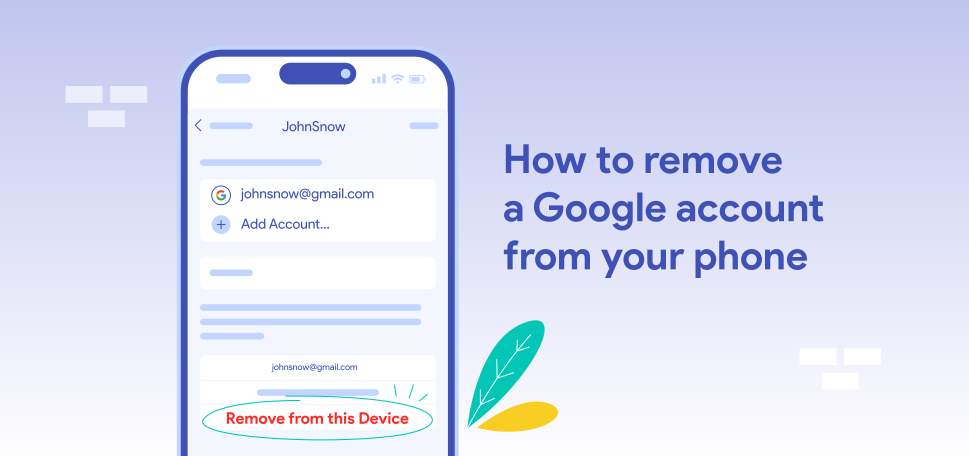
Image source: Streak
Steps for Google Pixel and Stock Android Devices
Stock Android, found on Pixel devices and Motorola phones, offers the most direct path. This interface is widely regarded as one of the most intuitive for account management.
- Open the Settings app on your device.
- Scroll down and tap Passwords & accounts . (On older versions, this may just be "Accounts").
- Under the "Accounts for [User]" section, tap the specific Google Account you wish to remove.
- Tap the Remove account button.
- Confirm the action by tapping Remove account again. You will likely be asked to enter your phone's PIN, pattern, or fingerprint to verify your identity.
Steps for Samsung Galaxy Phones (OneUI)
Samsung uses its own "OneUI" skin, which groups account settings differently. Many users find this layout helpful for managing both Google and Samsung accounts in one place.
- Go to Settings .
- Tap on Accounts and backup .
- Select Manage accounts at the top of the screen.
- Find the Google account you want to sign out of and tap it.
- Tap Remove account . A pop-up will appear; tap Remove account once more to finalize.
Steps for Xiaomi and Redmi Devices (MIUI)
Xiaomi's MIUI interface is notably different from stock Android. If you are using a Xiaomi, Redmi, or POCO device, follow this path:
- Open Settings .
- Scroll down to Accounts & Sync .
- Tap on Google .
- Select the account you want to remove.
- Tap the More icon (usually three dots at the bottom) and select Remove account .
How to Remove a Google Account from an iPhone or iPad
Apple handles Google accounts differently than Android. On iOS, a Google account isn't "baked into" the operating system in the same way; instead, it acts as a data provider for Mail, Contacts, and Calendars. There are two primary ways to manage this.
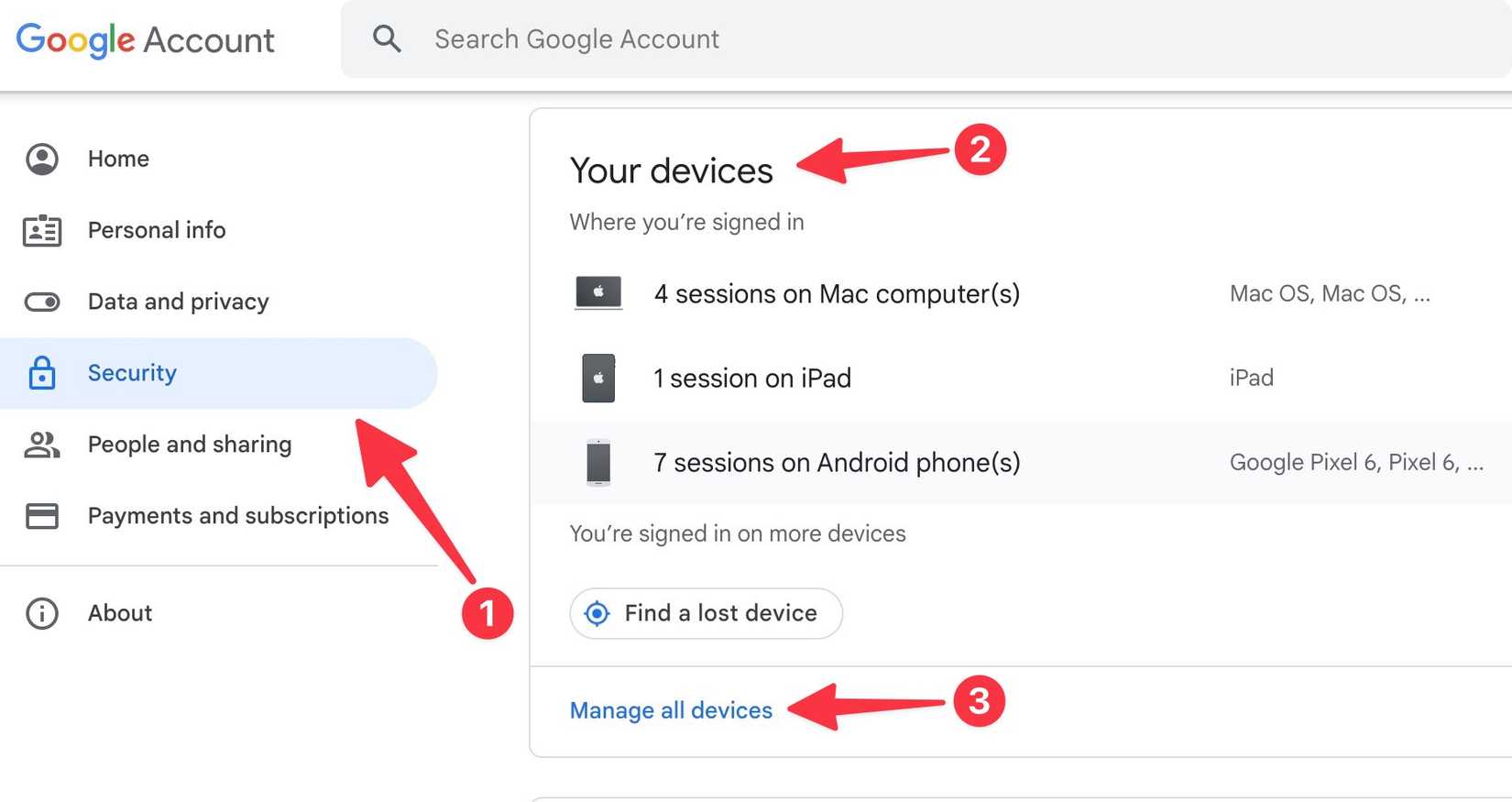
Image source: Android Police
Removing the Account via iOS Settings
This method removes the account from the system-level apps like Apple Mail and the iOS Calendar. It is a top-rated approach for users who want to switch to the official Gmail app instead of using Apple's built-in tools.
- Open Settings on your iPhone or iPad.
- Scroll down and tap Mail (or Calendar / Contacts —they all lead to the same menu).
- Tap Accounts .
- Select the Gmail account you want to remove.
- Tap Delete Account . Note: In iOS, "Delete Account" actually means "Remove from this iPhone." It does not delete your Google identity.
- Confirm by tapping Delete from My iPhone .
Removing the Account via the Gmail App
If you use the Gmail app, you can manage accounts directly within the application. This is particularly useful if you have multiple accounts and only want to sign out of one.
- Open the Gmail app .
- Tap your profile picture in the top right corner.
- Tap Manage accounts on this device .
- Find the account and tap Remove from this device .
How to Permanently Delete Your Entire Google Identity
If you have decided to leave the Google ecosystem entirely, you must perform a global deletion. This is a significant step forward in digital privacy but requires careful preparation. Before you begin, it is highly recommended to use Google Takeout to download a copy of your data.
Google Takeout allows you to export your emails, photos, and Drive documents into a ZIP file. According to Google's Data & Privacy dashboard , once the account is deleted, this data becomes inaccessible. Follow these steps to delete your account using your phone's browser:
- Open your mobile browser and go to myaccount.google.com .
- Sign in if prompted.
- Tap the Data & privacy tab at the top.
- Scroll down to the "More options" section.
- Tap Delete your Google Account .
- Follow the on-screen instructions to verify your identity. You will be shown a list of all data that will be lost.
- Check the two acknowledgment boxes at the bottom and tap Delete Account .
"Deleting your account is a permanent action. While Google offers a very short window for recovery if you change your mind, it is generally considered final. Always verify that your recovery email and phone number are up to date before starting this process."
How to Sign Out Remotely from a Lost or Stolen Phone
One of the most stressful scenarios is losing a phone that is still logged into your Google account. Fortunately, Google provides a security dashboard that allows for remote de-authorization. This is a remarkably strong security feature that prevents unauthorized access to your private data even if you no longer have the handset.
As detailed in Google Security Dashboard discussions , you can sign out of any device from a computer or another phone:
- Go to the Google Security page (myaccount.google.com/security).
- Find the section labeled Your devices and tap Manage all devices .
- You will see a list of every phone, tablet, and computer where you are signed in. Tap the device you no longer have.
- Tap Sign out .
- A confirmation box will appear; tap Sign out again.
This action immediately revokes the device's access tokens. Even if someone has your phone, they will be prompted for a password the next time they try to open Gmail or Drive. For extra security, you should also consider using the "Find My Device" tool to remotely wipe the entire phone's storage.
Critical Troubleshooting for Account Removal and Security
Removing an account isn't always a smooth process. Several security layers can prevent you from signing out, especially on Android devices. Understanding these "traps" is essential for a successful transition.
The Factory Reset Protection (FRP) Warning
FRP is a security feature designed to make stolen phones useless. If you factory reset an Android phone without first manually removing the Google account, the phone will be "FRP locked." The next person who turns it on will be forced to enter your Google credentials to proceed. This is a common pitfall for people selling phones on eBay or Swappa. Always remove the account through the Settings menu before performing a reset.
Navigating the 2-Step Verification Trap
If you are trying to delete your account and have 2-Step Verification (2FA) enabled, Google will send a code to your phone. If that phone is broken or lost, you may find yourself in a "Verification Trap." To avoid this, many experts suggest generating Backup Codes in your security settings before you attempt to wipe or delete an account. These one-time codes work even if you don't have access to your primary phone.
Managing Work Profiles and Administrative Restrictions
If you see a message saying "This account is required by your administrator," you likely have a Work Profile or MDM (Mobile Device Management) software installed. This is common for company-issued phones. In these cases, you cannot remove the Google account yourself; you must first remove the Work Profile under Settings > Accounts > Work Profile or contact your IT department to de-enroll the device.
- MDM (Mobile Device Management)
- Software used by companies to enforce security policies on employee phones, often preventing the removal of corporate accounts.
- Ghost Account
- A term for an account that has been removed from settings but still appears in specific apps due to cached data.
- Google Takeout
- The official tool for exporting and downloading your data from the Google ecosystem.
Final Thoughts
Managing your digital identity requires a balance between accessibility and security. Whether you are simply signing out of an old device or closing your account for good, following the correct sequence is vital to protecting your data.
- Distinguish between Remove and Delete: Removing is local and safe; deleting is global and permanent.
- Back up your data: Always use Google Takeout before a permanent deletion to save your photos and emails.
- Avoid FRP locks: Manually remove your Google account from Android settings before you perform a factory reset.
- Use remote sign-out: If your phone is lost, use the Google Security Dashboard to revoke access immediately.
- Check for Work Profiles: If the "Remove" button is missing, check if an employer's administrative policy is locking the account.
- Verify 2FA: Ensure you have backup codes handy if you are deleting an account without access to your primary phone.
For your next step, perform a quick "Security Checkup" in your Google Account settings to see which devices currently have access to your data.
Frequently Asked Questions
Will I lose my contacts if I remove my Google account from my phone?
It depends on where the contacts are stored. If your contacts are synced to your Google Account (which is the default for most Android users), they will disappear from the phone's contact list once the account is removed. However, they are not deleted; they remain safe in the cloud. If you sign into the same account on a new phone, they will reappear. Contacts stored on your SIM card or the phone's internal "Local" storage will not be affected.
Can I delete just my Gmail service but keep my Google Play purchases?
Yes, Google allows for partial service deletion. You can navigate to the "Delete a Google service" section in your Data & Privacy settings. From there, you can choose to remove Gmail specifically. You will be asked to provide a non-Gmail email address to continue using your Google Account for other services like YouTube, Google Play, and Drive. This is a top choice for users who want to keep their apps but change their email provider.
How long do I have to recover a deleted Google account?
Google does not publicly state an exact number of days, but historical data and user reports suggest a grace period of approximately 2 to 3 weeks. If you deleted your account recently, you can attempt to recover it by going to the Google Account Recovery page and answering security questions. After this window closes, the data is purged from Google's servers and becomes permanently unrecoverable.
Does removing the account sign me out of YouTube and Google Maps?
Yes. On Android, the Google account acts as a "Single Sign-On" (SSO) identity. When you remove the account from the system settings, you are automatically signed out of all Google-owned applications, including YouTube, Maps, Drive, and Photos. On iPhone, if you remove the account via the Gmail app, you may still be signed into other Google apps unless you specifically choose to "Remove from this device" across the entire suite.
Do I need my password to remove an account from my phone?
Usually, you do not need the Google account password to remove it from the phone, but you do need the device's security credentials (PIN, Pattern, or Biometrics). This is to ensure that the person holding the phone has the right to modify its settings. However, if you are deleting the account permanently via the web dashboard, you will absolutely be required to enter your Google password and potentially a 2-Step Verification code.
-
Topic: Add or remove an account on Androidhttps://support.google.com/android/answer/7664951?hl=en
-
Topic: Delete your Google Accounthttps://support.google.com/accounts/answer/32046?hl=en
-
Topic: How to delete my account from just one phone? : r/GMailhttps://www.reddit.com/r/GMail/comments/1kocvfg/how_to_delete_my_account_from_just_one_phone/

How to Clear Your Google Search History on Every Device and Browser
Delete Google search history on Android, iPhone, and Desktop. Fix ghost history and set up auto-delete for better privacy.


How to Turn Off Your Google Pixel or Android Phone Even if the Buttons Change
Learn to power off your Google Pixel or Android phone using buttons, settings, or voice. Fix frozen screens and broken buttons with this guide.


How to Turn Off Google Assistant and Stop Accidental Triggers on Every Device
Learn how to disable Google Assistant on Android, iPhone, and Nest. Fix the annoying nag screen and stop accidental triggers with this 2026 guide.