
How to Turn Off Your Google Pixel or Android Phone Even if the Buttons Change
For over a decade, turning off a mobile device was simple: you held the power button until a menu appeared. However, in recent years, Google and other manufacturers have shifted the hardware logic of Android devices. If you find that holding your power button suddenly triggers Google Assistant instead of the power menu, you are not alone. This change, introduced widely with Android 12, prioritizes AI interaction over basic system commands.
Navigating these changes can be frustrating, especially when your device is frozen or you are in a hurry. Understanding the new shortcuts and how to customize them is essential for any modern smartphone user. This guide provides a detailed breakdown of every method available to turn off your Google Pixel or Android device, including hardware shortcuts, software overrides, and troubleshooting steps for unresponsive screens.
Why Does My Power Button Open Google Assistant Instead of Turning Off?
The primary reason your phone no longer responds to a long-press of the power button is a software shift toward "Digital Assistants." Starting with the Pixel 6 series, Google remapped the power button to act as a dedicated trigger for Google Assistant. According to official Google Support documentation , this was designed to make AI features more accessible with a single hand.
While this is a significant advancement for those who use voice commands frequently, it has caused confusion for long-time Android users. The traditional "Power Menu" — which includes options for Power Off, Restart, and Emergency calls — has been moved to a multi-button combination. This logic is now the standard for most devices running Android 12, 13, 14, and the latest versions available in 2026.
Furthermore, manufacturers like Samsung have adopted similar logic, though they often use different button combinations. This fragmentation means that the "correct" way to turn off a phone now depends heavily on the specific model and software version you are using. Fortunately, Android remains highly customizable, and you can revert this behavior if you prefer the classic method.
Image source: YouTube
How to Turn Off Your Phone Using Physical Buttons
Physical buttons remain the most reliable way to manage your device's power state, especially when the screen is off or you are wearing gloves. However, you must know the specific "handshake" your device requires.
The Modern Pixel Shortcut for Pixel 6 and Newer Models
If you own a Pixel 6, 7, 8, 9, or the Pixel Fold, the power button alone will not turn off the device. Instead, you must use a two-button combination. Press the Power button and the Volume Up button at the same time. A brief, simultaneous press will immediately bring up the power menu on your screen. From there, you can tap "Power off" or "Restart."
It is important to note that this is a quick press. If you hold these buttons for too long (usually more than 15 seconds), you may accidentally trigger a forced reboot, which is a different function used for troubleshooting. Many users find this combination awkward at first, but it ranks among the top methods for preventing accidental shutdowns in your pocket.
The Samsung Galaxy Method for S21 Through S24 Series
Samsung uses a slightly different logic than Google. On newer Galaxy devices, the "Side Key" (formerly the power button) triggers Bixby by default. To reach the power menu, you must press and hold the Side Key and the Volume Down button simultaneously. This differs from the Pixel's use of the Volume Up key.
Samsung also provides a unique software setting within the "Advanced Features" menu that allows you to remap the Side Key to the power menu, similar to Google's gesture settings. This consistency across the Galaxy lineup makes it a top choice for users who prefer a predictable hardware experience.
Legacy Android Devices and Older Pixel Models
If you are using a Pixel 5a or older, or a budget Android device running an older version of the operating system, the classic method still applies. Simply press and hold the Power button for approximately two to three seconds. The power menu will appear automatically. This "legacy" logic is still widely regarded as one of the most intuitive interfaces, which is why many users choose to remap their newer phones to mimic this behavior.
How to Turn Off Your Phone Using the Screen Without Buttons
There are many scenarios where you might not want to use physical buttons. Perhaps your phone is in a thick case, or the buttons have become "mushy" or unresponsive over time. Android provides several software-based alternatives that are exceptionally strong for accessibility.
Using the Quick Settings Power Icon Shortcut
The fastest way to turn off your phone without touching the side buttons is through the Quick Settings shade. This feature is standard on almost all Android 12+ devices. To access it:
- Swipe down from the top of your screen to view your notifications.
- Swipe down a second time to fully expand the Quick Settings menu.
- Look for a small Power Icon (a circle with a vertical line through the top). On Pixels, this is usually in the bottom right corner. On Samsung devices, it is often at the top right.
- Tap the icon to open the full power menu, then select "Power off."
What to Do if the Power Icon Is Missing from Your Menu
In some cases, particularly on carrier-branded phones or devices with heavy custom skins, the power icon might be hidden. You can easily add it back by tapping the Pencil (Edit) icon in the Quick Settings menu. Scroll through the available tiles until you find "Power" or "System Power," then drag it into your active grid. This customization ensures that a software shutdown is always just two swipes away.
Using the Accessibility Menu for Devices with Broken Buttons
If your physical buttons are completely broken, you can enable a persistent on-screen menu. Navigate to Settings > Accessibility > Accessibility Menu and toggle the "Accessibility Menu shortcut" to ON. This will place a small green icon (or a floating button) on the edge of your screen. Tapping this icon opens a large-button menu that includes a "Power" option, allowing you to shut down or restart the device without ever needing the physical hardware.
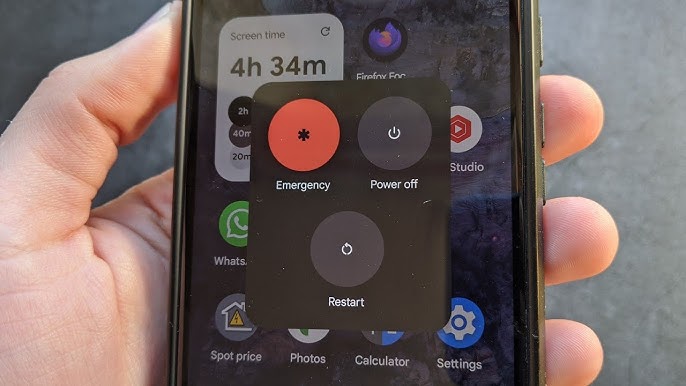
Image source: YouTube
How to Change the Power Button Back to the Classic Setting
If you find the new button combinations frustrating, you can easily revert your phone to the traditional "long-press for power" logic. This is one of the most popular customizations for new Pixel owners. Follow these steps to remap your hardware:
- Open the Settings app on your phone.
- Scroll down and tap on System .
- Select Gestures .
- Tap on Press and hold power button .
- Toggle the setting from "Digital Assistant" to Power menu .
Once this change is made, holding the power button will immediately bring up the shutdown options, just like older Android models. This effectively disables the Google Assistant hardware trigger, though you can still access the Assistant via voice ("Hey Google") or by swiping up from the bottom corners of the screen. This flexibility is a significant step forward in user-centric design, allowing you to choose the interface that fits your workflow.
Troubleshooting a Frozen or Unresponsive Android Screen
Sometimes, the software buttons won't respond, and the screen may be completely frozen. In these instances, a standard shutdown command won't work because the operating system's UI layer is crashed. You must use a hardware-level interrupt to force the device to reset.
Important Warnings and Unique Information Gain Insights
Beyond the basic button presses, there are several technical nuances that can affect how and when your phone shuts down. Understanding these "under-the-hood" behaviors can save you from security lockouts and performance issues.
The Biometric Lockout Warning for Software Shutdown Apps
Many users download third-party apps from the Play Store that add a "Lock Screen" or "Power Off" button to their home screen. While convenient, these apps often use the "Device Administrator" API. A major downside to this method is that it frequently triggers a Biometric Lockout . This means that the next time you try to wake your phone, you will be unable to use your fingerprint or face unlock. Instead, Android security protocols will force you to enter your PIN or password. If you rely on biometrics for speed, using the built-in Quick Settings power icon is a much better choice.
Why Google Assistant Cannot Turn Off a Locked Phone
You might wonder why you can't simply say, "Hey Google, turn off my phone." While voice commands can perform many tasks, Google intentionally limits power commands for security reasons. If a phone is locked, the Assistant will refuse to shut it down. This prevents a thief from quickly silencing a stolen device, giving the owner more time to track it using "Find My Device." You must unlock the phone first before voice-activated power commands will function.
The Reality Behind Remote Shutdown Myths
There is a common misconception that you can remotely turn off your phone if it is lost or stolen. In reality, Google's "Find My Device" service does not offer a power-off feature. This is an intentional safety design; a powered-off phone cannot transmit its GPS location or ping nearby Bluetooth devices. The service allows you to lock the phone, sign out of your account, or perform a factory reset, but the device must remain powered on to be trackable.
How Low Storage Prevents Your Phone from Shutting Down
One of the most overlooked reasons for a "hanging" shutdown process is insufficient storage. According to Google's performance guidelines , Android requires a certain amount of free space to manage system logs and cache during the power-down sequence. If your storage is more than 90% full, the phone may struggle to close background processes, leading to a screen that stays black but keeps the processor running (causing heat) or a device that simply refuses to turn off. Keeping at least 10% of your storage free is a top-rated strategy for maintaining system stability.
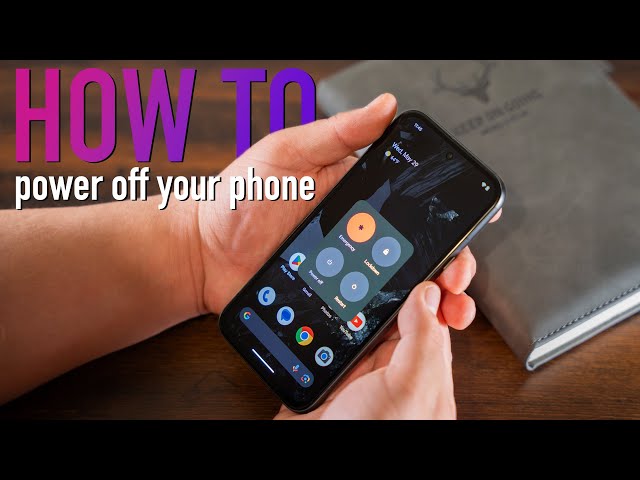
Image source: YouTube
| Device Category | Primary Button Combo | Software Alternative |
|---|---|---|
| Pixel 6, 7, 8, 9 Series | Power + Volume Up | Quick Settings Shade |
| Samsung Galaxy S21–S24 | Power + Volume Down | Side Key Settings |
| Pixel 5a & Older | Long-press Power | Accessibility Menu |
| General Android 12+ | Power + Volume Up | Notification Shade Icon |
Frequently Asked Questions
Yes, but only if the phone is already unlocked. You can say "Hey Google, power off" or "Hey Google, restart." However, for security reasons, this will not work from the lock screen. This prevents unauthorized users from turning off your device to avoid being tracked.
This usually happens if the power button is physically stuck or if there is a software loop. If you are holding the buttons for too long (over 15 seconds), the phone interprets this as a "Force Restart" command rather than a "Power Off" command. Try a shorter, simultaneous press instead.
No. Turning off your phone (Power Off) simply shuts down the operating system and stops power flow to most components. Your data, photos, and settings remain safe. This is different from a "Factory Reset," which wipes the device entirely.
On almost all modern Android phones, yes. Unlike some older feature phones, modern smartphones do not have the ability to "wake up" to sound an alarm if they are fully powered down. If you need your alarm, use "Do Not Disturb" mode or "Airplane Mode" instead of turning the phone off.
This indicates a system crash where the display driver has failed but the OS is still running. You must perform a hard reset by holding the Power button for a full 60 seconds until you feel a vibration or see the manufacturer's logo (like the Google "G").
The Bottom Line
Managing the power state of your Google Pixel or Android device has become more complex, but the new system offers more flexibility once you understand the logic. Whether you prefer hardware buttons or software shortcuts, there is a method that fits your needs.
- Use Power + Volume Up as the default shortcut for all modern Google Pixel phones.
- Check the Quick Settings shade for a digital power icon if you want to avoid using physical buttons.
- Remap the power button in the Gestures menu if you prefer the classic long-press behavior over Google Assistant.
- Hold the power button for 60 seconds to force a hardware reset if your screen becomes completely unresponsive.
- Maintain 10% free storage to ensure the operating system can process shutdown commands without crashing.
- Avoid third-party shutdown apps to prevent biometric lockouts and maintain security.
To ensure your device remains healthy, try restarting it at least once a week to clear system caches and resolve minor software bugs.
-
Topic: Turn your Pixel phone on & offhttps://support.google.com/pixelphone/answer/7374159?hl=en
-
Topic: Turn Off Screen - Apps on Google Playhttps://play.google.com/store/apps/details?id=com.TurnOffScreen&hl=en_US
-
Topic: Power off - Power menu - Apps on Google Playhttps://play.google.com/store/apps/details?id=com.dinhlap.menu.power&hl=en_US

How to Power Off Your iPhone and Fix a Frozen Screen
Learn how to shut down your iPhone using buttons, Siri, or iOS 18 settings. Fix frozen screens with a force restart and explore power-user tips.

How to Remove or Permanently Delete a Google Account from Your Phone
Learn how to remove a Google account from Android or iPhone, or delete it permanently. Fix FRP locks, remote logouts, and data backup steps.

How to Turn Off Google Assistant and Stop Accidental Triggers on Every Device
Learn how to disable Google Assistant on Android, iPhone, and Nest. Fix the annoying nag screen and stop accidental triggers with this 2026 guide.