How to Power Off Your iPhone and Fix a Frozen Screen
Whether you have the latest iPhone 16 or an older model with a Home button, shutting down your device is a fundamental skill for troubleshooting and battery preservation.
For most modern iPhones (X, 11, 12, 13, 14, 15, 16):
- Press and hold the Side button and either Volume button simultaneously.
- Wait for the "Slide to Power Off" slider to appear.
- Drag the slider to the right and wait 30 seconds for the device to fully shut down.
Powering off an iPhone might seem straightforward, but as Apple has evolved its hardware, the methods for shutting down have shifted significantly. In recent years, the introduction of Face ID and the removal of the physical Home button changed the logic of the side button, often leading users to accidentally trigger Siri instead of the power menu. Understanding these nuances is essential for maintaining your device's health and resolving software glitches.
According to Apple Support , a standard shutdown is the recommended way to clear temporary cache files and refresh the operating system. This guide covers every method available, from physical button combinations to software-based shortcuts in the latest iOS 18 update.
How to Use Physical Buttons to Shut Down Your iPhone
The physical buttons on your iPhone are the primary way to initiate a shutdown. However, the specific combination you need depends entirely on which generation of iPhone you are using. Apple changed the button logic starting with the iPhone X to accommodate the larger screen and Face ID sensors.
Models with Face ID (iPhone X through iPhone 16)
If your iPhone lacks a circular Home button at the bottom of the screen, you are using a Face ID model. On these devices, the Side button (formerly the Sleep/Wake button) is mapped to Siri by default. To reach the power menu, you must use a two-button combination.
- Locate the Side button on the right side of the device and either the Volume Up or Volume Down button on the left.
- Press and hold both buttons at the same time for about two seconds.
- When the "Slide to Power Off" slider appears at the top of the screen, release the buttons.
- Drag the slider to the right.
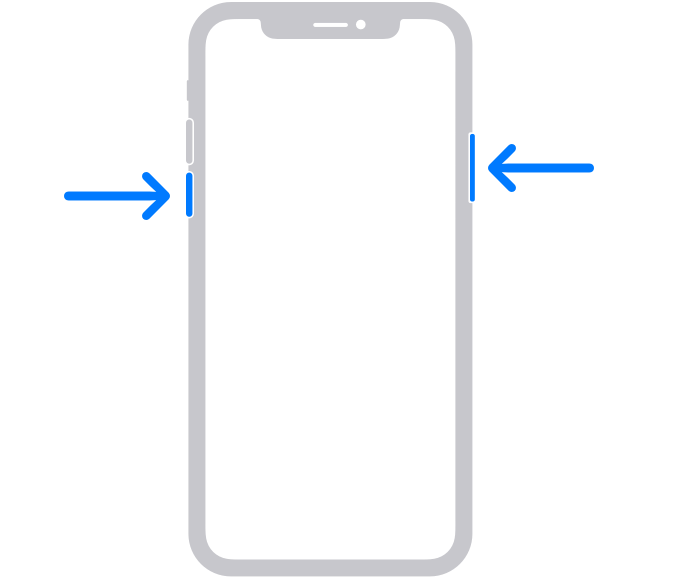
Image source: Apple Support
Models with a Home Button (iPhone 8, SE 2nd & 3rd Gen)
For users with an iPhone 8 or the modern iPhone SE models, the process is simpler because the Side button is not shared with as many complex gestures. You do not need to hold a volume button to trigger the shutdown slider.
- Press and hold the Side button until the power off slider appears.
- Drag the slider to turn the device off.
Older Models (iPhone 7, 6, 5, and SE 1st Gen)
On older hardware, the placement of the power button varies. On the iPhone 6 and 7 series, the button is on the right side. On the iPhone 5, 5s, and the original SE, the button is located on the top edge of the frame. Regardless of placement, the action is the same: press and hold that single button until the slider appears.
Why Holding the Side Button Only Triggers Siri
One of the most common frustrations for iPhone users is the "Siri Trap." Since the release of iOS 11, Apple has prioritized the voice assistant by mapping it to a long press of the Side button. This design choice was intended to make Siri more accessible, but it often confuses users trying to turn their phones off.
If you find this behavior annoying, you can actually modify how the Side button responds. By navigating to Settings > Accessibility > Side Button , you can adjust the click speed or even disable the "Press and Hold for Siri" feature entirely. However, most experts suggest keeping the default settings and simply learning the two-button combo, as this prevents accidental shutdowns while the phone is in your pocket.
How to Power Off Your iPhone Without Using Any Buttons
There are several scenarios where you might need to shut down your iPhone without touching a physical button. Perhaps your buttons are damaged, or you find the physical combinations difficult to perform. Apple provides three distinct software-based methods to achieve this.
Using the Settings Menu
This is the most reliable software method and has been available for several years. It is a top-tier option for users with hardware damage.
- Open the Settings app.
- Tap on General .
- Scroll all the way to the bottom of the menu.
- Tap Shut Down . The familiar slider will appear immediately.
The New iOS 18 Control Center Power Icon
In a significant advancement for user experience, iOS 18 introduced a dedicated software power button within the Control Center. This makes shutting down much faster than digging through the Settings menu.
- Swipe down from the top-right corner of your screen to open the Control Center .
- Look for the Power icon in the top-right corner.
- Long-press the icon (a simple tap won't work, to prevent accidental triggers).
- The power slider will appear, allowing you to shut down.
Using Siri Voice Commands
For a completely hands-free experience, you can use Siri to initiate a shutdown. This is particularly useful for accessibility or when your hands are full. Simply say, "Hey Siri, power off my phone" or "Shutdown device." Siri will respond with a confirmation prompt: "Just to confirm, you want to power off this device?" You must verbally say "Yes" or tap the "Power Off" button on the screen to complete the action.
What to Do When Your iPhone Screen Is Frozen
A standard shutdown requires you to interact with the touchscreen. If your screen is frozen, unresponsive, or completely black, a standard shutdown is impossible. In these cases, you must perform a Force Restart . Unlike a soft shutdown, a force restart cuts power at a hardware level and forces the processor to reboot.
| iPhone Model | Force Restart Combination |
|---|---|
| iPhone 8, X, 11, 12, 13, 14, 15, 16 | Vol Up (tap), Vol Down (tap), Hold Side Button |
| iPhone 7 / 7 Plus | Hold Side Button + Volume Down |
| iPhone 6s / SE (1st Gen) | Hold Home Button + Side/Top Button |
Force Restarting iPhone 8 and Later
This sequence is often misunderstood because it requires three distinct steps in a specific rhythm. It is widely considered one of the best troubleshooting steps for a "bricked" feeling phone.
- Press and quickly release the Volume Up button.
- Press and quickly release the Volume Down button.
- Press and hold the Side button . Continue holding even after the screen goes black.
- Release the button only when you see the Apple logo appear on the screen.
Advanced Power-User Methods for Accessibility
For users who want a more customized experience or who are dealing with permanent hardware failure, Apple's accessibility suite offers notably innovative solutions. These methods allow you to create a "One-Tap" shutdown experience.
Setting Up the AssistiveTouch Menu
AssistiveTouch places a floating virtual button on your screen that can perform almost any hardware function. To enable it, go to Settings > Accessibility > Touch > AssistiveTouch and toggle it on. Once active, you can tap the virtual button, select Device , then More , and you will find a Restart option. You can also long-press the "Lock Screen" icon within this menu to bring up the power slider.
Creating a One-Tap Shutdown Shortcut
Using the Shortcuts app , you can create a dedicated icon on your Home Screen that shuts down your phone instantly. This is a popular choice for users who want to avoid the multi-step Settings path.
- Open the Shortcuts app and tap the + icon.
- Tap Add Action and search for "Shut Down."
- Select the Shut Down action.
- Tap the share icon (square with an arrow) and select Add to Home Screen .
- Give it a name like "Power Off" and choose a red icon.
Now, tapping that icon will immediately bring up the power slider, bypassing all other menus.
Troubleshooting Rare Power Issues and Boot Loops
Sometimes, an iPhone won't turn off—or won't stay on—due to deeper hardware or software conflicts. Community wisdom from the Apple Discussions forums highlights a few rare but impactful issues.
The SIM Card Conflict
In rare instances, a faulty or corrupted SIM card can cause an iPhone to enter a boot loop or refuse to shut down properly. This has been documented specifically with the iPhone 13 mini and iPhone 14 models. If your phone is acting erratically, try removing the SIM tray with a paperclip. If the phone suddenly behaves normally, you likely need a replacement SIM card from your carrier.
Post-Update Glitches and Background Indexing
Immediately after a major iOS update, your iPhone may feel hot and the power buttons might seem laggy. This is usually due to "Background Indexing," where the phone re-organizes your photos and files for the new software. If the phone feels unresponsive, experts recommend a "double reboot"—shutting the phone down, letting it sit for a minute, turning it back on, and then repeating the process. This often clears out stuck background processes.
How to Cycle Power via a Mac or PC
If your screen is black and the buttons aren't responding to a force restart, your last software-based option is to connect it to a computer. Using Finder (on Mac) or iTunes (on Windows), your computer can often "see" the device even if the screen is dead. Selecting "Update" (not Restore, to save your data) can force the phone to cycle its power and attempt a fresh boot.
Privacy and Security Implications of Powering Down
A common misconception is that turning off an iPhone makes it completely "dark" and untraceable. Since iOS 15, modern iPhones (iPhone 11 and later) enter a low-power state rather than a total blackout. This allows the "Find My" network to remain active.
Even when your phone is powered off, it can still be located by other nearby Apple devices for up to 24 hours. This is a security feature designed to help you find a stolen phone even if the thief turns it off. If you truly want the device to be untraceable for privacy reasons, you must disable the Find My network in Settings > [Your Name] > Find My before powering down, though this is generally not recommended for most users.
Key Takeaways
- Face ID Models require holding the Side button plus either Volume button to see the slider.
- iOS 18 users can shut down quickly via the new Power icon in the Control Center.
- Siri can power off your device hands-free if you provide verbal confirmation.
- Force Restart is a specific 1-2-3 sequence (Vol Up, Vol Down, Hold Side) used only for frozen screens.
- Settings Menu offers a reliable way to shut down if your physical buttons are broken.
- Find My tracking remains active for 24 hours even after the device is powered off.
- Shortcuts App allows you to create a custom one-tap power button on your Home Screen.
For the best results, always wait at least 30 seconds after the screen goes black before attempting to turn your iPhone back on to ensure all background processes have fully stopped.
Frequently Asked Questions
How do I turn off my iPhone if the screen is frozen?
If the screen is unresponsive, you must perform a Force Restart. For iPhone 8 and later, quickly press Volume Up, then Volume Down, then press and hold the Side button until the Apple logo appears. This bypasses the software slider and forces the hardware to reboot.
Why won't my iPhone turn off when I hold the power button?
On modern iPhones, holding the Side button alone triggers Siri. To reach the power slider, you must hold the Side button and a Volume button simultaneously. You can change this behavior in Settings > Accessibility if you prefer the old method.
Can I turn off my iPhone using Siri?
Yes, you can say "Power off my phone." Siri will ask for a confirmation to ensure you didn't trigger the command by accident. Once you confirm, the phone will shut down without any further physical interaction.
Does powering off my iPhone save more battery than Airplane Mode?
Yes, powering off saves the most battery as it stops almost all background activity. However, modern iPhones are very efficient in standby mode, and the power required to boot the phone back up can sometimes negate the savings if you only turn it off for a few minutes.
Will my alarm go off if my iPhone is turned off?
No. Unlike some older feature phones, the iPhone requires the iOS operating system to be active for alarms to trigger. If you power off your device, your alarms will not sound. Use "Do Not Disturb" or "Sleep Mode" instead if you want to save power while keeping alarms active.
-
Topic: Turn iPhone on or offhttps://support.apple.com/guide/iphone/turn-iphone-on-or-off-iph841379c3d/ios
-
Topic: How to force shutdown an iPhonehttps://www.reddit.com/r/iphone/comments/1d0pk1q/how_to_force_shutdown_an_iphone/
-
Topic: How to TURN OFF iPhone or Restarthttps://www.youtube.com/watch?v=dENbn7sEhPo&vl=en

How to Turn Off Your Google Pixel or Android Phone Even if the Buttons Change
Learn to power off your Google Pixel or Android phone using buttons, settings, or voice. Fix frozen screens and broken buttons with this guide.


How to Turn Off Your iWatch or Apple Watch in Every Situation
Learn how to turn off your Apple Watch or iWatch, including watchOS 10 steps, force restarts for frozen screens, and broken button fixes.


How to Disable Siri Completely on iPhone, Mac, and iPad to Protect Your Privacy
Learn how to turn off Siri on iPhone, Mac, and iPad. Stop Siri setup nags, delete voice data, and disable Apple Intelligence features for privacy.