
How to Disable Siri Completely on iPhone, Mac, and iPad to Protect Your Privacy
A comprehensive guide to deactivating Apple's virtual assistant, stopping setup nags, and reclaiming your data privacy in 2026.
To disable Siri on most modern iPhones (iOS 18+), navigate to Settings > Apple Intelligence & Siri and toggle off all options under the "Ask Siri" section. For older devices, the path is Settings > Siri & Search . To prevent Siri from reappearing after updates, use the "Nuclear Option" via Screen Time > Content & Privacy Restrictions .
For many users, Siri is a helpful companion for setting timers or sending hands-free texts. However, for others, the assistant is a source of frustration, privacy concerns, or accidental activations. Whether you are tired of Siri interrupting your music in the car or you want to opt-out of Apple's new AI features, disabling the service is a straightforward process—provided you know where the settings are hidden in the latest software updates.
As of 2026, Apple has integrated Siri more deeply into the operating system through "Apple Intelligence." This means that simply toggling off a single switch may not be enough to stop all background processes or data collection. In this guide, we will walk through the standard deactivation steps, the "hard" disable method, and how to scrub your voice data from Apple's servers.
How to Turn Off Siri on iPhone and iPad
The process for turning off Siri has changed slightly with the introduction of iOS 18 and the rebranding of the assistant's settings menu. Depending on your hardware and software version, you will see one of two different menu names.
Navigating the New Apple Intelligence and Siri Menu in iOS 18
iOS 18+ On newer devices that support Apple's advanced AI features, the settings menu has been renamed to reflect the integration of generative models. This rebranding is a significant advancement in how Apple presents its assistant, but it can be confusing for long-time users looking for the old "Siri & Search" tab.
- Open the Settings app on your iPhone or iPad.
- Scroll down and tap on Apple Intelligence & Siri .
- Locate the "Ask Siri" section.
- Toggle off Listen for "Siri" or "Hey Siri" .
- Toggle off Press Side Button for Siri (or Home Button on older models).
- Confirm the prompt that appears, stating that Siri will be disabled.
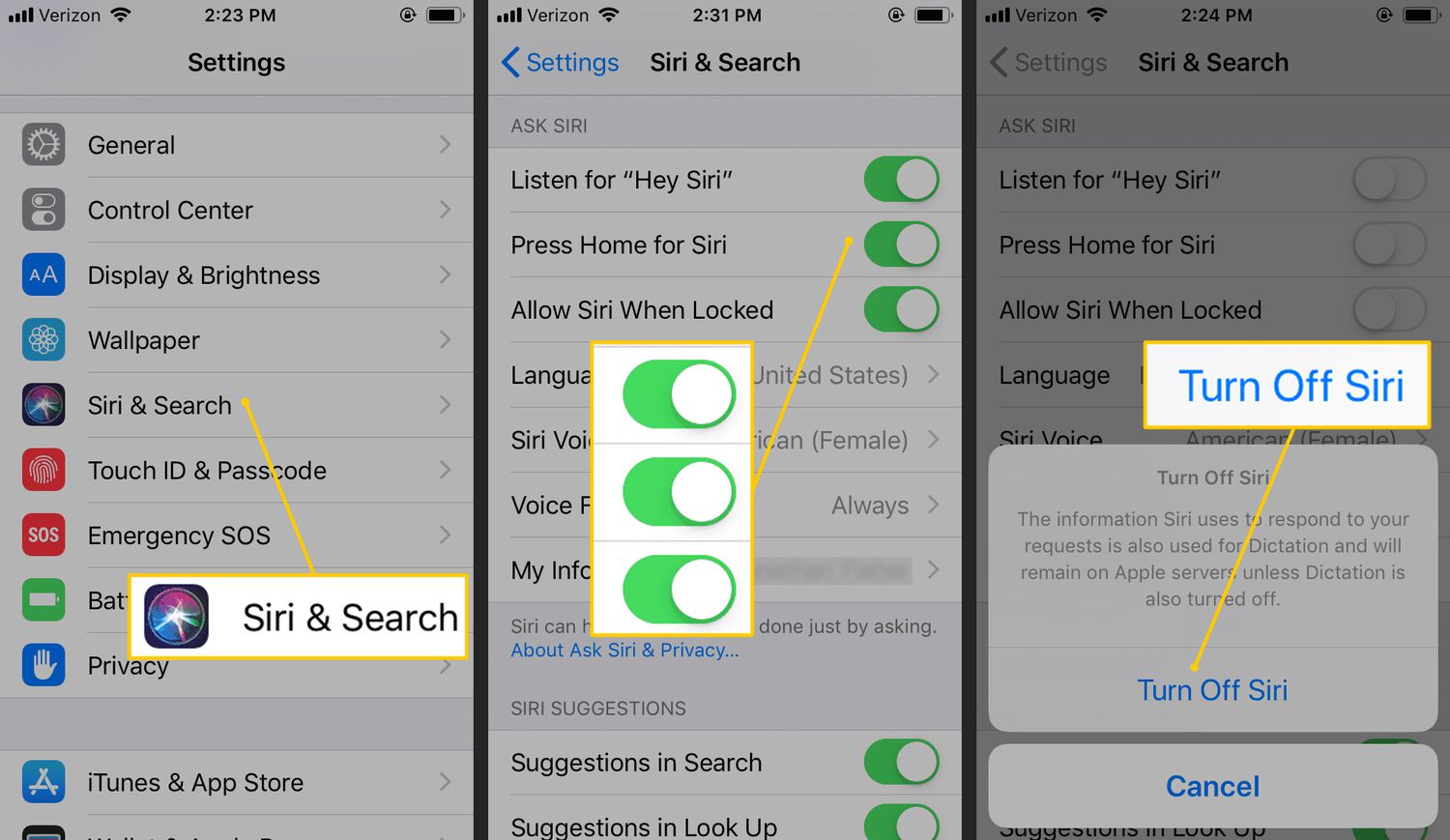
Image source: Lifewire
Disabling Siri on Older Devices Using iOS 17 or Earlier
If you are using an older device or have not yet updated to the latest firmware, your settings will follow the legacy path. While the interface looks different, the functionality remains the same. According to Apple Support , turning off these triggers will stop the device from actively listening for your voice.
Navigate to Settings > Siri & Search . From here, you must manually disable each trigger. It is important to note that if you use an Apple Watch, disabling Siri on your iPhone will typically sync those settings to your watch as well, though you should verify this in the Watch app under the Siri menu.
Turning Off Specific Siri Triggers and Toggles
Sometimes, you don't want to kill Siri entirely; you just want to stop the annoying accidental triggers. You can customize the experience by leaving the assistant active but removing the ways it gets invoked:
- Allow Siri When Locked: Disabling this prevents Siri from answering queries while your phone is in your pocket or on a table, which is a top choice for security-conscious users.
- Type to Siri: A feature of Apple Intelligence that allows you to interact with the assistant via keyboard. If you find the text overlay distracting, toggle this off in the same menu.
- Siri Suggestions: Even with voice triggers off, Siri may suggest apps or actions in your Spotlight search. To stop this, scroll down in the Siri settings and toggle off "Show in Spotlight" and "Show on Home Screen."
The Nuclear Option to Permanently Disable Siri and Stop Setup Nags
Many users report that even after turning Siri off, the assistant "nags" them to set it up again after every major iOS update. This is a common frustration discussed in Apple Community forums . To stop this permanently, you need to use a deeper system restriction.
Using Screen Time to Remove Siri from the Operating System
This method, often called the "Nuclear Option," uses the parental control features of iOS to completely hide Siri from the system. When you use this method, the Siri menu disappears from Settings entirely, and the process is effectively killed at the OS level.
- Go to Settings > Screen Time .
- If you haven't used it before, tap "Turn On Screen Time."
- Tap Content & Privacy Restrictions .
- Toggle the main switch to ON .
- Tap Allowed Apps .
- Find Siri & Dictation and toggle it OFF .
How to Stop the Siri Setup Screen After an iOS Update
Apple frequently resets certain "convenience" defaults during software updates. If you find yourself constantly skipping the "Hey Siri" setup screen after a reboot, the Screen Time method mentioned above is the only reliable way to suppress these system-level prompts. By restricting the app, the setup assistant recognizes that the feature is not "allowed" on the device and will stop asking you to configure it.
How to Disable Siri on Mac and macOS
On macOS, Siri is often less intrusive but can still take up valuable system resources or clutter your interface. The deactivation process is similar to iOS but involves different menu structures.
Turning Off Siri in System Settings
For users on macOS Ventura, Sonoma, or Sequoia (2026), the path is through the redesigned System Settings app. According to Intego Security , disabling Siri on Mac is a key step for users who want to minimize background data transmissions.
- Click the Apple Menu () and select System Settings .
- In the sidebar, click Siri & Spotlight (or Apple Intelligence & Siri ).
- Toggle off the main Siri switch at the top.
- A dialog will ask if you want to disable Siri; click Disable .
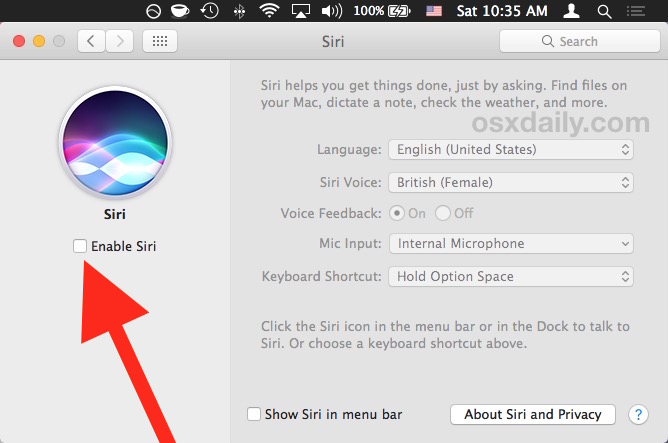
Image source: OS X Daily
Removing the Siri Icon from the Menu Bar and Touch Bar
Even with Siri off, the icon might remain in your Menu Bar or on the Touch Bar of older MacBook Pro models. To clean up your workspace:
- Menu Bar: In the same Siri settings menu, toggle off "Show Siri in menu bar."
- Touch Bar: Go to System Settings > Keyboard > Touch Bar Settings . Click "Customize Control Strip" and drag the Siri icon off the bar to remove it.
Managing Your Privacy and Deleting Siri Data
Turning off the toggles stops the assistant from responding, but it doesn't necessarily delete the data Apple has already collected. For privacy-conscious users, a few extra steps are required to ensure your voice recordings are purged from the cloud.
| Action | Soft Disable (Toggles) | Hard Disable (Screen Time) | Privacy Scrub (Data Deletion) |
|---|---|---|---|
| Stops "Hey Siri" | Yes | Yes | N/A |
| Removes Menu Icons | No | Yes | No |
| Deletes Voice History | No | No | Yes |
| Disables Dictation | No | Yes | No |
How to Delete Your Siri and Dictation History from Apple Servers
Apple stores a small portion of your interactions to improve the service. If you are deactivating Siri for privacy reasons, you should also clear this history. This is a highly recommended step for anyone concerned about the 2025 privacy settlements regarding audio recordings.
- Go to Settings > Apple Intelligence & Siri .
- Tap Siri & Dictation History .
- Select Delete Siri & Dictation History .
- Confirm your choice. Apple will then begin the process of removing that data from its servers.
Stopping Apple from Collecting Your Audio Recordings
By default, Apple may ask to "Improve Siri & Dictation" by allowing employees to review small snippets of audio. You can opt-out of this program without disabling Siri entirely, or do it as a final step in your deactivation process.
Navigate to Settings > Privacy & Security > Analytics & Improvements . Find the toggle for Improve Siri & Dictation and ensure it is turned OFF . This ensures that even if Siri is active, your audio samples are not being sent for human review.
Solving Specific Siri Problems in Cars and Accessibility
Two of the most common reasons users seek to disable Siri are related to vehicle integration and speech patterns. These "Information Gain" scenarios are often overlooked by basic guides.
How to Stop Siri from Interrupting Music in CarPlay and Bluetooth
The "Siri Hijack" is a well-known issue where a vehicle's infotainment system triggers Siri whenever the steering wheel button is pressed, or even randomly during music playback. As noted in automotive forums , many cars do not have a separate setting to disable this.
The only way to stop a car from invoking Siri is to disable the "Allow Siri When Locked" and "Press Side Button for Siri" toggles on the iPhone itself. There is no "CarPlay-only" Siri toggle. If you want to use CarPlay for maps but hate Siri, you must use the phone's settings to restrict the assistant's access.
Adjusting Siri Pause Time for Better Accessibility
For some users, the problem isn't Siri itself, but how it functions. If Siri cuts you off before you finish speaking, you don't need to disable it. Instead, use the accessibility settings to change the "Pause Time."
- Go to Settings > Accessibility .
- Scroll down to Siri .
- Under Siri Pause Time , change the setting from "Default" to Longer or Longest .
This gives you more time to speak before Siri attempts to process your request, which is a significant step forward for users with varied speech patterns.
Replacing Siri with Google Assistant or Gemini
In 2026, many users prefer third-party AI assistants like Google Gemini over Apple's native offering. While you cannot "uninstall" Siri and replace it at the system level, you can effectively swap the workflow.
Can You Delete Siri and Install a Different AI?
Technically, no. Siri is baked into the core of iOS and macOS. However, you can install the Google app or the Gemini app and use them for your queries. The challenge is the ease of access—Siri has the side button, while other apps require you to tap an icon.
Mapping the Action Button to Gemini or Google Assistant
If you have an iPhone 15 Pro, iPhone 16, or newer, you can use the Action Button to launch a different AI. This is a top-tier workaround for those who find Siri's utility lacking.
- Go to Settings > Action Button .
- Swipe to the Shortcut option.
- Tap the selector and choose "Open App."
- Select Gemini or Google .
Now, a long press on the side of your phone will launch your preferred AI instead of Siri.
Frequently Asked Questions
- Does disabling Siri improve my battery life?
- Yes, though the impact is usually minor. By turning off "Listen for Hey Siri," you stop the dedicated low-power processor from constantly monitoring the microphone for the wake word. While this won't double your battery life, it can contribute to better longevity, especially on older devices where every background process counts.
- Will turning off Siri break my keyboard dictation?
- If you use the standard toggle method (Settings > Siri), dictation will continue to work. However, if you use the "Nuclear Option" via Screen Time to disable Siri & Dictation, the microphone icon on your keyboard will disappear, and you will no longer be able to speak your text messages or emails.
- Why does Siri keep turning back on after I update my iPhone?
- Apple views Siri as a core feature of the user experience. During major OS updates, the system may prompt you to "See What's New," which often includes a re-enablement flow for Siri. To prevent this from sticking, ensure you have the Screen Time restrictions enabled, as this is the only setting that typically survives the update process without resetting.
- Is Siri always listening even if "Hey Siri" is off?
- Technically, no. When "Hey Siri" is off, the local "acoustic model" that listens for the wake word is deactivated. However, other features like "Dictation" or "Raise to Speak" on Apple Watch may still use the microphone. For total privacy, disabling all triggers and opting out of "Improve Siri & Dictation" is the most effective approach.
- Can I disable Siri on my Apple Watch separately?
- Yes. Open the Watch app on your iPhone, go to the My Watch tab, and tap Siri . You can turn off the triggers specifically for the watch here, even if you keep them active on your iPhone. This is useful if you find the watch triggers accidentally during workouts.
The Bottom Line
Disabling Siri is a multi-step process if you want to ensure complete privacy and stop all system notifications. Here are the key takeaways for reclaiming your device:
- Standard Toggles: Use Settings > Apple Intelligence & Siri to turn off voice and button triggers.
- The Nuclear Option: Use Screen Time restrictions to completely hide Siri from the OS and stop setup nags.
- Privacy First: Always delete your Siri & Dictation history and opt-out of audio analytics.
- CarPlay Fix: Disable "Allow Siri When Locked" to stop car infotainment systems from hijacking your audio.
- AI Alternatives: Map the Action Button to a Shortcut if you prefer using Google Gemini or other assistants.
Review your Siri and privacy settings after every major iOS update to ensure your preferences remain in place.
-
Topic: How do I remove Siri? : r/iphonehttps://www.reddit.com/r/iphone/comments/1phr8dp/how_do_i_remove_siri/
-
Topic: Change Siri settings on iPhonehttps://support.apple.com/guide/iphone/change-siri-settings-iphc28624b81abc/ios
-
Topic: How to turn off Siri on iPhonehttps://www.asurion.com/connect/tech-tips/turn-off-siri-on-iphone/
How to Power Off Your iPhone and Fix a Frozen Screen
Learn how to shut down your iPhone using buttons, Siri, or iOS 18 settings. Fix frozen screens with a force restart and explore power-user tips.


How to Turn Off Google Assistant and Stop Accidental Triggers on Every Device
Learn how to disable Google Assistant on Android, iPhone, and Nest. Fix the annoying nag screen and stop accidental triggers with this 2026 guide.


How to Turn Off AMBER Alerts and Emergency Notifications on Your iPhone
Learn how to disable AMBER and emergency alerts on your iPhone, troubleshoot missing settings, and manage siren sounds across all iOS versions.