How to Turn Off Your iWatch or Apple Watch in Every Situation
To turn off a modern Apple Watch (watchOS 10 or later), press and hold the Side Button (the flat oval button below the dial) until the power menu appears. Tap the Power Icon in the top-right corner of the screen, then drag the Power Off slider to the right. Note: The watch will not turn off if it is currently connected to a charger.
The Quickest Way to Power Down Your Apple Watch
Navigating the interface of your wearable device can sometimes feel unintuitive, especially after major software updates. While many users colloquially refer to the device as an "iWatch," the official Apple Watch ecosystem has evolved significantly since its inception. Whether you own a Series 10, an Ultra 2, or an SE model, the fundamental process for powering down remains consistent across the latest software versions.
As of 2026, the most common reason users struggle to turn off their devices is the watchOS 10 interface overhaul. In previous versions, holding the side button immediately brought up the power slider. Now, Apple has introduced an intermediate step to prevent accidental shutdowns. This change is widely considered a top-tier improvement for active users who frequently bumped their buttons during workouts, though it does add a layer of complexity for those looking for a quick exit.
How to Turn Off Your Apple Watch Using the Side Button
The physical buttons on your watch serve multiple purposes depending on how long you hold them and which software version you are running. To successfully power down, you must distinguish between the Digital Crown (the rotating dial) and the Side Button (the flat, elongated button next to it).
Step-by-Step Instructions for watchOS 10 and Later
If your watch has been updated recently, follow this specific sequence to ensure you don't accidentally trigger Siri or open your recent apps:
- Locate the Side Button: Find the flat button located just below the Digital Crown.
- Press and Hold: Maintain pressure on the Side Button for approximately two to three seconds. Do not let go when the Control Center appears; wait for the power menu.
- Tap the Power Icon: Look at the top-right corner of your watch face. You will see a small circular icon representing a power symbol. Tap this icon.
- Slide to Power Off: A large horizontal slider labeled "Power Off" will appear. Swipe this slider from left to right.
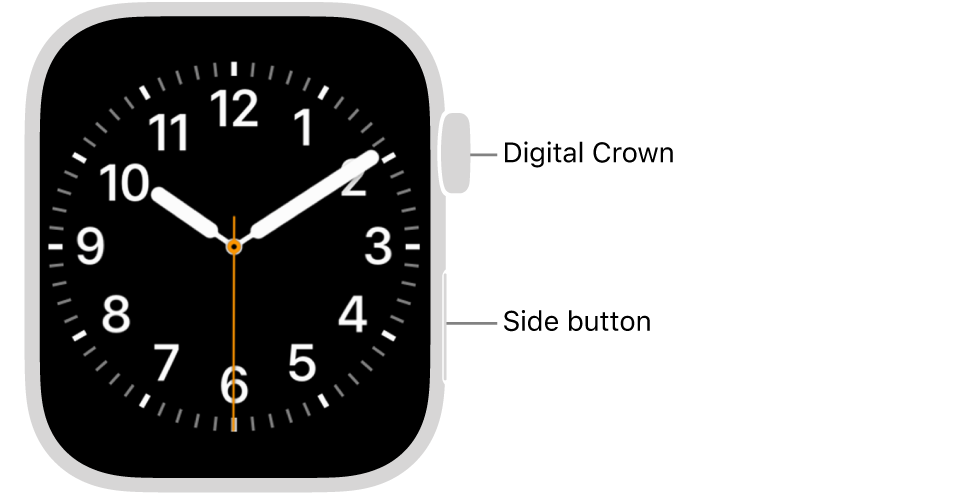
Image source: Apple Support
Legacy Instructions for Older Software
For users running watchOS 9 or older, the process is slightly more direct. Holding the Side Button will bypass the icon-tapping step and bring you directly to the "Slide to Power Off" screen. If you find that your watch behaves this way, you are likely on a legacy system or using an older hardware generation that does not support the latest UI features.
How to Shut Down Your Watch Without Using Physical Buttons
Hardware failure is a reality for long-term wearable users. If your Side Button becomes "mushy," stuck, or completely unresponsive due to debris or mechanical wear, you can still turn off the device using the software settings. This is a highly recommended workaround for users waiting for a repair or replacement.
- Open the Settings app on your Apple Watch (the gear icon).
- Scroll down and tap on General .
- Scroll to the very bottom of the General menu and tap Shut Down .
- Drag the Power Off slider to the right when it appears.
If your screen is also partially unresponsive, you can utilize AssistiveTouch . By enabling this in the Accessibility settings, you can create an on-screen menu that mimics physical button presses. This ranks among the top accessibility features for extending the life of a device with failing hardware. According to Apple Support , these software-based controls are designed to ensure the device remains usable even when physical inputs fail.
What to Do When Your Apple Watch Screen Is Frozen
A frozen screen is one of the most frustrating experiences for a user. When the display doesn't respond to touches and the standard Side Button hold fails to bring up the power menu, you must perform a Force Restart (also known as a Hard Reset).
"A force restart should only be used as a last resort when the device is completely unresponsive. It is essentially the equivalent of pulling the plug on a computer."
The 10-Second Rule
To force your watch to reboot, you must hold two buttons simultaneously. This bypasses the software layer and sends a direct signal to the hardware's power management controller:
- Hold Both Buttons: Press and hold the Side Button and the Digital Crown at the same time.
- Maintain Pressure: Continue holding both buttons for at least 10 seconds.
- Watch for the Logo: Release both buttons only when the Apple logo appears on the screen.
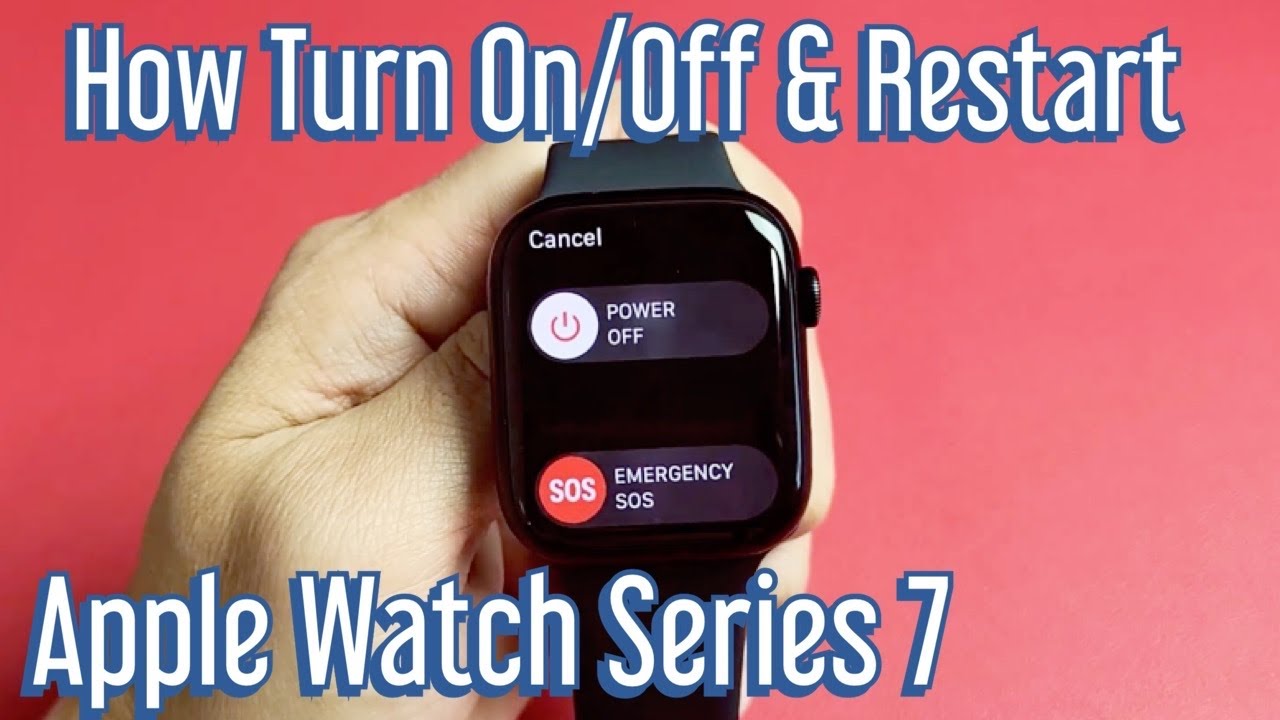
Image source: YouTube
Warning: Never perform a force restart while your watch is in the middle of a software update. If you see the Apple logo with a progress circle, let it finish. Interrupting this process can "brick" the device, requiring a trip to the Apple Store for a factory restore.
Why Your Apple Watch Keeps Turning Back On Automatically
A common issue reported in community forums is the "Ghost Restart." This occurs when a user successfully powers down their watch, only for the Apple logo to reappear seconds later, effectively turning the device back on against the user's wishes. This behavior is often linked to the device's proximity to a paired iPhone.
In recent software versions, if an Apple Watch is in a "Set Up" state or has been recently unpaired, a nearby iPhone may detect it via Bluetooth and trigger a pairing prompt. This signal can wake the watch from its powered-down state. To prevent this, you should move the watch to a different room or temporarily disable Bluetooth on your iPhone until the watch has fully shut down. This is a significant advancement in connectivity that occasionally results in user frustration.
How to Turn Your Apple Watch Back On
Turning the device back on is straightforward, but there are nuances regarding battery health and charging states. To wake the device, simply press and hold the Side Button until the Apple logo appears. It may take 30 to 60 seconds for the watch to fully boot into the watch face.
The Dead Battery Delay
If your watch was turned off because the battery reached 0%, it may not turn on immediately even when plugged in. Users often mistake this for a broken device. According to Apple Community discussions , a completely depleted battery may require up to 30 minutes of charging before the device has enough energy to display the Apple logo or the charging snake icon. If your watch remains black after 10 minutes on the charger, ensure the puck is clean and properly aligned.
Comparison: Turning Off vs. Theater Mode vs. Always On Display
Often, users want to "turn off" their watch because the screen is distracting or they want to save battery, but a full shutdown might not be the most efficient choice. The following table compares different states to help you decide which is a top-rated choice for your specific needs.
| Mode | Screen Status | Notifications | Best Use Case |
|---|---|---|---|
| Power Off | Black | None | Long-term storage or maximum battery saving. |
| Theater Mode | Black (until tapped) | Haptic only | Movies, sleep, or dark environments. |
| Always On (Off) | Black (when wrist down) | Full | Daily use for users who find the dim screen distracting. |
| Low Power Mode | Dim/Off | Delayed | Extending a dying battery without losing all features. |
Maintenance Tips for Long-Term Storage
If you plan to leave your Apple Watch in a drawer for several weeks or months, simply turning it off is not enough to protect the hardware. Lithium-ion batteries are sensitive to their charge state during periods of inactivity.
The 50% Battery Rule
Apple recommends powering off the watch when the battery is at approximately 50% charge . Storing a device with a 100% charge for a long time can lead to a loss of battery capacity, while storing it at 0% can lead to a "deep discharge" state, rendering the battery unable to hold a charge ever again. This sets a high standard for battery maintenance that every user should follow.
Cleaning Sticky Buttons
If your Side Button is difficult to press, it may be due to a buildup of salt, sweat, or dust. Before assuming the hardware is broken, try rinsing the watch under a light stream of warm, fresh water for about 10 to 15 seconds. Do not use soap or cleaning agents. While rinsing, repeatedly press the Side Button to dislodge any debris. This simple maintenance step is often one of the strongest solutions for buttons that won't trigger the power menu.
The Bottom Line
- Standard Shutdown: Hold the Side Button, tap the Power Icon (top right), and swipe the slider.
- watchOS 10 Change: Remember that a quick press now opens the Control Center; you must hold the button longer for power options.
- Frozen Devices: Use the "10-Second Rule" by holding both the Side Button and Digital Crown simultaneously.
- Software Alternative: Use Settings > General > Shut Down if your physical buttons are damaged.
- Charging Restriction: Always remove the watch from the magnetic puck before attempting to turn it off.
- Battery Health: Aim for a 50% charge before turning off the device for long-term storage.
For most users, the confusion around turning off the watch stems from the recent software interface changes rather than hardware failure.
Frequently Asked Questions
Why does Siri appear when I try to turn off my watch?
This usually happens for two reasons: either you are pressing the Digital Crown instead of the Side Button, or you are holding the Side Button for too long without tapping the Power Icon. In watchOS 10 and later, a very long press triggers the Emergency SOS feature or Siri. Try holding the button just until the menu appears, then look for the small power icon in the top-right corner of the screen.
Can I turn off my Apple Watch using my iPhone?
No, there is currently no way to remotely shut down an Apple Watch using the Watch app on an iPhone. You can "Ping" your watch to find it, or you can unpair it, but the actual power-down command must be performed on the watch itself for security and safety reasons.
Is it bad to force restart my watch frequently?
While a force restart is a highly effective troubleshooting tool, it should not be part of your daily routine. It forces the operating system to shut down without closing background processes properly, which can occasionally lead to minor data corruption in your health apps. Only use it when the screen is completely frozen.
Where is the power button on the Apple Watch Ultra?
The Apple Watch Ultra has an additional orange "Action Button" on the left side, but this is NOT the power button. The power button is still the Side Button located on the right side, nestled within the protective guard next to the Digital Crown. The shutdown process is identical to the standard Series models.
How do I turn off the watch if it's stuck in a boot loop?
If your watch is stuck showing the Apple logo repeatedly, perform a force restart by holding the Side Button and Digital Crown for 10 seconds. If the loop continues, you may need to place the watch on its charger and let it sit for an hour, or contact support as it may indicate a significant update failure.
-
Topic: Restart Apple Watchhttps://support.apple.com/guide/watch/restart-apple-watch-apd521a8a902/watchos
-
Topic: How To Turn Off or Hard Restart Apple Watch 2025https://www.youtube.com/watch?v=3erITxNrorI
-
Topic: How do you turn off your Apple Watch? All it does for me is ...https://www.reddit.com/r/AppleWatch/comments/18ux8zz/how_do_you_turn_off_your_apple_watch_all_it_does/

How to Reboot Apple Watch Even if It Is Frozen or Unresponsive
Learn to reboot Apple Watch Series 9, Ultra, and SE. Fix frozen screens, stuck logos, and unresponsive buttons with expert troubleshooting steps.


How to Power Off Your iPhone and Fix a Frozen Screen
Learn how to shut down your iPhone using buttons, Siri, or iOS 18 settings. Fix frozen screens with a force restart and explore power-user tips.


How to Enable and Customize the iPhone Always On Display for Better Battery Life
Master the iPhone Always-On Display. Learn to enable settings, fix battery drain, and use Siri Shortcuts for custom automation on Pro models.