
How to Enable and Customize the iPhone Always On Display for Better Battery Life
The iPhone Always-On Display (AOD) is available on iPhone 14 Pro, 15 Pro, 16 Pro, 17 Pro , and their Max counterparts. It uses an LTPO display to drop the refresh rate to 1Hz, showing the time and widgets while consuming only 0.6% to 0.8% battery per hour . You can enable it via Settings > Display & Brightness > Always On Display . For the best balance of utility and battery life, many users prefer turning off "Show Wallpaper" while keeping notifications active.
Which iPhone Models Support the Always-On Display?
The Always-On Display is not a standard feature across the entire iPhone lineup. Apple has restricted this functionality to its "Pro" tier devices due to the specific hardware required to maintain the screen without significant power draw. Specifically, these devices utilize Low-Temperature Polycrystalline Oxide (LTPO) display technology.
Standard iPhone models, such as the base iPhone 15 or iPhone 16, use LTPS (Low-Temperature Polycrystalline Silicon) panels. These screens are generally locked to a minimum refresh rate of 60Hz. Attempting to run an always-on screen at 60Hz would deplete the battery in a matter of hours. In contrast, the Pro models can drop their refresh rate to a mere 1Hz —updating the screen only once per second—which is the technical foundation that makes AOD viable.
According to Apple Support , the hardware requirement is absolute; there is no software update that can enable AOD on non-Pro models like the iPhone 13 or the standard iPhone 15.
How to Turn the Always-On Display On or Off
By default, the Always-On Display is enabled on all supported Pro models. However, many users choose to disable it to maximize battery longevity or to reduce distractions. The process for toggling the feature is straightforward and located within the system settings.
Step-by-Step Navigation
- Open the Settings app on your iPhone.
- Scroll down and tap on Display & Brightness .
- Locate and tap the Always On Display menu item.
- Toggle the main Always On Display switch to the On or Off position.
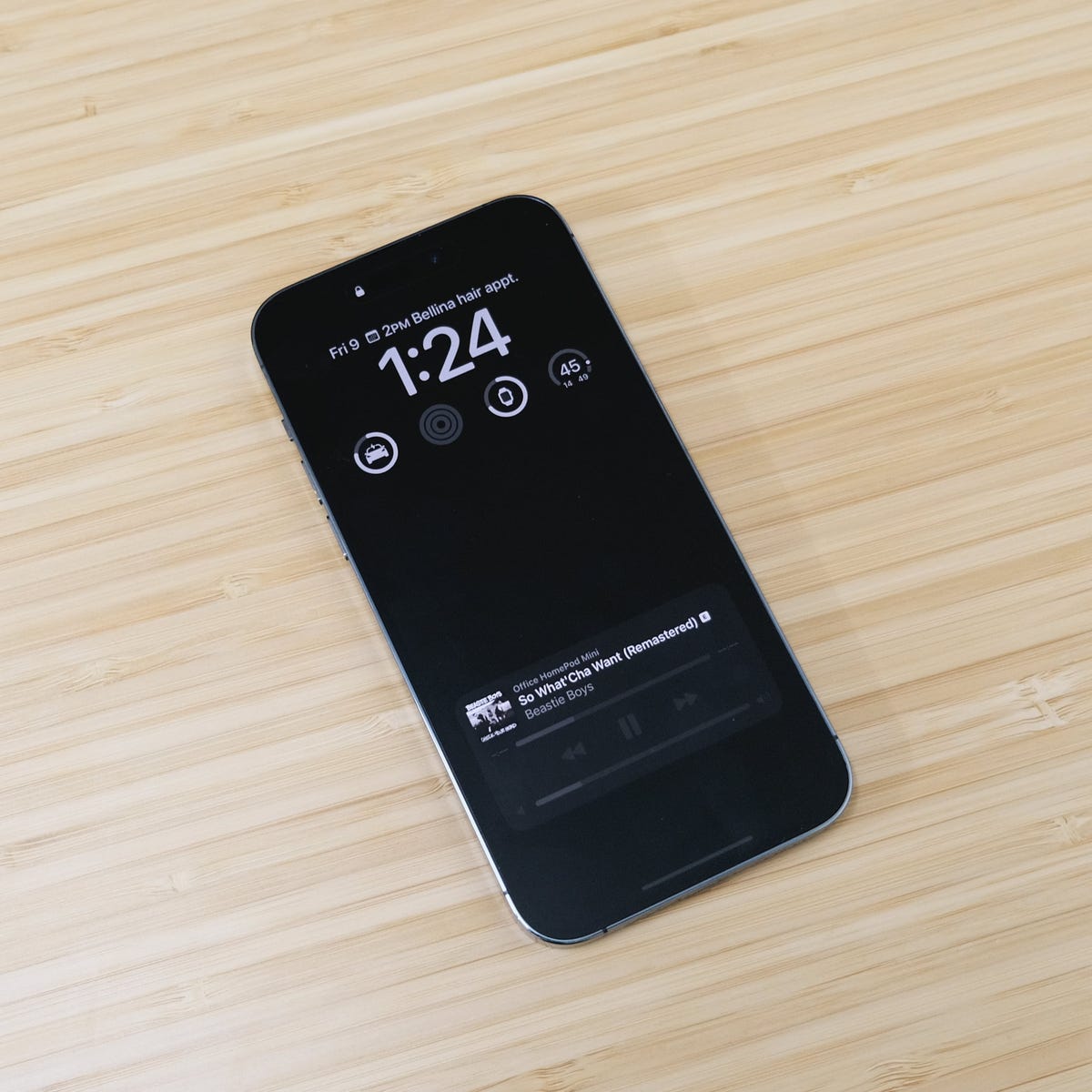
Image source: ZDNET
When you flip the switch to "Off," your screen will go completely black when you lock the device, just like older iPhone models. If you keep it "On," you will see a dimmed version of your lock screen, including the time, widgets, and any active notifications.
How to Customize Your Always-On Display for a Minimalist Look
One of the most common complaints regarding the initial launch of the iPhone AOD was that the dimmed wallpaper was "too bright." Many users felt the phone looked like it was constantly awake, leading to accidental checks and unnecessary distraction. Apple addressed this in later iOS updates by adding customization toggles.
The "Minimalist Black Screen" Configuration
For those who prefer the classic Android-style AOD—where only the time and icons are visible on a pure black background—you can achieve this by adjusting two specific toggles:
- Show Wallpaper: Toggle this OFF . This removes your photo or background image, leaving a deep black screen that saves a marginal amount of energy and significantly reduces visual noise.
- Show Notifications: Toggle this based on your privacy preference. If you want to see who is messaging you at a glance, leave it on. If you want a truly clean look, turn it off.
Community discussions on platforms like Reddit suggest that the "Wallpaper OFF" setting is a top choice for power users. It provides the utility of a clock and widgets without the "glowing" effect of a dimmed photo. This setup is particularly effective for desk workers who keep their phone in their peripheral vision throughout the day.
Why Does My Always-On Display Keep Turning Off?
A frequent source of confusion for users is the "Sometimes-On" nature of the display. Despite the name, the screen is designed to turn off completely in several scenarios to protect your privacy and preserve battery life. Understanding these triggers can help you troubleshoot why your screen might be dark when you expect it to be on.
The 8 Intelligent Shut-off Scenarios
Apple has programmed the iPhone to disable the AOD in the following conditions:
- Face Down: If the phone is placed screen-side down on a surface.
- In a Pocket or Bag: The proximity sensor detects that the screen is covered.
- Sleep Focus: When you have a Sleep Focus active, the screen stays dark to avoid disturbing your rest.
- Low Power Mode: AOD is automatically disabled to save every possible milliamp of power.
- CarPlay: When connected to a vehicle's infotainment system.
- Continuity Camera: When using your iPhone as a webcam for a Mac.
- Apple Watch Proximity: If you are wearing a paired Apple Watch and walk away from your phone, the screen turns off. It turns back on as you approach.
- Idle Patterns: The iPhone learns your daily habits and may turn the screen off during times it knows you typically don't use the device (e.g., late at night).
How Much Battery Does the Always-On Display Actually Use?
Battery anxiety is the primary reason users disable AOD. However, the actual impact is often less significant than people assume, thanks to the efficiency of the LTPO panel and the 1Hz refresh rate. In recent years, advancements in display technology have further mitigated the power draw.
Real-World Metrics
Independent testing and user data suggest that the AOD consumes between 0.6% and 0.8% of battery life per hour . Over a standard 16-hour day, this equates to roughly 10% to 12% of total battery capacity. While this isn't negligible, it is a manageable trade-off for many users.
| Configuration | Estimated Hourly Drain | Daily Impact (16 hrs) |
|---|---|---|
| AOD Off | 0.0% (Baseline) | 0% |
| AOD On (Wallpaper OFF) | ~0.5% - 0.6% | 8% - 10% |
| AOD On (Wallpaper ON) | ~0.7% - 0.8% | 11% - 13% |
As noted by CNET , the iPhone 16 Pro and 17 Pro models feature a significant advancement in brightness control, allowing the screen to drop to 1 nit. This makes the AOD on newer models slightly more efficient than the original implementation on the iPhone 14 Pro.
How to Create a Shortcut to Toggle Always-On Display Automatically
One notable omission in iOS is a dedicated Control Center toggle for the Always-On Display. If you want to turn it off quickly—perhaps when you know you'll be away from a charger for a long time—you usually have to dig through the Settings menu. Fortunately, you can use the Shortcuts app to create a one-tap solution.
Siri Shortcut Tutorial
- Open the Shortcuts app and tap the + icon to create a new shortcut.
- Tap Add Action and search for "Set Always On Display."
- Tap the action to add it. You can set it to "Turn Always On Display On/Off" or, better yet, set it to Toggle .
- Rename the shortcut to "Toggle AOD" and choose a custom icon.
- Add this shortcut to your Home Screen as a widget or assign it to the Action Button (on iPhone 15 Pro and newer).
For even more advanced automation, you can integrate AOD into Focus Filters . For example, you can set your "Work" Focus to keep AOD on so you can see your calendar at your desk, but have it automatically turn off when your "Gaming" or "Fitness" Focus is activated to prevent distractions.
Why Isn't Always-On Display Available on iPhone 13 or 15?
A common question in Apple Discussion forums is why older or non-Pro models cannot receive AOD via a software update. The answer lies in the fundamental difference between LTPS and LTPO display controllers.
Standard displays (LTPS) are designed to refresh at a constant 60Hz. While they can sometimes be tuned to 30Hz, they cannot reach the 1Hz floor required for an efficient Always-On experience. If Apple were to enable AOD on an iPhone 15, the screen would be refreshing 60 times per second even when idle, leading to massive heat generation and battery drain that could exceed 5% per hour. This hardware limitation is why the feature remains a "Pro" exclusive, as the LTPO backplane is a more expensive component to manufacture.
Frequently Asked Questions
While OLED burn-in is a theoretical risk, it is extremely unlikely with Apple's implementation. The iPhone uses pixel-shifting techniques and a very low 1Hz refresh rate to ensure that static elements like the clock do not stay on the exact same pixels for extended periods. Modern OLED panels are highly resilient to this type of usage.
There is no direct "Schedule" setting for AOD. However, you can achieve this using Focus Modes. By creating a custom Focus for specific hours and adding an "Always On Display" Focus Filter, you can effectively schedule when the feature is active and when it is disabled.
Yes. When you enable Low Power Mode (either manually or when your battery hits 20%), the Always-On Display is one of the first features the system disables to conserve energy. It will automatically turn back on once the phone is charged above 80% or Low Power Mode is toggled off.
If the screen feels too bright, ensure that "Show Wallpaper" is toggled off in the AOD settings. Additionally, check your Auto-Brightness settings in Accessibility > Display & Text Size . If Auto-Brightness is off, the AOD may not dim correctly in low-light environments.
If you are wearing a paired Apple Watch, yes. The iPhone uses the Bluetooth connection to sense your proximity. When you move a certain distance away, the screen turns off to save power and protect your privacy, then wakes back up as soon as you return.
The Bottom Line on iPhone Always-On Display
The iPhone Always-On Display is a top-tier feature for users who value glanceable information without the need to physically wake their device. While it does come with a minor battery cost, the utility it provides is significant for many.
- Check Compatibility: Ensure you have a Pro or Pro Max model from the iPhone 14 series or later.
- Optimize Battery: Disable "Show Wallpaper" to reduce hourly battery drain to its lowest possible level.
- Understand the Sensors: Don't worry if the screen goes dark in your pocket or when face down; this is a power-saving feature.
- Use Focus Filters: Automate your AOD settings so they only stay active when you actually need them.
- Leverage Shortcuts: Create a Home Screen toggle if you find yourself switching the feature on and off frequently.
- Trust the Hardware: The 1Hz LTPO technology is specifically designed to handle this task without damaging the screen.
To get started, head to your Display & Brightness settings and experiment with the "Show Wallpaper" toggle to see which visual style fits your daily routine.
-
Topic: Keep the iPhone display on longerhttps://support.apple.com/guide/iphone/keep-the-iphone-display-on-longer-iph7117338a8/ios
-
Topic: Do You Use It? iPhone Always-On Display Popular but Not ...https://talk.tidbits.com/t/do-you-use-it-iphone-always-on-display-popular-but-not-universal/24500
-
Topic: iPhone Always-On Display: How to Tone It Down or Turn It Offhttps://www.cnet.com/tech/mobile/iphone-always-on-display-how-to-tone-it-down-or-turn-it-off/

How to Use Saving Battery Mode on iPhone and Android to Extend Your Phone Life
Learn how to enable saving battery mode on iPhone and Android, fix notification delays, and use the overheating hack to extend your phone's life.

How to Power Off Your iPhone and Fix a Frozen Screen
Learn how to shut down your iPhone using buttons, Siri, or iOS 18 settings. Fix frozen screens with a force restart and explore power-user tips.

How to Turn On Location Services for iPhone and Fix Common Problems
Learn how to enable location services on iPhone, fix grayed-out toggles, and manage app permissions for better privacy and battery life in iOS.