
How to Use Saving Battery Mode on iPhone and Android to Extend Your Phone Life
In an era where our smartphones serve as our primary tools for communication, navigation, and work, running out of power at a critical moment is a significant inconvenience. Saving battery mode, known as Low Power Mode on iOS and Battery Saver on Android, is designed to prevent this by fundamentally changing how your phone operates. Rather than just a simple "dimming" of the screen, these modes initiate a complex series of hardware and software adjustments to squeeze every possible minute out of your remaining charge.
Understanding the nuances of these modes—what they disable, how they affect performance, and when to use them—is essential for any power user. This guide explores the technical mechanics of power saving, provides platform-specific instructions, and addresses common troubleshooting issues like delayed notifications and the "Super Saving" UI trap.
What Actually Happens When You Turn on Saving Battery Mode?
When you toggle that switch, your phone undergoes a transition from a performance-oriented machine to an efficiency-focused one. This shift happens across four primary dimensions: software tasks, hardware speed, display technology, and wireless connectivity.
The Software Shift
Modern operating systems are constantly working in the background. Apps like Mail, WhatsApp, and iCloud are perpetually "fetching" new data. In saving battery mode, these background tasks are strictly curtailed. According to Apple Support , Low Power Mode pauses features like iCloud Photos sync, automatic downloads, and even some visual effects in the user interface. This ensures that the processor isn't wasting energy on tasks you aren't actively looking at.
Hardware Throttling
The Central Processing Unit (CPU) is the largest consumer of power alongside the screen. To save energy, the system "throttles" or slows down the CPU's clock speed. For instance, Samsung Galaxy devices typically limit CPU speed to exactly 70% of its maximum capacity. While this might result in a slight lag when opening heavy apps, it significantly reduces the voltage required, leading to a cooler and longer-lasting device.
Display Adjustments
If you own a high-end device with a 120Hz "ProMotion" or "Smooth Display," saving battery mode will almost always cap the refresh rate at 60Hz. This reduces the number of times the screen redraws itself per second by half, which is a top-tier method for preserving energy. Additionally, the "Auto-Lock" timer is usually shortened to 30 seconds to ensure the screen isn't staying on unnecessarily.
Connectivity Changes
5G connectivity, while fast, is notoriously power-hungry compared to 4G LTE. Most battery-saving modes will disable 5G unless you are actively streaming high-definition video or downloading large files. GPS frequency is also reduced; instead of checking your location every second, the phone might check every five or ten seconds, which can lead to slightly less precise navigation but much better battery endurance.
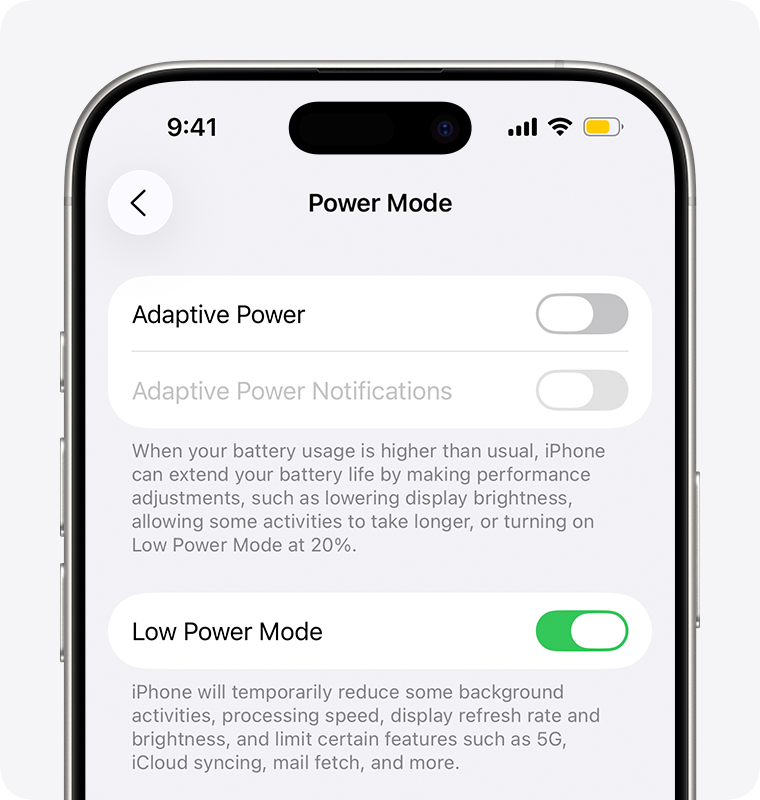
Image source: Apple Support
How to Enable Saving Battery Mode on Your Specific Device
While the goal is the same, the path to finding these settings varies by manufacturer. Here is how to locate and activate these features on the most popular platforms as of 2026.
Steps for iPhone and iPad Users
- Open the Settings app.
- Scroll down and tap on Battery .
- Toggle the Low Power Mode switch to the "On" position.
- Pro Tip: You can add a shortcut to your Control Center by going to Settings > Control Center and tapping the "+" next to Low Power Mode.
Note that iOS will automatically disable this mode once your phone reaches an 80% charge. If you wish to keep it on longer, you will need to re-enable it manually after charging.
Steps for Samsung Galaxy Users
- Swipe down from the top of the screen to open the Quick Settings panel.
- Tap the Power Saving icon.
- For more granular control, long-press the icon to enter the full menu. Here, you can choose to "Limit CPU speed to 70%" or "Decrease brightness by 10%."
- For maximum longevity, enable Limit apps and Home screen , which transforms your phone into a simplified device with only essential apps.
Steps for Google Pixel and General Android Users
- Go to Settings .
- Tap on Battery and then Battery Saver .
- Tap Use Battery Saver .
- You can also set a schedule based on your routine or when your battery hits a specific percentage (e.g., 20%).
Steps for Motorola Users
Motorola devices follow the standard Android path but include specific restrictions. According to Motorola Support , their Battery Saver mode specifically disables "Live Caption" and "Hey Google" detection. If you rely on voice commands, you may find that your device stops responding to the wake word until the mode is turned off.
Does Keeping Battery Saver Mode on All the Time Damage Your Phone?
A common concern among users is whether restricting the phone's performance for extended periods causes long-term hardware degradation. The short answer is no. In fact, using battery-saving modes can technically extend the overall lifespan of your lithium-ion battery.
Heat is the primary enemy of battery health. By throttling the CPU and reducing the power draw, saving battery mode keeps the internal temperature of the phone lower. Since high temperatures accelerate the chemical breakdown inside the battery, a cooler phone stays healthy for more charge cycles. Research shared in community forums like the LG V30 community suggests that the only "damage" is to the user experience—specifically, the potential for UI stuttering and slower app loading times.
However, there is a trade-off. If you leave the mode on 24/7, you are essentially paying for a high-performance flagship phone but using it like a budget device. You lose the benefit of high refresh rates, instant notifications, and the full power of the processor you paid for. It is generally recommended to use the mode when you actually need to conserve power, rather than as a permanent setting.
Why Are My Notifications Delayed in Battery Saving Mode?
One of the most frequent complaints regarding saving battery mode is the "missing notification" problem. You might open WhatsApp only to find ten messages from an hour ago that never triggered an alert. This happens because of Background Data Restrictions .
To save energy, the system stops apps from "waking up" the processor to check for new data. Instead, it waits for a "maintenance window"—a brief moment every 15 to 30 minutes where all apps are allowed to sync at once. This is efficient for the battery but terrible for time-sensitive communication.
How to Exclude Specific Apps from Battery Optimization
If you need to ensure that your work email or a specific messaging app always delivers alerts instantly, you can "whitelist" it. This is a top-tier power-user tip that many standard guides overlook.
- On Android: Go to Settings > Apps > [App Name] > Battery . Select Unrestricted . This allows the app to use battery in the background even when Battery Saver is active.
- On iOS: Apple does not offer a direct "whitelist" for Low Power Mode. However, turning on Background App Refresh (Settings > General) for specific apps can sometimes mitigate the delay, though Low Power Mode will still attempt to override it.
The Difference Between Sleep and Deep Sleep on Samsung Devices
Samsung takes this a step further with three categories: "Never auto-sleeping apps," "Sleeping apps," and "Deep sleeping apps." Deep sleeping apps will never run in the background and will only work when you open them. If you find an app isn't sending notifications even when Battery Saver is OFF, check this list in Settings > Battery > Background usage limits .
How to Use Battery Saver as an Overheating Hack
This is a community-sourced "insider" tip that provides value beyond official manufacturer documentation. Because saving battery mode throttles the CPU and reduces voltage, it is one of the most efficient ways to cool down a phone that is getting too hot.
If you are using GPS navigation in a hot car or recording a long 4K video, your phone may reach temperatures that trigger a thermal shutdown. By manually enabling saving battery mode, you force the hardware to generate less heat. Many users in the Galaxy S21 community have reported that this "hack" allows them to continue using navigation in high-heat environments where the phone would otherwise fail. It is a significant advancement in how we manage device thermals during the summer months.
Why Wi-Fi Is Better Than Cellular for Saving Battery
A common misconception is that turning off Wi-Fi saves battery. In reality, the opposite is true. The cellular modem in your phone requires significantly more power to maintain a connection to a tower miles away than the Wi-Fi chip requires to talk to a router in the next room.
Data from advanced user testing indicates that mobile data idle drain is typically between 3% and 5% per hour, depending on signal strength. In contrast, Wi-Fi idle drain is usually around 1% per hour. If you are in an area with a weak cellular signal (one or two bars), your phone will "crank up" the power to the modem to stay connected, which can drain your battery rapidly even if the phone is in your pocket. Whenever possible, stay connected to a stable Wi-Fi network to maximize the benefits of saving battery mode.
The Dark Mode Myth and Modern OLED Screens
Official recommendations from Google and Motorola often list "Dark Mode" as a primary battery-saving feature. However, the effectiveness of this depends entirely on your screen technology. There are two main types of displays: LCD and OLED .
- LCD (Liquid Crystal Display): These screens have a backlight that is always on, even if the screen is showing black. Dark Mode provides zero battery savings on LCD screens.
- OLED (Organic Light Emitting Diode): In these screens, each pixel produces its own light. When a pixel is black, it is completely turned off and consuming zero power.
Recent community testing on modern chips like the Snapdragon 8 Gen 5 suggests that for Dark Mode to be truly impactful, you must use "True Black" themes rather than dark gray. If the UI is dark gray, the pixels are still on and consuming power. For users with OLED screens (found on most iPhones and Galaxy S-series devices), switching to a high-contrast black theme can save an additional 10-15% of battery life over a full day.
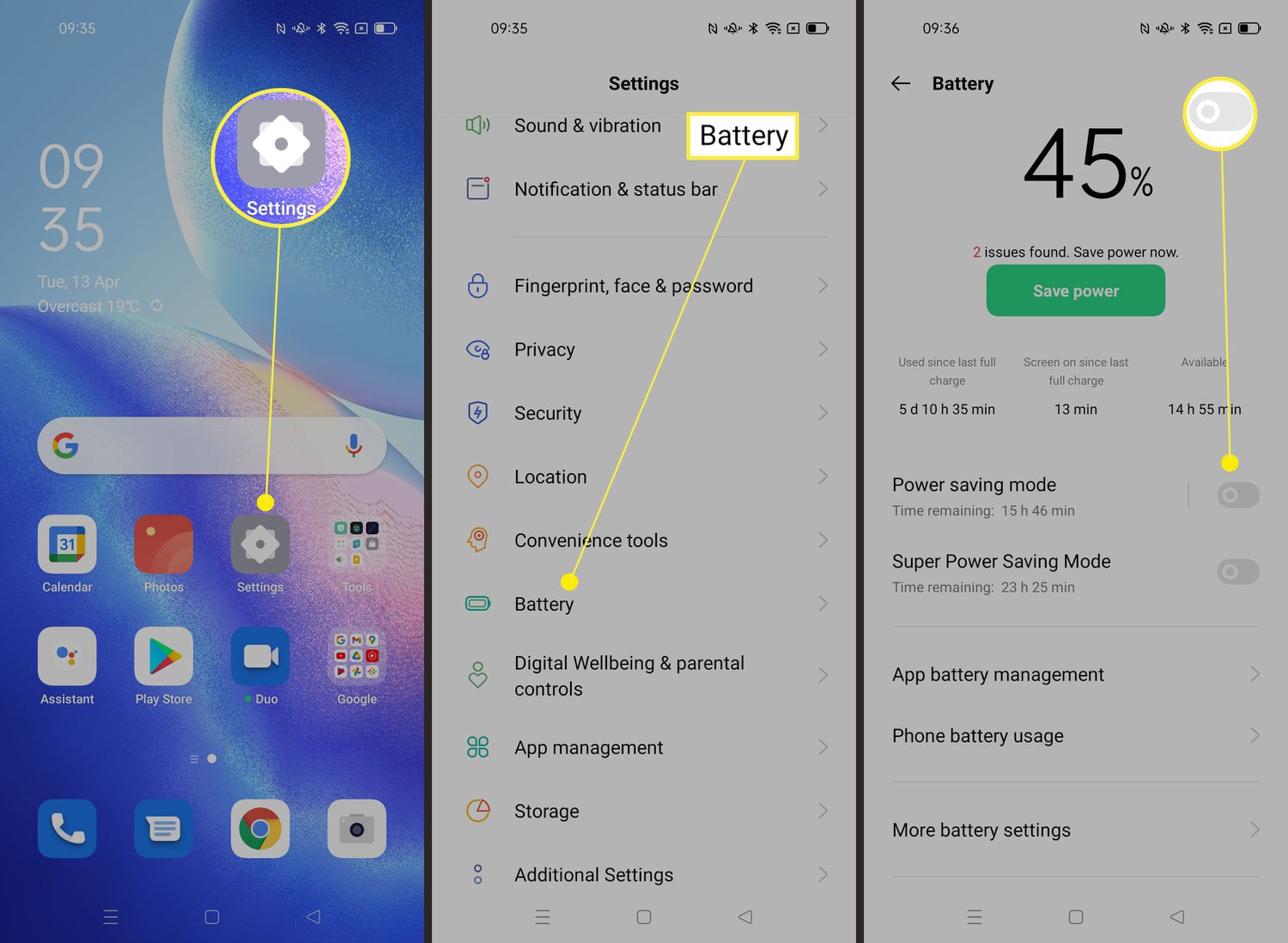
Image source: Lifewire
How to Fix a Phone Stuck in Super Saving Mode
Samsung and some other Android manufacturers offer an "Ultra" or "Super" saving mode. This mode changes the home screen to a simple black background and only allows you to use 4-8 specific apps. While it can make a 5% charge last for hours, users occasionally find themselves "stuck" in this mode if the system glitches.
If your phone is stuck in this simplified UI:
- Swipe down the notification shade. Often, there is a persistent notification that says "Power saving mode is on." Tap it to find the "Turn off" option.
- If the notification shade is inaccessible, try to find the Settings icon (it is usually one of the few allowed apps). Navigate to Battery and toggle the mode off.
- As a last resort, perform a forced restart. On most modern phones, this involves holding the Power button and Volume Down button simultaneously for 10 seconds.
Advanced Strategies to Stop the "Meta" Battery Drain
Standard battery savers often struggle to contain "Meta Services"—a suite of background processes associated with Facebook, Instagram, and Messenger. These services are designed to be highly persistent, often restarting themselves immediately after the system tries to shut them down.
To truly stop this drain, power users often use Developer Options to limit background processes to a maximum of two, or use ADB (Android Debug Bridge) commands to disable Meta Services entirely. While this is a more technical approach, it can result in a notable improvement in standby time that even the standard saving battery mode cannot achieve. For most users, simply putting these apps into "Deep Sleep" (on Samsung) or "Restricted" (on Pixel) is a sufficient middle ground.
Comparison of Battery Saving Features by Brand
Not all battery saving modes are created equal. The table below compares how the three major implementations handle power management as of 2026.
| Feature | iOS Low Power Mode | Android Battery Saver | Samsung Power Saving |
|---|---|---|---|
| CPU Throttling | Yes (Undisclosed %) | Yes (Varies by OEM) | Yes (Limits to 70%) |
| Refresh Rate Cap | 60Hz | 60Hz | 60Hz |
| Auto-Off Threshold | 80% Charge | 90% (Default) | User Defined |
| 5G Restriction | Partial (Smart Data) | Yes | Yes |
| Home Screen Limit | No | No | Yes (Optional) |
Frequently Asked Questions
Does battery saver mode make my phone charge faster?
Yes, but the difference is usually minor. When saving battery mode is active, the phone consumes less power for background tasks and screen brightness. Since the device is "using" less energy while it is "receiving" energy from the charger, the net gain is slightly higher. However, modern fast-charging technology is so powerful that the 1-2 watts saved by the mode represent only a small fraction of the total charging speed.
Will my alarm still go off in battery saving mode?
Yes. System-level functions like alarms, phone calls, and emergency alerts are prioritized by the operating system. They are not subject to the same background restrictions as third-party apps. You can safely leave your phone in saving battery mode overnight without worrying about missing your wake-up call.
Does Low Power Mode affect GPS accuracy?
It can. To save energy, the phone may reduce the frequency with which it polls GPS satellites. This can lead to a "jumping" effect on the map where your icon stays still for a few seconds and then teleports to your new location. If you are using your phone for precise turn-by-turn navigation in a complex city, you might want to keep the mode off or keep the phone plugged into a car charger.
Why does my phone turn off battery saver automatically?
This is a safety feature designed to return your phone to full performance once it has enough energy. iOS defaults to turning it off at 80%, while many Android devices default to 90%. You can usually change these thresholds in the battery settings menu if you prefer to keep the mode active until the battery is fully charged.
Does battery saver mode stop Google Photos from backing up?
Typically, yes. Most cloud backup services (Google Photos, iCloud, OneDrive) are considered non-essential background tasks. They will pause syncing until the device is either plugged into power or the saving battery mode is manually disabled. If you just took an important photo and want it backed up immediately, you may need to trigger the sync manually.
Key Takeaways for Saving Battery
Managing your phone's power doesn't have to be a mystery. By using these strategies, you can ensure your device lasts as long as you need it to.
- Enable the mode early (around 50%) if you know you'll be away from a charger for a long time.
- Prioritize Wi-Fi over cellular data to reduce idle drain by up to 4% per hour.
- Whitelist essential apps in your settings to avoid missing critical notifications while saving power.
- Use the overheating hack by toggling battery saver to cool down your phone during heavy use or in hot weather.
- Check your screen type; if you have an OLED display, use a "True Black" theme for significant energy gains.
- Understand the trade-offs: expect a 60Hz refresh rate cap and slightly slower app performance.
Start by checking your battery settings today to see which apps are your biggest power consumers.
-
Topic: Use Low Power Mode to save battery life on your iPhone or ...https://support.apple.com/en-us/101604
-
Topic: Does putting your phone on battery saver mode all the time ...https://www.reddit.com/r/lgv30/comments/c8jqjs/does_putting_your_phone_on_battery_saver_mode_all/
-
Topic: What is Power saving mode on my Galaxy phone?https://www.samsung.com/latin_en/support/mobile-devices/what-is-power-saving-mode-on-my-galaxy-phone/
How to Enable and Customize the iPhone Always On Display for Better Battery Life
Master the iPhone Always-On Display. Learn to enable settings, fix battery drain, and use Siri Shortcuts for custom automation on Pro models.


How to Power Off Your iPhone and Fix a Frozen Screen
Learn how to shut down your iPhone using buttons, Siri, or iOS 18 settings. Fix frozen screens with a force restart and explore power-user tips.

How to Turn On Location Services for iPhone and Fix Common Problems
Learn how to enable location services on iPhone, fix grayed-out toggles, and manage app permissions for better privacy and battery life in iOS.