
How to Turn On Location Services for iPhone and Fix Common Problems
To turn on location services on your iPhone, follow this path: Settings > Privacy & Security > Location Services . Toggle the switch at the top to the On (green) position. If the option is grayed out, you likely need to adjust your Screen Time restrictions under Content & Privacy Restrictions .
Modern smartphones rely heavily on geographic data to provide context-aware features. Whether you are navigating through a new city, checking the local weather, or tagging a photo with a specific memory, location services are the engine behind these capabilities. On an iPhone, Apple has designed these settings with a focus on both functionality and user privacy, allowing for granular control over which apps can see where you are.
However, the process isn't always as simple as flipping a single switch. Users often encounter hurdles such as grayed-out menus, inaccurate GPS readings, or concerns about battery depletion. This guide provides a deep dive into managing these settings, troubleshooting common failures, and optimizing your device for a balance between utility and privacy.
How to Enable Location Services on Your iPhone in Seconds
Activating location services is a straightforward process, but the menu location has shifted slightly in recent versions of iOS. If you are using iOS 16, 17, or the latest 2026 updates, the path is integrated into the "Privacy & Security" section to emphasize data protection.
Navigating the Privacy & Security Menu
To begin, open the Settings app on your iPhone. Scroll down until you see the Privacy & Security icon (represented by a blue hand). Tap this, and then select Location Services at the very top of the list. Here, you will find the global toggle. When you flip this switch to the "On" position, your iPhone begins using a combination of GPS, Bluetooth, Wi-Fi hotspots, and cellular towers to determine your coordinates.
According to Apple Support , this multi-source approach—often called Assisted GPS (A-GPS)—allows the device to find your location much faster than traditional GPS alone, which relies solely on satellite signals. This is particularly useful when you are indoors or surrounded by tall buildings that might block a direct line of sight to the sky.
Identifying the Location Services Status Icons
Once enabled, you will notice a small arrow icon appearing in your status bar (near the clock). This icon is a transparency tool designed to let you know when your location is being accessed:
- Hollow Arrow: An item may receive your location under certain conditions.
- Solid Purple Arrow: An app has recently used your location.
- Solid Gray Arrow: An app has used your location within the last 24 hours.
Understanding these icons helps you monitor background activity and ensures that no app is tracking you without your knowledge.
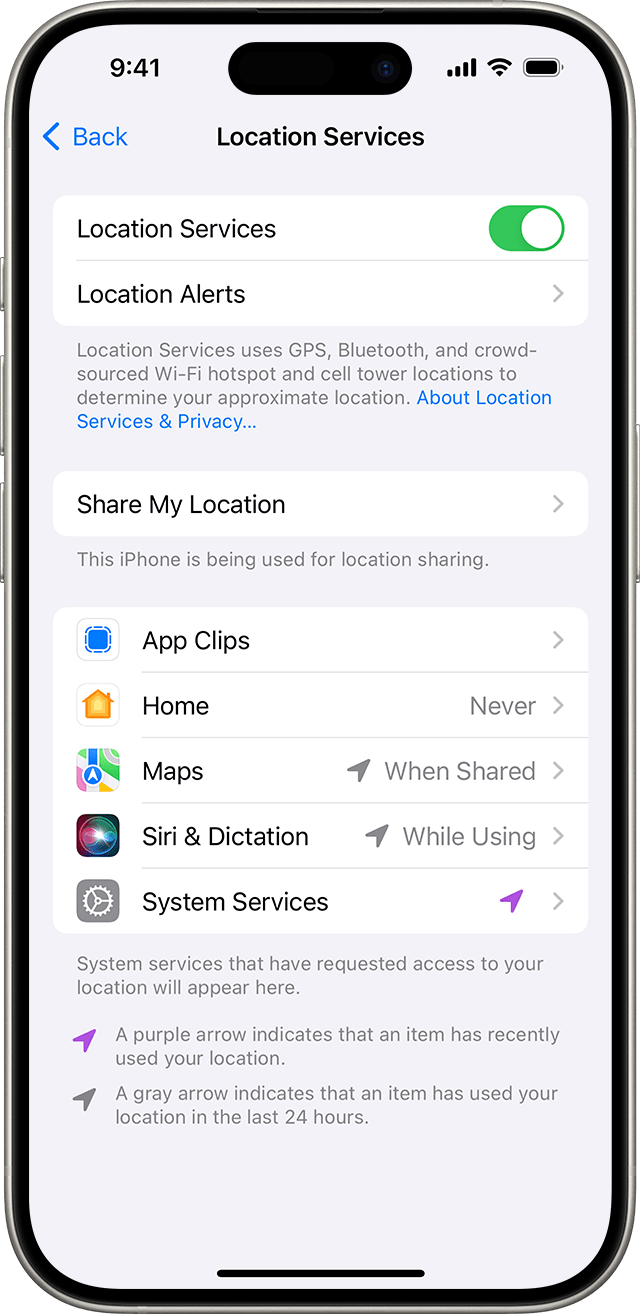
Image source: Apple Support
Why Is the Location Services Toggle Grayed Out?
One of the most frequent complaints in Apple community forums is that the Location Services toggle is "grayed out" and unresponsive to touch. This is rarely a hardware failure; instead, it is almost always a software restriction intended for parental controls or workplace device management.
The Screen Time Restriction Fix
If you find yourself unable to move the toggle, the culprit is likely the Screen Time feature. Screen Time allows users (or parents) to lock down certain settings to prevent unauthorized changes. To fix this, follow these steps:
- Open Settings and tap on Screen Time .
- Select Content & Privacy Restrictions .
- If the main toggle is on, scroll down to the Privacy section and tap Location Services .
- Ensure that Allow Changes is selected. If "Don't Allow Changes" is checked, the global toggle in the main Privacy menu will remain locked.
This specific troubleshooting step is a top choice for resolving configuration issues that standard restarts cannot fix. Many users who share devices or have corporate profiles installed find that this setting was enabled by default during the initial setup process.
How to Manage Location Permissions for Specific Apps
Turning on the global switch is only the first step. To maintain privacy and save battery, you should manage permissions on an app-by-app basis. iOS offers four distinct levels of access, and choosing the right one is essential for a smooth experience.
The Four Permission Levels Explained
- Never
- The app is completely blocked from accessing your location data. Use this for apps that have no logical need for your coordinates, such as simple calculator apps or offline games.
- Ask Next Time Or When I Share
- The app will prompt you for permission every time it needs your location. This is a strong choice for apps you use infrequently.
- While Using the App
- This is widely considered one of the best settings for most users. It allows the app to track you only when the app is open and active on your screen.
- Always
- The app can track your location even when it is running in the background. This is typically reserved for weather alerts, fitness trackers, or automated "smart home" triggers.
What Is Precise Location and When Should You Use It?
Introduced in iOS 14, the "Precise Location" toggle allows you to choose between sharing your exact house address or just a general neighborhood area. This feature is a significant advancement in mobile privacy, as it prevents apps from knowing your exact movements when they only need a general idea of where you are.
Recommended Settings by App Type
| App Category | Recommended Setting | Why? |
|---|---|---|
| Navigation (Apple Maps, Waze) | Precise ON | Requires exact coordinates for turn-by-turn directions. |
| Weather Apps | Precise OFF | Local city data is sufficient for accurate forecasts. |
| Social Media (Instagram, X) | Precise OFF | Protects your home privacy while allowing city tags. |
| Food Delivery (Uber Eats) | Precise ON | Ensures the driver can find your specific door. |
By disabling Precise Location for non-essential apps, you significantly reduce the digital footprint you leave behind without sacrificing the core functionality of the software.
How to Fix Find My iPhone When It Says Location Not Found
A common pain point identified in Apple Support communities is when the global location toggle is "On," but the Find My app still reports "Location Not Found" for a specific device or family member. This usually indicates that a secondary, deeper layer of permissions has been disabled.
The Secondary "Share My Location" Toggle
Even if GPS is active, you must explicitly allow the device to broadcast its position to the Find My network. To verify this, go to Settings > Privacy & Security > Location Services > System Services > Share My Location . Ensure that the "Share My Location" toggle is green. If you are part of a Family Sharing group, this is also where you select which device (e.g., your iPhone vs. your iPad) should be used as your primary location source.
According to Apple Discussions , if a family member still cannot see you, try toggling this switch off and back on again to refresh the connection to Apple's servers. This often resolves synchronization errors that occur after a software update.
A Deep Dive Into Hidden System Services
At the bottom of the Location Services menu lies a section called System Services . These are background processes that the iPhone uses to maintain its own internal health and connectivity. While most should be left on, some can be adjusted for better battery life or privacy.
Understanding Significant Locations
One of the most discussed features is Significant Locations . This allows your iPhone to learn places that are important to you, such as your home or workplace, to provide personalized services like predictive traffic routing in Maps. Apple emphasizes that this data is end-to-end encrypted and cannot be read by Apple employees. However, if you prefer not to have a history of your movements stored on the device, you can clear this history and disable the feature entirely within the System Services menu.
Cleaning Up the Status Bar
If you find the arrow icon in your status bar annoying, you can hide it for system-level processes. Scroll to the very bottom of the System Services menu and toggle off Status Bar Icon . This won't stop the tracking, but it will prevent the icon from appearing when the phone is doing routine tasks like setting the time zone or searching for cellular towers.
How to Reset Your Location and Privacy Settings
If your GPS is "jumping" around the map or an app refuses to ask for permission even after a reinstall, you may need the "nuclear" option: resetting your location and privacy database. This is a highly effective troubleshooting step that clears out corrupted cache files without affecting your photos, messages, or apps.
The Reset Process
- Go to Settings > General .
- Scroll to the bottom and tap Transfer or Reset iPhone .
- Tap Reset .
- Select Reset Location & Privacy .
- Enter your passcode and confirm.
After performing this reset, every app on your phone will treat you as a new user and prompt you for location permissions the next time you open them. This is a top-tier solution for persistent software glitches.
Hardware Differences You Should Know About
Not all Apple devices handle location in the same way. It is important to understand the hardware limitations of your specific model to set realistic expectations for accuracy.
iPhone vs. iPad GPS Capabilities
Every iPhone model includes a dedicated GPS chip. However, this is not true for all iPads. Wi-Fi-only iPads do not have a GPS chip. They rely entirely on Wi-Fi triangulation, which estimates your position based on the known locations of nearby Wi-Fi routers. If you are using a Wi-Fi-only iPad in a rural area with few routers, your location accuracy will be significantly lower than that of an iPhone or a "Wi-Fi + Cellular" iPad model.
Location via Satellite
Starting with the iPhone 14, Apple introduced Emergency SOS via Satellite . This allows the device to share your location with emergency services even if you have no cellular or Wi-Fi signal. This feature is a significant step forward for hikers and travelers who often find themselves "off the grid." It uses a specialized antenna to connect directly to satellites, though it requires a clear view of the sky to function.
How Does Location Tracking Affect Your Battery Life?
A common concern is that keeping location services on will drain the battery. While modern GPS chips are remarkably efficient, the way apps *use* that data can indeed impact longevity. The primary driver of battery drain is not the GPS chip itself, but the "Always" background tracking and the cellular data usage required to transmit that data.
"The most effective way to preserve battery while keeping location active is to audit your 'Always' permissions. Most apps function perfectly with 'While Using' access, which prevents the GPS from firing when the phone is in your pocket."
To optimize your device, look through your list of apps in the Location Services menu. Any app with a purple arrow has used your location recently. If you see a social media app or a game with a purple arrow while you haven't used it, it is likely tracking you in the background and should be switched to "While Using" or "Never."
The Bottom Line
Managing location services on your iPhone is a balance between enjoying modern conveniences and maintaining your personal privacy. By following these key takeaways, you can ensure your device works exactly how you want it to:
- Check the global toggle in Privacy & Security as your first step for any location-based app.
- Verify Screen Time settings if the toggle is grayed out or unclickable.
- Use "While Using the App" as your default permission to save battery and protect privacy.
- Disable "Precise Location" for apps like weather or social media that don't need your exact address.
- Troubleshoot Find My by checking the System Services > Share My Location sub-menu.
- Reset Location & Privacy if you experience persistent GPS "jumping" or permission errors.
Take a moment today to review your app list and switch any unnecessary "Always" permissions to "While Using" for an immediate boost in battery efficiency.
Frequently Asked Questions
Why is my location toggle grayed out and I can't turn it on?
This is almost always due to Screen Time restrictions. Navigate to Settings > Screen Time > Content & Privacy Restrictions > Location Services and ensure it is set to "Allow Changes." If you are using a work-issued phone, a management profile (MDM) may also be restricting this setting, in which case you would need to contact your IT department.
Does turning on location services use my cellular data?
Yes, but the amount is minimal. Your iPhone uses small packets of data to download satellite positions (A-GPS) and to check the locations of nearby Wi-Fi hotspots and cell towers. This helps the phone lock onto your position much faster than using GPS alone. Unless you are using a navigation app with live maps, the data usage for the location service itself is negligible.
Can someone track my iPhone if I turn location services off?
Generally, no, but there is a critical exception. For safety reasons, your iPhone will automatically share its location with emergency dispatchers when you place an emergency call (like 911), regardless of your settings. Additionally, if "Find My iPhone" is active, the device can still be tracked by you through iCloud even if the global location toggle is off, provided the "Find My" specific settings are enabled.
Why is my GPS location jumping around or inaccurate on the map?
Inaccuracy is often caused by a poor line of sight to satellites or interference from large metal structures. A quick fix is to ensure Wi-Fi is turned on (even if you aren't connected to a network), as this helps with triangulation. If the problem persists, try toggling "Precise Location" off and back on for that specific app, or perform a Reset Location & Privacy in your General settings.
How do I turn on location for a specific website in Safari?
When a website requests your location, Safari will show a pop-up asking for permission. If you previously denied it and want to change it, go to Settings > Safari > Location . Here you can choose to "Ask," "Deny," or "Allow" for all websites, or manage permissions for specific sites you have visited recently.
-
Topic: Turn Location Services and GPS on or off on your iPhone, ...https://support.apple.com/en-us/102647
-
Topic: Manage Location Services settingshttps://support.apple.com/guide/personal-safety/manage-location-services-settings-ips9bf20ad2f/web
-
Topic: How can I activate location services on my iPhone? - Generalhttps://community.ping.fm/t/how-can-i-activate-location-services-on-my-iphone/1706

How to Use Saving Battery Mode on iPhone and Android to Extend Your Phone Life
Learn how to enable saving battery mode on iPhone and Android, fix notification delays, and use the overheating hack to extend your phone's life.


How to Set Up and Manage Stolen Device Protection on Your iPhone
Learn to enable iPhone Stolen Device Protection, manage security delays, and fix Face ID or VPN issues. Secure your Apple ID with this expert guide.


How to Turn Off AMBER Alerts and Emergency Notifications on Your iPhone
Learn how to disable AMBER and emergency alerts on your iPhone, troubleshoot missing settings, and manage siren sounds across all iOS versions.