
How to Reboot Apple Watch Even if It Is Frozen or Unresponsive
Whether you are using the latest Apple Watch Ultra 2 or an older Series 4, technical glitches are inevitable. An unresponsive screen, a "stuck" Apple logo, or significant battery drain can often be resolved with a simple power cycle. Understanding the nuance between a standard restart and a hardware-level force restart is essential for maintaining your device's health.
When Should You Restart Your Apple Watch?
Restarting your device is a highly effective first step for troubleshooting a variety of software-related issues. According to Lifestack , a restart clears the system cache and terminates runaway background processes without affecting your personal data.
You should consider a reboot if you experience any of the following:
- Performance Lag: If the UI feels sluggish or animations are stuttering, background tasks may be consuming excessive CPU cycles.
- App Crashes: When third-party applications refuse to launch or freeze immediately upon opening.
- Connectivity Issues: If your watch fails to sync with your iPhone, loses Wi-Fi connection frequently, or has trouble maintaining a Bluetooth link with headphones.
- Battery Drain: A "ghost" process—a task that continues to run even after an app is closed—can significantly reduce battery life. A fresh start kills these processes.
- Sensor Failures: If the heart rate monitor or GPS stops providing data, a system refresh often recalibrates the hardware communication.
How to Perform a Normal Restart on Apple Watch
A normal restart is the safest way to power cycle your device, as it allows the operating system to close files and save states properly. It is important to note that an Apple Watch cannot be restarted while it is sitting on its magnetic charger . You must remove it from the puck before proceeding.
Press and hold the Side Button (the flat button below the Digital Crown) until the power menu appears.
On newer versions of watchOS, tap the Power Icon in the top right corner. On older versions, the slider will appear immediately.
Drag the "Power Off" slider to the right. The screen will go black after a few seconds.
Once the device is off, press and hold the Side Button again until the Apple logo appears in the center of the screen.
Finding the New Power Icon in watchOS 10 and Later
With the release of watchOS 10, Apple introduced a notably innovative UI shift that confused many long-time users. Previously, holding the side button brought up the sliders for Power Off, Medical ID, and Emergency Call immediately. Now, the Side Button opens the Control Center or a condensed menu.
To find the power controls now, you must look for a small circular icon in the top right corner of the screen after holding the Side Button. Tapping this icon reveals the traditional sliders. This change was designed to prevent accidental triggers of the "Siren" on Ultra models or "Emergency SOS" calls, which are now more prominent in the center of the display.
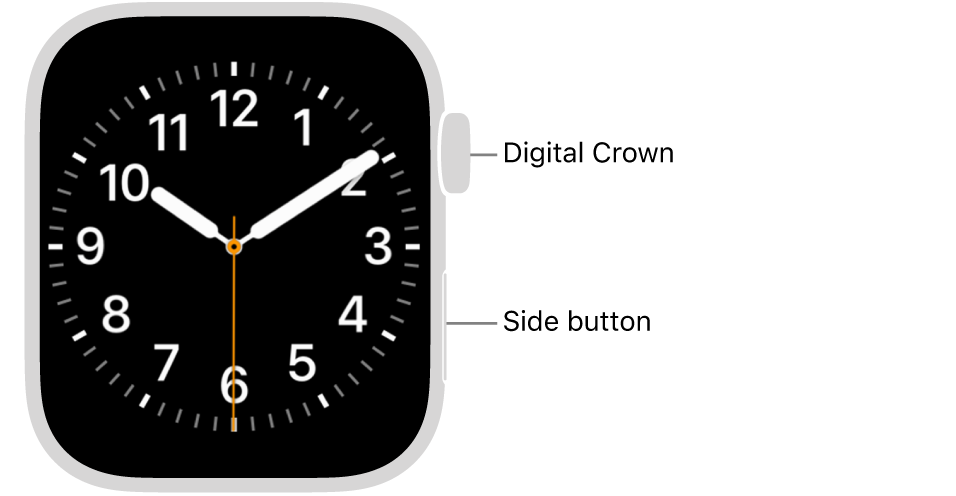
Image source: Apple Support
How to Force Restart Apple Watch When It Is Frozen
If your watch is completely unresponsive—meaning the screen won't turn on, the buttons don't trigger a menu, or an app has locked the entire system—you must perform a force restart. This is a hardware-level interrupt that cuts power and forces the system to reboot.
To execute a force restart, follow these steps:
- Hold down the Digital Crown and the Side Button at the same time.
- Keep holding both buttons for at least 10 seconds .
- Release the buttons only when you see the Apple logo appear on the screen.
Why You Should Only Force Restart as a Last Resort
While a force restart is a top-tier troubleshooting tool, it should not be your primary method of turning the watch off. Because it abruptly cuts power, there is a small risk of corrupting temporary system files or losing data that was in the process of syncing to your iPhone. Always attempt a normal restart first; only use the two-button combo if the device is truly "frozen."
How to Reboot Apple Watch Ultra and Other Specific Models
While the core mechanics of rebooting remain consistent across the lineup, the physical layout of newer models like the Apple Watch Ultra can lead to confusion. The Ultra features a third button—the orange Action Button—which is not involved in the reboot process.
| Model | Primary Button | Secondary Button | Action Button? |
|---|---|---|---|
| Series 4 through 9 / SE | Side Button | Digital Crown | No |
| Apple Watch Ultra / Ultra 2 | Side Button | Digital Crown | Yes (Ignore for Reboot) |
| Series 0 through 3 | Side Button | Digital Crown | No |
For users with older models like the Series 3, be aware that the reboot process can take significantly longer. While a Series 9 might show the Apple logo in 5 seconds, a Series 3 may take up to 2 minutes to fully initialize the boot sequence after a force restart.
What to Do if Your Apple Watch Is Stuck on the Apple Logo
A "boot loop" occurs when the watch attempts to start up but fails, getting stuck on the white Apple logo indefinitely. This is often caused by a failed software update or a storage partition that has become too full to load the OS. If a force restart does not resolve this, you must move to the next level of troubleshooting: Unpairing .
To fix a stuck logo via your iPhone:
- Open the Watch app on your paired iPhone.
- Tap All Watches at the top left.
- Tap the "i" icon next to your watch.
- Select Unpair Apple Watch .
This process triggers the iPhone to create a fresh backup of the watch and then sends a command to the watch to factory reset. Once the reset is complete, you can re-pair the device and restore your data from that backup. This is widely regarded as one of the most effective ways to clear deep-seated system errors.
The "Ghost" Reset on Older Series 3 Models
Community members on Apple Discussions have noted a specific phenomenon on Series 3 models where the watch reboots spontaneously but does not ask for a passcode. This is technically a "Springboard crash"—the UI layer crashes and restarts, but the underlying kernel remains active. If this happens frequently, try toggling Bluetooth off and on on your iPhone to clear the sync queue, which is often the culprit.
How to Restart Apple Watch if the Buttons Are Broken
If your Digital Crown is stuck due to debris or your Side Button has lost its tactile click, the standard two-button combo is impossible. However, there are "insider" workarounds to force a power cycle without physical buttons.
The Passcode Lockout
Intentionally enter the wrong passcode until the watch locks you out. After the final 60-minute lockout period, the watch will often present a "Reset" option on the screen, allowing you to wipe and reboot the device without buttons.
The Battery Drain
The most reliable way to force a power cycle with broken buttons is to simply let the battery die completely. Once the watch shuts down, place it on the charger; it will automatically boot up once it reaches a minimum charge threshold.
How to Factory Reset Without Using Physical Buttons
There is a hidden menu available while the watch is charging that allows for a full factory reset even if the UI is unresponsive. This is a significant advancement for users who cannot access the Settings app.
- Place your Apple Watch on its charger.
- Press and hold the Side Button until the power menu appears.
- Deep Press (press firmly) on the "Power Off" slider. Do not slide it.
- A hidden button labeled "Erase all content and settings" will appear.
- Tap this to reset the watch to factory defaults.
Accessibility Tips for Rebooting with VoiceOver
For users with visual impairments, navigating the new watchOS 10 power menu can be challenging. According to AppleVis , VoiceOver users should use "Explore by Touch" to locate the power icon. When the side button is held, the power icon is typically located in the top right quadrant. Listen for the haptic "thump" which indicates the menu has successfully opened, then swipe right until you hear "Power button."
Will Restarting My Apple Watch Delete My Health Data?
A common concern among users is whether a force restart will wipe their Activity rings or heart rate history. The short answer is no . A restart (normal or forced) is simply a power cycle. Your health data is stored in a secure, encrypted database on the watch and is constantly synced to the Health app on your iPhone via iCloud.
Only a "Reset" or "Erase" command will delete data from the watch itself, and even then, your data remains safe in your iPhone's Health app and iCloud backup. You can reboot with confidence knowing your streaks and metrics are preserved.
Frequently Asked Questions
Key Takeaways for Rebooting Your Watch
- Always try a normal restart first by holding the Side Button and using the power icon.
- Remove the watch from the charger before attempting to turn it off.
- Use the 10-second force restart (Side Button + Digital Crown) only if the screen is frozen.
- Look for the small power icon in the top right corner if you are on watchOS 10 or later.
- Unpair via iPhone if your watch is stuck in a permanent Apple logo boot loop.
- Restarts are safe and will not delete your health data or activity rings.
- Avoid force restarts during updates to prevent permanent software damage.
If your screen remains black after these steps, contact Apple Support to check for potential hardware failure.
How to Turn Off Your iWatch or Apple Watch in Every Situation
Learn how to turn off your Apple Watch or iWatch, including watchOS 10 steps, force restarts for frozen screens, and broken button fixes.


How to Power Off Your iPhone and Fix a Frozen Screen
Learn how to shut down your iPhone using buttons, Siri, or iOS 18 settings. Fix frozen screens with a force restart and explore power-user tips.

How to Update AirPods to the Latest Firmware Version Automatically or Manually
Learn to trigger AirPods firmware updates, troubleshoot failures, and check versions. Includes the 50% battery rule and Android fixes.