How to Update AirPods to the Latest Firmware Version Automatically or Manually
AirPods do not have a manual "Update" button. To trigger an update, place your AirPods in their charging case, connect the case to a power source, and keep your paired iPhone or Mac nearby with a Wi-Fi connection. The update typically occurs within 30 minutes. Crucial Tip: Ensure both your AirPods and your iPhone are charged to at least 50% to prevent the update from stalling.
Apple’s AirPods are designed to be nearly invisible in their operation, extending even to how they handle software. Unlike an iPhone or a Mac, where a red notification badge prompts you to install the latest OS, AirPods manage their own maintenance behind the scenes. This "invisible" update logic is intended to reduce user friction, but it often leads to confusion when users want to access new features like Hearing Aid Mode or Siri Interactions .
Understanding how to navigate this automated system is essential for troubleshooting connectivity issues or ensuring you have the latest audio processing improvements. Whether you are using the AirPods Pro 2, the new AirPods 4, or the classic AirPods Max, the firmware handshake remains the same: the charging case acts as the bridge between Apple's servers and the earbuds' H-series chips.
Why Is There No Update Button for AirPods?
The absence of a "Check for Update" button is a deliberate design choice by Apple. According to MacSales , Apple prefers a maintenance-free ecosystem where accessories update during downtime. This prevents users from being unable to use their headphones during a critical moment, such as a commute or a meeting, because a firmware installation is in progress.
The Firmware Handshake Explained
When your AirPods are in their case and connected to power, they enter a low-power state that allows the Bluetooth controller to communicate with the paired host device (iPhone, iPad, or Mac). The host device checks Apple's servers for a new firmware build. If one is found, the host downloads the file and transfers it to the AirPods case via a Bluetooth Low Energy (BLE) connection. The case then flashes the firmware onto the earbuds themselves.
Why Updates Matter
While many updates focus on stability and bug fixes, some provide significant advancements in functionality. For instance, recent builds have introduced Adaptive Audio and Conversation Awareness to the Pro models. Without the latest firmware, your hardware may be capable of these features, but the software won't know how to execute them. Citing Apple Support , these updates are vital for maintaining compatibility with the latest versions of iOS and macOS.
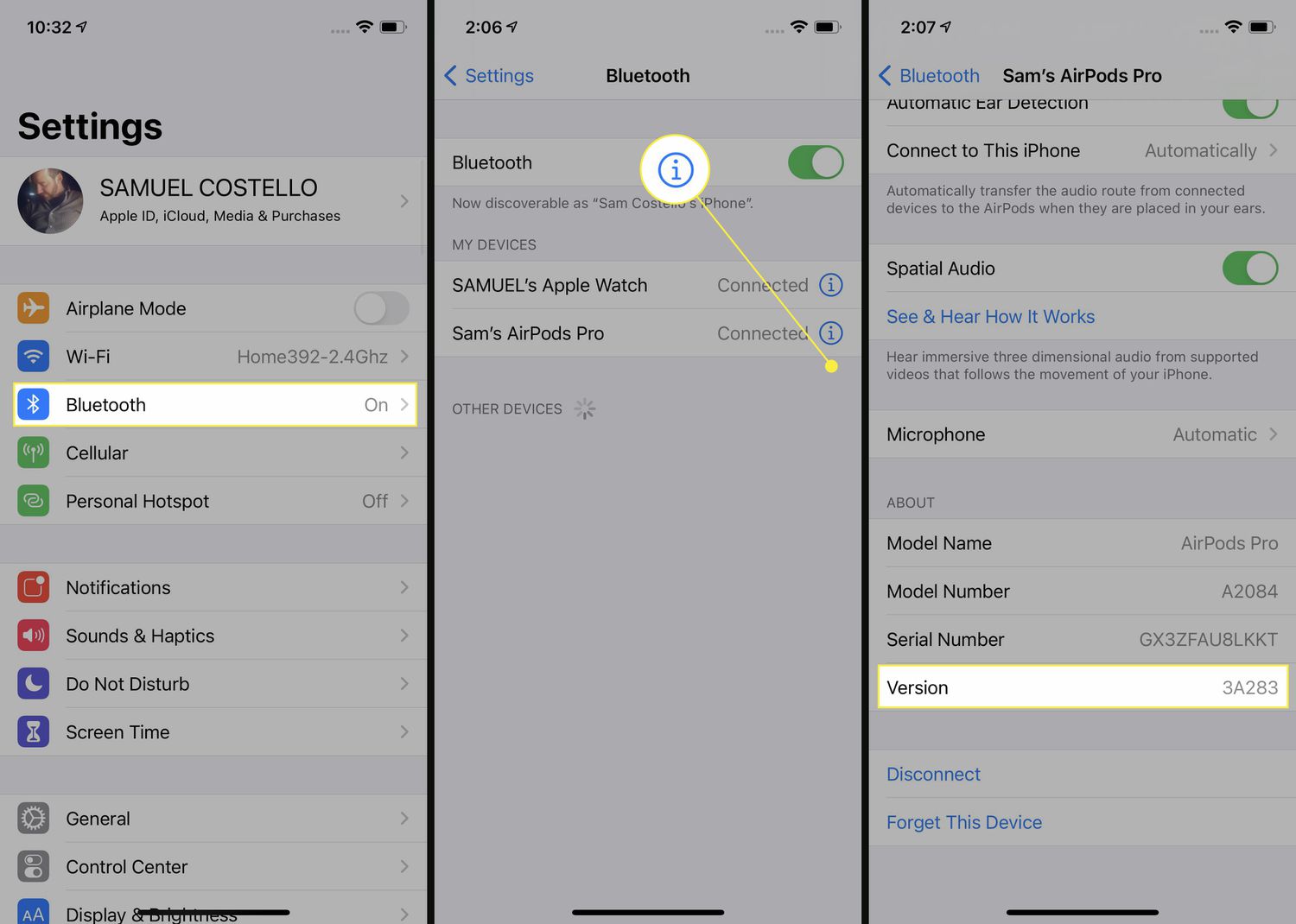
Image source: Praun & Guermouche
How to Update Your AirPods Using the Official Method
The official method relies on meeting a specific set of environmental conditions. If even one of these "pillars" is missing, the update will not initiate. Apple recommends a 30-minute window for this process to complete naturally.
- Place AirPods in the Case: Both earbuds must be securely seated in the charging case. If one bud is missing or not making contact with the charging pins, the update will fail.
- Connect to Power: Plug the case into a Lightning or USB-C cable, or place it on a MagSafe/Qi wireless charger. A steady power supply is required to ensure the case doesn't die mid-flash.
- Proximity to Host: Keep your paired iPhone, iPad, or Mac within 2-3 feet of the AirPods case. The host device must be connected to a stable Wi-Fi network.
- Close the Lid: This is the most commonly missed step. The lid of the charging case must be closed to initiate the transfer. If the lid is open, the AirPods remain in "active" mode rather than "maintenance" mode.
Do not check the version number every two minutes. Opening the lid to check the status actually interrupts the update process. Set a timer for 30 minutes and leave the devices alone.
How to Force an AirPods Update Using the Active Trigger Workflow
If the official method isn't working, you can use a community-proven "Active Trigger" workflow. This method, often discussed in enthusiast circles like Reddit , bypasses the standard wait time by forcing a Bluetooth handshake.
The 50% Battery Rule
Many users find that updates stall if the battery is low. For a "forced" update, ensure the following:
- The AirPods case is at 50% charge or higher.
- The paired iPhone is at 50% charge or higher (or plugged into power).
Apple's software often includes a safety check that prevents firmware flashing if there is a risk of the device losing power during the write process, which could "brick" the hardware.
The "Music Nudge" Technique
This technique tricks the iPhone into prioritizing the connection to the AirPods:
- Connect your AirPods to your iPhone and play any music for at least 60 seconds.
- While the music is playing, place the AirPods back into the charging case.
- Connect the case to a power source and close the lid.
- Place your iPhone physically on top of or directly next to the AirPods case.
- Wait 15 minutes. This "active" connection often triggers the download immediately rather than waiting for the system's scheduled check.
How to Check Your Current AirPods Firmware Version
Before you try to update, you need to know if you are already on the latest version. The version number is an alphanumeric string (e.g., 7E108) that corresponds to a specific software build.
Navigation Path for iOS and iPadOS
On your iPhone or iPad, follow these steps:
- Open Settings .
- Tap Bluetooth .
- Find your AirPods in the list of devices and tap the (i) icon next to the name.
- Scroll down to the About section to find the Version string.
Navigation Path for macOS
If you are using a Mac:
- Click the Apple Menu and select System Settings .
- Select Bluetooth from the sidebar.
- Click the (i) icon next to your AirPods.
- The firmware version will be listed in the popup window.
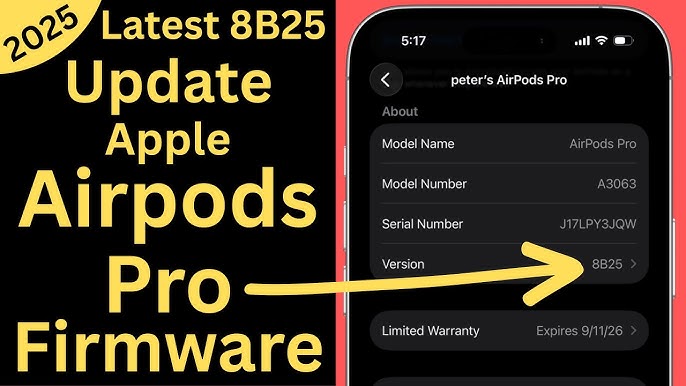
Image source: YouTube
Latest AirPods Firmware Versions for Every Model
As of late 2026, Apple has unified many of the firmware builds for H1 and H2 chipsets, but legacy hardware still runs on older, stable versions. Use the table below to verify if your hardware is current.
| AirPods Model | Latest Firmware Version (2026) | Chipset |
|---|---|---|
| AirPods Pro (2nd & 3rd Gen) | 8B41 | H2 / H3 |
| AirPods 4 (All models) | 8B39 | H2 |
| AirPods Max (USB-C) | 7E108 | H1 |
| AirPods Max (Lightning) | 6A326 | H1 |
| AirPods (3rd Gen) | 6A326 | H1 |
| AirPods (2nd Gen) | 6A326 | H1 |
| AirPods (1st Gen) | 6.8.8 | W1 (Legacy) |
It is important to note that 1st Generation AirPods (released in 2016) are considered legacy hardware. They will not receive new features and are permanently capped at version 6.8.8. If you are using these, no amount of troubleshooting will trigger a newer update.
How to Update AirPods if You Use Android or Windows
One of the most significant drawbacks of the AirPods ecosystem is the lack of a dedicated update app for non-Apple platforms. If you use your AirPods exclusively with an Android phone or a Windows PC, your earbuds will never update on their own.
The "Borrow" Strategy
To update your firmware, you must temporarily pair your AirPods with an Apple device. The firmware is stored on the earbuds themselves, so once the update is complete, the new features and fixes will remain active when you switch back to Android.
- Friends and Family: Pair your AirPods to a friend's iPhone for 30 minutes while the case is charging.
- The Apple Store Option: You can visit an Apple Store or an Authorized Service Provider. The technicians there have tools to "flash" the firmware for you, or they will simply let you pair to a floor model Mac for a few minutes to trigger the download.
- Persistence: Once the version number changes (check it on the borrowed device), you can "Forget" the device and re-pair to your Android phone.
Why Your AirPods Won't Update and How to Fix It
If you have followed the official steps and the firmware version remains unchanged, you may be facing a software hang or a hardware communication failure.
The "Unpair and Reset" Sequence
A hard reset is often the most effective way to clear a stalled update queue. Follow this specific sequence:
- On your iPhone, go to Bluetooth settings and select Forget This Device .
- Turn off Bluetooth on your iPhone and wait 5 minutes.
- With the AirPods in the case and the lid open, press and hold the Setup button on the back of the case.
- Hold the button until the status light flashes Amber , then White .
- Close the lid, turn Bluetooth back on your iPhone, and re-pair the devices.
- Attempt the charging cycle again.
Diagnosing a Faulty Charging Case
The charging case is more than just a battery; it contains the logic board responsible for firmware transfers. According to user reports on Apple Discussions , a failing case can be identified by its LED behavior. If the LED goes from Amber to Green during a reset without ever flashing White, the case's internal communication may be broken. In this scenario, the earbuds may play music perfectly, but they will never receive a software update until the case is replaced.
What to Do if You Are Stuck on Old Firmware
Sometimes, the hardware is fine, but external factors prevent the update. Regional restrictions are a common culprit. For example, the Hearing Aid feature introduced in 2024/2025 is firmware-locked by region. If your Apple ID is registered in a country where this feature isn't approved, the firmware may update, but the feature will remain hidden.
Additionally, 2.4GHz Wi-Fi interference can stall the Bluetooth transfer. Bluetooth and older Wi-Fi bands share the same frequency. If you are in a congested apartment building, try moving your iPhone and AirPods to a room away from the router, or ensure your iPhone is connected to a 5GHz or 6GHz Wi-Fi band to clear the airwaves for the Bluetooth firmware transfer.
Key Takeaways for Updating AirPods
- Automatic Logic: AirPods update only when in the case, charging, and near a Wi-Fi-connected Apple device.
- The 50% Rule: Ensure both the case and the host device have at least 50% battery to trigger the update.
- Lid Status: The charging case lid must remain closed for the duration of the update process.
- Android Users: You must borrow an iPhone or visit an Apple Store to update, as there is no Android app.
- Resetting: A hard reset (Amber to White light) is the best way to fix a stalled update.
- Legacy Hardware: 1st Gen AirPods are capped at version 6.8.8 and will not receive further updates.
If your AirPods are functioning correctly and you aren't missing a specific new feature, there is no need to force an update—Apple typically rolls these out in stages over several weeks.
Frequently Asked Questions
- Can I update AirPods with the lid open?
- No. The lid must be closed to initiate the firmware transfer. Opening the lid puts the AirPods into an active state, which prioritizes audio connection over background maintenance tasks.
- How long does the update actually take?
- While Apple officially suggests 30 minutes, the actual data transfer usually takes 10 to 15 minutes. The remaining time is used for the system to verify the build and prepare for the next handshake.
- Do I need the original charging case to update?
- Yes. Third-party or "knock-off" charging cases usually lack the proprietary handshake logic required to communicate with Apple's firmware servers. You must use an authentic Apple case.
- Will updating my AirPods delete my settings?
- No. Firmware updates are designed to preserve your custom touch controls, Noise Cancellation preferences, and Spatial Audio profiles. Only a manual "Hard Reset" will revert these to factory defaults.
- Can I update AirPods without Wi-Fi?
- No. The host device (iPhone or Mac) must have an active Wi-Fi connection to download the firmware file from Apple. It will not typically download over a cellular data connection unless "Allow Downloads over Cellular" is enabled in App Store settings.
- Why is my firmware version different from my friend's?
- Apple often releases firmware in phases. Additionally, different models (like the Pro 2 vs. the Gen 3) use different chipsets and therefore require different firmware strings. Check the compatibility table above to see which version applies to your specific model.
-
Topic: About firmware updates for AirPodshttps://support.apple.com/en-us/106340
-
Topic: Apple Finally Explains How to Install New Firmware on ...https://www.reddit.com/r/apple/comments/1ibi2yc/apple_finally_explains_how_to_install_new/
-
Topic: How to Update Your AirPods Pro 2 (or Any AirPods) Every Timehttps://www.youtube.com/shorts/XcNsONftXLM

How to Upgrade iPhone Software to the Latest Version of iOS
Learn how to upgrade iPhone software to iOS 26. Fix stuck updates, manage storage, and discover new features like Visual Intelligence and Genmoji.


How to Reboot Apple Watch Even if It Is Frozen or Unresponsive
Learn to reboot Apple Watch Series 9, Ultra, and SE. Fix frozen screens, stuck logos, and unresponsive buttons with expert troubleshooting steps.


How to Replace Your Apple AirTag Battery and Fix Common Connection Issues
Learn how to change your Apple AirTag battery, fix the low battery alert, and which CR2032 batteries to avoid due to bitterant coating issues.
