
How to Upgrade iPhone Software to the Latest Version of iOS
To upgrade your iPhone software, navigate to Settings > General > Software Update . Ensure your device is connected to Wi-Fi and has at least 50% battery life. For iOS 26, you will need approximately 10GB of free space. If you encounter storage issues, updating via a computer (Finder or iTunes) is a highly recommended alternative that requires less on-device working space.
What Should You Do Before Starting an iPhone Software Upgrade?
Upgrading your iPhone software is a significant procedure that modifies the core operating system of your device. While Apple has refined this process to be remarkably smooth, taking specific preparatory steps is essential to ensure your data remains safe and the installation completes without interruption.
The Golden Rule of Backups
Before initiating any software change, creating a current backup is the most critical step you can take. A backup acts as a safety net; if the update process is interrupted by a power failure or a rare software conflict, you can restore your device to its previous state without losing photos, messages, or app data. According to Apple Support , you should use either iCloud or a physical computer connection to secure your information.
Battery and Power Requirements
The installation phase of an iOS upgrade involves writing thousands of files to the system partition, a process that consumes significant energy. To prevent the device from shutting down mid-update—which could lead to a "bricked" or unresponsive state—your iPhone must have at least 50% battery life. As noted by Verizon , keeping the device connected to a power source throughout the download and installation is a top-tier practice for a successful upgrade.
- Backup: Verify your last iCloud backup was successful within the last 24 hours.
- Power: Plug into a wall outlet (avoid low-power USB ports on older keyboards).
- Wi-Fi: Ensure you are on a stable, private network rather than public hotspots.
- Storage: Check that you have at least 10GB of free space for iOS 26.
Network Stability and Storage Audit
While modern carriers often allow updates over 5G or LTE, Wi-Fi remains the standard choice for stability. Large updates like iOS 26 can exceed 5GB in download size alone, but the device requires additional "working space" to unpack and verify these files. If your storage is nearly full, the update may fail to start. Performing a quick audit of your "iPhone Storage" menu to delete large unused apps or offload videos can save time during the installation process.
How to Upgrade iPhone Software Wirelessly Using Wi-Fi
The most common method for updating is the Over-the-Air (OTA) path. This method is convenient because it can be performed anywhere with a strong internet connection and does not require additional hardware.
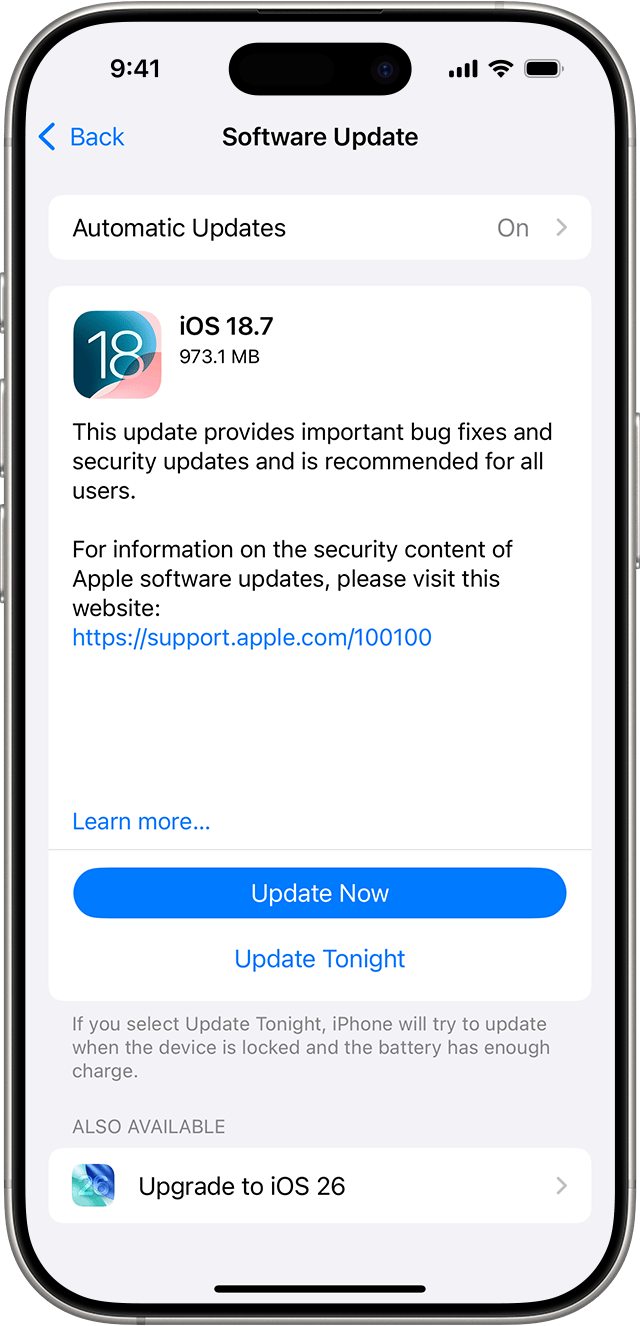
Image source: Apple Support
- Navigate to Settings: Open the Settings app on your Home Screen.
- Access General Settings: Scroll down and tap on "General."
- Select Software Update: Tap "Software Update." The device will now communicate with Apple's servers to check for the latest available version.
- Download and Install: If an update is available, tap "Download and Install." You may be prompted to enter your passcode.
Managing Automatic Updates
Within the Software Update menu, you can customize how your iPhone handles future releases. You can choose to "Download iOS Updates" automatically while keeping "Install iOS Updates" toggled off. This allows the phone to prepare the update in the background, but gives you the final say on when the device restarts, preventing inconvenient interruptions during the workday.
The "System Files Only" Strategy
A notable advancement in recent iOS versions is the ability to separate security patches from major OS overhauls. By navigating to Settings > General > Software Update > Automatic Updates and toggling on "System Files & Response Stores," you can receive critical security fixes without moving to a new version of iOS. This is a significant step forward for users who prefer to wait for the ".1" or ".2" release of a major OS to ensure all initial bugs are resolved.
How to Upgrade iPhone Software Using a Computer
Updating via a computer is widely regarded as one of the most reliable methods, especially for devices with limited storage capacity. When you update through a Mac or PC, the computer handles the heavy lifting of downloading and unpacking the software, which significantly reduces the amount of free space required on the iPhone itself.
Steps for macOS (Finder)
Since macOS Catalina, the Finder has replaced iTunes for device management. To update:
- Connect your iPhone to your Mac using a Lightning or USB-C cable.
- Open a Finder window and select your iPhone from the sidebar under "Locations."
- In the "General" tab, click "Check for Update."
- Click "Download and Update" and follow the onscreen instructions.
Steps for Windows (iTunes)
For Windows users, iTunes remains the primary tool. Ensure you have the latest version of iTunes installed from the Microsoft Store or Apple's website before beginning. The process mirrors the Mac method: connect the device, click the device icon in the top-left corner, and select "Check for Update." As noted by Apple Support , using a computer is a top choice for troubleshooting devices that are stuck in a boot loop.
MDM for Business Users
In corporate environments, manual updates are often inefficient. Tools like Miradore allow IT administrators to push updates to hundreds of devices simultaneously. This ensures that all company hardware remains compliant with security standards without requiring individual user intervention.
Why Is Your iPhone Software Update Stuck or Failing?
Even with proper preparation, you may encounter hurdles. Understanding the specific "hang points" can help you resolve issues quickly without needing a trip to the Genius Bar.
- The "Requesting Update" Loop
- This usually occurs when Apple's servers are overwhelmed (common on launch days) or when there is a minor network handshake error. Fix: Toggle Airplane Mode on and off, or perform a "Reset Network Settings" in the General menu.
- The "Preparing Update" Hang
- If the progress bar stops moving for more than 20 minutes during the "Preparing" phase, the download file may be corrupted. Fix: Go to Settings > General > iPhone Storage, find the iOS update file, delete it, and restart the download.
- The Siri/TV Bug
- Community members on Apple Discussions have noted that iOS 26 can occasionally "listen" to voices from televisions and trigger Siri commands. Fix: Change your voice prompt to "Hey Siri" specifically rather than just "Siri," or disable "Always Listen" in the Siri settings.
"If your update is stuck on the Apple logo with a progress bar, do not disconnect the device. Some updates, especially those involving file system migrations, can take significantly longer than others. Only intervene if the bar hasn't moved for over an hour." — Asurion Tech Tips
CarPlay and Bluetooth Failures
A common post-update complaint involves connectivity with older infotainment systems, specifically noted in Jaguar and Land Rover models. If your CarPlay fails after an upgrade, the solution often lies in the car's settings rather than the phone. Performing a "System Reset" or "Forget Phone" on the car's head unit, followed by a fresh pairing, typically restores functionality.
What Are the Best New Features in iOS 26?
iOS 26 introduces several notably innovative features that change how users interact with their devices. While many changes are under the hood, several UI enhancements stand out for their productivity benefits.
| Feature | iOS 25 Capability | iOS 26 Advancement |
|---|---|---|
| Visual Intelligence | Basic OCR (Live Text) | ChatGPT-integrated analysis of onscreen content. |
| Genmoji | Standard Emoji Set | AI-generated custom emojis from text descriptions. |
| Preview App | Files App viewing | Mobile-first PDF scanning with intelligent Autofill. |
| Audio Mixing | Standard Volume | "Reduce Loud Sounds" toggle for consistent streaming audio. |
One of the most impactful additions is Visual Intelligence . By taking a screenshot or using the camera, users can now trigger a ChatGPT-powered analysis of what they are seeing. This is exceptionally strong for identifying plants, translating complex documents, or summarizing long articles directly from the screen. Furthermore, the new Privacy-First Call Screening gathers information from unknown callers before your phone even rings, providing a transcript so you can decide whether to pick up.
Which iPhone Models Support the Latest Software Upgrades?
As software becomes more sophisticated, older hardware eventually lacks the processing power or neural engine capabilities to run the latest features. iOS 26 is designed to take full advantage of the A18 and A19 chips found in newer models.
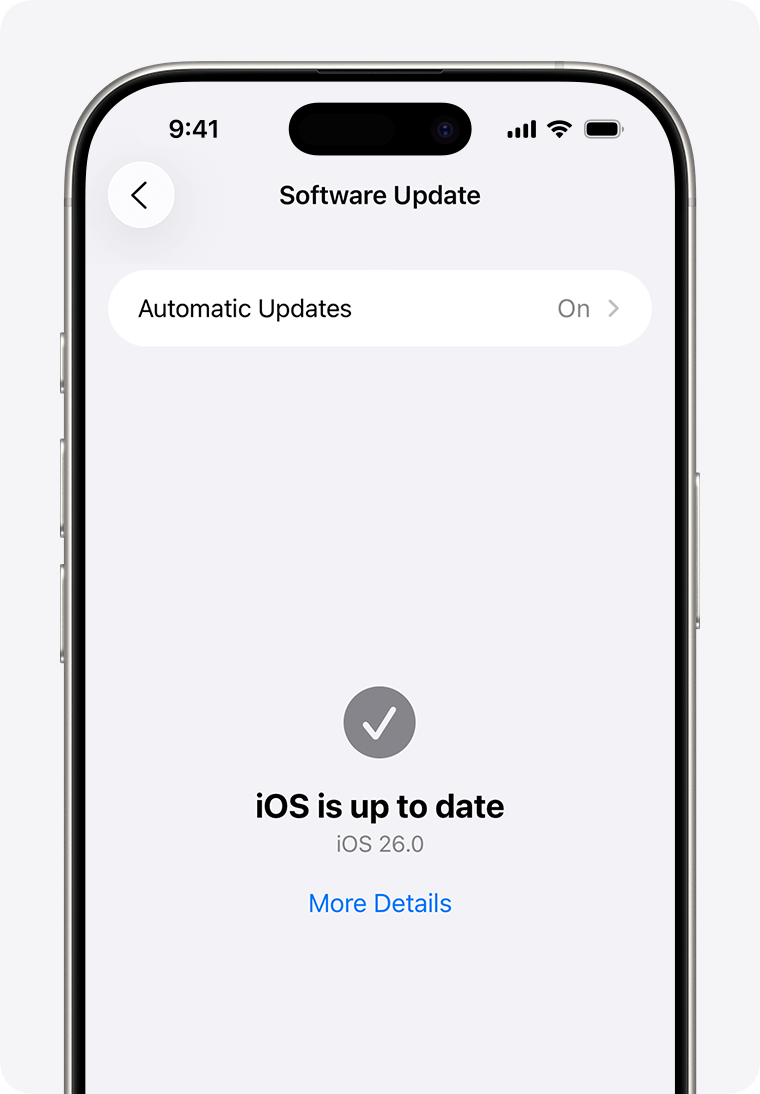
Image source: Apple Support
Legacy Support and Hardware Cut-offs
While an iPhone 13 or 14 may support the core operating system of iOS 26, advanced AI features like Genmoji and Visual Intelligence typically require an iPhone 15 Pro or newer. However, Apple continues to provide security support for older devices through specific legacy versions:
- iOS 12.5.8: Supports iPhone 6 and 6 Plus.
- iOS 15.8.8: Supports iPhone 6s, 7, and SE (1st Gen).
- iOS 16.7.16: Supports iPhone 8, 8 Plus, and X.
- iOS 18.7.9: Supports iPhone XR, XS, and XS Max.
It is a common myth that an iPhone is "obsolete" once it stops receiving major OS updates. In reality, these devices often continue to receive "System Files" and security responses for several years, keeping them safe for basic use.
Frequently Asked Questions
How long does an iPhone software update take?
Typically, an iPhone update takes between 15 and 45 minutes. This includes the download time (which depends on your internet speed) and the installation phase (which depends on your device's processor). Major version jumps, such as moving from iOS 25 to iOS 26, usually take longer than minor security patches.
Will I lose my photos if I update my software?
No, a standard software update is designed to keep all your data, photos, and settings intact. However, because the update modifies the core file system, there is always a non-zero risk of error. This is why a backup to iCloud or a computer is a mandatory safety net before you begin.
Can I update my iPhone using cellular data?
Yes, most modern carriers like Verizon allow updates over 5G and LTE. However, you should be aware of your data caps, as iOS 26 can be several gigabytes in size. If your connection is unstable, the download may time out or become corrupted, so Wi-Fi is still the preferred choice.
Why can't I see the iOS 26 update on my iPhone 13?
If the update isn't appearing, first check if your device is compatible. If it is, you may have a "Beta Profile" installed from a previous testing cycle that is blocking the public release. Go to Settings > General > VPN & Device Management to remove any beta profiles, then restart your phone and check again.
What should I do if my iPhone won't turn on after an update?
If your device is unresponsive, try a "Force Restart." Quickly press and release the Volume Up button, then the Volume Down button, and then press and hold the Side button until the Apple logo appears. If this fails, you may need to connect the device to a computer and enter Recovery Mode to reinstall the software.
Key Takeaways for a Perfect Upgrade
- Always prioritize a backup to iCloud or Finder before starting any installation to prevent data loss.
- Use the "System Files Only" toggle if you want to maintain a stable environment while staying protected against security threats.
- Opt for the computer method if your iPhone is low on storage, as it handles the file unpacking externally.
- Maintain a 50% charge or stay connected to a wall outlet to avoid power-related installation failures.
- Reset car infotainment systems if you experience CarPlay or Bluetooth issues immediately following an update.
- Delete corrupted files from the iPhone Storage menu if your update gets stuck in the "Preparing" phase.
- Check hardware compatibility to ensure your specific iPhone model supports the new AI features of iOS 26.
For the most stable experience, consider waiting for the first minor patch (e.g., iOS 26.0.1) before upgrading your primary device.
When Did iOS 26 Come Out and How Can You Get the Latest Update?
iOS 26 launched Sept 15, 2025. Learn about iOS 26.6.1 features, Liquid Glass UI, and the upcoming iOS 27 transition for your iPhone.


How to Backup Your iPhone to iCloud and Keep Your Data Safe
Backup your iPhone to iCloud manually or automatically. Fix storage errors, use 5G, and get temporary free space for new phones. Current 2026 tips.

How to Record Your iPhone Screen With or Without Audio
Learn to record your iPhone screen with audio. Fix missing buttons, black screens, and iOS 18 bugs on iPhone 16 and older models.