How to Backup Your iPhone to iCloud and Keep Your Data Safe
To back up your iPhone immediately, navigate to Settings > [Your Name] > iCloud > iCloud Backup and tap Back Up Now . Ensure you are connected to Wi-Fi (or 5G if enabled) and have sufficient storage space. For automatic daily protection, toggle Back Up This iPhone to ON and leave your phone charging and locked overnight.
In 2026, our iPhones are more than just communication tools; they are the primary repositories for our memories, financial data, and professional documents. While local backups to a Mac or PC remain a valid secondary option, iCloud stands out as a top choice for daily redundancy due to its seamless integration and background operation. According to Apple's official documentation , a proper backup strategy is the only way to ensure data recovery in the event of hardware failure, theft, or accidental deletion.
This guide provides a deep dive into the technical nuances of iCloud backups, addressing everything from 5G data management to the "Nuclear Fix" for persistent software glitches. Whether you are preparing for a new device or troubleshooting a "Storage Full" error, the following sections offer actionable insights that go beyond basic settings.
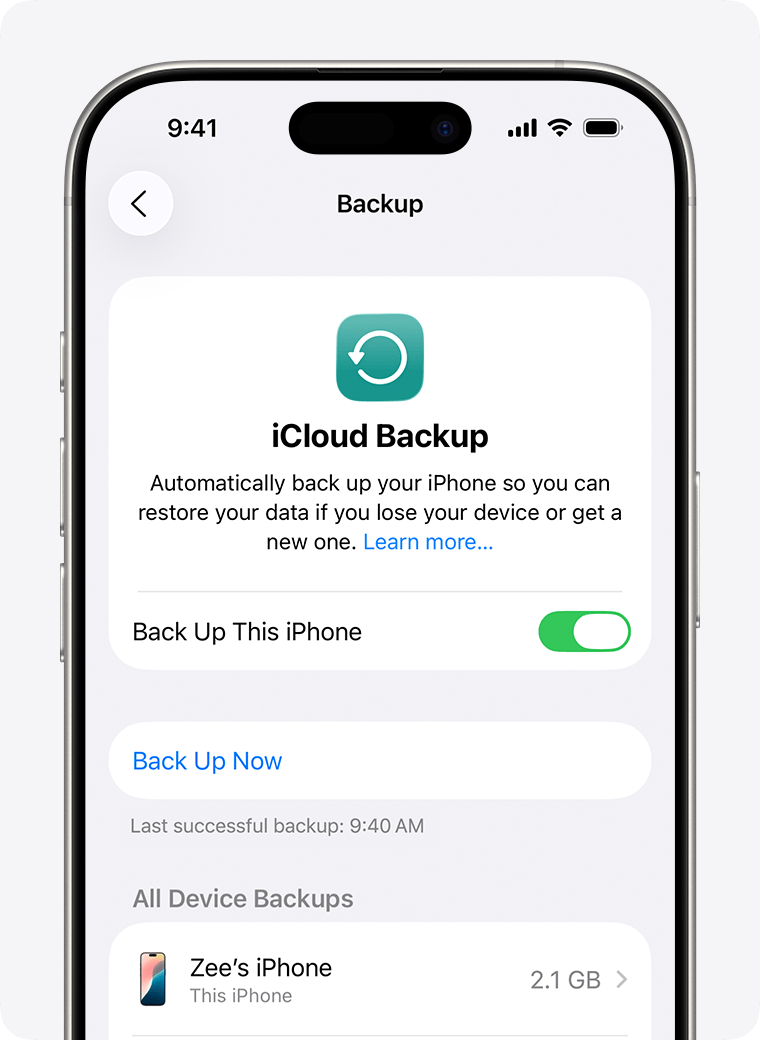
Image source: Apple Support
How to Manually Trigger an iCloud Backup Right Now
A manual backup is essential before performing a software update, visiting an Apple Store for repairs, or selling your device. Unlike automatic backups, which require specific conditions to be met, a manual trigger forces the device to upload its current state to Apple's servers immediately.
- Open Settings: Locate the gear icon on your home screen or App Library.
- Access Apple ID: Tap your name at the very top of the Settings menu. This section manages your global account settings.
- Select iCloud: Tap the iCloud icon to view your storage breakdown and service list.
- Navigate to Backup: Scroll down and select iCloud Backup .
- Initiate Backup: Tap Back Up Now . You will see a progress bar and an estimated time remaining.
It is important to remain connected to your network until the process completes. If you leave your Wi-Fi range, the backup will pause and resume once a connection is re-established. Once finished, the "Last successful backup" timestamp will update, providing confirmation that your data is secure. If the button is unclickable, check your internet connection or look for a "Storage Full" warning at the top of the screen.
How to Set Up Automatic iCloud Backups Every Night
The most effective way to protect your data is to automate the process. When configured correctly, your iPhone will create a fresh snapshot of your data every 24 hours without any manual intervention. This "set it and forget it" approach is widely regarded as one of the best ways to prevent data loss.
The Three Essential Conditions
For an automatic backup to trigger, your iPhone must meet three specific criteria simultaneously. If even one is missing, the backup will not occur:
- Power Source: The device must be plugged into a wall outlet or placed on a wireless charger.
- Locked State: The screen must be turned off (locked). The system avoids backing up while you are actively using the device to preserve processing power.
- Network Connection: The device must be connected to a Wi-Fi network (or a 5G network if you have explicitly enabled cellular backups).
To enable this feature, go to Settings > [Name] > iCloud > iCloud Backup and ensure the toggle for Back Up This iPhone is green. In recent iOS versions, Apple has improved the efficiency of these incremental backups, meaning only new or changed data is uploaded, which significantly reduces the time required for nightly updates.
Can You Backup Your iPhone to iCloud Using Cellular Data?
Historically, iCloud backups were restricted to Wi-Fi to prevent users from accidentally exhausting their monthly data caps. However, with the advent of 5G technology, Apple introduced the ability to back up over cellular networks. This is a significant advancement for users who travel frequently or live in areas where high-speed Wi-Fi is unavailable.
How to Enable 5G Backups
If you own an iPhone 12 or later and have a compatible data plan, you can enable this feature by navigating to Settings > [Name] > iCloud > iCloud Backup and toggling on Back Up Over Cellular . Note that this option may not appear if your carrier does not support it or if you are using an older 4G/LTE device.
Data Usage Warning
While convenient, cellular backups can consume several gigabytes of data, especially if you have recently taken many high-resolution photos or videos. If you are on a metered data plan, monitor your usage in Settings > Cellular to avoid unexpected overage charges. For most users, Wi-Fi remains the preferred method for large data transfers due to its stability and lack of cost.
What to Do When Your iCloud Storage Is Full
The most common hurdle for iCloud users is the 5GB free storage limit. In 2026, 5GB is rarely enough to store even a basic backup of a modern iPhone. When your storage is full, backups will stop, and you will receive persistent notifications.
Current 2026 iCloud+ Pricing
| Storage Tier | Monthly Price (USD) | Best For |
|---|---|---|
| 5GB | Free | Basic contacts and notes only |
| 50GB | $1.00 | Single device users with light photo libraries |
| 200GB | $3.50 | Families or users with multiple devices |
| 2TB | $10.00 | Power users and heavy video creators |
| 6TB | $30.00 | Professional photographers and large families |
| 12TB | $60.00 | Enterprise-level storage needs |
Selective App Exclusion (The Pro Space-Saver)
You don't always need to buy more storage. You can often fit your backup into a smaller tier by excluding "data hogs." To do this:
- Go to Settings > [Name] > iCloud > Manage Account Storage .
- Tap Backups and select This iPhone .
- Wait for the "Next Backup Size" to calculate.
- Review the list of apps. If an app like WhatsApp or a specific mobile game is taking up 10GB, you can toggle it OFF to remove it from the backup.
According to Apple Support , toggling an app off here deletes its current data from iCloud and prevents future uploads. Ensure you have an alternative way to save that data (such as the app's own cloud service) before disabling it.
The Secret Way to Get Unlimited iCloud Storage for a New iPhone
One of the most helpful features introduced in recent years is the "Temporary iCloud Storage" bridge. If you purchase a new iPhone or iPad and don't have enough iCloud space to back up your old device, Apple grants you unlimited temporary storage for 21 days.
How to Trigger the 21-Day Free Bridge
This feature is not found in the standard backup menu. Instead, you must follow this path:
- Go to Settings > General .
- Scroll to the bottom and tap Transfer or Reset iPhone .
- Under "Prepare for New iPhone," tap Get Started .
The system will then analyze your data and begin an upload regardless of your current storage plan. You have 21 days to restore this data to your new device. If your new phone arrives late, you can request an additional 21-day extension within the settings menu. This is a top-tier option for users who refuse to pay for a monthly subscription but need a one-time transfer solution.
How to Fix Common iCloud Backup Errors and Greyed Out Buttons
Even with a perfect connection, software bugs can interfere with the backup process. Below are the most frequent issues and their verified solutions.
Problem: The "Back Up Now" Button is Greyed Out
If you cannot tap the backup button, it is usually due to one of two reasons:
- Captive Portals: Public Wi-Fi (hotels, airports) often requires a login via a web browser. iCloud cannot bypass these portals. Switch to a private network or use cellular data.
- Managed Profiles (MDM): If your iPhone was provided by your employer or school, they may have disabled iCloud backups for security reasons. Check Settings > General > VPN & Device Management to see if a profile is active.
The "Nuclear Fix" for Persistent Failures
If you see the error "The last backup could not be completed" repeatedly, community wisdom suggests a more drastic approach that often clears deep-seated software conflicts:
- Connect your iPhone to a Mac or PC and create a Local Encrypted Backup .
- Perform a Factory Reset on the iPhone (Settings > General > Transfer or Reset iPhone > Erase All Content and Settings).
- Restore the device from the local computer backup you just created.
- Once restored, go back to iCloud settings and re-enable iCloud Backup. This process effectively "reboots" the iCloud handshake and often resolves errors that standard restarts cannot fix.
iCloud Backup vs. Computer Backup — Which One Should You Choose?
While this guide focuses on iCloud, it is important to understand how it compares to local backups. A robust data strategy often involves using both.
| Feature | iCloud Backup | Computer (Mac/PC) Backup |
|---|---|---|
| Convenience | High (Automatic/Wireless) | Low (Requires Cable/Manual) |
| Cost | Monthly Subscription (over 5GB) | Free (Uses Computer Disk) |
| Security | Encrypted (E2EE optional) | Local Control (Encrypted) |
| Speed | Depends on Upload Speed | Fast (Physical Connection) |
For most users, iCloud is the primary choice for daily safety. However, creating a computer backup once a month provides an extra layer of security. If your Apple ID is ever compromised or locked, having a local copy of your data ensures you don't lose years of memories.
Advanced Security Settings for Your iCloud Backups
By default, Apple encrypts your backups, but they technically hold the keys to assist with password recovery. For those seeking maximum privacy, Advanced Data Protection (ADP) offers end-to-end encryption (E2EE).
Enabling Advanced Data Protection
When ADP is active, only your trusted devices have the keys to decrypt your iCloud backup. Not even Apple can access the data. To enable this, go to Settings > [Name] > iCloud > Advanced Data Protection .
This level of security is a significant step forward for privacy-conscious users, but it requires a higher level of personal responsibility. Ensure your recovery key is stored in a safe, physical location.
The Bottom Line
Keeping your iPhone data safe in 2026 requires a proactive approach to cloud management. Follow these key takeaways to ensure you never lose your data:
- Verify your settings by ensuring "Back Up This iPhone" is toggled ON in your iCloud menu.
- Meet the criteria for automatic backups: keep your phone charging, locked, and on Wi-Fi overnight.
- Manage your storage by excluding large, non-essential apps if you are nearing your iCloud limit.
- Use the 21-day bridge for free unlimited storage when upgrading to a new iPhone model.
- Enable 5G backups if you have an unlimited data plan and lack consistent Wi-Fi access.
- Consider Advanced Data Protection for end-to-end encryption, but always maintain a recovery key.
Check your "Last Successful Backup" timestamp today to confirm your protection is current.
Frequently Asked Questions
Does iCloud backup my photos if I already use iCloud Photos?
No. If you have "iCloud Photos" enabled, your images are synced to the cloud in real-time and are not included in your device's nightly backup. This is designed to save space and prevent redundant data storage. If you turn off iCloud Photos, your library will then be included in the standard device backup, which will significantly increase the backup size.
How long does the first iCloud backup take?
The initial backup can take anywhere from several hours to a full day. This depends entirely on the volume of data on your device and your home network's upload speed. Subsequent backups are much faster because the system only uploads "incremental" changes—new photos, new messages, and updated app data—rather than the entire device contents again.
Can I backup two different iPhones to the same iCloud account?
Yes, you can. Each device is identified by its unique hardware ID, and iCloud creates a separate backup file for each. However, keep in mind that both devices will share the same storage pool. If you have two 256GB iPhones, you will likely need at least the 200GB or 2TB iCloud+ plan to accommodate both backups comfortably.
Why is my backup taking so long to restore?
When you restore a backup, the iPhone downloads the core system settings first so you can use the phone quickly. However, large assets like photos, videos, and third-party apps continue to download in the background. This process can take days if you have a large library. Keep the device connected to power and Wi-Fi to speed up the background restoration process.
Can I backup my iPhone to iCloud without Wi-Fi?
Yes, provided you have an iPhone 12 or newer and a cellular plan that supports 5G. You must manually enable the "Back Up Over Cellular" option in your iCloud Backup settings. If you are on a 4G/LTE connection or an older device, Wi-Fi is mandatory for iCloud backups.

How to Sync on iCloud Across All Devices and Fix Common Upload Issues
Master iCloud syncing for iPhone, Mac, and Windows. Fix stuck uploads, force syncs, and manage storage with this technical guide for 2026.


How to Upgrade iPhone Software to the Latest Version of iOS
Learn how to upgrade iPhone software to iOS 26. Fix stuck updates, manage storage, and discover new features like Visual Intelligence and Genmoji.


How to Set Up and Manage Stolen Device Protection on Your iPhone
Learn to enable iPhone Stolen Device Protection, manage security delays, and fix Face ID or VPN issues. Secure your Apple ID with this expert guide.