How to Sync on iCloud Across All Devices and Fix Common Upload Issues
To sync on iCloud, navigate to Settings > [Your Name] > iCloud on iOS or System Settings > Apple ID > iCloud on macOS. Ensure the specific apps you want to sync (Photos, Drive, Notes) are toggled ON . If a sync is stuck, connect your device to power and Wi-Fi, as the system often pauses background uploads to preserve battery life. iCloud is a mirroring service: changes made on one device are reflected everywhere.
Understanding the Difference Between iCloud Sync and Backup
Many users confuse iCloud syncing with iCloud backups, but they serve distinct purposes in the Apple ecosystem. Syncing is a live process where data is stored in a "prime storage" environment. When you edit a contact on your iPhone, that change is pushed to Apple's servers and then pulled down to your Mac or iPad almost instantly. According to Apple Support , this ensures your workspace remains consistent regardless of which hardware you are using.
In contrast, a backup is a static snapshot of your device's settings, app data, and home screen layout. It is intended for disaster recovery—such as when you lose your phone or upgrade to a new model. Because syncing keeps data live on Apple's servers, synced items are typically excluded from your daily device backup to save storage space.
| Feature | iCloud Sync | iCloud Backup |
|---|---|---|
| Primary Purpose | Live data continuity across devices | Device recovery and restoration |
| Update Frequency | Real-time (or near real-time) | Once daily (when on Wi-Fi/Power) |
| Deletion Behavior | Deleting on one device deletes everywhere | Deleting on device doesn't affect old backups |
| Storage Impact | Uses "Prime" iCloud storage | Uses storage for system snapshots |
Why Messages Behave Differently in Sync vs. Backup
A common point of frustration involves iMessage. If you enable "Messages in iCloud," your texts are synced across devices. However, this action removes them from your standard iCloud Backup. As noted in Apple Community discussions , users often wonder why their backup size shrinks after enabling sync. This is by design: since the messages are already stored in the cloud for syncing, Apple does not include them in the redundant backup file.
Enabling iCloud Sync on iPhone and iPad
Setting up synchronization on mobile devices is straightforward, but it requires granular attention to ensure you aren't consuming more storage than intended. The process is identical for the iPad and the Apple Vision Pro, ensuring a unified experience across Apple's mobile and spatial platforms.
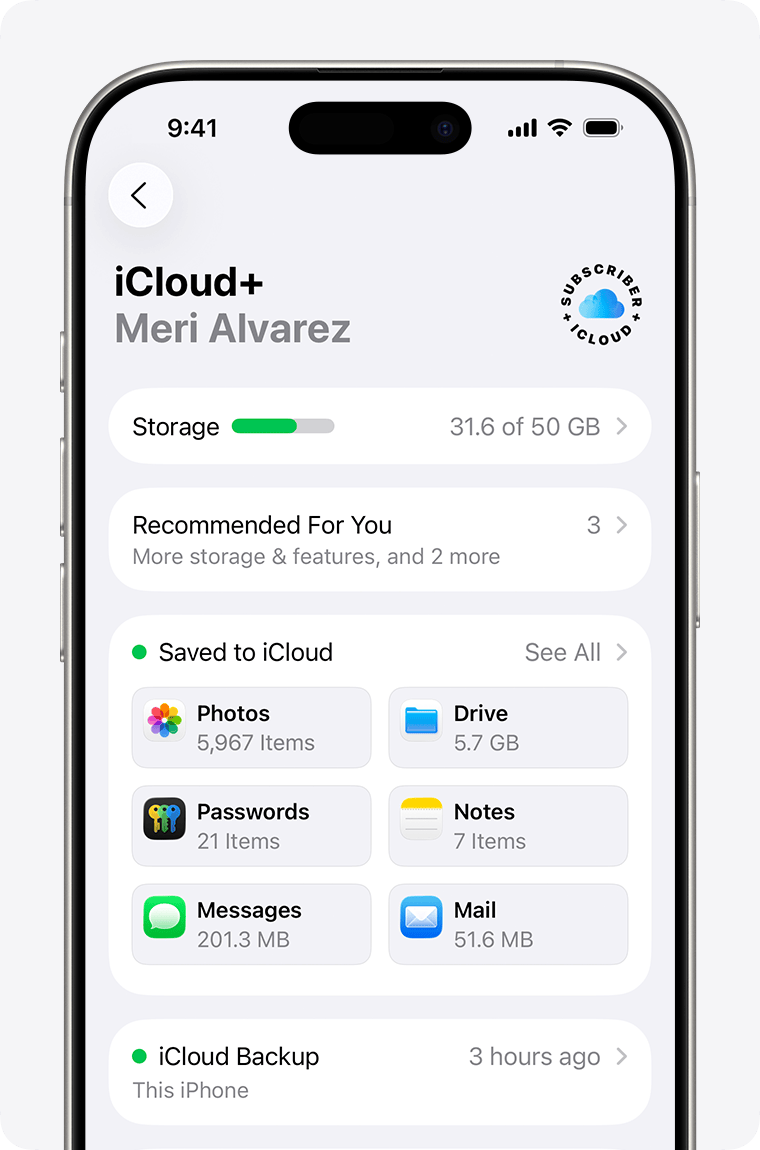
Image source: Apple Support
- Access Apple ID Settings: Open the Settings app and tap your name at the very top of the list.
- Enter iCloud Menu: Tap iCloud . Here, you will see a visual breakdown of your storage usage.
- Toggle Apps: Under the "Apps Using iCloud" section, tap See All . This is where you can individually enable or disable syncing for Photos, Mail, Contacts, Calendars, and third-party apps.
- Enable iCloud Drive: Tap on iCloud Drive and ensure Sync this iPhone is toggled to the ON position. This allows the Files app to store and retrieve documents from the cloud.
Managing Granular App Permissions
It is important to review the "See All" menu periodically. Many third-party apps request iCloud sync permissions by default. If you find your iCloud storage filling up rapidly, disabling sync for non-essential apps (like mobile games or utility tools) can preserve space for critical data like Photos and Documents. According to official documentation , you can also manage which apps store data in the cloud directly from this menu to prevent unwanted storage charges.
Configuring iCloud Sync for macOS
On a Mac, iCloud integration goes deeper into the file system. Beyond just syncing app data, macOS allows you to sync your entire Desktop and Documents folders. This means any file you save to your desktop is immediately available on your iPhone's Files app.
To set this up, go to the Apple Menu > System Settings . Click your name, then select iCloud . Click on iCloud Drive and select Options (or "Sync this Mac" in newer macOS versions). Here, you can check the box for "Desktop & Documents Folders." Be aware that if you have a large number of files on your desktop, the initial upload may take several hours and consume significant bandwidth.
The Importance of APFS for iCloud Drive
The Apple File System (APFS) is optimized for the metadata tracking required by iCloud. When you move a file, APFS handles the pointer changes efficiently, which iCloud then mirrors. Users on older hardware or those using external storage for their primary user directory often encounter "stuck" syncs because the underlying file system cannot communicate changes to the iCloud daemon as effectively as APFS does.
Syncing iCloud Files on a Windows PC
iCloud for Windows is a top-tier choice for users who operate in a multi-platform environment. However, the Windows version operates differently than the native macOS integration. It primarily uses a "file-streaming" architecture, similar to OneDrive, where files appear as placeholders until you attempt to open them.
The standard version for Windows 10/11. It integrates directly with File Explorer but can sometimes suffer from "stuck" status icons (blue circles) due to streaming conflicts.
Power users often prefer the version originally designed for Windows 8.1. It uses a more traditional "always-local" sync method that many find more reliable for large file libraries.
Resolving the Microsoft Store Version Friction
A common issue on Windows involves duplicate files, often appended with a `(1)` in the filename. This typically happens when the iCloud background process loses sync with the local file system. If you encounter this, a highly effective method is to open the Task Manager , end the "iCloud Drive" process, and then restart the iCloud app. This forces the engine to re-index the local folder against the server's manifest, usually resolving the duplication conflict.
How to Force iCloud to Sync When Stuck
One of the most frequent complaints in user forums is the lack of a "Sync Now" button. While Apple designs iCloud to be invisible and automatic, the sync engine is governed by strict power and thermal management rules. If your device is hot, low on battery, or on a metered connection, sync will pause indefinitely without notifying you.
The Four-Point Force Sync Checklist
If your files are not appearing on other devices, follow this evidence-based checklist to trigger the sync engine:
- Connect to Power: iCloud Photos and large Drive uploads are frequently throttled to save battery. Plugging into a charger is often the only trigger needed to resume an upload.
- Verify Wi-Fi Stability: By default, iOS pauses large syncs on cellular data. Check Settings > Photos > Mobile Data to see if "Unlimited Updates" is enabled. If not, you must be on Wi-Fi for the sync to proceed.
- Check Local Storage "Headroom": The iCloud sync engine requires at least 1-2GB of free local space to cache files during the upload/download process. If your iPhone is at 99% capacity, the sync will stall even if your iCloud cloud storage is empty.
- The Toggle Reset: As a last resort, navigate to the iCloud settings and toggle the specific app (e.g., Notes) OFF , wait 30 seconds, and toggle it back ON . This forces a metadata re-sync, though it may take time to re-index.
Why iCloud Sync Might Enter a Limbo State
Sometimes, you may see a "Syncing..." message in the Photos app or File Explorer that never progresses. This "limbo state" usually occurs when the metadata (the file name and size) has synced, but the actual data packets are stuck. According to technical community reports , this is often due to network congestion or Apple's server-side rate limiting.
The 30-Second Background Sync Window
On iOS, apps are granted a very limited window (approximately 30 seconds) to perform background tasks when you switch away from them. If you are performing a large initial sync of thousands of photos, the app must remain in the foreground. If you lock your phone or switch to another app, the sync will likely pause. For major uploads, set your "Auto-Lock" to "Never" and leave the app open while the device is charging.
Managing Data via the iCloud Web Portal
When your devices aren't communicating, the iCloud.com web portal serves as the "source of truth." If a file appears on the website but not on your Mac, you know the issue lies with the Mac's local sync engine, not the upload process from the originating device.
The web portal also offers a powerful Data Recovery tool. If you accidentally delete a synced file, it is deleted everywhere. However, you can often restore these files within 30 days by going to the "Data Recovery" section at the bottom of the iCloud.com home page. This is a critical safety net for users who rely on iCloud for primary document storage.
Frequently Asked Questions
- How do I force iCloud to sync immediately?
- There is no single button, but you can trigger a sync by connecting your device to a power source and ensuring you are on a stable Wi-Fi network. For Photos, you can sometimes tap "Resume" at the bottom of the Library tab if the sync has been paused for battery saving.
- Why is my iCloud sync stuck on "Uploading"?
- This is typically caused by a lack of local storage "headroom" or a network interruption. Ensure your device has at least 2GB of free space. If the issue persists, try restarting the device to clear the cache of the iCloud background daemon (known as bird on macOS).
- Does syncing to iCloud delete photos from my phone?
- No, but it changes how they are stored. If you enable "Optimize iPhone Storage," the full-resolution versions are moved to iCloud, and smaller, space-saving versions are kept on your phone. If you delete a photo, however, it will be deleted from both the phone and the cloud.
- Why are my messages not in my iCloud backup?
- If you have "Messages in iCloud" turned on in your settings, your messages are being synced live. Apple excludes synced data from the daily backup file to avoid redundancy and save storage space. Your messages are still safe in the cloud; they just aren't part of the "Backup" snapshot.
- How do I fix duplicate files like "file(1)" on Windows?
- This usually happens when the iCloud for Windows app loses track of file versions. To fix it, close the iCloud app, delete the duplicate file, and restart the app. Using the non-Microsoft Store version of iCloud can also help prevent this issue for some users.
The Bottom Line: Key Takeaways for iCloud Syncing
- Sync is a Mirror: Remember that iCloud Sync is not a one-way upload; deleting a file on one device removes it from all connected devices.
- Power and Wi-Fi are Triggers: Most "stuck" sync issues are resolved simply by plugging the device into a charger and connecting to Wi-Fi.
- Maintain Storage Headroom: Always keep at least 10% of your device's local storage free to allow the sync engine to process data.
- Use the Web Portal: Use iCloud.com to verify if your data has reached Apple's servers when troubleshooting cross-device issues.
- Foreground for Large Tasks: Keep the relevant app open and the screen awake when performing large initial uploads on iPhone or iPad.
By understanding these environmental triggers and platform nuances, you can ensure your data remains consistent and accessible across your entire digital workspace.
-
Topic: Set up iCloud Drive on all your deviceshttps://support.apple.com/guide/icloud/set-up-icloud-drive-mm203b05aec8/icloud
-
Topic: What does “syncing with iCloud…” mean in photoshttps://www.reddit.com/r/iCloud/comments/1pyp1bo/what_does_syncing_with_icloud_mean_in_photos/
-
Topic: Message syncing in iCloudhttps://discussions.apple.com/thread/255511378

What Is iCloud and How Does It Work on Your Devices?
Learn how iCloud syncs Apple devices, the sync vs backup difference, and how to fix storage errors and Windows sync issues.


How to Backup Your iPhone to iCloud and Keep Your Data Safe
Backup your iPhone to iCloud manually or automatically. Fix storage errors, use 5G, and get temporary free space for new phones. Current 2026 tips.


How to Transfer Photos from iPhone to Computer on Windows and Mac
Learn how to transfer iPhone photos to Windows or Mac. Fix 'Device is Unreachable' errors and move large libraries without crashes.