
What Is iCloud and How Does It Work on Your Devices?
iCloud is Apple's cloud-based storage and synchronization service that acts as a central "source of truth" for your digital life. It automatically keeps your photos, documents, notes, and settings consistent across iPhone, iPad, Mac, and PC. Every user receives 5GB of free storage, which can be expanded through paid iCloud+ tiers. Unlike a traditional one-way backup, iCloud is primarily a sync engine , meaning changes made on one device instantly reflect on all others.
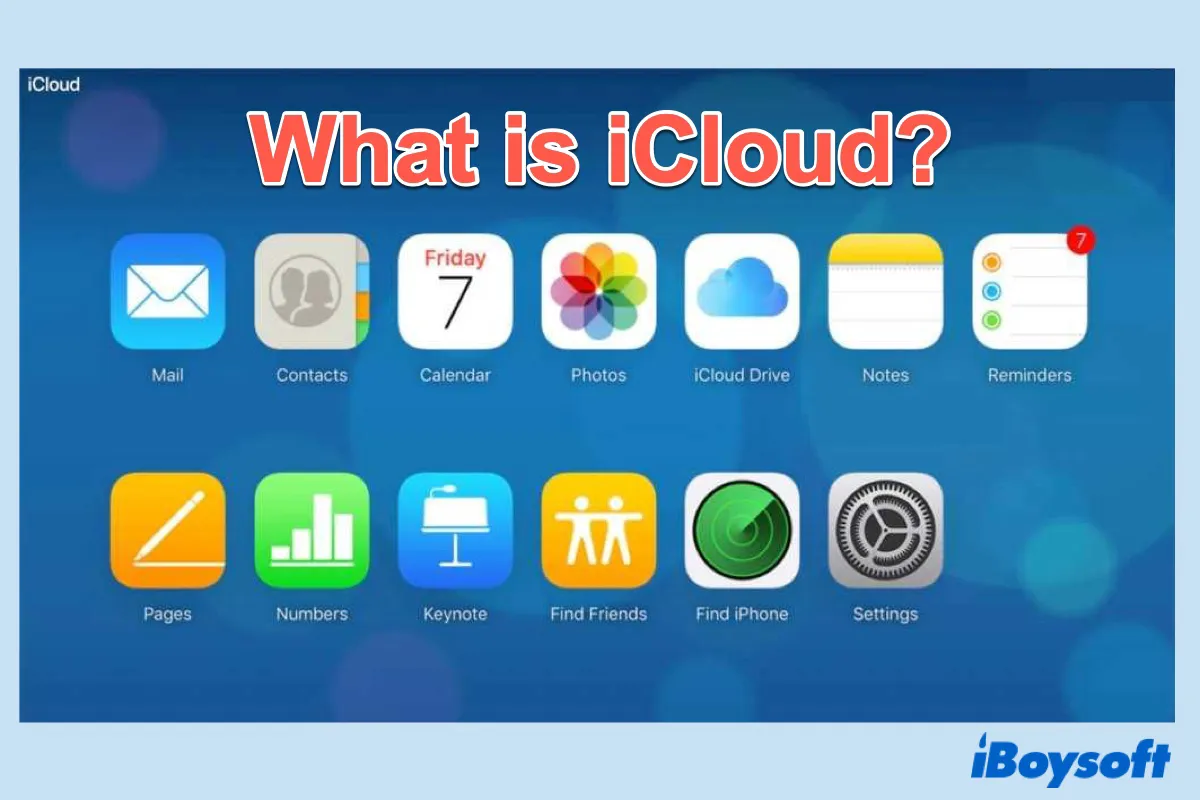
Image source: iBoysoft
What Exactly Is iCloud in Plain English?
At its core, iCloud is not just a digital locker where you throw files; it is a sophisticated background service that ensures your data is available wherever you need it. When you take a photo on your iPhone, iCloud uploads it to Apple's servers and then pushes a copy to your iPad and Mac. This seamless integration is what makes the Apple ecosystem feel cohesive.
According to Apple's official documentation , iCloud is built into every Apple device. You don't "open" iCloud like you would a standard app; instead, you sign in with your Apple Account (formerly Apple ID) in the settings, and the service begins working quietly in the background. It manages everything from your Safari bookmarks to your Wi-Fi passwords and health data.
Historically, iCloud launched in October 2011, succeeding previous services like MobileMe and .Mac. Today, it supports an estimated 850 million users, making it one of the most widely used cloud platforms globally. While it is deeply integrated into macOS and iOS, it also offers a web portal at iCloud.com , allowing users to access their mail, contacts, and documents from any web browser, including those on Windows or Android devices.
How iCloud Syncing Differs from a Traditional Backup
One of the most frequent points of confusion for users is the difference between "syncing" and "backing up." Understanding this distinction is vital to preventing accidental data loss.
The Deletion Trap
iCloud is primarily a sync service . This means it mirrors your data across all devices. If you have "iCloud Photos" turned on and you delete a picture from your iPhone to free up local storage, that photo is deleted from iCloud and your Mac simultaneously. Many users mistakenly treat iCloud as a one-way archive, only to realize too late that their "backup" was actually a live mirror.
Live Mirroring vs. Snapshots
To clarify the terminology, Apple offers two distinct functions under the iCloud umbrella:
- iCloud Sync: This handles live data like Photos, Notes, Reminders, and iCloud Drive. It is a constant, two-way street.
- iCloud Backup: This is a static snapshot of your device's settings, app data, and home screen layout. It is used primarily when you get a new phone or need to restore a broken one.
Space Optimization Mechanics
To solve the problem of limited local storage, Apple developed "Optimize Storage." When this is enabled, your device keeps tiny, low-resolution thumbnails of your photos locally. The full-resolution, high-quality originals are stored safely in iCloud. When you tap a photo to view it, the device quickly downloads the full version from the cloud. This allows a 128GB iPhone to effectively "hold" a 500GB photo library.
Core Features Included with Every iCloud Account
Every Apple Account starts with 5GB of free storage. While this is often insufficient for modern photo libraries, it covers the essential syncing of text-based data and system settings.
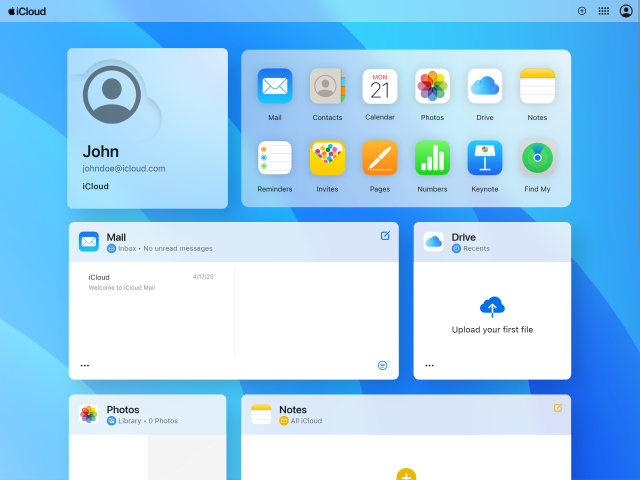
Image source: Wikipedia
iCloud Photos and Shared Libraries
iCloud Photos is arguably the most popular feature. It organizes your images into Moments, Collections, and Years. It also supports Shared Albums, which allow you to contribute photos to a collaborative folder with friends and family. However, users should be aware of the undocumented limit: you can only have up to 200 Shared Albums per account before the service stops syncing new content.
iCloud Drive
Similar to Dropbox or Google Drive, iCloud Drive is a file-hosting service. It allows you to store PDFs, spreadsheets, and folders that you can access via the "Files" app on iOS or the Finder on Mac. It is a top-tier choice for users who work across multiple Apple devices, as it allows you to start a document on a Mac and finish it on an iPad during a commute.
Find My and Activation Lock
iCloud powers the "Find My" network. If your device is stolen or lost, you can track its location, play a sound to find it, or remotely wipe its data. More importantly, it enables Activation Lock, which prevents anyone else from using your device without your Apple Account password, significantly reducing the resale value of stolen Apple hardware.
What Is iCloud+ and Is the Paid Upgrade Worth It?
iCloud+ is the premium subscription tier that offers more than just extra gigabytes. It introduces several privacy-focused features that rank among the top reasons users choose to pay for the service.
| Feature | iCloud (Free) | iCloud+ (Paid) |
|---|---|---|
| Storage | 5GB | 50GB to 12TB |
| Private Relay | No | Yes (Safari Privacy) |
| Hide My Email | No | Yes (Unlimited Aliases) |
| Custom Email Domain | No | Yes |
| HomeKit Secure Video | No | Yes (1 to Unlimited Cameras) |
Privacy Features: Private Relay and Hide My Email
iCloud+ includes Private Relay , a notably innovative feature for Safari users. It functions similarly to a VPN by masking your IP address and DNS requests, preventing websites and internet service providers from building a profile of your browsing habits.
Hide My Email allows you to generate unique, random email addresses that forward to your personal inbox. This is a highly impactful tool for signing up for newsletters or one-time discounts without exposing your real email address to potential spammers.
Storage Tiers and Pricing
As of 2026, Apple offers a wide range of storage plans to accommodate different needs:
- 50GB $0.99/mo: Ideal for individuals with moderate photo needs.
- 200GB $2.99/mo: The standard choice for families (can be shared).
- 2TB $9.99/mo: For power users and large video libraries.
- 6TB & 12TB $29.99 - $59.99/mo: Designed for professional photographers and videographers.
Hidden Limits and The Wall You Might Hit
While Apple markets iCloud as a seamless experience, there are undocumented limits and policies that can catch users off guard. Awareness of these "walls" can prevent frustration.
The 200 Shared Album Cap
Community discussions on platforms like Reddit have highlighted a specific frustration: the 200-shared-album limit. Apple does not provide a countdown or a warning as you approach this number. Once you hit 200, new albums simply won't sync, and invitations to others' albums may fail silently. If you hit this wall, you must delete old shared albums to regain functionality.
The 180-Day Backup Expiration
If you stop using a device or disable iCloud Backup, Apple's policy states they may delete your stored backups after 180 days of inactivity. This is particularly important for users who keep old device backups "just in case." If you need long-term storage of a specific device state, a local backup to a Mac or PC is a more reliable option.
How to Manage Your Storage When It Gets Full
When you see the dreaded "iCloud Storage Is Full" notification, you don't always need to reach for your wallet. There are several ways to audit your data and clear space.
- Use the "Recommended for You" Tool: In iOS 17 and later, go to Settings > [Your Name] > iCloud. Apple now provides a dedicated section that identifies duplicate photos, large email attachments, and old backups that can be safely removed.
- Audit Your Backups: Often, old backups from iPads or iPhones you no longer own are still eating up space. Deleting just one old backup can frequently free up 5-10GB instantly.
- Offload Large Apps: You can remove the app itself while keeping its data. This doesn't save iCloud space directly, but it helps manage local storage if you aren't using "Optimize Storage."
- Review Shared Albums: Since Shared Albums don't count against your storage quota (they count against the owner's), they are a great way to store photos. However, if you are the owner, they can contribute to your metadata limits.
Common iCloud Problems and How to Fix Them
iCloud is generally reliable, but cross-platform users—especially those on Windows—often encounter specific friction points.
The Windows "Duplicate (1)" Bug
Users of iCloud for Windows frequently report files being renamed with a "(1)" suffix. This usually occurs when a file is edited on the PC before the iCloud sync engine has finished downloading the most recent version from the cloud. To prevent this, ensure the iCloud icon in the system tray shows "Up to date" before opening large documents.
Fixing Stalled Syncs
If your photos or files stop appearing on your Windows machine, a common fix involves the Task Manager. According to troubleshooting threads , you should manually end the "iCloud Drive" process and restart the iCloud application. This often forces the sync engine to re-index and resume transfers.
Authentication Loops
If your device constantly asks for your password, it is often a sign of a "stale" login token. The most effective fix is to sign out of iCloud entirely in Settings, restart the device, and sign back in. This refreshes the security handshake with Apple's servers.
Advanced Security and Data Protection
Apple has long been a leader in consumer privacy, but the way they encrypt your data depends on your settings.
Standard vs. Advanced Data Protection
By default, Apple uses Standard Data Protection . Your data is encrypted, but Apple retains the metadata keys to help you recover your account if you lose your password. For most users, this is a helpful safety net.
However, for those requiring higher security, Advanced Data Protection enables end-to-end encryption (E2EE). With this turned on, only you have the keys. Even if Apple's servers were breached, your photos and backups would remain unreadable. The trade-off is that if you lose your password and your recovery code, Apple cannot help you get your data back.
The Encryption Gap
It is important to note that even with Advanced Data Protection, three specific services are not end-to-end encrypted: iCloud Mail, Contacts, and Calendars . This is because these services must interface with global standards like IMAP and CalDAV to work with other email providers (like Gmail or Outlook), which do not support Apple's specific E2EE implementation.
Frequently Asked Questions
Do I need iCloud to use my iPhone?
What happens to my data if I stop paying for iCloud+?
Can I use iCloud on an Android phone?
Is iCloud the same as an Apple ID?
How do I see what is currently in my iCloud?
Final Thoughts on Mastering Your iCloud Storage
iCloud is a highly capable sync engine that provides the backbone for the modern Apple experience. To get the most out of it while avoiding common pitfalls, keep these key takeaways in mind:
- Distinguish between Sync and Backup: Remember that deleting a synced photo removes it from all devices.
- Enable "Optimize Storage": This is a top-rated way to keep a massive photo library on a device with limited physical space.
- Monitor Shared Album limits: If your syncing stalls, check if you have exceeded the 200-album cap.
- Audit your storage regularly: Use the "Recommended for You" tool to clear out unnecessary large attachments and old backups.
- Consider iCloud+ for privacy: Features like Private Relay and Hide My Email offer significant value beyond just extra storage space.
- Use Advanced Data Protection: If you are a high-security user, enable E2EE to ensure you are the only person with access to your data.
By actively managing your settings and understanding the "sync vs. backup" dynamic, you can ensure your digital life remains secure and accessible across all your devices.
-
Topic: Introduction to iCloudhttps://support.apple.com/guide/icloud/introduction-to-icloud-mm74e822f6de/icloud
-
Topic: iCloudhttps://www.icloud.com/
-
Topic: Can anyone give me a rundown on what iCloud actually is/ ...https://www.reddit.com/r/iCloud/comments/1qk2xp4/can_anyone_give_me_a_rundown_on_what_icloud/

How to Sync on iCloud Across All Devices and Fix Common Upload Issues
Master iCloud syncing for iPhone, Mac, and Windows. Fix stuck uploads, force syncs, and manage storage with this technical guide for 2026.


How to Backup Your iPhone to iCloud and Keep Your Data Safe
Backup your iPhone to iCloud manually or automatically. Fix storage errors, use 5G, and get temporary free space for new phones. Current 2026 tips.

How to Transfer Photos from iPhone to Computer on Windows and Mac
Learn how to transfer iPhone photos to Windows or Mac. Fix 'Device is Unreachable' errors and move large libraries without crashes.