How to Reset Network Settings on Your iPhone to Fix Connectivity Issues
Primary Path
Settings > General > Transfer or Reset > Reset
Time Required
60–90 Seconds
Data Risk
Wi-Fi & Bluetooth Only
eSIM Safety
100% Safe (Optional)
Connectivity issues can be among the most frustrating experiences for any smartphone user. Whether your iPhone refuses to connect to a known Wi-Fi network, drops Bluetooth pairings with your favorite headphones, or displays the dreaded "No Service" message in a high-coverage area, the software handshake between your device and the network is often to blame. In the world of iOS troubleshooting, performing a network reset stands out as a top choice for resolving these persistent bugs without the need for a full factory wipe.
According to Apple Support , resetting network settings is a highly effective method to clear out corrupted cache files and legacy configurations that may be hindering your connection. This process essentially returns your network-related preferences to their factory state, allowing your iPhone to establish fresh, clean connections with cellular towers, routers, and peripheral devices. While it may seem daunting to "reset" anything on your device, understanding exactly what this process entails can provide the peace of mind needed to fix your phone quickly.
How to Reset Your Network Settings on iOS 15 Through iOS 18
Since the release of iOS 15, Apple has slightly modified the navigation path for reset options to accommodate the "Transfer or Reset iPhone" menu. This structure remains consistent through the latest versions, including iOS 17 and the recently released iOS 18. If you are using an iPhone 8 through the iPhone 16 Pro Max, the following steps will guide you through the process.
- Open Settings: Locate the gear icon on your home screen or in your App Library.
- Navigate to General: Scroll down and tap on the "General" tab.
- Find Transfer or Reset iPhone: Scroll to the very bottom of the General menu. You will find this option just above the "Shut Down" button.
- Tap Reset: Do not worry; tapping this will not immediately delete your data. It will open a sub-menu of specific reset options.
- Select Reset Network Settings: This is the second option in the list. Be careful not to select "Reset All Settings" or "Erase All Content and Settings," as these are much more invasive.
- Enter Passcode: For security, your iPhone will ask for your device passcode.
- Confirm the Reset: A final prompt will appear at the bottom of the screen. Tap "Reset Network Settings" to confirm. Your iPhone will then restart, displaying the Apple logo and a progress bar.
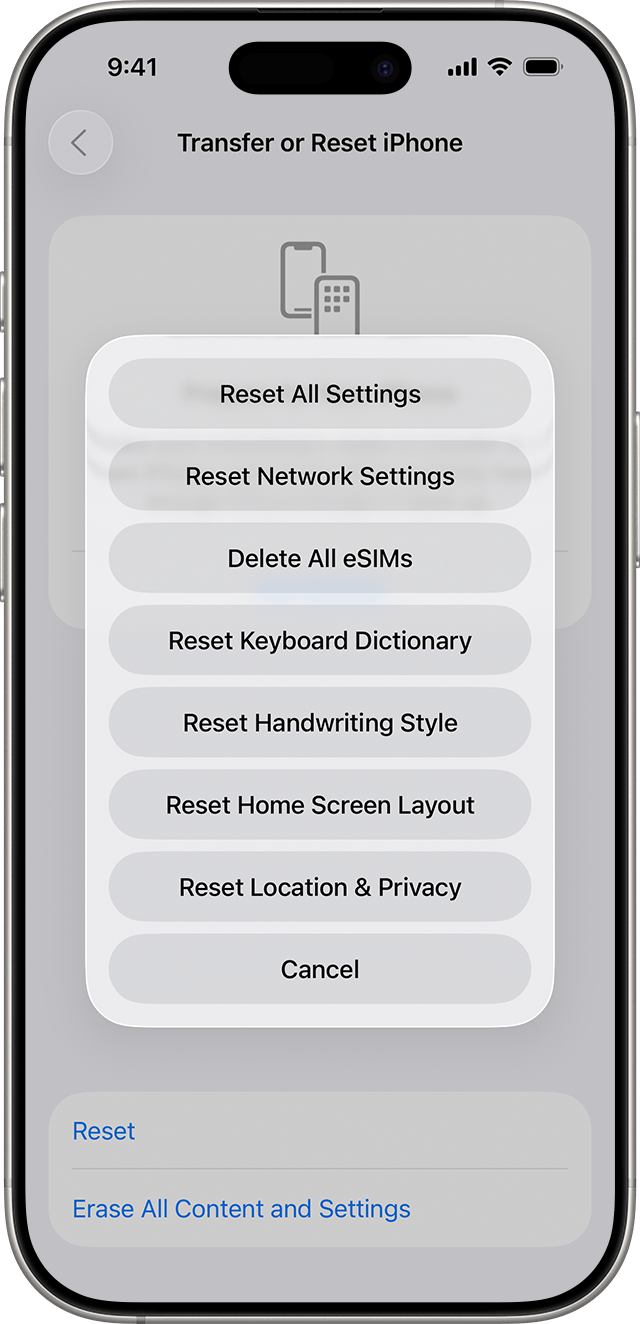
Image source: Apple Support
The entire process typically takes between 60 and 90 seconds. Once the device reboots, you will notice that your cellular signal may take a moment to return as the phone re-provisions its connection to the nearest tower. This is a normal part of the recovery process and indicates that the reset was successful.
What Actually Happens When You Reset Network Settings?
One of the primary reasons users hesitate to perform this reset is the fear of losing personal data like photos, messages, or apps. It is important to clarify that a network reset is highly targeted. It only affects the "handshake" data used to communicate with external networks and devices. It does not touch your internal storage or personal files.
What Data Will Be Deleted?
When you trigger this reset, the iPhone clears its network cache. This includes several specific categories of data that you will need to re-configure afterward:
- Saved Wi-Fi Networks: Every Wi-Fi network you have ever joined, along with its password, will be removed. You will need to re-enter your home, office, and public Wi-Fi passwords.
- Bluetooth Pairing Records: Your iPhone will "forget" all paired devices. This includes AirPods, car infotainment systems, smartwatches, and Bluetooth speakers.
- VPN Configurations: If you use a VPN for work or privacy, those settings will be cleared. You may need to re-download your VPN profile or sign back into your VPN app.
- APN and MMS Settings: For users who have manually configured their cellular data settings (often necessary for certain MVNO carriers), these will revert to default.
- Device Name: In some cases, your device name (e.g., "John's iPhone 15") may revert to the default "iPhone."
What Data Is Safe and Untouched?
It is widely regarded as one of the safest troubleshooting steps because it leaves your personal life intact. The following items are never affected by a network reset:
- Photos and Videos: Your entire library remains exactly where it is.
- Contacts and Messages: All text threads, iMessages, and contact cards are preserved.
- Apps and App Data: No apps are deleted, and your progress in games or data in productivity apps is safe.
- Browser History: Your Safari bookmarks and history are not cleared.
| Feature | Status After Reset | Action Required? |
|---|---|---|
| Wi-Fi Passwords | Deleted | Yes, must re-enter |
| Bluetooth Pairings | Deleted | Yes, must re-pair |
| Photos & Videos | Safe | No |
| eSIM / Cellular Plan | Safe | No (unless chosen) |
| VPN Settings | Deleted | Yes, must re-configure |
Will Resetting Network Settings Delete My eSIM or Cellular Plan?
With the transition to eSIM-only models like the iPhone 14, 15, and 16 in the US, many users worry that a reset will "delete" their phone number or cellular plan. Apple has implemented a notably innovative safety feature to prevent this accidental loss. When you tap "Reset Network Settings," modern iOS versions will often present a secondary confirmation or a specific toggle.
In most cases, the prompt will explicitly ask if you want to "Reset Network Settings" or "Delete All eSIMs." As long as you select the network reset option, your cellular plan remains active and untouched. The phone simply clears the temporary cache used to connect to the carrier's gateway, but the digital SIM profile itself is stored in a secure area of the hardware that is not affected by a standard network reset.
Why Is the Reset Network Settings Button Grayed Out?
Occasionally, users find that the "Reset Network Settings" button is visible but unclickable (grayed out). This is rarely a hardware failure and is almost always a software restriction. There are two primary reasons this occurs.
How to Fix Screen Time Restrictions
The most common culprit is Apple's Screen Time feature. If you have "Content & Privacy Restrictions" enabled, it may be blocking changes to your system settings. To fix this:
- Go to Settings > Screen Time .
- Tap on Content & Privacy Restrictions .
- Check if the toggle at the top is ON. If it is, scroll down to the "Allow Changes" section.
- Ensure that "Passcode Changes" and "Account Changes" are set to Allow .
Once these restrictions are lifted, the reset button should become active again.
Checking for MDM and Managed Profiles
If your iPhone was issued by an employer or a school, it might be under Mobile Device Management (MDM). Administrators often lock down the ability to reset network settings to ensure the device stays connected to corporate VPNs or monitoring software. You can check for these profiles by navigating to Settings > General > VPN & Device Management . If a profile is present, you may need to contact your IT department to perform the reset.
When Should You Perform a Network Reset?
While a network reset is a powerful tool, it should not be your first step. It is a top-tier troubleshooting option to be used when simpler fixes—like toggling Airplane Mode or restarting your phone—have failed. Here are the specific scenarios where a reset is highly recommended.
Fixing the No Service or Searching Error
If your iPhone is stuck in a "Searching..." loop or shows "No Service" even when you are in a known good coverage area, the baseband firmware may have hit a snag. A network reset forces the iPhone to re-read the information from your SIM card or eSIM and re-establish a handshake with the nearest cellular tower. According to Verizon Support , this is a primary step for resolving mobile data failures before considering a hardware replacement.
Resolving Wi-Fi Drops and Password Rejection
Have you ever entered the correct Wi-Fi password only to have your iPhone tell you it is "Incorrect"? Or perhaps your Wi-Fi signal drops every time the phone goes to sleep? These issues are often caused by corrupted plist files (preference files) in the iOS system. Resetting the network settings wipes these files, allowing the iPhone to create new, uncorrupted versions the next time you connect to your router.
Solving Bluetooth Pairing Failures
Bluetooth is notoriously finicky. If your AirPods are only playing in one ear, or your car's hands-free system refuses to sync your contacts, the Bluetooth cache may be overloaded with legacy pairing records. A network reset clears the entire Bluetooth stack, providing a clean slate for your peripheral devices. Note that you will need to put your headphones or car into "Pairing Mode" again after the reset.
The Post-Update Ritual for Better Battery Life
A significant advancement in community troubleshooting wisdom, particularly on platforms like Reddit , suggests performing a network reset after a major iOS version jump (e.g., moving from iOS 17 to iOS 18). Major updates can sometimes leave behind "legacy" network cache that doesn't play well with the new operating system's power management. This can lead to excessive heat and battery drain, especially when using 5G. Clearing this cache post-update can often stabilize battery performance.
How to Fix SMS and MMS Ghosting with Android Users
One of the more obscure issues a network reset can solve is "SMS ghosting." This occurs when an iPhone user stops receiving text messages or images from Android users, or when group chats become fragmented. This often happens because the device's connection to the carrier's SMS gateway has become stale.
By resetting the network settings, you force the iPhone to re-provision its SMS and MMS settings with your carrier. This "re-registration" process often clears the blockage, allowing group texts and media messages to flow normally again. If the problem persists after a reset, it is likely a carrier-side provisioning error that requires a call to their technical support team.
Your Post-Reset Checklist for a Smooth Recovery
Once your iPhone has rebooted and you are back at the home screen, the work isn't quite finished. To get back to full functionality, follow this quick checklist:
- Re-connect to Wi-Fi: Go to Settings > Wi-Fi and select your home network. Have your password ready!
- Re-pair Bluetooth Devices: Start with your most-used items like AirPods or your Apple Watch. (Note: The Apple Watch usually stays paired via the Watch app, but a quick toggle may be needed).
- Check VPN Apps: Open your VPN app (like NordVPN or ExpressVPN) to ensure the configuration profile is still active. You may need to tap "Allow" to re-install the profile.
- Verify Wi-Fi Assist: This setting (which uses cellular data when Wi-Fi is poor) often reverts to its default "On" state. If you have a limited data plan, you may want to turn it off in Settings > Cellular.
- Carrier Settings Update: Go to Settings > General > About and wait for 30 seconds. If a carrier update is available, a prompt will appear. Tap "Update" to ensure you have the latest tower data.
Frequently Asked Questions
How long does a network reset take?
The actual reset process is very quick, typically taking between 60 and 90 seconds. Your iPhone will show the Apple logo and a progress bar as it clears the cache and reboots. Once you see your lock screen, the process is complete, though it may take another 30 seconds for your cellular signal to fully return.
Does this fix slow internet speeds?
It can, provided the slowness is caused by a software handshake error or a corrupted network profile. However, if the slow speed is due to carrier throttling, poor signal strength in your area, or a congested Wi-Fi router, a reset will not change the physical limitations of the network.
Will I lose my "Find My" settings or iCloud data?
No. "Find My iPhone" and your iCloud data are tied to your Apple ID and the device's activation lock, not the network cache. Your device will remain visible in the Find My app, and all your synced photos and documents will remain safe in the cloud.
Do I need to call my carrier after doing this?
In 99% of cases, no. The iPhone is designed to automatically re-activate its connection with the SIM card or eSIM upon reboot. The only reason to call your carrier is if the "No Service" issue persists even after the reset, which might indicate a hardware failure or a service outage.
Will it delete my saved Wi-Fi passwords on my Mac or iPad?
If you have iCloud Keychain enabled, there is a small chance that deleting a Wi-Fi password on your iPhone could sync that deletion to your other devices. However, a network reset is usually treated as a local device action. To be safe, ensure you have your most important passwords written down or stored in a dedicated password manager.
Key Takeaways
- Targeted Reset: Only Wi-Fi, Bluetooth, and VPN settings are removed; your photos and apps are completely safe.
- eSIM Protection: Modern iPhones offer a specific prompt to keep your cellular plan active during the reset.
- Troubleshooting Order: Use this as a secondary step after trying Airplane Mode and a simple restart.
- Screen Time Fix: If the button is grayed out, check your Content & Privacy Restrictions in the Screen Time menu.
- Post-Update Benefit: Performing a reset after a major iOS update can help resolve battery drain and heat issues.
- Re-pairing Required: Be prepared to re-enter Wi-Fi passwords and re-pair all Bluetooth accessories immediately after.
For most connectivity bugs, a network reset is a particularly robust tool that offers a fresh start for your iPhone's communication hardware without the risk of losing your precious memories.
Before you begin, ensure you have your primary Wi-Fi password handy so you can get back online immediately after the reboot.
-
Topic: Reset iPhone settings to their defaultshttps://support.apple.com/guide/iphone/reset-iphone-settings-iphea1c2fe48/ios
-
Topic: How To RESET NETWORK Settings iPhonehttps://www.youtube.com/watch?v=Aslz3AnXTHg
-
Topic: Apple iPhone - Reset Network Settingshttps://www.verizon.com/support/knowledge-base-207110/

Why Is My Internet Not Working and How Can I Fix It Right Now?
Troubleshooting steps for when your internet is down. Fix Wi-Fi on iPhone, Android, PC, and Smart TVs. Check for outages and reset your router.


How to Get the AT&T Free Trial and Test the Network for 30 Days
Test the AT&T network with 100GB of 5G data for 30 days. Learn about eSIM setup, Android support, and how to avoid fees on Fiber trials.

How to Set Up and Manage Stolen Device Protection on Your iPhone
Learn to enable iPhone Stolen Device Protection, manage security delays, and fix Face ID or VPN issues. Secure your Apple ID with this expert guide.