Why Is My Internet Not Working and How Can I Fix It Right Now?
If your internet is down, follow these steps in order: 1. Toggle Wi-Fi off and on. 2. Verify your device isn't in Airplane Mode. 3. Check for loose cables on your router and modem. 4. Perform a 60-second power cycle by unplugging your equipment. 5. Check for local outages via your provider's status page.
Few things are as frustrating as a sudden loss of connectivity. Whether you are in the middle of a remote work meeting or streaming your favorite show, a "No Internet Connection" error can bring your day to a halt. Understanding why your internet is not working requires a systematic approach to isolate whether the problem lies with your device, your home hardware, or your Service Provider (ISP).
According to Avast , connectivity issues often stem from simple physical obstructions or outdated hardware rather than complex software failures. This guide provides a comprehensive path to restoring your connection across all platforms, including mobile devices and smart home equipment.
What Should I Check First When My Internet Stops Working?
Before diving into complex settings, start with the most common culprits. Often, the solution is a simple toggle or a loose wire that has been overlooked during the initial panic of losing access.
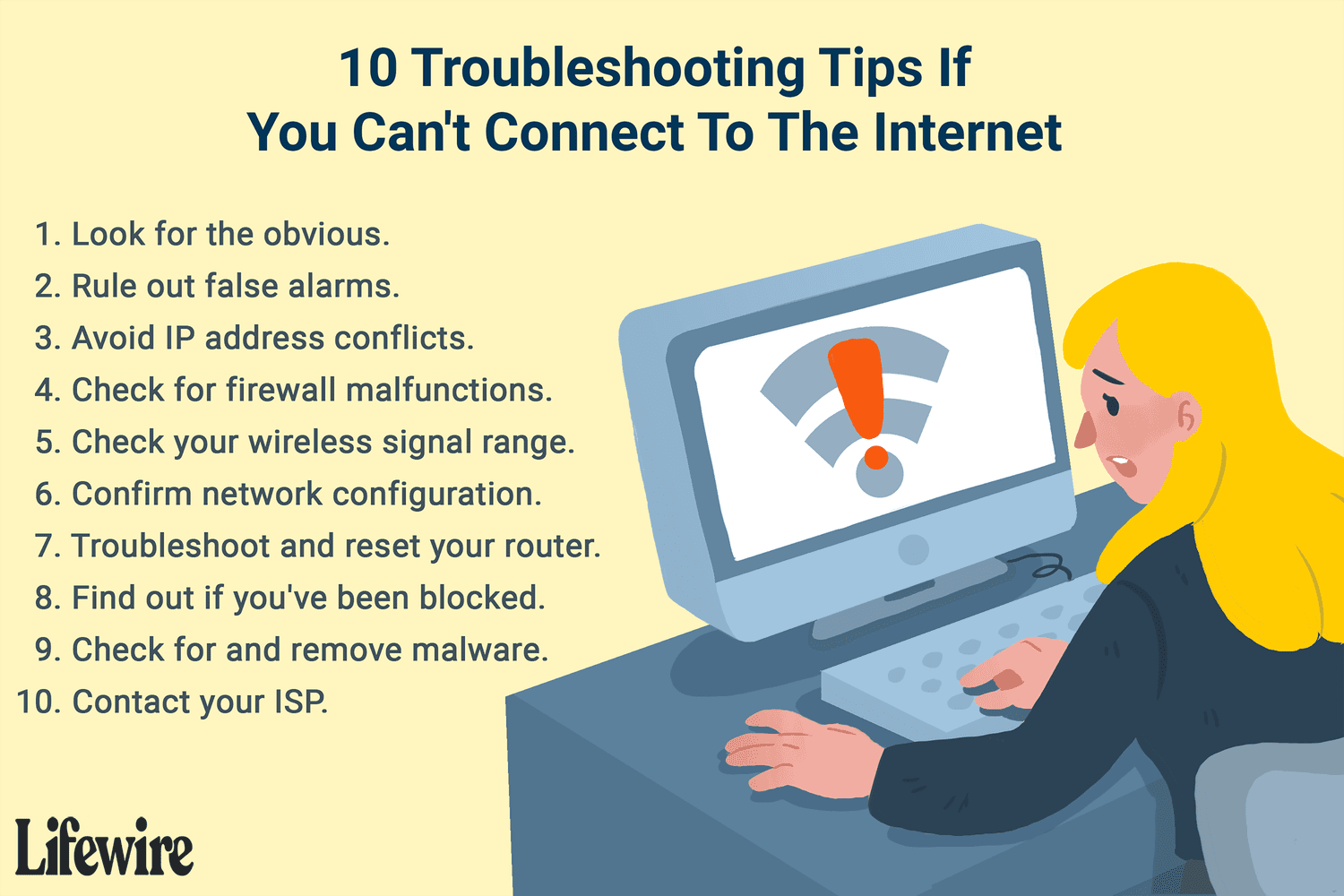
Image source: Lifewire
The Immediate Checklist
- Toggle Your Wi-Fi: Turn the Wi-Fi off on your device, wait five seconds, and turn it back on. This forces the device to re-authenticate with the router.
- Check Airplane Mode: It is easy to accidentally trigger Airplane Mode on laptops and smartphones, which instantly severs all wireless radios.
- Inspect Physical Cables: Ensure the Ethernet cable between your modem and router is clicked in securely. Check the coaxial or fiber line coming from the wall to ensure it hasn't been loosened by cleaning or pets.
- Test a Second Device: If your phone works but your laptop doesn't, the issue is device-specific. If nothing works, the problem is likely the network or the ISP.
Research from IObit suggests that physical interference and loose connections account for a significant percentage of reported "outages" that are actually local hardware issues. Always verify the "Connectivity Chain" (Device -> Router -> Modem -> Wall) before moving to software fixes.
How to Perform a Proper Power Cycle Using the 60-Second Rule
The "restart" is a cliché for a reason: it works. However, most users do not restart their equipment correctly. Simply pressing a button or pulling the plug for a second is often insufficient to clear the internal memory (RAM) of a router or modem.
The 60-Second Sequence
- Unplug Everything: Remove the power cables from both the modem and the standalone router.
- Remove Batteries: If your modem has a backup battery (common in units with phone service), you must remove it, or the device will stay powered on.
- Wait Exactly 60 Seconds: This duration is critical. It allows the capacitors in the hardware to fully discharge, ensuring all temporary data and potential glitches are wiped clean.
- Power the Modem First: Plug the modem back in and wait 2 to 3 minutes. You must wait for the "Online" or "Sync" light to become solid before moving to the next step.
- Power the Router: Once the modem is stable, plug in the router. Give it another 2 minutes to broadcast the Wi-Fi signal and assign IP addresses to your devices.
While some sources suggest a 30-second wait, experts generally recommend a full minute to ensure a complete reset of the hardware's state. This process clears IP conflicts and refreshes the connection with your ISP's headend equipment.
Why Does My Wi-Fi Say Connected But There Is No Internet?
This is perhaps the most confusing error for users. Your device shows full signal bars, yet no websites will load. To understand this, we can use the "Road vs. Highway" analogy provided by TP-Link .
Image source: Kaspersky
The Road vs. Highway Analogy
Think of your Wi-Fi as the local road leading from your house to the neighborhood entrance. The Internet is the interstate highway . If your Wi-Fi says "Connected," it means you have successfully driven down your driveway to the local road. However, if the on-ramp to the highway (your modem or ISP) is blocked or broken, you can sit on the local road all day but you won't get to your destination.
Common Causes for This Paradox
- ISP Service Outages: The most common cause. Your router is fine, but the provider's lines are down. Check sites like Downdetector to see if others in your area are reporting issues.
- Expired IP Addresses: Sometimes the "lease" on your local IP address expires, and the router fails to give you a new one.
- DNS Server Failures: The "phonebook" of the internet is broken. Your computer knows where it wants to go but can't find the address.
How to Decode the Blinking Lights on Your Modem or Router
Your modem is constantly communicating its status through a series of LED lights. Instead of guessing what they mean, use this diagnostic tool to identify the specific point of failure.
| Light Name | Status | What It Means |
|---|---|---|
| Power | Solid Red | Hardware failure or power surge damage. The unit may need replacement. |
| US/DS | Blinking Orange | The modem is searching for upstream/downstream frequencies. Usually indicates a line issue. |
| Online / Internet | Off or Blinking | The modem cannot authenticate with the ISP. Likely a service outage or deactivated account. |
| Wi-Fi / Wireless | Off | The wireless radio is disabled. Check the physical Wi-Fi button or router settings. |
| Ethernet / LAN | Blinking Green | Normal activity. Data is being transferred between the router and a wired device. |
If you see a solid red light on the Power indicator, try plugging the device into a different outlet. If the red light persists, the internal circuitry has likely failed, and you will need to contact your ISP for a replacement unit.
What to Do When Your Internet Is Not Working on Your Phone
Mobile devices often suffer from unique connectivity glitches that don't affect PCs. If your phone is "Connected" but won't load data, the issue is frequently a corrupted network cache or a conflict with a VPN service.
iOS (iPhone/iPad)
Go to Settings > General > Transfer or Reset iPhone > Reset > Reset Network Settings . This will clear all saved Wi-Fi passwords and Bluetooth pairings, but it is a highly effective fix for persistent connection errors.
Android Devices
Navigate to Settings > System > Reset options > Reset Wi-Fi, mobile & Bluetooth . Like iOS, this refreshes the entire networking stack and forces the phone to request a fresh IP address from the router.
Pro Tip: Before performing a full network reset, try "Forgetting" the specific Wi-Fi network you are on and re-entering the password. This often resolves DHCP conflicts where the phone is trying to use an IP address that the router has already assigned to another device.
How to Fix Internet Connection Issues on Your Smart TV or Streaming Device
Smart TVs (Samsung, LG, Sony) and streaming sticks (Roku, Fire TV) are notorious for "hanging" on old network configurations. Because these devices are rarely fully powered down, their network adapters can become unresponsive.
The Cold Boot Method
For Samsung and LG TVs, a standard "off" command via the remote only puts the TV into standby mode. To perform a Cold Boot , hold the power button on your remote for 10 seconds until the TV turns off and then back on again, or unplug the TV from the wall for 60 seconds. This clears the system cache and restarts the internal Wi-Fi module.
Addressing DHCP Conflicts
As noted in community discussions on Quora , Smart TVs often suffer from DHCP conflicts. This happens when the TV holds onto an IP address that the router has since given to a smartphone or tablet. If a cold boot doesn't work, try assigning a Static IP to your TV within your router's settings to prevent future clashes.
Advanced Software Fixes for Windows and Mac Users
If the hardware is fine but your computer refuses to connect, you may need to manually reset the software protocols that govern internet traffic. These commands refresh your connection at a deep system level.
Image source: PCMag UK
The Windows Command Stack
Open the Command Prompt as an Administrator and run these commands in order. This sequence is widely considered one of the most effective ways to fix Windows-specific networking bugs:
netsh int ip reset
ipconfig /release
ipconfig /renew
ipconfig /flushdns
macOS DNS Flushing
For Mac users, the process is slightly different. Open the Terminal and enter the following command (you will need your admin password):
Linux Terminal Commands
Linux users can often resolve connectivity issues by restarting the network manager or the name service cache daemon (nscd). Use the following command to refresh the DNS cache:
Why You Should Change Your DNS Settings to Google or Cloudflare
When you type a website name, your computer asks a DNS server for the numeric IP address. By default, you use your ISP's DNS servers. Unfortunately, ISP servers are often slow, prone to outages, and may even be used to track your browsing habits.
Switching to a public DNS provider ranks among the top ways to improve both connection stability and speed. According to Microsoft Support , using a reliable DNS can bypass many "Connected, no internet" errors caused by provider-side resolution failures.
- Google Public DNS: 8.8.8.8 and 8.8.4.4
- Cloudflare DNS: 1.1.1.1 and 1.0.0.1
You can change these settings in your router's dashboard to protect every device in your home, or you can change them individually in the network settings of your PC, Mac, or smartphone.
Is Your Router Too Old or Just Covered in Dust?
Sometimes the reason your internet is not working is purely physical. Routers are small computers, and like any computer, they generate heat and have a limited lifespan.
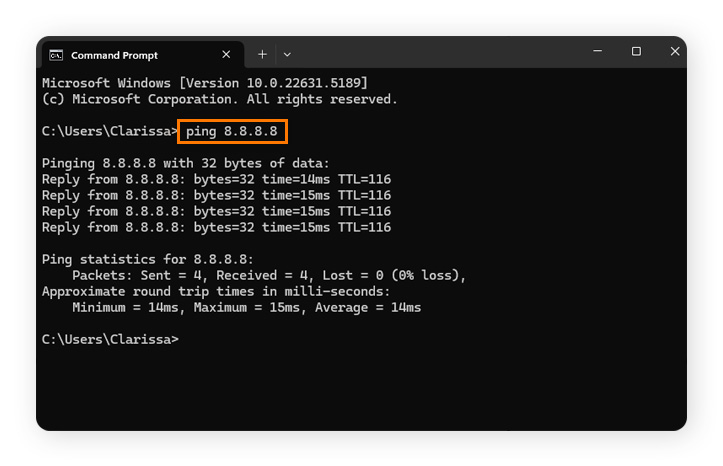
Image source: Avast
The 5-Year Rule
Networking technology evolves rapidly. If your router is more than five years old, it likely lacks the processing power to handle modern high-speed fiber connections and the sheer number of devices in a contemporary home. Older routers also use outdated security protocols like WEP or WPA, which are less stable and more vulnerable to interference than modern WPA3 standards.
The Impact of Dust and Heat
Routers are often tucked away in corners or behind TVs where dust accumulates. If the vents are clogged, the internal processor will overheat, leading to intermittent signal drops or total freezes. Use a can of compressed air to clean the vents every few months. Additionally, ensure your router is placed in an open, central location away from microwaves and Bluetooth devices , which operate on the same 2.4GHz frequency and can cause significant signal degradation.
How to Identify and Stop ISP Throttling
If your internet works perfectly for basic web browsing but fails or slows to a crawl when you start streaming video or gaming, you may be a victim of ISP throttling. This is when your provider intentionally slows down specific types of traffic to manage their network load.
To test for this, run a speed test while your internet is acting up. Then, connect to a Virtual Private Network (VPN) and run the test again. If your speeds significantly improve while using the VPN, your ISP is likely targeting your traffic. Because a VPN encrypts your data, the ISP cannot see what you are doing and therefore cannot apply specific throttling rules to that traffic.
Frequently Asked Questions
Why does my internet work on my phone but not my laptop?
Can a bad Ethernet cable slow down my internet?
What does a solid red light on my router mean?
Does weather affect my fiber or cable internet?
How do I know if my router has been hacked?
Final Troubleshooting Checklist
Restoring your internet connection is usually a matter of following a logical path from the simplest fix to the most complex. By systematically ruling out each point of failure, you can get back online without unnecessary stress.
- Perform the 60-second power cycle first, as it resolves the vast majority of temporary hardware glitches.
- Check for local outages using third-party status sites before you start changing complex software settings.
- Verify physical connections to ensure no cables have been bumped or loosened.
- Reset network settings on individual devices if the problem is isolated to just one phone or computer.
- Update your hardware if your router is more than five years old or shows signs of overheating from dust buildup.
- Switch to Public DNS (like 1.1.1.1) to avoid reliability issues with your ISP's default servers.
If you have followed all these steps and still cannot connect, it is time to contact your Service Provider's technical support, as the issue likely exists within their external infrastructure.
-
Topic: Why Is My Internet Not Working & How Do I Fix It?https://www.avast.com/c-why-is-my-internet-not-working
-
Topic: Is My Internet Working? YES!https://ismyinternetworking.com/
-
Topic: Why is my internet not workinghttps://www.hp.com/us-en/tech-takes/connectivity/troubleshooting/internet-is-not-working.html

How to Reset Network Settings on Your iPhone to Fix Connectivity Issues
Fix Wi-Fi, Bluetooth, and cellular issues by resetting network settings. Learn what data stays safe and how to keep your eSIM active on iOS.


Is There a Nationwide Cell Phone Outage Today and How Can You Fix It?
Phone in SOS mode? Check nationwide cell phone outage today status for Verizon, AT&T, & T-Mobile. Learn to fix it & claim credits.

How to Check the Status of Websites and Troubleshoot Connection Issues
Use a tool to check if a website is down for everyone or just you. Learn to fix connection errors, check HTTP status codes, and monitor uptime.