
How to Check the Status of Websites and Troubleshoot Connection Issues
In an era where digital connectivity is the backbone of work, entertainment, and social interaction, encountering a "Site Can’t Be Reached" error can be incredibly frustrating. Whether you are trying to access a critical work portal or simply checking your social media feed, the first question is always the same: Is the website down for everyone, or is it just me? Understanding how to check the status of websites is a fundamental digital literacy skill that can save you hours of unnecessary troubleshooting.
Quick Tools to Check if a Website Is Down Right Now
When a page fails to load, your first step should be a "binary check"—a simple test to see if the server responds to an external request. Several web-based utilities specialize in this, providing immediate clarity without requiring technical expertise.
Down for Everyone or Just Me
This is widely considered a top choice for a simple "Yes/No" answer. By entering a URL, the service pings the site from its own servers to confirm accessibility.
Visit Tool →Downdetector
Ranks among the top options for major platforms. It relies on crowdsourced reports, making it exceptionally strong at identifying outages for services like YouTube or Facebook before official status pages update.
Visit Tool →Is It Down Right Now?
A popular choice for seeing recent user comments and a brief history of the site's uptime. It provides a helpful context for recurring issues.
Visit Tool →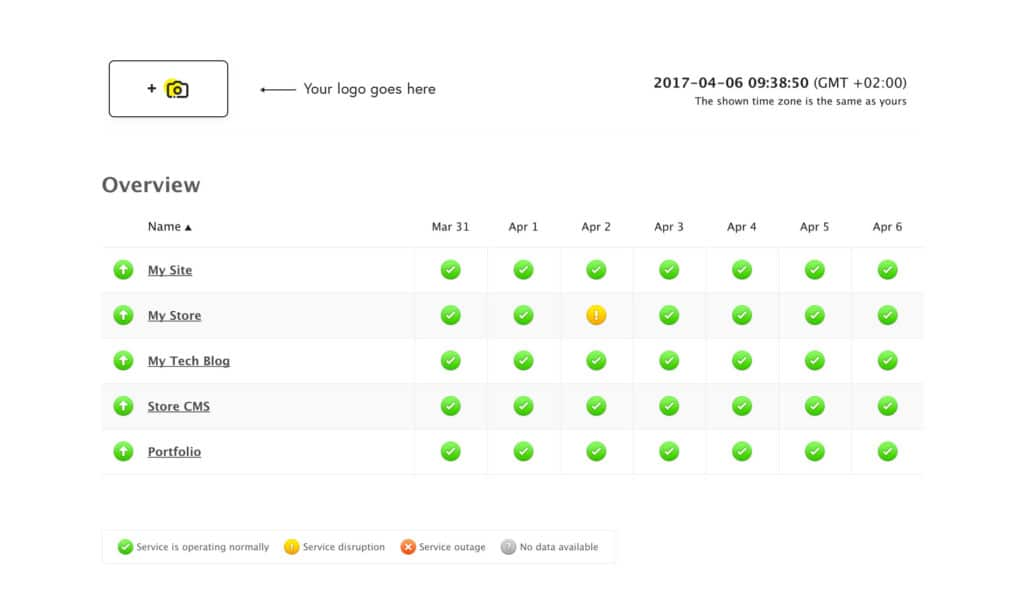
Image source: Pingdom
While these tools are excellent for a quick glance, they sometimes offer different results. For instance, Downdetector might show a spike in reports for a service that is technically "up" but experiencing a partial failure in its login system. Conversely, a simple ping tool might say a site is "up" even if the page is returning a blank screen. Always look for "Live" results or checks performed within the last few seconds to ensure accuracy.
Why Website Uptime and Performance Matter for Everyone
Website availability is not just a convenience; it is a critical economic and functional requirement. For businesses, every second of downtime translates directly into lost revenue and diminished brand trust. According to industry data, a major retailer like Amazon can lose approximately $220,000 for every single minute their storefront is inaccessible.
Beyond the immediate financial loss, downtime has a significant impact on user behavior. Research indicates that 40% of users will abandon a website if it takes longer than three seconds to load. If the site is completely down, that abandonment rate jumps to nearly 100%, with many users turning to a competitor's site instead. This behavior sets a high standard for site owners who must maintain near-perfect availability to remain competitive.
From an SEO perspective, search engines like Google prioritize user experience. If a site is frequently down or slow to respond, search crawlers may struggle to index its content. Over time, consistent downtime can lead to a drop in search rankings or even complete de-indexing, as search engines aim to avoid sending users to broken links. For the average visitor, understanding these stakes helps explain why major platforms invest so heavily in redundant server architectures and Content Delivery Networks (CDNs).
Steps to Take if a Website Is Only Down for You
If the status checkers confirm that a website is "Up" but you still cannot access it, the problem lies within your local environment. This could be anything from a browser glitch to a configuration error in your operating system. Follow these steps to isolate and fix the issue.
1. Try Incognito or Private Browsing Mode
Browser extensions, particularly ad-blockers or security suites, can sometimes interfere with how a website loads. By opening the site in an Incognito (Chrome) or Private (Firefox/Safari) window, you run the browser without most extensions and with a clean slate of cookies. If the site loads here, you likely need to disable a problematic extension or clear your browser data.
2. Clear Your Browser Cache and Cookies
Browsers store versions of websites to speed up future visits. However, if a site was briefly down or changed its security certificates, your browser might be trying to load an outdated or "broken" version from its cache. Clearing your cache forces the browser to request a fresh copy of the site from the server.
3. Perform a DNS Flush
Your computer maintains a local directory of IP addresses known as the DNS cache. If this cache becomes corrupted or outdated, your computer may look for a website at the wrong "address." Flushing the DNS is a notably innovative way to reset these connections.
ipconfig /flushdns
, then press Enter.
How to Flush DNS on Mac: Open Terminal and type
sudo dscacheutil -flushcache; sudo killall -HUP mDNSResponder
, then enter your password.
4. Switch Networks or Disable VPNs
Sometimes the issue is with your Internet Service Provider (ISP) or your specific network node. Try switching from Wi-Fi to cellular data on your phone. If the site loads on your phone but not your computer, the issue is your home network. Additionally, VPNs can sometimes route your traffic through a server that is blocked by the website's firewall or is experiencing its own outage. Disabling your VPN is a simple way to rule this out.
Understanding Common HTTP Status Codes and Server Errors
When a server fails to deliver a page, it usually sends back a three-digit code. These HTTP status codes are the "language" of the web, telling you exactly what went wrong. Understanding these codes is essential for both casual users and web developers.
Image source: Comodo cWatch
- 200 OK
- The request was successful. If you see this but the page looks broken, the issue is likely with the site's CSS or JavaScript files, not the server itself.
- 403 Forbidden
- The server understands the request but refuses to authorize it. This often happens due to geo-blocking (trying to access a site from a restricted country) or a firewall blocking your IP address.
- 404 Not Found
- The server is up, but the specific page you requested does not exist. This is usually a broken link or a typo in the URL.
- 500 Internal Server Error
- A generic "catch-all" error indicating that the server encountered an unexpected condition that prevented it from fulfilling the request. This is almost always a problem with the website's code or database.
- 503 Service Unavailable
- The server is currently unable to handle the request due to temporary overloading or maintenance. This is common during high-traffic events like ticket sales or product launches.
- 504 Gateway Timeout
- One server did not receive a timely response from another server it needed to access to complete the request. This often points to a hosting provider or CDN issue.
How to Test Website Status from Different Global Locations
The internet is not a single, uniform entity; it is a massive web of interconnected nodes. Consequently, a website can be perfectly accessible in New York but completely down in London due to a regional fiber cut or a localized CDN failure. To get a true picture of a site's health, you must test it from multiple geographic locations.
Professional tools like OnlineOrNot allow users to test a URL from 15 or more global locations simultaneously. This helps distinguish between a total server collapse and a regional routing issue. For even more granular data, services like Uptrends utilize over 229 checkpoints worldwide, offering a comprehensive view of global performance.
When performing global tests, pay attention to two key metrics:
- DNS Resolve Time: How long it takes for the global network to translate the domain name into an IP address. High resolve times in specific regions suggest DNS propagation issues.
- Time to First Byte (TTFB): This measures the responsiveness of the web server. A site might be "up," but if the TTFB is over 2 seconds, users will likely perceive it as down or broken.
Identifying Websites That Are Broken but Not Completely Down
There is a frustrating middle ground known as the "Zombie Site" phenomenon. This occurs when a website returns a "200 OK" status code—meaning the server is technically responding—but the page is unusable. This can happen for several reasons:
- Database Connection Errors: The HTML shell of the page loads, but the content (which lives in a database) fails to populate, leaving you with a blank screen or an error message inside the layout.
- CDN Failures: The main server is fine, but the Content Delivery Network responsible for loading images, styles (CSS), and scripts (JS) is down. The result is a "naked" HTML page with no formatting or functionality.
- Third-Party Script Hangs: Many modern sites rely on external scripts for chat widgets, analytics, or advertisements. If one of these scripts fails to load and the site is not configured to handle the failure gracefully, the entire browser window may freeze or appear to be "loading" indefinitely.
To diagnose these issues, some advanced status checkers offer a "Screenshot" feature. By seeing what the server actually "sees" at the moment of the check, you can determine if the site is visually intact or just a hollow shell. This is a significant advancement over simple ping tests that only check for a basic server response.
Comparing Popular Website Status and Uptime Checkers
Choosing the right tool depends on whether you are a casual visitor or a professional site owner. The following table compares the features of the most widely used diagnostic tools.
| Feature | Downdetector | OnlineOrNot | Uptrends |
|---|---|---|---|
| Primary Use | Social Media & Apps | Quick Global Check | Professional Monitoring |
| Data Source | User Reports | 15 Server Nodes | 229+ Server Nodes |
| Technical Detail | Low (Sentiment) | Medium (Latency) | High (Traceroute, IPv6) |
| Cost | Free | Free / Paid | Paid (Free Tools Available) |
For most users, Down for Everyone or Just Me remains a top-tier option for its simplicity. However, if you are troubleshooting a complex business application, the technical depth of a node-based checker is necessary to identify where in the network path the failure is occurring.
What to Do When Your Own Website Goes Offline
If you are the owner of a website that has gone down, the pressure is on to restore service as quickly as possible. A structured workflow can help you identify the culprit without wasting time on irrelevant fixes.
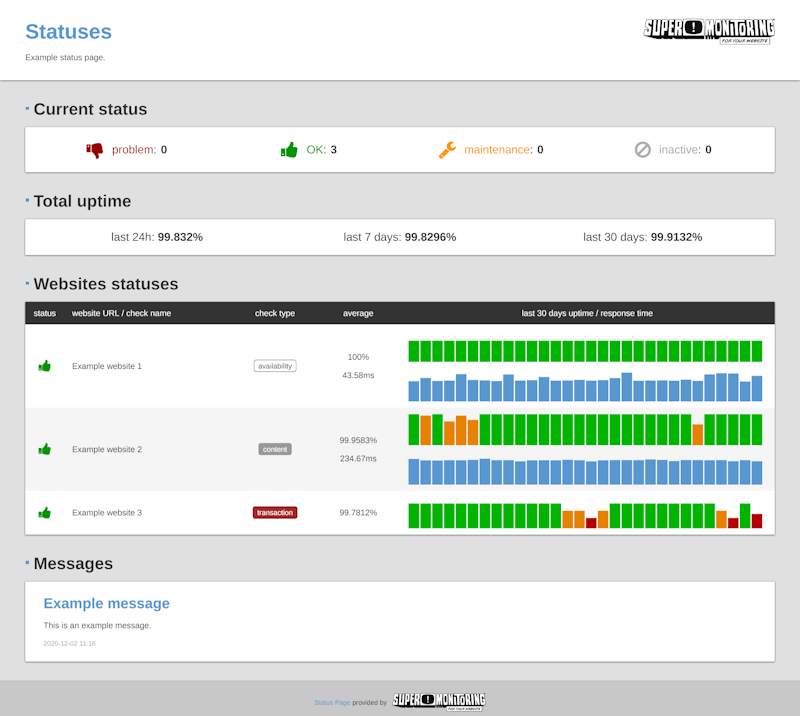
Image source: Super Monitoring
1. Check Your CDN and DNS Provider
Before blaming your hosting server, check the status of services like Cloudflare, Akamai, or AWS Route 53. Often, a "site down" error is actually a failure at the edge network level. If your CDN is having an outage, you may need to temporarily bypass it to restore access.
2. Verify Domain and SSL Status
It sounds simple, but many outages are caused by a forgotten domain renewal or an expired SSL certificate. If your SSL certificate expires, modern browsers will block access with a "Your connection is not private" warning, which many users interpret as the site being down. Use an SSL checker to ensure your certificate chain is valid.
3. Inspect Hosting Resources
Log into your hosting dashboard and check your CPU and RAM usage. A sudden spike in traffic (or a bot attack) can exhaust your server's resources, causing it to stop responding to new requests. If you consistently hit these limits, it may be time to upgrade your hosting plan.
4. Review Recent Changes
Did you just update a plugin, change your theme, or edit your
.htaccess
file? Code-level changes are a frequent cause of the "500 Internal Server Error." If you have a staging environment or backups, now is the time to roll back to the last known working version.
Frequently Asked Questions About Website Status
How do I check if a website is down for everyone or just me?
Why does a website say it is down when my internet is working?
Can a VPN help me access a website that is down?
What is the difference between IPv4 and IPv6 status checks?
How can I get alerted automatically when a site goes down?
What does a 503 Service Unavailable error mean?
Key Takeaways for Checking Website Availability
- Use a binary checker first to confirm if the outage is universal or local to your connection.
- Check Downdetector for major platforms to see if a crowdsourced outage is already in progress.
- Clear your DNS cache and try Incognito mode if the site is reported as "Up" by external tools.
- Identify the HTTP status code to understand if the error is client-side (4xx) or server-side (5xx).
- Test from multiple global locations to rule out regional routing or CDN failures.
- Verify SSL and domain expiration if you are the owner of the site experiencing downtime.
- Monitor uptime automatically using dedicated tools to catch outages before your users do.
The next time a website fails to load, start by using a global ping tool to verify the server's status before spending time troubleshooting your own hardware.

Why Is My Internet Not Working and How Can I Fix It Right Now?
Troubleshooting steps for when your internet is down. Fix Wi-Fi on iPhone, Android, PC, and Smart TVs. Check for outages and reset your router.


Is There a Nationwide Cell Phone Outage Today and How Can You Fix It?
Phone in SOS mode? Check nationwide cell phone outage today status for Verizon, AT&T, & T-Mobile. Learn to fix it & claim credits.
How to Test Your Webcam and Fix Common Video Quality Issues
Quickly test your webcam online, troubleshoot black screens, and optimize video quality for Zoom or Teams on Windows, Mac, and Linux.