How to Safely Remove a Thunderbug From Your Computer Monitor Without Damaging the Screen
If you see a tiny black bug crawling inside your screen, do not press on it. Squishing the bug traps it permanently between the display layers. Instead, turn off the monitor immediately to remove the heat source. Place a bright LED flashlight near the ventilation holes on the side or back of the monitor. The bug is often attracted to light and may crawl back out the way it entered. If the bug is already dead, wait 72 hours for it to dry out before attempting to move it with gentle vibration.
Finding a tiny, dark splinter-like object moving across your desktop is a jarring experience. It isn't a software glitch or a virus; it is a biological intrusion. These insects, commonly known as thunderbugs, thrips, or thunderflies, are a frequent nuisance for computer users, especially during the warmer months. While they are harmless to humans, their presence inside a high-end display can be distracting and, if handled incorrectly, can lead to permanent hardware damage.
This guide provides a systematic, evidence-based approach to removing these pests. We will explore the "Vibration-Suction Synergy" for stubborn debris and explain why the 72-hour desiccation window is critical for success. By following these steps, you can restore your screen's clarity without the need for expensive professional repairs or risky disassembly.
What Are These Tiny Black Splinters Crawling Inside Your Screen?
The "moving splinters" you see are almost certainly Thrips (order Thysanoptera). Measuring between 1mm and 2mm in length, these insects are exceptionally thin, allowing them to slip through the microscopic gaps in a monitor's casing. According to hardware enthusiasts at Dell , they are often mistaken for "crawling pixels" due to their size and dark coloration.
Thrips are naturally attracted to the heat generated by electronic components and the specific wavelengths of light emitted by LCD and LED backlights. In the wild, they are often found in flowers or crops, but during "Thrip Season"—typically mid-to-late summer or harvest time—they migrate in massive numbers. The bright glow of a computer monitor acts as a beacon, drawing them toward the ventilation ports where they eventually find their way behind the front protective layer of your screen.
Understanding their behavior is the first step in removal. Thrips are high-moisture insects that are highly sensitive to light gradients. They don't want to be trapped in your monitor; they are simply following a heat signature that they eventually realize is too intense. If you catch them while they are still moving, you have a much higher chance of a "clean" removal than if they die in the center of your viewing area.
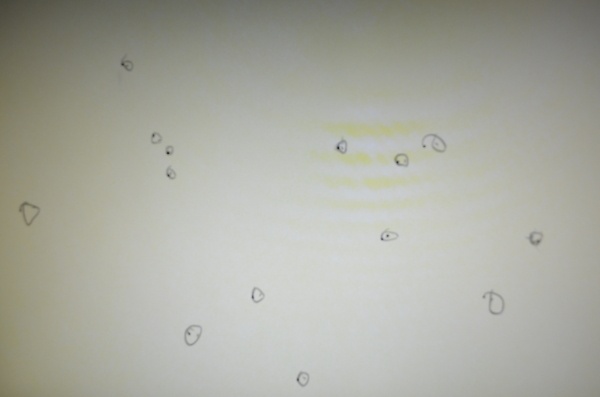
Image source: ePHOTOzine
The Most Important Rule for Dealing With a Live Bug in Your Monitor
Never, under any circumstances, press on the screen or attempt to squish the bug while it is visible. Doing so will crush the insect's exoskeleton, releasing fluids that act as an adhesive. This traps the carcass permanently between the layers of the display, creating a dark smudge that cannot be removed without a full, clean-room disassembly.
To understand why squishing is so catastrophic, we must look at the anatomy of a modern display. A standard LCD monitor is not a single piece of glass; it is a sandwich of at least four primary layers: the backlight, the diffuser (which spreads the light evenly), the LCD panel itself, and the front protective layer. Most thunderbugs crawl into the "air gap" between the diffuser and the LCD panel .
When you press on the screen, you are compressing these layers together. If a bug is caught in that compression, it becomes a permanent part of the display's internal structure. Because the gap is so tight, the "smear" left behind is often more visible than the bug itself, as it disrupts the way light passes through the pixels. As noted in expert troubleshooting guides , the goal is to keep the bug moving until it reaches the bezel (the plastic frame), where it will no longer be visible.
How to Lure a Live Thunderbug Out of Your Display
If the bug is still crawling, you are in the "active rescue" phase. The objective is to make the monitor an unattractive environment while providing a clear exit path. This method relies on the insect's phototactic nature—its tendency to move toward light.
- Kill the Attraction: Turn off the monitor immediately. This stops the generation of heat and removes the internal light source that is keeping the bug focused on the center of the screen.
- Create a Dark Room: Close the blinds and turn off overhead lights. You want the room to be as dark as possible so the bug has no visual distractions.
- The Flashlight Method: Take a bright, cool-running LED flashlight and place it directly against the ventilation holes on the back or side of the monitor. Ensure the light is pointing *away* from the screen's center and toward the edges.
- Exercise Patience: This is not an instant fix. It can take anywhere from 30 minutes to 2 hours for the bug to navigate the internal maze of the monitor and follow the light back out.
Avoid using high-heat lamps (like halogen bulbs) for this process. Excessive heat can warp the plastic casing or, worse, attract even more insects from the surrounding room. A cool LED is a top-tier choice for this specific task.
What to Do if the Bug Dies in the Middle of Your Screen
If the bug has stopped moving for more than 24 hours, it has likely succumbed to the dry heat of the monitor's internals. While this is frustrating, it is not a permanent sentence for your display. However, you must change your strategy from "luring" to "extraction."
Once the 72-hour window has passed, you can attempt the Gentle Tapping Technique . Using the pad of your finger, lightly tap the plastic bezel (the frame) near where the bug is located. Do not tap the screen itself. The goal is to create enough resonance in the panel to encourage the dried insect to lose its grip and fall toward the bottom of the casing.
The Suction and Vibration Combo for Stubborn Insects
For insects that refuse to budge even after drying out, we recommend a more advanced workflow known as the "Vibration-Suction Synergy." This method is widely regarded as one of the most effective non-invasive ways to clear internal debris.
Step 1: Create an Air Gap. Use a small suction cup (the kind found in phone repair kits). Gently apply it to the front glass directly over the bug. Pull back very slightly—just enough to create a microscopic increase in the gap between the LCD panel and the diffuser. This reduces the friction holding the bug in place.
Step 2: Apply Localized Vibration. While maintaining the slight suction, take an electric toothbrush and wrap the head in a soft microfiber cloth. Turn it on and press the vibrating head against the back of the monitor or the bezel . According to technical discussions on Superuser , the high-frequency vibration can "walk" the bug down the screen. The suction cup acts as a guide, ensuring the bug has enough room to tumble down into the hidden area behind the bezel.
Is It a Dead Pixel or a Dead Bug?
Before you begin tapping or vibrating your expensive hardware, you must confirm that you are actually dealing with an insect. A dead pixel and a dead thrip can look remarkably similar at first glance, but they have distinct characteristics.
| Feature | Dead/Stuck Pixel | Thunderbug (Thrip) |
|---|---|---|
| Shape | Perfectly square or rectangular | Irregular, organic "splinter" shape |
| Movement | Static (never moves) | May shift or rotate if the monitor is tilted |
| Color | Pure black, white, or static RGB | Usually dark brown or translucent black |
| The Flashlight Test | No shadow cast | Casts a tiny shadow on the diffuser behind it |
The "Flashlight Test" is a highly reliable diagnostic tool. Shine a light at a 45-degree angle toward the object. Because a bug is a physical 3D object sitting in front of the backlight, it will often cast a microscopic shadow on the layers behind it. A dead pixel is a failure of the liquid crystal itself and will not cast a shadow.
Does Your Monitor Type Change the Removal Method?
Not all screens are built the same, and the success of the vibration method often depends on the specific architecture of your display. Standard desktop LCD and LED monitors typically have a small air gap between the panel and the diffuser, which makes the suction/vibration method exceptionally strong.
Laminated Displays: High-end devices like iMacs, iPads, and some premium laptops use "optically bonded" displays. In these units, the glass and the LCD are glued together with a clear adhesive to reduce glare. If a bug gets inside one of these, it is usually a manufacturing defect or it has entered through a specific unsealed port. The suction method will not work on these because there is no air gap to expand.
OLED Displays: OLED technology is notably innovative because it lacks a traditional backlight and diffuser assembly. Each pixel produces its own light. While this makes it much harder for bugs to get *behind* the pixels, they can still get trapped behind the outer protective glass. However, the "cell-gap" in OLEDs is much tighter than in LCDs, making the vibration method less likely to succeed. If a bug enters an OLED panel, professional service is often the only safe route.
How to Prevent Thrips From Entering Your Electronics Next Season
Once you have successfully cleared your screen, you likely want to ensure this never happens again. Prevention is largely about managing light and physical access during the peak "thrip season."
- Light Management: During harvest season, avoid using your monitor in a dark room with the windows open. Thrips are drawn to the "blue" light of the screen. Using a "night mode" or yellow-tinted filter can reduce the attraction.
- Hardware Hack: If you live in a high-risk area (near farmland), consider applying 200-micron fine mesh tape over the largest ventilation ports on the back of your monitor. This allows for airflow while blocking even the smallest thrips.
- Airflow Warning: Never block vents completely with solid tape. This will lead to overheating and can significantly shorten the lifespan of your monitor's internal power supply.
- Desk Hygiene: Keep indoor plants away from your computer setup. Thrips are attracted to decaying organic matter and moisture, which are often found in potted soil.
Will Your Warranty Cover Insect Damage?
This is the most common question users ask after the initial panic subsides. Unfortunately, the news is rarely good. Most major manufacturers, including Dell, LG, and Samsung, categorize insect intrusion as "Environmental Damage" or an "Act of God."
Standard warranties typically cover defects in materials and workmanship. Because a bug entering a vent is considered an external factor—similar to spilling water or dropping the device—it is usually excluded from coverage. As noted in community discussions on Linus Tech Tips , some users have had success claiming it as a "manufacturing defect" if the bug entered a supposedly "sealed" panel, but this is the exception rather than the rule.
Before you attempt to open the monitor yourself, be aware that doing so almost certainly voids your warranty. Furthermore, opening an LCD panel outside of an ISO-rated clean room is a significant risk. Even a single speck of household dust is often more visible and annoying than a tiny thunderbug. If the vibration method fails, it is often better to live with the small speck than to risk ruining the entire panel with dust contamination.
Final Checklist for a Bug-Free Monitor
Dealing with a thunderbug requires a blend of quick thinking and extreme patience. Here are the key takeaways to remember:
- Immediate Action: Turn off the screen to stop the heat and light attraction.
- The Lure: Use a cool LED flashlight at the side vents to guide a live bug out.
- The Wait: If the bug dies, wait exactly 72 hours for it to desiccate before touching the monitor.
- The Extraction: Use the vibration and suction combo to "walk" a dried bug into the bezel.
- The Prevention: Install fine mesh over vents if you live in a high-risk agricultural area.
- The Warning: Never squish the bug; a permanent smear is much harder to ignore than a small splinter.
By following these non-destructive steps, you can maintain your monitor's performance and avoid the high costs of professional panel replacement.
-
Topic: Thrips/thunderbugs in screen : r/braviahttps://www.reddit.com/r/bravia/comments/vua5en/thripsthunderbugs_in_screen/
-
Topic: Removing dead thunderflies stuck inside an LCD monitorhttps://superuser.com/questions/76153/removing-dead-thunderflies-stuck-inside-an-lcd-monitor
-
Topic: Removing dead thunderflies stuck inside an LCD monitorhttps://www.youtube.com/watch?v=dafEeBVfxQA

How to Safely Remove Thunder Flies From Your Computer Monitor Without Damaging the Screen
Learn how to remove thrips from your screen safely. Expert tips on light luring, vibration hacks, and prevention strategies for your monitor.


How to Safely Remove a Bug Inside Your Screen Without Damaging the Panel
Learn how to safely remove a bug inside your screen without damage. Fix live insects or dead thrips in monitors, laptops, and TVs today.

How to Safely Remove a Physical Bug From Behind Your Monitor Screen
Safely remove thrips, ants, or mites from behind your screen. Learn why you shouldn't squish them and how to lure them out without damage.