
How to Use YT Studio to Manage and Grow Your YouTube Channel
To access your dashboard immediately, navigate to studio.youtube.com on any desktop browser. For mobile management, download the YT Studio app from the Google Play Store or Apple App Store. The desktop version remains a top choice for advanced SEO and monetization settings, while the mobile app is highly effective for responding to comments and monitoring real-time performance on the go.
How to Access Your YouTube Studio Dashboard Right Now
Navigating the backend of your channel is the first step toward professional content management. As of 2026, the primary gateway for creators remains the YouTube Studio login portal. This centralized hub serves as the command center for everything from video uploads to deep-dive audience analytics.
Direct Login Path and Account Requirements
To sign in, you must have a valid Google account associated with a YouTube channel. If you are managing a brand account, ensure you have the correct permissions (Owner, Manager, or Editor) to view the dashboard. According to YouTube Help Community documentation, recovering a channel starts with securing the underlying Google account, so two-factor authentication is highly recommended for all creators.
First-Time Setup and Branding
If you are new to the platform, your first visit to the Studio will prompt you to set up your channel identity. This involves selecting a channel name, a unique handle, and uploading basic branding elements. The "Customization" tab within the Studio allows you to add a profile picture, banner image, and a channel trailer. These elements are essential for establishing a recognizable "vibe" that helps viewers identify your content instantly.
What Can You Actually Do in the YouTube Studio Dashboard?
The dashboard is designed to provide a high-level overview of your channel's health at a glance. It is not just a landing page; it is a dynamic interface that updates based on your recent activity and platform-wide trends.
The 28-Day Snapshot
By default, the dashboard displays a "Channel Analytics" card showing your performance over the last 28 days. This includes total views, watch time (hours), and subscriber growth. One of the most useful features here is the "Latest Content Performance" card, which compares your most recent upload to your previous 10 videos. If your video is ranked "1 of 10," it indicates that your current content is performing exceptionally well compared to your recent history.
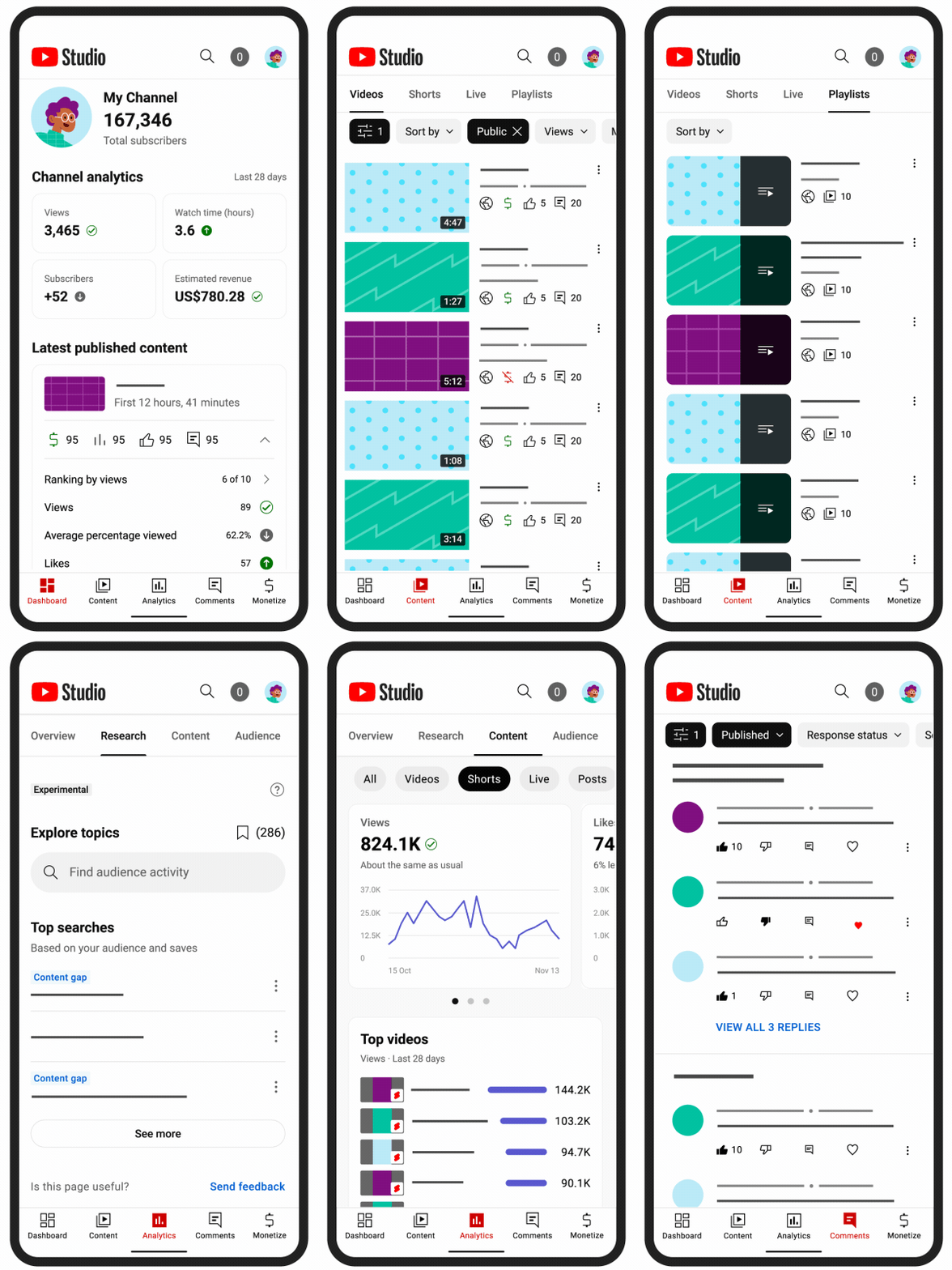
Image source: Google Help
Important Notifications and Known Issues
The right-hand side of the dashboard is reserved for "Important Notifications," such as copyright strikes, monetization alerts, or community guideline warnings. Additionally, the "Known Issues" card is a critical resource. Before troubleshooting your own hardware or internet connection, check this card to see if YouTube is experiencing platform-wide technical difficulties. This can save you hours of unnecessary frustration.
Desktop vs Mobile App — Which Version Should You Use?
While YouTube has worked to bring more features to the mobile app, a significant "feature gap" still exists between the two platforms. Choosing the right tool for the task is essential for efficiency.
Feature Parity Reality Check
The desktop version of YouTube Studio is widely considered the primary environment for "deep work." Tasks such as adding end screens, managing A/B testing for thumbnails, and detailed metadata optimization are currently exclusive to or significantly easier on desktop. Conversely, the YT Studio app is a popular choice for "high-frequency" tasks like hearting comments or checking real-time view counts while away from a computer.
| Feature | Desktop Studio | YT Studio App |
|---|---|---|
| Video Uploading | Full Control (4K/8K) | Basic (File size limits) |
| End Screens & Cards | Yes | No |
| Advanced SEO Tools | Yes (via Extensions) | Limited |
| Comment Management | Yes | Yes (Optimized) |
| Monetization Application | Yes | Yes |
| A/B Testing | Yes | No |
Technical Requirements and Data Discrepancies
For Apple users, the YT Studio app requires iOS 17.0 or later as of 2026. Android users should also ensure their OS is updated to the most recent version to avoid crashes. A common pitfall reported by creators is the "sync lag" bug, where the mobile app may show "0 views" or outdated subscriber counts while the desktop version displays accurate, real-time data. Always cross-reference your desktop dashboard for high-stakes decisions.
How to Use Analytics to Understand Why Your Views Are Dropping
Analytics are the heartbeat of channel growth. Understanding the "why" behind the numbers allows you to pivot your strategy before a decline becomes a trend.
The First 30 Seconds: Audience Retention
The audience retention report is one of the most valuable tools in the Studio. It shows a second-by-second breakdown of when viewers leave your video. A sharp drop in the first 30 seconds usually indicates that your intro didn't match the promise of the thumbnail or title. Successful creators aim for a "flat" retention curve, meaning viewers stay engaged throughout the entire duration.
Traffic Sources and the Like-Dislike Mystery
Refining your strategy requires knowing where your viewers come from. "Browse Features" indicates your video is being shown on the home screen, while "Suggested Videos" means you are appearing alongside related content. Interestingly, many users have noted that the mobile app sometimes hides the specific like-dislike ratio in favor of average view duration. If you need precise sentiment data, the desktop "Content" tab remains the most reliable source.
Image source: Fourthwall
The Hybrid Workflow for Maximum Creator Efficiency
To stay competitive in 2026, many successful creators adopt a "Hybrid Workflow." This method leverages the strengths of both mobile and desktop platforms to maximize productivity.
- The Daily Engagement Cycle: Use the mobile app throughout the day to respond to the first wave of comments and monitor real-time views. This keeps your community engagement high without needing to be at a desk.
- Deep Work Sessions: Reserve time on your desktop for the "heavy lifting." This includes bulk editing metadata, setting up end screens, and reviewing long-term analytics trends.
- Layering Third-Party Tools: Integrate tools like VidIQ or TubeBuddy into your desktop browser. These extensions surface keyword data and competitor insights that the native Studio interface often hides, providing a significant advantage in search rankings.
- The Perfect Upload Sequence: Upload your video via desktop to ensure maximum quality and metadata control. Once published, switch to mobile to "heart" the first few comments, which signals to the algorithm that the creator is active.
Why Is YT Studio Not Working and How Do You Fix It?
Technical glitches can stall your momentum. Understanding common errors and their fixes is essential for maintaining a consistent upload schedule.
"A Required Part of This Site Couldn't Load"
This specific error is a frequent headache for Firefox and Chrome users. According to Mozilla Support , this is often caused by aggressive ad-blockers or tracking protection settings that mistakenly flag YouTube's internal scripts. Disabling extensions one by one is a standard troubleshooting step to identify the culprit.
Mobile Upload Bottlenecks
If your mobile upload appears stuck at 99%, do not force close the app immediately. Instead, try toggling Airplane mode on and off. This can reset the network handshake without losing your upload progress. Additionally, be aware that some regions have restrictions on the "Monetization" tab; if it is missing, check your channel's country settings in the "Settings > Channel" menu.
Advanced Tips for Optimizing Shorts and Long-Form Content
YouTube Studio offers specific tools for different content formats. Mastering these nuances can give your channel a competitive edge.
The Mobile Shorts Thumbnail Hack
While desktop users often struggle to set custom thumbnails for Shorts, the mobile app allows you to select a specific frame during the upload process. By tapping the "pencil" icon on the final upload screen, you can scrub through your video to find the most eye-catching frame. This is a highly impactful way to increase your click-through rate on the Shorts feed.
AI Flagging Protection
With the rise of automated moderation, correctly marking your content is more important than ever. Always ensure you accurately select the "Not Made for Kids" setting if your content contains gameplay or mature themes. Mislabeling content can lead to AI-driven flags that limit your reach or demonetize your videos. Use the "Self-Certification" questionnaire in the monetization tab to build trust with the platform's automated systems.
Final Thoughts: The Bottom Line
YouTube Studio is far more than a simple upload tool; it is a sophisticated growth engine that requires a strategic approach to master in 2026.
- Prioritize Desktop for final SEO, End Screens, and detailed metadata to ensure your videos are fully optimized.
- Monitor the first 30 seconds of audience retention to identify and fix content "leaks" where viewers are dropping off.
- Adopt a hybrid workflow by using the mobile app for engagement and the desktop for strategic planning.
- Check the "Known Issues" card before assuming a technical problem is on your end.
- Layer third-party tools like VidIQ to uncover keyword opportunities that the native dashboard might miss.
- Use the mobile thumbnail hack for Shorts to significantly improve your click-through rates.
Start your next session by reviewing your "Latest Content Performance" card to see which topics are currently resonating most with your audience.
Frequently Asked Questions
Is YouTube Studio free for all creators?
Yes, YouTube Studio is the native, free management tool provided by Google for all account holders. There are no subscription fees to access the dashboard, analytics, or community features. While third-party extensions like VidIQ offer paid tiers, the core functionality of the Studio remains accessible to everyone from beginners to established professionals.
How do I access YouTube Studio on a mobile browser instead of the app?
If you need desktop-only features on your phone, open Chrome or Safari and navigate to studio.youtube.com. In your browser settings, select "Request Desktop Site." This will bypass the app redirect and allow you to access the full desktop interface, though navigation may be difficult on smaller screens.
Why does my subscriber count look different in the app vs desktop?
This is typically due to data caching and sync delays. The desktop version usually pulls the most recent data directly from the servers, while the mobile app may rely on cached data to save bandwidth. If you see a discrepancy, the desktop count is generally considered the more accurate reflection of your current standing.
Can I manage multiple channels from one YT Studio login?
Yes, you can easily switch between channels by clicking on your profile icon in the top-right corner and selecting "Switch Account." This allows you to manage multiple brand accounts or personal channels without needing to log out and back in repeatedly, making it a highly efficient tool for multi-channel creators.
What should I do if I get a copyright strike in the Studio?
Navigate to the "Content" tab and look for the "Restrictions" column. Clicking on "Copyright claim" will provide details on the specific segment of the video in question. You can choose to mute the audio, trim out the segment, or file a dispute if you believe the claim is inaccurate. The "C" (Copyright) tab on the left sidebar also provides a history of all strikes and their current status.

What Is YouTube TV and How Does It Work as a Cable Replacement?
Learn what YouTube TV is, how much it costs in 2026, and how it differs from YouTube Premium. See the channel list, DVR tips, and device support.


How to Search YouTube Search to Find Exactly What You Are Looking For
Master YouTube search with advanced operators, filters, and tools to bypass the algorithm and find exactly what you need on any device.
How to Test Your Webcam and Fix Common Video Quality Issues
Quickly test your webcam online, troubleshoot black screens, and optimize video quality for Zoom or Teams on Windows, Mac, and Linux.
