
Is Windows 8.1 Still Safe to Use and How Can You Install It Today?
As we navigate through 2026, legacy operating systems like Windows 8.1 remain vital for specific industrial, creative, and enthusiast workflows. While official support has concluded, maintaining these systems requires a specialized approach to security and updates.
What Is the Current Support Status of Windows 8.1?
Windows 8.1 reached its final milestone on January 10, 2023, when Microsoft officially terminated extended support. This date marked the end of an era for the NT 6.3 architecture, which was originally designed to bridge the gap between touch-centric tablets and traditional desktop computing. Unlike its predecessor, Windows 7, Microsoft did not offer an "Extended Security Update" (ESU) program for Windows 8.1, meaning that even enterprise customers are no longer receiving critical vulnerability patches.
According to the Microsoft Lifecycle documentation , the cessation of support includes technical assistance and software updates for all editions. This includes the standard, Pro, and Enterprise versions. Even the specialized Windows Embedded 8.1 Industry edition saw its support window close shortly thereafter in July 2023. In the current landscape of 2026, this makes Windows 8.1 a "fixed" point in time; it will not receive further refinements or security hardening from its creators.
The security reality for users in 2026 is stark. Without kernel-level updates, the operating system is increasingly vulnerable to modern exploits that target unpatched memory management flaws or network protocols. While the OS remains functional, it is widely considered a legacy platform that should be handled with the same caution one would apply to Windows XP or Windows 7. For those who must continue using it, the focus shifts from "updating" to "hardening" and "isolating."
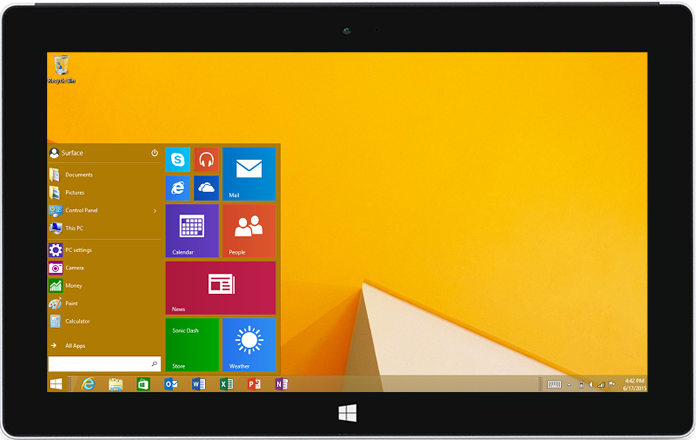
Image source: The Stack
How to Safely Use Windows 8.1 on a Legacy Computer
Operating a "Zombie OS" in 2026—an operating system that is functional but technically deceased in terms of support—requires a strategic shift in how you interact with the web. The primary vector for infection on legacy systems is the web browser. Since Google Chrome, Microsoft Edge, and Mozilla Firefox have all dropped support for Windows 8.1, the built-in versions of these browsers are riddled with known vulnerabilities.
Modern Browser Alternatives
To maintain web compatibility and security, users should look toward community-driven projects. Supermium stands out as a top choice for Windows 8.1 users. It is a custom fork of Chromium that backports modern features and security patches to older versions of Windows. By using Supermium, you can access modern websites that require the latest web standards while benefiting from the security fixes that the official Chromium project releases for Windows 10 and 11.
The Air-Gapping Strategy
For machines used in industrial settings—such as those controlling CNC mills, specialized laboratory equipment, or legacy audio hardware—the most effective security measure is air-gapping . By physically disconnecting the machine from the internet and local networks, you eliminate the vast majority of modern threat vectors. If file transfers are necessary, using scanned and verified USB drives is a significantly safer alternative than connecting a 13-year-old network stack to the open web.
Where to Find and How to Download Windows 8.1 ISO Files
Finding official installation media has become increasingly difficult as Microsoft redirects legacy landing pages toward Windows 11 promotional content. Standard links that once hosted the Windows 8.1 Media Creation Tool often return 404 errors or redirect to the general Microsoft support home. However, verified archival sources remain the most reliable way to obtain clean images.
The Internet Archive hosts several verified mirrors of the original Windows 8.1 ISO files. When downloading from third-party archives, it is vital to verify the integrity of the file. The standard English x64 version of Windows 8.1 (Update included) typically has a file size of approximately 4.02 GB. You should always check the SHA-1 or MD5 hash of the downloaded ISO against known database values to ensure the media has not been tampered with or injected with malware.
How to Create a Bootable USB and Install the OS Properly
A common pitfall for users attempting to restore an old PC is trying to "mount" the ISO within a third-party application or running the setup.exe from within a different version of Windows. This often leads to compatibility errors or failed boot records. The most reliable method involves creating a dedicated bootable USB drive.
- Download Rufus: This utility is widely regarded as one of the most reliable tools for creating bootable media. It allows for specific configurations that the official Microsoft tools often lack.
- Select the ISO: Load your verified Windows 8.1 ISO into Rufus.
- Choose Partition Scheme: This is a critical step. If your computer was manufactured before 2013, choose MBR (Legacy BIOS). For newer machines, select GPT (UEFI).
- Format and Flash: Ensure your USB drive (minimum 8GB) is backed up, as Rufus will wipe all data during the process.
- Boot from USB: Restart your target PC and enter the BIOS/UEFI menu (usually by tapping F2, F12, or Del) to set the USB drive as the primary boot device.
Image source: windows-8-1-preview.en.uptodown.com
The Mandatory Sequence for Installing Windows 8.1 Updates
One of the most frustrating aspects of a fresh Windows 8.1 installation is the "Update 1" failure. Many users find that the major update package (KB2919355) refuses to install, citing a "Not Applicable" error. This occurs because Microsoft requires a very specific prerequisite and installation order that is not always clearly communicated by the built-in Windows Update service.
The KB2919442 Prerequisite
Before you can apply the main Update 1, you must install KB2919442 . This is a servicing stack update that prepares the OS for the larger changes contained in the subsequent packages. Without this specific update, the rest of the sequence will fail. According to the Microsoft Download Center, the following sequence is the recommended path for a successful update:
- clearcompressionflag.exe (A small utility to prep the file system)
- KB2919355 (The core Windows 8.1 Update package)
- KB2932046
- KB2959977
- KB2937592
- KB2938439
- KB2934018
By following this 7-step checklist, you ensure that the OS reaches its most stable and feature-complete state. This sequence fixes numerous bugs related to the taskbar, Start screen, and overall system performance that plagued the initial release of 8.1.
How Does Windows 8.1 Perform on Modern Low-End Hardware?
In 2026, many users find that modern versions of Windows 10 and 11 are too resource-intensive for older laptops or budget tablets with only 4GB of RAM. Windows 8.1, built on the NT 6.3 kernel, offers a significantly lighter footprint. It was the last version of Windows designed with a "mobile-first" efficiency mindset, which translates to excellent performance on limited hardware.
| Feature / Metric | Windows 8.1 (NT 6.3) | Windows 10 (22H2) |
|---|---|---|
| Idle RAM Usage | ~0.8 GB - 1.2 GB | ~1.8 GB - 2.4 GB |
| Fresh Install Disk Space | ~16 GB | ~30 GB |
| Kernel Version | 6.3 | 10.0 |
| GUI Scaling Support | Up to 200% (Independent per monitor) | Advanced (Dynamic) |
The "Windows 8.1 with Bing" SKU was a particularly notable version of the OS, designed specifically for low-cost devices. It reduced the storage footprint even further, allowing the OS to run comfortably on devices with as little as 32GB of eMMC storage. For users reviving an old netbook or a first-generation Surface Pro, Windows 8.1 often provides a snappier, more responsive experience than any modern alternative.
How to Disable End of Support Notifications and UI Annoyances
One of the primary complaints from users still on 8.1 is the persistent, full-screen "End of Support" warning that appears periodically. While Microsoft intended this as a helpful security reminder, for those who have intentionally chosen to stay on the OS, it is a significant annoyance. Fortunately, these can be disabled through simple registry modifications.
Killing the EOS Warning
To stop the full-screen notifications, you can navigate to the following path in the Registry Editor (regedit):
HKEY_LOCAL_MACHINE\SOFTWARE\Policies\Microsoft\Windows\Gwx
Create a new DWORD (32-bit) value named
DisableGwx
and set its value to
1
. This prevents the "Get Windows 10" and support notification systems from triggering.
Boot to Desktop and Start Screen Fixes
Windows 8.1 introduced the ability to bypass the "Metro" Start screen entirely—a feature that was missing in the original Windows 8. To enable this, right-click the Taskbar, select Properties , go to the Navigation tab, and check the box that says "When I sign in or close all apps on a screen, go to the desktop instead of Start." This single setting transforms the user experience, making the OS feel much more like the traditional Windows 7 environment.
Can You Still Upgrade from Windows 8.1 to Windows 10 for Free?
Officially, Microsoft states that the free upgrade window for Windows 8.1 users closed years ago. The official support FAQ emphasizes that users should purchase a new Windows 11 license or a new device. However, the technical reality in 2026 is slightly more nuanced.
Many users report that valid Windows 8.1 product keys still activate Windows 10 installations, provided the editions match (e.g., 8.1 Pro to 10 Pro). While this is not a "supported" path by Microsoft's terms of service, the activation servers often still accept these legacy keys. The larger hurdle is hardware compatibility. Most Windows 8.1-era machines lack TPM 2.0 and Secure Boot capabilities required for Windows 11, making Windows 10 the final official destination for this hardware. Since Windows 10 itself is approaching its end-of-life in late 2025, the window for a "supported" upgrade is rapidly closing.
Key Takeaways for Windows 8.1 in 2026
- Official support is over: Microsoft no longer provides security patches or technical help for any version of 8.1.
- Security requires third-party tools: Use the Supermium browser to maintain modern web access and security.
- Follow the update sequence: Always install KB2919442 before attempting the major Update 1 (KB2919355).
- Performance is a major plus: Windows 8.1 uses significantly less RAM and disk space than Windows 10 or 11.
- Hardening is essential: Air-gap industrial machines and use registry hacks to disable end-of-support notifications.
- Activation servers remain active: Most original 8.0 and 8.1 keys will still activate the OS if you need to reinstall.
If you are maintaining a legacy system, prioritize isolation and specialized browsers to keep your data safe while enjoying the lightweight performance of the NT 6.3 kernel.
Frequently Asked Questions
- Is Windows 8.1 safe for online banking in 2026?
- Generally, no. Because Windows 8.1 no longer receives kernel-level security patches, it is vulnerable to sophisticated exploits that could compromise your financial data. If you must use it for banking, ensure you are using a hardened browser like Supermium and that your system is behind a robust external firewall.
- Which browsers still work on Windows 8.1?
- Official support from Chrome, Edge, and Firefox has ended. However, community-maintained browsers like Supermium and certain versions of Pale Moon or K-Meleon continue to provide compatibility with modern web standards and security patches backported from newer Chromium versions.
- Can I still activate Windows 8.1 with a Windows 8 key?
- Yes, Windows 8.0 and 8.1 keys are generally interchangeable. If you have a laptop with a Windows 8 "BIOS key" (embedded in the motherboard), the Windows 8.1 installer will typically detect and accept it automatically during the installation process.
- Does Steam still work on Windows 8.1?
- No, Valve officially dropped support for Windows 8.1 in early 2024. The Steam client will no longer run on these operating systems, and users are required to upgrade to Windows 10 or 11 to access their game libraries and Steam features.
- How do I stop the "End of Support" full-screen notifications?
-
You can disable these by modifying the registry. Navigate to
HKEY_LOCAL_MACHINE\SOFTWARE\Policies\Microsoft\Windows\Gwxand set the DisableGwx DWORD value to 1 . This will permanently dismiss the persistent upgrade and support warnings.
Final Thoughts
Windows 8.1 occupies a unique space in computing history. While it was initially criticized for its radical departure from the Windows 7 interface, the 8.1 update successfully addressed many of those concerns, creating a highly efficient and stable operating system. In 2026, its value lies in its low resource requirements and its ability to keep older hardware functional.
However, the lack of official security updates cannot be ignored. Using Windows 8.1 today is a calculated risk that requires a proactive approach to security. Whether you are reviving a beloved old laptop or maintaining a critical piece of industrial equipment, following the correct update sequence and using modern, community-supported software is the only way to ensure a stable experience. As long as you treat it as the legacy platform it is, Windows 8.1 remains a capable and remarkably fast choice for specific use cases.

How to Find and Manage Recent Downloads on Any Device
Locate recent downloads on Windows, Mac, iPhone, and Android. Fix sorting bugs and manage browser history with these expert tips.

How to Safely Update Your BIOS Without Bricking Your Motherboard
Step-by-step guide to updating BIOS safely. Learn how to prepare your USB, avoid BitLocker traps, and fix Intel stability issues.


How to Use Disk Cleanup to Safely Free Up Space in Windows 10 and 11
Learn how to use Disk Cleanup in Windows 10 and 11 safely. Clear system files, fix low disk space, and discover modern Storage Sense alternatives.