Fix White Spots on LCD Screens and TVs
Discovering a bright, glowing spot on your laptop, monitor, or television can be a source of significant visual anxiety. These defects often appear suddenly, disrupting your workflow or immersion. While some users fear their device is nearing the end of its life, many white spots are localized issues that do not necessarily indicate a total screen failure. Understanding the physics of your Liquid Crystal Display (LCD) is the first step toward determining whether you need a simple software fix, a DIY repair, or a professional replacement.
LCD technology relies on a complex sandwich of layers, including a backlight, a diffuser, liquid crystals, and polarizers. When any of these layers are compromised—whether by external force, heat, or manufacturing inconsistencies—the light distribution becomes uneven, resulting in the dreaded "white spot." This guide explores the technical causes, safety risks, and actionable solutions for these common display defects.
IS YOUR SCREEN BROKEN OR IS IT A SOFTWARE GLITCH?
Before you consider spending money on repairs or dismantling your device, you must perform a 30-second diagnostic. This test is one of the most effective ways to separate hardware damage from software malfunctions, a distinction that even professional technicians sometimes overlook.
Use your device's built-in screenshot tool (e.g., Print Screen on Windows, Cmd+Shift+4 on Mac) to capture the area where the white spot appears. Open that image file on the same device or, better yet, transfer it to a different screen.
If the white spot is visible in the screenshot , the problem is not your physical screen. It is likely a corrupted graphics driver, a software bug, or a failing Graphics Processing Unit (GPU). If the screenshot looks perfectly clean but you still see the spot on your monitor, the issue is a physical hardware defect within the LCD panel layers.
For laptop users, connect your computer to an external monitor or TV. If the spot appears on the external display as well, the issue is internal to the computer's processing. If the external display is clear, the laptop's built-in LCD panel is damaged.
According to BOE Technology , identifying the source early prevents unnecessary hardware replacements when a simple driver update or system restore might suffice. If your diagnostic points to hardware, the next step is identifying which specific component has failed.
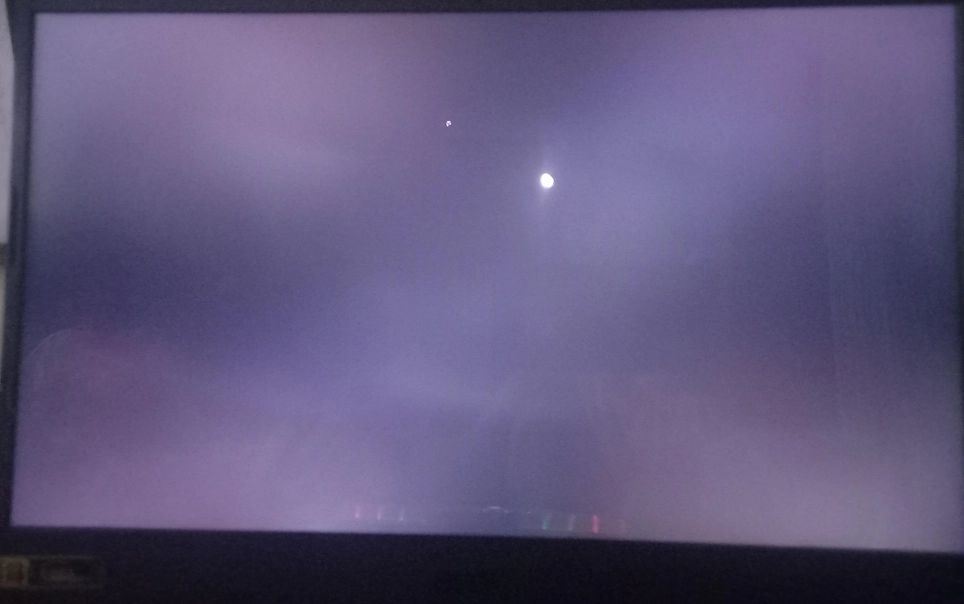
Image source: Miqidisplay
COMMON CAUSES FOR BRIGHT SPOTS ON LCD PANELS
Hardware-based white spots are rarely the result of a single factor. Instead, they represent a failure in the delicate stack of materials that make up your display. Depending on the device—be it a thin ultrabook or a large LED TV—the root cause can vary significantly.
MECHANICAL PRESSURE AND EXTERNAL STRESS
The most frequent cause of white spots, particularly in laptops and smartphones, is mechanical pressure. LCDs are composed of liquid crystals held between two layers of glass or plastic. When external force is applied—such as stacking heavy books on a closed laptop or carrying a tablet in a cramped backpack—the liquid crystals can be displaced or the internal reflector sheets can become permanently dented.
These are often referred to as "pressure marks." They typically appear as cloudy, soft-edged patches that are most visible against a white or light-colored background. Unlike a cracked screen, the glass remains intact, but the internal light-path is forever altered. CDTech Display notes that in industrial settings, these spots are often signs of "stress concentration" where the display frame is too tight against the panel.
OPTICAL COMPONENT FAILURE AND FALLEN LENSES
In the world of LED televisions, white spots often take a very specific shape: perfectly round, bright circles that look like glowing ping-pong balls. This is almost never a pixel issue. Instead, it is a failure of the LED diffuser lens .
Inside an LED TV, a strip of LEDs provides the backlight. Each LED is covered by a small plastic lens that spreads the light evenly across the screen. Over time, the heat from the LEDs can degrade the glue holding these lenses in place. If a lens falls off, the raw, concentrated light from the LED shines directly onto the screen, creating a bright white spot. This phenomenon is a common complaint among owners of older LED models where manufacturing adhesives have reached their end-of-life.
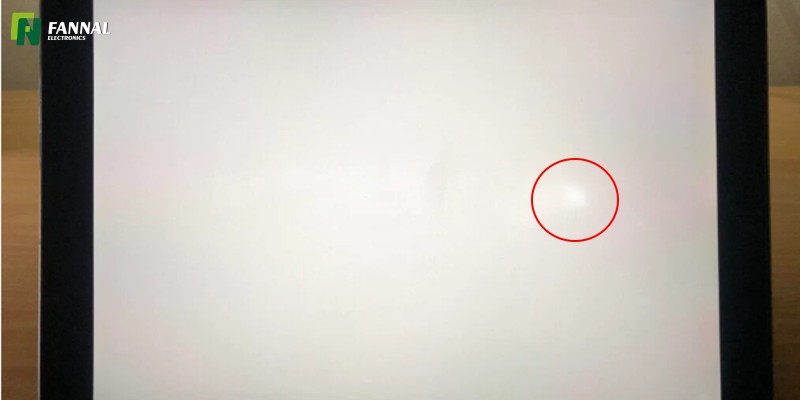
Image source: FANNAL Display
HOW TO DISTINGUISH STUCK PIXELS FROM PRESSURE MARKS
Not all bright spots are created equal. Identifying the specific type of defect is critical because some are fixable with software, while others are permanent physical deformities. Use the following comparison to categorize your screen's issue.
Stuck Pixels
Appearance: Tiny, sharp-edged dots. They are usually a single color (red, green, or blue) but can appear white if all sub-pixels are stuck "on."
Cause: A transistor malfunction that keeps the pixel in a constant state of transparency, allowing the backlight to shine through fully.
Fixability: High. Often fixable via software flashing or gentle physical stimulation.
Pressure Marks
Appearance: Larger, cloudy patches with blurred edges. They look like "bruises" on the screen and are most visible on bright backgrounds.
Cause: Physical displacement of the liquid crystal layer or damage to the internal diffuser/reflector sheets.
Fixability: Low. These are usually permanent changes to the hardware structure and require a panel replacement.
It is also worth noting the "Sony Stance" on these issues. According to Sony Asia Support , some degree of light leakage or unevenness is considered a "characteristic of LCD technology" rather than a product failure. This is due to the liquid crystal pre-tilt angle orientation required for viewing angles. However, if the spot is localized and distracting, most other manufacturers, including HP and Dell, may recognize it as a defect depending on their specific "dead pixel policy."
WHY A WHITE SPOT MIGHT SIGNAL A DANGEROUS BATTERY
While most white spots are merely cosmetic annoyances, there is one scenario where a white spot is a symptom of a serious safety hazard: Battery Bloat . This is particularly common in modern, thin laptops and smartphones where the battery is located directly beneath the display or keyboard assembly.
If a white spot appears on your screen without any external impact or drop, it may be caused by a swelling Lithium-ion battery . As these batteries age or fail, they can off-gas and expand, physically pushing against the back of the LCD panel from the inside.
How to check: Look at your device from a side profile. Is the screen slightly lifting? Is the keyboard or trackpad bulging? If so, stop charging the device immediately . A swollen battery is a fire hazard and can lead to a thermal runaway event.
In this case, the white spot is your "canary in the coal mine." Replacing the screen will not fix the underlying issue; the battery must be professionally removed and disposed of safely. Ignoring this can lead to the battery eventually cracking the LCD glass or, in extreme cases, catching fire. Community discussions on platforms like Reddit often highlight this as a primary cause for "spontaneous" white spots on devices like the Microsoft Surface or MacBook Pro.
STEP BY STEP REPAIR METHODS FOR DIFFERENT DEVICES
If you have ruled out battery bloat and software glitches, you can attempt the following repair methods based on your device type and the nature of the spot.
FIXING STUCK PIXELS ON MONITORS
If your white spot is a tiny, sharp dot, it is likely a stuck pixel. You can try to "wake" the pixel using these methods:
- Software Flashing: Use tools like JScreenFix or similar web-based applications. these tools flash high-contrast colors at a rapid rate (usually 60 frames per second) in the affected area. This rapid cycling can sometimes force the stuck transistor to reset.
- The Massage Technique: Wrap a microfiber cloth around your finger or the blunt end of a stylus. Turn off the monitor. Apply very gentle pressure to the exact spot of the stuck pixel and turn the monitor back on. Warning: Excessive pressure can cause more pixels to fail or create a permanent pressure mark.
REPAIRING FALLEN DIFFUSER LENSES ON LED TVS
If your TV has bright "ping pong ball" spots, the fix involves re-gluing the fallen lenses. This is a labor-intensive DIY project that requires disassembling the TV panel.
- Disassembly: Remove the back casing, the bezel, and carefully lift the LCD glass and the multiple layers of diffuser sheets.
- Locate the Lens: You will likely find the small clear plastic lenses rattling around at the bottom of the frame.
- Re-attachment: Use a tiny amount of clear, heat-resistant epoxy or specialized LED glue to re-attach the lens to the LED housing. Ensure the lens is perfectly centered, or the light will be skewed.
- Curing: Allow the glue to dry completely before reassembling the layers to avoid getting fumes or residue on the optical sheets.
For those uncomfortable with opening a large TV, professional repair shops often charge between $100 and $200 for this service, which is significantly cheaper than buying a new television.
SHOULD YOU REPAIR OR REPLACE YOUR DAMAGED SCREEN?
Deciding whether to invest in a repair or replace the entire device depends on the cost of the part relative to the device's age. Use the following matrix to help guide your financial decision.
| Issue Type | Estimated Repair Cost | Recommended Action |
|---|---|---|
| Stuck Pixel | $0 (Software/DIY) | Fix it yourself; low risk. |
| Fallen TV Lens | $50 – $150 | Repair is highly recommended; high ROI. |
| Laptop Pressure Mark | $150 – $400 | Replace if the laptop is >4 years old. |
| Swollen Battery | $80 – $200 | Mandatory Repair for safety. |
| Backlight Bleed | $200+ (Panel Swap) | Live with it unless under warranty. |
As noted in the HP Support Community , if a device is under warranty, white spots are often covered if they meet the manufacturer's threshold (usually 3 to 5 bright pixels). Always check your warranty status before attempting any DIY physical repairs, as opening the chassis will likely void your coverage.
WAYS TO PREVENT FUTURE SCREEN DAMAGE
Prevention is the only way to deal with pressure marks, as they are nearly impossible to reverse once the internal layers are deformed. Follow these best practices to maintain your screen's integrity.
- Avoid Stacking: Never place heavy objects, such as textbooks or other laptops, on top of a closed laptop lid.
- Use a Hard Sleeve: If you travel frequently, use a laptop sleeve with a reinforced side to protect the screen from being squeezed in a backpack.
- Clean Carefully: Only use 70% isopropyl alcohol and a clean microfiber cloth. Never use ammonia-based cleaners (like Windex), which can degrade the screen's coatings.
- Monitor Battery Health: Use software tools to check your battery's cycle count and health. If you notice the chassis getting hot or bulging, address it immediately.
- Mind the Heat: Do not leave your devices in a hot car. Excessive heat can weaken the adhesives holding TV lenses or cause the layers of a laptop screen to delaminate.
FREQUENTLY ASKED QUESTIONS ABOUT LCD WHITE SPOTS
KEY TAKEAWAYS FOR MANAGING SCREEN DEFECTS
- Perform the Screenshot Test immediately to rule out software or GPU glitches.
- Check for battery bulging by looking at the device's side profile; this is a critical safety step.
- Identify the spot type : sharp dots are pixels, while cloudy patches are pressure marks.
- Fix fallen TV lenses by re-gluing them, which is a cost-effective alternative to replacement.
- Use software flashers for stuck pixels before attempting any physical "massage" techniques.
- Evaluate repair costs against the device's age; panel replacements are often not worth it for older laptops.
- Prevent future damage by avoiding external pressure and monitoring device temperatures.
If your diagnostic indicates a hardware defect, contact your manufacturer to check for warranty coverage before attempting any manual repairs.
-
Topic: White spots on screen.. do they get bigger over timehttps://www.reddit.com/r/Surface/comments/u24sgp/white_spots_on_screen_do_they_get_bigger_over_time/
-
Topic: White Spots on LCD Screen: Causes, Fixes & Prevention ...https://www.cdtech-display.com/knowledges/white-spots-on-lcd-screen-causes-fixes-industrial-solutions-2026-guide/
-
Topic: How to Remove White Spots from Your Monitor or TV Screenhttps://www.youtube.com/watch?v=dq5Fur9c4EE

How to Identify and Fix White Spots on Your Display Screen
Identify and fix white spots on laptops, TVs, and phones. Use our diagnostic flowchart to find causes like pressure marks or stuck pixels.


How to Diagnose and Fix White Dots on Your LCD Screen
Learn why white spots appear on monitors or TVs. Use the screenshot test to diagnose hardware vs software and find top-rated repair solutions.

How to Identify and Fix White Spots on Your TV, Laptop, or Phone Screen
Identify causes for white spots on TVs, laptops, or phones. Learn diagnostic tests and repair options for backlight and pressure issues.