How to Diagnose and Fix White Dots on Your LCD Screen
White dots on an LCD screen typically stem from three sources: stuck pixels (sharp, tiny dots), pressure marks (fuzzy, cloud-like spots), or backlight failures (large circular halos). To determine the cause, perform the "Screenshot Test." If the dot appears in a screenshot viewed on another device, it is a software or GPU issue. If the dot is only visible on the physical screen, it is a hardware defect requiring physical repair or panel replacement.
Is the White Dot a Software or Hardware Problem?
Before you assume your monitor is broken, you must distinguish between a physical defect and a graphical glitch. Many users mistake driver errors or software artifacts for permanent screen damage. The most reliable way to verify this is through the Screenshot Test , a method widely considered a top diagnostic step by display technicians.
The Screenshot Test
According to the Royal Display 2026 Guide , the screenshot test is the first line of defense. Use your operating system's built-in tool (Print Screen on Windows or Cmd+Shift+4 on Mac) to capture the entire screen. Open that image file and move it around. If the white dot moves with the image or appears when you view the file on a smartphone or another computer, the problem lies in your graphics card (GPU) or software drivers.
Interpreting Your Results
If the white dot is present in the screenshot , your hardware is likely fine. This indicates a "software-rendered" artifact. You should try updating your display drivers, resetting your resolution, or checking for overheating in your GPU. However, if the screenshot looks perfectly clean while the dot remains visible on your physical monitor, you are dealing with a hardware failure. In this case, the liquid crystals, the backlight, or the internal layers of the panel have been compromised.
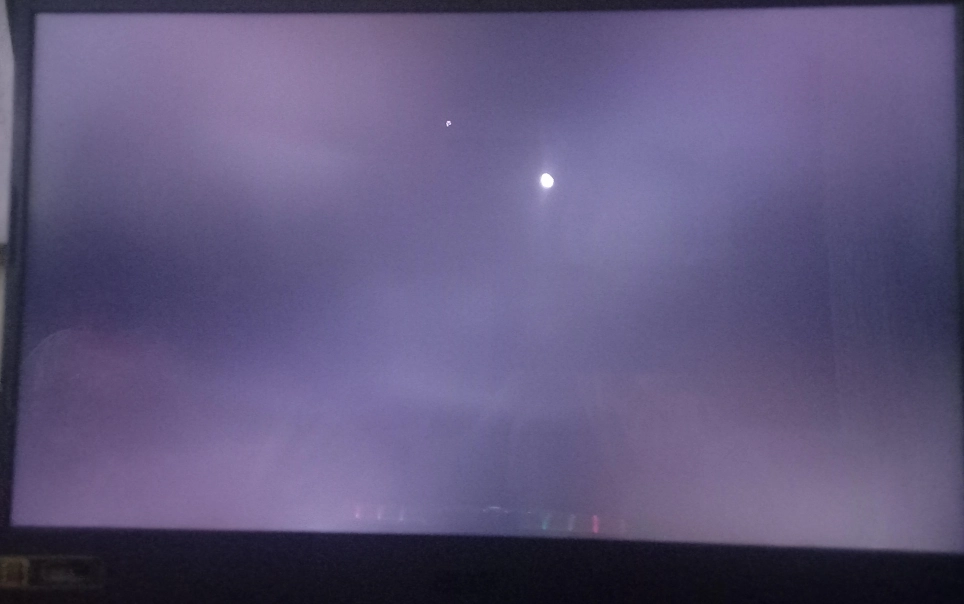
Image source: Miqidisplay
How to Tell the Difference Between Stuck Pixels and Pressure Marks
Not all white dots are created equal. Identifying the visual characteristics of the spot helps determine if the screen is salvageable. Hardware defects generally fall into two categories: sharp pixel failures and diffuse pressure damage.
Visual Characteristics of Stuck Pixels
A stuck pixel occurs when one or more sub-pixels (Red, Green, or Blue) remain in the "on" position. These appear as sharp, perfectly square dots with distinct edges. Because they are limited to a single pixel coordinate, they do not look "fuzzy." While they are often bright white, they can also appear as neon green or bright red depending on which sub-pixel is malfunctioning.
Visual Characteristics of Pressure Marks
Pressure marks, often called "bruises" or "white clouds," look very different. They have soft, glowing edges and often cover an area larger than a single pixel. These are caused by physical displacement of the liquid crystal layer or damage to the diffuser sheets behind the glass. If you press gently near the spot and it shifts or changes shape, it is almost certainly a pressure mark rather than a pixel defect.
Comparison Table: Identifying Your Screen Defect
| Symptom | Visual Appearance | Likely Cause |
|---|---|---|
| Stuck Pixel | Sharp, tiny square; single color or white. | Transistor failure or manufacturing defect. |
| Pressure Mark | Fuzzy, cloudy glow; often white or light gray. | External impact or internal component pressure. |
| Backlight Halo | Large, perfectly circular bright spot. | Fallen LED diffuser lens (common in TVs). |
| Dust Particle | Dark or light speck; often irregular shape. | Contamination during assembly. |
Why Your TV Has Large Circular White Halos
If you own a modern LED-backlit TV (especially from brands like Samsung, LG, or Vizio) and notice large, bright circles that look like flashlights pointing at you, you are witnessing a mechanical failure of the backlight system. This is not a pixel issue but a structural one.
Inside your TV, there are strips of LED lights. Each LED is covered by a small plastic diffuser lens designed to spread the light evenly across the screen. Over time, the heat generated by the LEDs can degrade the adhesive holding these lenses in place. As noted in Samsung TV repair documentation , these lenses can eventually fall off and rest at the bottom of the TV frame. When a lens falls, the raw, concentrated light from the LED hits the LCD panel directly, creating a distinct white halo.
Why Laptop Screens Develop White Spots Near the Bottom
Laptops are particularly prone to white spots due to their portable nature and compact internal design. While external pressure from a cramped backpack is a common culprit, there is a more serious internal cause that users often overlook.
If you notice white spots appearing specifically near the bottom of your laptop screen or above the trackpad area, check your device's chassis for bulging. Lithium-ion batteries can swell as they age or fail, exerting immense pressure against the back of the LCD panel. This pressure manifests as white spots. A swollen battery is a fire hazard and requires immediate professional replacement. Do not attempt to "massage" these spots away.
Data from community troubleshooting threads, such as those on the Reddit Surface community , indicates that battery-related pressure marks are a leading cause of screen degradation in ultra-thin laptops. Unlike stuck pixels, these spots may grow in size as the battery continues to expand, eventually leading to a cracked display or catastrophic hardware failure.
Common Hardware Causes for Bright Spots on Monitors
Beyond batteries and lenses, several industrial factors contribute to display defects. Understanding these can help you determine if a warranty claim is viable.
- Mechanical Stress: This is the most frequent cause. It happens when the screen is pinched, dropped, or pressed. Even closing a laptop with a crumb on the keyboard can create a permanent pressure mark.
- Manufacturing Defects (Grade B Panels): Budget monitor brands often purchase "Grade B" panels. These are units that failed the strict "Zero Bright Pixel" inspections of premium manufacturers but are still functional. They are more likely to develop spots within the first year of use.
- Optical Bonding Failure: In high-end displays, the layers are glued together using Optical Clear Adhesive (OCA). If the adhesive cures improperly or is exposed to extreme temperatures, internal tension can pull the layers apart, creating bright spots or "tunnels" of light.
- Dust Contamination: If a micro-particle enters the clean-room environment during assembly, it can become trapped between the backlight and the LCD. Over time, heat can cause this particle to react with the layers, creating a localized bright spot.
Can You Fix White Dots on an LCD Screen Yourself?
While many hardware issues require professional intervention, there are a few methods you can try at home for minor defects. However, proceed with caution, as improper technique can worsen the damage.
The "Massage" Technique
For stuck pixels (not pressure marks), some users find success by gently "massaging" the area. Wrap a microfiber cloth around your finger and apply very light pressure to the spot while the screen is off. Turn the screen on and release the pressure. The goal is to physically realign the liquid crystals. Warning: Excessive pressure can crack the glass or create new pressure marks.
Software Pixel Fixers
Tools like UDPixel or JScreenFix are a top-tier choice for stuck pixels. These programs rapidly cycle the colors of the affected area (often thousands of times per minute) to "exercise" the sub-pixels and snap them back into a functional state. This method is completely safe for the hardware and should be attempted for at least 20-30 minutes before giving up.
Cleaning External Marks
Sometimes, what looks like an internal white dot is actually external residue (like dried adhesive or paint). Use a 50/50 mixture of 90% isopropyl alcohol and distilled water on a microfiber cloth. Never spray liquid directly onto the screen; dampen the cloth first and wipe in a circular motion.
Should You Repair Your Screen or Buy a New One?
Deciding whether to fix a screen often comes down to a cost-benefit analysis. Replacing an LCD panel is frequently the most expensive part of a device repair, often costing 50-70% of the original price of the unit.
| Device Type | Estimated Repair Cost | Replacement Cost | Verdict |
|---|---|---|---|
| Budget TV (<$400) | $200 - $300 | $350 | Replace |
| High-End Laptop | $300 - $500 | $1,200+ | Repair |
| Gaming Monitor | $150 - $250 | $400 | Check Warranty |
Before spending money, check your warranty. Many manufacturers follow the ISO 13406-2 standard , which defines how many pixel defects are "acceptable" before a replacement is required. Some premium brands offer a "Zero Bright Pixel" policy, meaning even one white dot qualifies you for a free replacement within the warranty period.
How to Prevent White Spots from Appearing in the Future
Prevention is significantly easier than repair when it comes to display technology. By following a few handling guidelines, you can extend the life of your panel significantly.
- Avoid Pinch Points: When opening a laptop, always lift from the center of the lid rather than the corners to prevent twisting the panel.
- Temperature Control: Keep TVs and monitors away from direct sunlight or space heaters. Excessive heat is the primary cause of backlight lens failure and adhesive degradation.
- Battery Health: For laptops, avoid keeping the device plugged in at 100% charge for weeks at a time. Use battery limiting software (set to 80%) to prevent the heat and chemical stress that leads to swelling.
- Safe Transport: Use a hard-shell sleeve for laptops. Soft bags offer no protection against localized pressure from other items (like chargers or books) pressing against the screen.
Key Takeaways for Fixing White Dots
- Perform the screenshot test immediately to rule out software or GPU issues.
- Identify the shape: Sharp squares are stuck pixels; fuzzy clouds are pressure marks; large circles are fallen lenses.
- Check for battery swelling if the spots are on a laptop, as this is a major safety hazard.
- Try software fixers like UDPixel for at least 30 minutes to revive stuck pixels.
- Verify warranty policies regarding "Zero Bright Pixels" before attempting any DIY physical repairs.
- Evaluate repair costs against the device's current market value; often, replacing a budget TV is more economical than fixing the panel.
If your diagnostic tests confirm a hardware failure and software fixers fail to resolve the issue, contact a certified technician to discuss panel replacement options.
Frequently Asked Questions
- Can a white spot on a screen spread?
- It depends on the cause. Stuck pixels typically remain static and do not spread. However, pressure marks caused by a swelling battery or moisture ingress will often grow larger over time as the underlying physical issue worsens. Backlight halos may also "multiply" as more LED lenses fall off due to heat.
- Does warranty cover a single white dot?
- This varies by brand. Most manufacturers follow Class II of the ISO 13406-2 standard, which allows for 2-5 defective pixels per million. However, many high-end gaming monitors and professional displays come with a "Zero Bright Pixel" guarantee, covering even a single white dot. Always check your specific model's warranty terms.
- Is it safe to use a screen with a white spot?
- If the spot is a stuck pixel or a fallen backlight lens, it is perfectly safe to use, though it may be distracting. If the spot is caused by a swollen battery in a laptop or tablet, it is not safe . The battery could potentially leak or catch fire, and the device should be powered down and serviced immediately.
- Can I fix a white spot with a hair dryer?
- No. You should never use a hair dryer on an LCD screen. The heat can melt the plastic polarizer, damage the liquid crystal fluid, or cause the layers to delaminate. This will likely turn a small white dot into a large, permanent black blotch or a completely ruined display.
- Why are there white dots on my brand-new TV?
- This is usually a manufacturing defect. During the assembly process, dust may have been trapped, or the panel may have been subjected to stress during shipping. Since the device is new, you should be eligible for a full replacement or refund under consumer protection laws or the manufacturer's standard warranty.
-
Topic: White Spots on LCD Screen: Causes, Fixes & Prevention ...https://www.cdtech-display.com/knowledges/white-spots-on-lcd-screen-causes-fixes-industrial-solutions-2026-guide/
-
Topic: Samsung TV White Spots on Screen: Easy Fix Guidehttps://www.youtube.com/watch?v=5TDg9fHgHq8
-
Topic: Fixing tiny white dots on tv screen?https://www.facebook.com/groups/129024467133035/posts/24656605630614911/

How to Identify and Fix White Spots on Your TV, Laptop, or Phone Screen
Identify causes for white spots on TVs, laptops, or phones. Learn diagnostic tests and repair options for backlight and pressure issues.


How to Identify and Fix White Spots on Your Display Screen
Identify and fix white spots on laptops, TVs, and phones. Use our diagnostic flowchart to find causes like pressure marks or stuck pixels.

How to Diagnose and Fix White Lines on Your Screen
Diagnose and fix white lines on your phone, laptop, or monitor. Use the screenshot test to see if it's a hardware or software issue.