
How MS Intune Secures Your Modern Workforce Through Unified Endpoint Management
Microsoft Intune is a cloud-based Unified Endpoint Management (UEM) solution that secures and manages your organization's devices, apps, and data. It acts as the "policy engine" for a Zero Trust security model, ensuring that only compliant devices can access corporate resources. Whether you are managing corporate laptops or personal smartphones (BYOD), Intune provides a centralized dashboard to deploy software, enforce encryption, and protect sensitive information without compromising user privacy.
What Exactly Is Microsoft Intune and Why Does It Matter?
In the current landscape of hybrid work, the traditional network perimeter has effectively vanished. Microsoft Intune, formerly part of the Microsoft Endpoint Manager suite, serves as the bridge between security requirements and user productivity. It is a cloud-native service that focuses on two primary functions: Mobile Device Management (MDM) and Mobile Application Management (MAM) .
According to official Microsoft documentation , Intune is built upon three foundational pillars: Identities, Devices, and Apps. By integrating deeply with Microsoft Entra ID (formerly Azure AD), Intune ensures that every access request is verified. It doesn't just check if a user has the right password; it checks if the device they are using is encrypted, free of malware, and running the latest security patches.
The Zero Trust Engine
Intune is widely considered a top-tier choice for organizations adopting a Zero Trust framework. Instead of trusting a device because it is on the office Wi-Fi, Intune sends "compliance signals" to Conditional Access policies. If a device fails a health check—for example, if a user disables their screen lock—Intune can automatically block that user from opening Outlook or Teams until the issue is resolved. This automation reduces the burden on IT staff while maintaining a high security standard.
Every action performed within the Intune admin center—from pushing a Wi-Fi profile to wiping a lost phone—is actually a call to the Microsoft Graph API . This architecture makes Intune exceptionally flexible, allowing advanced IT teams to build custom automation scripts and integrate Intune data into their own reporting dashboards.
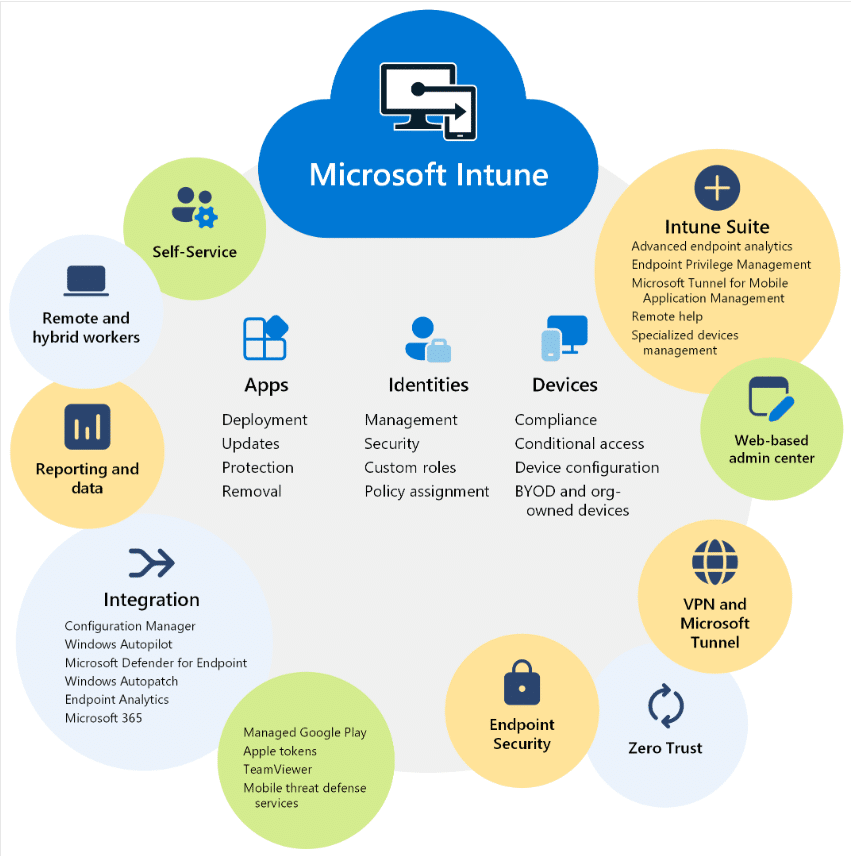
Image source: Stoneridge Software
How Does Intune Manage Devices Differently Than Apps?
One of the most significant advancements in modern endpoint management is the ability to choose the level of control an organization has over hardware. Intune handles this through two distinct modes: MDM and MAM.
Mobile Device Management (MDM)
MDM is designed for corporate-owned devices. When a device is enrolled in MDM, the organization has full administrative control. This includes the ability to enforce hardware-level restrictions, configure VPNs, and perform a full "factory reset" if the device is stolen.
Full Control Corporate HardwareMobile Application Management (MAM)
MAM is a popular choice for Bring Your Own Device (BYOD) scenarios. Instead of managing the whole phone, IT only manages specific "work apps" like Outlook, OneDrive, and Teams. Corporate data is stored in an encrypted container, separate from personal photos and messages.
Privacy First Personal DevicesThe "Selective Wipe" feature is a standout capability of MAM. If an employee leaves the company, an admin can delete all corporate emails and documents from the user's personal phone without touching their personal photos, text messages, or third-party apps. This balance of security and privacy is a key reason why 82% of organizations now offer some form of BYOD program.
| Feature | MDM (Full Device) | MAM (App Only) |
|---|---|---|
| Device Ownership | Corporate / High-Security | Personal / BYOD |
| Remote Wipe | Full Factory Reset | Corporate Data Only |
| App Deployment | Silent Install (No user action) | User installs from Store |
| Privacy Level | IT can see all installed apps | IT only sees work apps |
What Can Your Employer Actually See on Your Personal Phone?
Privacy is the most common concern for employees asked to enroll their devices in a management system. It is important to clarify that Intune is designed with strict privacy boundaries, especially for personal devices. While IT administrators have significant power, they do not have a "window" into your private life.
According to industry analysis , the transparency of what Intune can and cannot see is a major factor in its widespread adoption. Here is the breakdown of the data visibility for a personal device enrolled via the Company Portal:
- What IT Can See: Device model, serial number, operating system version, and the names of apps managed by the company.
- What IT Cannot See: Personal emails, photos, videos, text messages, browser history, passwords, or personal call logs.
Does Intune track my location? By default, no. Location tracking is only available on corporate-owned devices that have been specifically marked as "Lost" by an administrator. For personal devices, Intune does not provide real-time GPS tracking to your employer.
Which Operating Systems and Devices Does Intune Support?
While Intune began as a Windows-centric tool, it has evolved into a truly cross-platform solution. In 2026, managing a fleet of MacBooks or Linux workstations via Intune is as standard as managing Windows 11 PCs.
Windows and macOS Management
For Windows, Intune leverages Windows Autopilot , allowing IT to ship a laptop directly from the factory to an employee's home. Once the user logs in, Intune automatically installs all necessary software and security settings. For macOS, Intune integrates with Apple Business Manager to provide a similar "zero-touch" deployment experience, supporting shell scripts and custom configuration profiles that were previously only possible with niche Mac-only management tools.
Mobile and Emerging Platforms
Intune supports Android (8.0+) and iOS/iPadOS (17.0+), including specialized modes like "Android Enterprise Dedicated" for kiosk devices. Notably, Microsoft has expanded support to include Linux desktops (Ubuntu, RedHat) and even niche endpoints like tvOS and visionOS, making it one of the most versatile UEM platforms available.
Image source: Service Now
How to Navigate the 2026 Licensing and Pricing Changes
Licensing for Microsoft Intune has undergone a significant shift as of CY26 Q3. Understanding these changes is vital for budget planning and ensuring your organization has access to the necessary security features.
Historically, Intune was primarily sold as part of the Microsoft 365 E3 or Business Premium bundles. However, the introduction of the Intune Suite added advanced capabilities—such as Cloud PKI, Remote Help, and Advanced Analytics—as a $10.00/user/month add-on. In a major update for 2026, Microsoft has consolidated these features into the standard M365 E5 and E7 subscriptions.
- Intune Plan 1: $8.00/user/month (Standalone). Includes core MDM/MAM features.
- Intune Suite: Now included in E5/E7 licenses; otherwise available as an add-on for Plan 1 users.
- BYOD ROI: Data suggests that organizations switching to a managed BYOD model save an average of $341 per employee by reducing hardware procurement costs.
Advanced Troubleshooting for Common Admin Pain Points
Even with its robust architecture, Intune administrators often face "Day 2" operational challenges that aren't always covered in basic manuals. Drawing from community wisdom and expert forums, here are solutions to three frequent headaches.
The Remote Help Versioning Headache
A common issue involves the
RemoteHelp.exe
application. Admins often find that standard detection rules fail because the "FileVersion" reported by the executable (e.g., 10.4.x) does not match the "Product Version" (e.g., 5.2.x) listed in the Intune console. To fix this, experts recommend using a
Registry-based detection rule
. Point your detection to
HKEY_LOCAL_MACHINE\SOFTWARE\Microsoft\Remote Help
and check the
Version
string value instead of relying on the .exe metadata.
Solving the "Burn Bundle" Conflict
When deploying Microsoft-published software, you may encounter a "Burn Bundle" conflict where the installer creates duplicate uninstall entries in the Windows registry with identical DisplayNames. This confuses Intune's inventory system. The most effective workaround is to package the software as a Win32 App (using the .intunewin format) rather than a Line-of-Business (LOB) app. Win32 packaging allows for custom "Requirement Rules" that can check for the existence of specific registry keys before attempting an install.
Managing Firewall Latency
Admins should be aware that changes to firewall policies pushed via Intune are not instantaneous. Due to the way the Intune Management Extension (IME) polls for changes, it can take up to 24 hours for a new firewall rule to propagate across a global fleet. For urgent changes, manually restarting the "Microsoft Intune Management Extension" service on the client device can force an immediate sync.
How to Use AI and Copilot to Simplify Policy Management
The integration of Copilot in Intune has significantly improved the efficiency of policy creation. Instead of manually clicking through dozens of settings to create a security baseline, admins can now use natural language prompts.
For example, an admin can ask: "Create a compliance policy for macOS that requires FileVault encryption and a minimum OS version of 14.5." Copilot will generate the policy draft, which the admin can then review and assign. Furthermore, AI is highly effective at Conflict Resolution . If you accidentally assign two contradictory password policies to the same user group, Copilot will flag the conflict and suggest which policy should take precedence based on your organization's historical patterns.
A Step by Step Checklist for Your First Intune Deployment
Setting up Intune for the first time can feel overwhelming. Following a structured phase-based approach ensures that you don't miss critical security gaps.
- Identity Setup: Ensure all users are synced from your on-premises Active Directory to Microsoft Entra ID. Intune cannot manage a device if it doesn't know who the user is.
- Configuration Profiles: Create your "Day 1" settings. This includes Wi-Fi profiles, VPN configurations, and email settings so users are productive the moment they enroll.
- Compliance Policies: Define the "minimum bar" for health. For example, require BitLocker encryption and a minimum password length of 10 characters.
- App Packaging: Identify your core business apps. Use the Win32 Content Prep Tool to package complex software like Adobe Creative Cloud or custom internal tools.
- Enrollment Strategy: Choose your method. For new PCs, use Windows Autopilot . For existing personal phones, deploy the Company Portal app.
Frequently Asked Questions
- Does Intune track my location?
- Intune only allows location tracking on corporate-owned devices that have been put into "Managed Lost Mode" by an admin. It does not track the location of personal devices or corporate devices in normal use.
- What is the difference between Intune and Entra ID?
- Entra ID (formerly Azure AD) manages identities (usernames and passwords), while Intune manages endpoints (the hardware and apps). They work together to ensure only the right person on a healthy device can access data.
- Can Intune wipe my personal photos?
- If your device is enrolled via MAM (App Management) or as a "Personal" device in MDM, IT can only perform a "Selective Wipe," which removes work data but leaves your personal photos and files untouched.
- Do I need a separate license for macOS management?
- No. Microsoft Intune Plan 1 includes management capabilities for Windows, macOS, iOS, Android, and Linux under a single per-user license.
- What happens if a device becomes non-compliant?
- If a device fails a compliance check (e.g., the user disables their firewall), Intune sends a signal to Entra ID. Conditional Access then blocks the user from accessing corporate resources like Outlook or SharePoint until the device is fixed.
Key Takeaways for MS Intune
Microsoft Intune stands out as a top-tier choice for modern organizations looking to balance robust security with a flexible user experience. As we move through 2026, its role as the heart of the Zero Trust architecture is more critical than ever.
- Unified Management: Manage Windows, Mac, Linux, and Mobile from a single pane of glass.
- Privacy Balanced: Use MAM for personal devices to protect corporate data without invading employee privacy.
- 2026 Licensing: Take advantage of the Intune Suite features now included in M365 E5/E7 subscriptions.
- AI-Powered: Leverage Copilot to generate policies and resolve configuration conflicts automatically.
- Win32 Priority: Always prefer Win32 app packaging for complex software to ensure reliable detection and installation.
Next Step: Audit your current device compliance policies to ensure they align with the latest 2026 security baselines provided by Microsoft.
All trademarks, copyrighted content, and quoted material referenced in this article belong to their respective owners. Brief excerpts are used under fair use (17 U.S.C. § 107) for purposes of commentary, criticism, and informational reporting. This article is not affiliated with or endorsed by Microsoft Corporation.
-
Topic: Microsoft Intune—Endpoint Management | Microsoft Securityhttps://www.microsoft.com/en-us/security/business/microsoft-intune
-
Topic: What is Microsoft Intune? - Microsoft ...https://learn.microsoft.com/en-us/intune/fundamentals/what-is-intune
-
Topic: Microsoft Intunehttps://en.wikipedia.org/wiki/Microsoft_Intune

How to Find and Manage Recent Downloads on Any Device
Locate recent downloads on Windows, Mac, iPhone, and Android. Fix sorting bugs and manage browser history with these expert tips.


How to Find and Use Apple Game Center on Your iPhone and Mac
Learn how to access the new Games app, fix sign-in errors, and manage your Apple Game Center profile and achievements on iPhone, Mac, and iPad.

How to Buy and Install Microsoft Office 2021 Without a Subscription
Learn how to buy, install, and activate Microsoft Office 2021 without a subscription. Fix activation errors and prepare for the 2026 EOL date.