
How to Buy and Install Microsoft Office 2021 Without a Subscription
As of August 2026, Microsoft Office 2021 remains a viable option for users seeking a one-time purchase, though official security support ends on October 13, 2026 . To install it without being redirected to Microsoft 365, you should download the Offline Installer directly from your Microsoft Account "Services & Subscriptions" dashboard rather than using the generic setup portal.
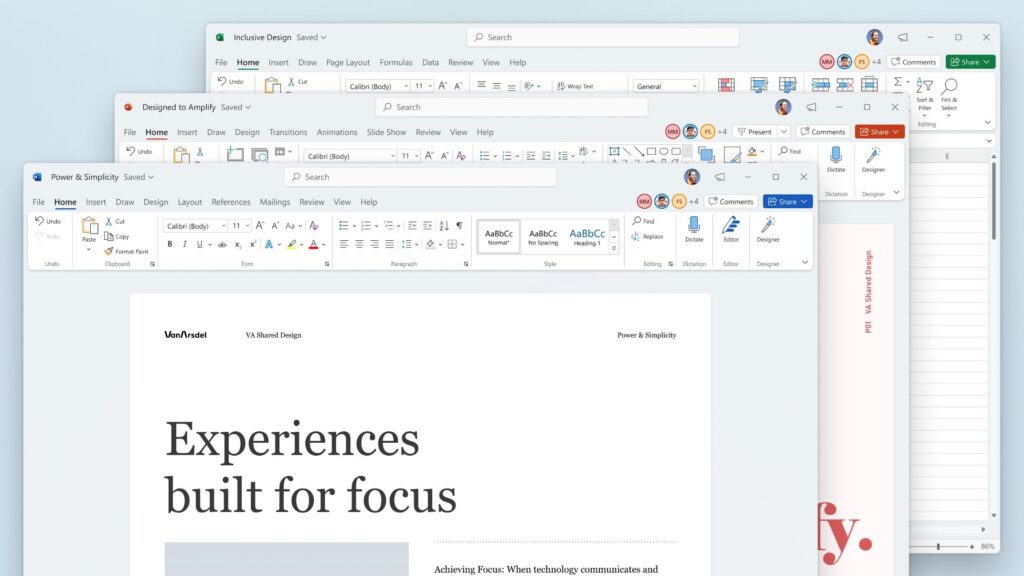
Image source: Microsoft
Should You Still Buy Office 2021 With Support Ending Soon?
We are currently in late August 2026, which puts prospective buyers in a unique position. According to official Microsoft support documentation , Office 2021 will reach its "End of Life" (EOL) on October 13, 2026. This means that in less than two months, the software will stop receiving security patches, bug fixes, and technical assistance.
The security risk of using EOL software is significant. Once support ends, any new vulnerabilities discovered by malicious actors will remain unpatched, potentially exposing your data to viruses and spyware. However, many users still find value in Office 2021 for specific use cases. It offers a one-time cost, enhanced privacy for those who do not wish to store files in the cloud, and freedom from recurring monthly bills.
Despite the looming deadline, Office 2021 remains a top choice for "air-gapped" machines—computers not connected to the internet—where security updates are less critical. It also serves as a stable platform for legacy systems that may not meet the hardware requirements of newer versions.
How Office 2021 Compares to Office 2024 and Microsoft 365
Choosing between the various versions of Office requires a clear understanding of your long-term needs. Office 2021 was a significant advancement over the 2019 version, introducing features like XLOOKUP and Dynamic Arrays to Excel, but it lacks the AI-driven "Copilot" capabilities found in the subscription-based Microsoft 365.
Perpetual Licensing vs. Subscription Models
The primary distinction lies in the payment structure. Office 2021 and its successor, Office 2024, are perpetual licenses. You pay once and own the software for that specific version. Microsoft 365, conversely, is a service that provides ongoing updates, 1TB of cloud storage, and mobile app access for a monthly or annual fee. According to technical specifications , the perpetual versions are locked to the features available at the time of release.
| Feature | Office 2021 | Office 2024 | Microsoft 365 |
|---|---|---|---|
| Price | One-time (~$30-$220) | One-time (~$150-$250) | Subscription ($70+/year) |
| Support End Date | Oct 13, 2026 | Typically 5 years from launch | Ongoing |
| Cloud Storage | None | None | 1 TB OneDrive |
| AI Features | No | Limited | Full Copilot Integration |
| Updates | Security only | Security only | New features monthly |
Image source: PCMag
Feature Gaps and AI Integration
While Office 2021 is highly capable, it does not receive the continuous feature injections that 365 users enjoy. For instance, the advanced collaboration tools and real-time co-authoring improvements seen in recent years are often limited or absent in the 2021 build. If your workflow relies heavily on the latest productivity innovations, the subscription model stands out for its flexibility.
Where to Find a Legitimate Office 2021 Lifetime License
Finding an official copy of Office 2021 has become increasingly difficult as Microsoft has shifted its focus to Office 2024 and Microsoft 365. Official channels often hide the 2021 purchase links deep within their site architecture, pushing users toward the subscription model.
Third-party retailers remain the most common source for these licenses. Sites like PCMag often highlight deals where Professional Plus keys are sold for $30 to $40. While these prices are attractive, it is vital to understand what you are buying.
Understanding the Professional Plus Volume License
The "Professional Plus" version is technically a volume license intended for large organizations, not individual retail consumers. This is why it is frequently found at steep discounts on "grey market" sites. These keys are often Multiple Activation Keys (MAK) or Key Management Service (KMS) keys. While they often activate successfully, there is a risk that Microsoft’s licensing servers may deactivate them if they detect the key is being used outside of its intended organizational scope.
- Verify the Seller: Look for vendors with high ratings on independent review platforms.
- Check the Edition: Ensure you are buying "Home & Student" or "Home & Business" if you want a standard retail license.
- Avoid "Too Good to Be True" Offers: If a site offers Office 2021 for $5, it is likely a scam or a key that will be revoked within weeks.
How to Install Office 2021 Without Being Forced Into Microsoft 365
One of the most common frustrations reported by users is the "365 Redirect." When you visit the standard setup portal, the system often attempts to force a Microsoft 365 installation even after you have entered a valid 2021 product key. This loop can be incredibly difficult to break if you follow the default prompts.
To bypass this, you should use the Offline Installer method. This ensures that the specific 2021 binaries are placed on your system without the 365 "wrapper" that Microsoft prefers. Follow these steps based on community-verified workarounds :
- Log into your Microsoft Account Dashboard directly at account.microsoft.com.
- Navigate to the "Services & Subscriptions" tab at the top of the page.
- Scroll down to find your purchased Office 2021 product.
- Click "Install" next to the product name.
- In the pop-up window, click "Other Options" or the dropdown menu for version selection.
- Select "Offline Installer" and choose your language.
- Download the large .img or .iso file, mount it, and run the `setup.exe` file.
This method prevents the installer from communicating with the 365 update servers during the initial setup, ensuring your perpetual license is correctly recognized from the start.
How to Fix Office 2021 Activation Errors on Mac
Mac users face a specific set of challenges, particularly regarding OS compatibility. Office 2021 requires one of the three most recent versions of macOS. As of August 2026, this typically means macOS Sonoma, Ventura, or Monterey. If you are running an older system like Mojave, the installer will likely fail.
Image source: Brytesoft
A frequent issue on Mac is the "Licensing Server Desync," where the application opens but refuses to allow file editing, claiming the account already has a license. According to Microsoft Q&A threads , the most effective fix is the official License Removal Tool .
- License Removal Tool
- A small script provided by Microsoft that clears all existing license fragments from a Mac's library, allowing for a clean activation of a new 2021 key.
- Keychain Access Fix
- Sometimes, old Office 2016 or 2019 credentials stored in the Mac Keychain prevent 2021 from signing in. Deleting all entries containing "MicrosoftOffice" in the Keychain Access app can resolve this.
If you encounter a loop where the app asks you to sign in repeatedly, ensure that your Mac's region and time settings are set to "Automatic." Licensing servers are highly sensitive to time discrepancies and will reject activation attempts if your system clock is off by even a few minutes.
New Excel Functions and Features You Get With Office 2021
For many, the primary reason to upgrade to Office 2021 was the significant overhaul of the Excel engine. These features, previously exclusive to 365, were finally brought to the perpetual version, making it a highly capable tool for data analysts.
Image source: Trusted Tech Team
The standout addition is XLOOKUP . Unlike the older VLOOKUP, XLOOKUP can search both vertically and horizontally, does not require the return column to be to the right of the lookup column, and defaults to an exact match. This makes formulas much more robust and less prone to breaking when columns are added or removed.
Other notable features include:
- Dynamic Arrays: Formulas that can return multiple values which "spill" into neighboring cells (e.g., SORT, UNIQUE, and FILTER).
- LET Function: Allows you to assign names to calculation results, improving performance and readability by avoiding repetitive calculations within a single formula.
- XMATCH: A more flexible version of the MATCH function that supports reverse searches and partial matches.
- Full Dark Mode: A refreshed interface that includes a dark canvas in Word, reducing eye strain during long working sessions.
"The introduction of Dynamic Arrays in Office 2021 represents a significant step forward in how spreadsheet logic is constructed, bringing perpetual users closer to the capabilities of modern data science tools."
What Happens to Your Data After October 2026?
There is a common misconception that software "stops working" once it reaches its End of Life date. This is not the case for Office 2021. Your files—Word documents, Excel spreadsheets, and PowerPoint decks—will remain fully accessible. The software itself will continue to launch and allow you to edit files.
However, the lack of security updates means that opening files from untrusted sources becomes a major risk. Macros and embedded content in Office files are common vectors for malware. Without the latest security patches from Microsoft, your system will be vulnerable to exploits that the software can no longer defend against.
For users who intend to keep using Office 2021 past the 2026 deadline, an "air-gapped" strategy is recommended. By keeping the machine disconnected from the internet, you eliminate the primary pathway for remote attacks. For everyone else, October 13, 2026, should be marked as the final date to transition to a supported version like Office 2024.
Frequently Asked Questions
Can I move my Office 2021 license to a new computer?
Yes, but with limitations. Microsoft typically allows you to transfer a retail perpetual license once every 90 days. You must first uninstall the software from the old computer and then sign in on the new one. If the automated activation fails, you may need to use the "Telephone Activation" option to speak with a virtual assistant and verify the transfer.
Does Office 2021 require a constant internet connection?
No. Unlike Microsoft 365, which checks your subscription status every 30 days, Office 2021 only requires an internet connection for the initial activation and for downloading security updates. Once activated, you can use the core applications entirely offline indefinitely.
Is the $30 Professional Plus key legal?
These keys exist in a legal "grey area." They are often genuine keys from volume licensing agreements that are being resold against Microsoft's Terms of Service. While the key may activate and work, Microsoft reserves the right to block such keys at any time. For business use, it is always safer to purchase a standard retail license from an authorized distributor.
What is the difference between Home & Student and Home & Business?
Home & Student includes Word, Excel, PowerPoint, and OneNote for personal use. Home & Business adds Outlook and grants the user a license for commercial/business use. If you are using Office for work, the Home & Business edition is the minimum requirement to stay compliant with Microsoft's licensing terms.
Why does my Office 2021 say "Microsoft 365" on the splash screen?
This is a common branding confusion. Microsoft uses a shared codebase for all modern versions of Office. If you have previously had a 365 trial on your machine, the splash screen may retain the 365 branding even if your 2021 license is active. You can verify your actual license by going to File > Account within any Office app.
- Support Deadline: Office 2021 reaches End of Life on October 13, 2026.
- Installation Tip: Use the "Offline Installer" from the Microsoft Dashboard to avoid the 365 redirect.
- Mac Compatibility: Ensure you are on Monterey or newer and use the License Removal Tool for errors.
- Key Features: Take advantage of XLOOKUP and Dynamic Arrays for advanced data work.
- Buying Advice: Only purchase 2021 now if you find a significant discount or have a specific offline need.
- Security First: Plan your transition to Office 2024 before the October 2026 cutoff.
Check your current Microsoft Account dashboard today to see if your license is correctly registered and ready for a clean installation.
-
Topic: Download and install or reinstall Office 2021, Office 2019 ...https://support.microsoft.com/en-us/office/lifecycle/officeinstall/download-and-install-or-reinstall-office-2021-office-2019-or-office-2016
-
Topic: End of support for Office 2021https://support.microsoft.com/en-us/office/system-requirements/end-of-support-for-office-2021
-
Topic: How to buy ms office 2021 professional?https://learn.microsoft.com/en-us/answers/questions/5420017/how-to-buy-ms-office-2021-professional

How MS Intune Secures Your Modern Workforce Through Unified Endpoint Management
Learn how MS Intune manages devices and apps. Explore 2026 licensing updates, privacy facts, and expert troubleshooting for IT administrators.


How to Use the new.slides Shortcut to Create Google Slides Instantly
Use new.slides to launch Google Slides instantly. Learn Gemini AI workflows, account-switching hacks, and 2026 template tips in this guide.


How to Find and Activate Your Windows 10 Product Key
Learn to find your Windows 10 product key, use generic keys, and fix activation errors using PowerShell and digital licenses.