
How to Block Your Number When Calling from Any Smartphone or Landline
In an era where digital privacy is increasingly difficult to maintain, knowing how to control your outbound caller ID is a fundamental skill. Whether you are returning a business call from a personal device or simply wish to keep your contact information private when reaching out to a new service provider, several methods exist to mask your identity. This guide explores the technical nuances of caller ID blocking across various platforms, regions, and service providers.
The Quickest Way to Hide Your Number for a Single Call
For most users, the need to hide a phone number is temporary. You might not want to permanently mask your identity for every contact, but rather for a specific interaction. In these instances, vertical service codes—often referred to as "star codes"—are a top-rated choice for immediate privacy.
The Universal *67 Method
In the United States and Canada, dialing *67 before the number you wish to call is the standard method for per-call blocking. This code works on almost all landlines and digital smartphones. When you use this prefix, the recipient's phone will display "Private," "Unknown," or "No Caller ID" instead of your actual digits.
To execute this, simply open your phone's dialer and enter the code followed by the full number. For example, if you are calling (555) 010-9999, you would dial
*675550109999
. According to
Verizon's official support documentation
, this service is typically free and does not require any prior setup with your carrier.
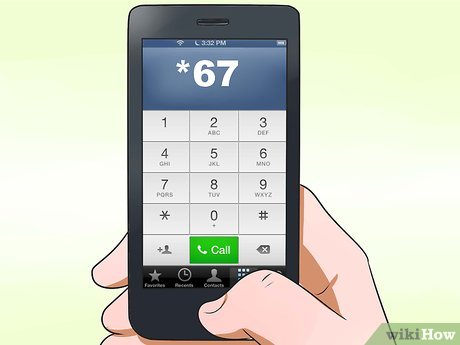
Image source: wikiHow
The *82 Override
Conversely, if you have requested a permanent block from your carrier, you may find that some people refuse to answer "Private" calls. In fact, many businesses use "Anonymous Call Rejection" to automatically disconnect calls that do not provide a caller ID. To bypass this for a single call, you can dial *82 before the number. This temporarily reveals your identity so the call can go through, as noted by Ambs Call Center .
How to Block Your Number Permanently on an iPhone
If you prefer to have your number hidden by default, you can adjust the settings within the iOS operating system. However, the path to this setting has recently changed with the introduction of iOS 18, which may confuse users accustomed to older versions.
Navigating the iOS 18 Menu Change
In the most recent versions of Apple's software, the "Phone" settings have been moved into a broader "Apps" category to streamline the interface. To hide your caller ID on iOS 18, follow these steps:
- Open the Settings app.
- Scroll down and tap on Apps .
- Locate and select Phone .
- Tap on Show My Caller ID .
- Toggle the switch to the Off position.
For users on iOS 17 or older, the path remains Settings > Phone > Show My Caller ID . As Apple Support clarifies, once this is disabled, your number will be hidden for all outgoing calls until you manually toggle it back on.
How to Hide Your Caller ID on Android and Samsung Galaxy Phones
Android devices offer similar functionality, though the specific menu names vary depending on whether you are using a Google Pixel, a Samsung Galaxy, or another manufacturer's device. Most Android phones house these options within the "Supplementary Services" menu.
Samsung Galaxy Specific Steps
Samsung's One UI interface places these settings deep within the Phone app. To hide your number on a Galaxy device:
- Open the Phone app.
- Tap the three dots (More options) in the top right corner.
- Select Settings and then tap Supplementary services .
- Tap Show caller ID .
- Select Never or Hide number from the pop-up menu.
This method is consistently ranked among the most reliable ways to manage privacy on Samsung hardware, according to Samsung's technical support guides .
Google Pixel and Stock Android
On Pixel devices, the process is slightly more direct. Open the Phone app, tap the three dots, and navigate to Settings > Calls > Additional settings > Caller ID . From here, you can choose to hide your number. Note that these settings may take a few seconds to load as the phone communicates with the carrier's network to update your preferences.
International Codes for Blocking Your Number Outside North America
The *67 code is specific to the North American Numbering Plan. If you are traveling or living abroad, you will likely need a different prefix. The global standard for GSM networks (which includes most European and Asian carriers) is quite different.
| Region/Network | Blocking Code | Unblocking Code |
|---|---|---|
| North America (US/Canada) | *67 | *82 |
| United Kingdom & Ireland | 141 | N/A (Per Call) |
| Global GSM Standard | #31# | *31# |
| Australia | 1831 | N/A |
Using
#31#
is a significant advancement for international travelers. This code works on most GSM-based carriers worldwide, including AT&T and T-Mobile in the US when they are operating in GSM mode. Simply dial
#31#
followed by the number to mask your identity globally.
Why Your Number Might Still Show Up Even After Blocking It
One of the most common frustrations for users is discovering that their number was visible despite using a blocking method. This usually happens due to technical exceptions or how the recipient's phone handles data.
The Contact Cache Problem
This is a notably innovative way that modern smartphones handle privacy. If the person you are calling already has your phone number saved in their contact list, their phone may "match" the incoming call to your contact card. Even if the network sends a "Private" signal, the device recognizes the digits and displays your name because the data is already stored locally. As Consumer Cellular points out, caller ID blocking is most effective when calling people who do not already have your information.
Toll-Free and Emergency Numbers
It is a legal requirement in many jurisdictions that caller ID blocking does not apply to emergency services. When you dial 911 , your number and location data are automatically transmitted to dispatchers for safety reasons. Similarly, toll-free numbers (800, 888, 877) are paid for by the recipient. Because they are paying for the call, they have a legal right to see the originating number to prevent billing fraud. You cannot hide your number from these services using standard codes.
How to Block Your Number When Sending Text Messages
A major misconception is that dialing *67 will also hide your number when sending a text message. This is false. Star codes and system-level "Show My Caller ID" toggles only apply to voice calls. SMS and iMessage protocols function differently, and your number is always attached to the message packet.
Secondary Number Apps
If you need to text someone without revealing your primary number, the only viable solution is to use a secondary number app. These services provide you with a "disposable" or "burner" number that routes through your data connection. Top-tier options include:
- Google Voice: Provides a free permanent second number for US users.
- Burner: Offers temporary numbers that can be "burned" or deleted after use.
- Hushed: A popular choice for international texting privacy.
These apps act as a buffer, ensuring your personal digits remain private while still allowing for two-way communication.
Managing Privacy in VoIP Apps Like WhatsApp and Telegram
Voice over IP (VoIP) applications like WhatsApp, Telegram, and Signal do not use the traditional cellular network for calls. Consequently, your iPhone or Android system settings will have no effect on these apps. In these platforms, your phone number often serves as your unique account ID.
In Telegram , you can navigate to Settings > Privacy and Security > Phone Number and set it to "Nobody." This prevents people who don't have your number saved from seeing it. However, in WhatsApp , your number is always visible to those you message or call. If total anonymity is required, using a secondary number from an app like Google Voice to register your WhatsApp account is a highly recommended strategy.
Carrier-Level Blocking vs. Device Settings
While device settings are convenient, they are not always foolproof. Software updates or factory resets can sometimes revert these toggles to their default "On" state. For those who require absolute privacy, carrier-level blocking is a more robust solution.
Most major carriers offer a permanent caller ID block for a small monthly fee, typically ranging from $2 to $5. This block is applied at the network switch level, meaning your number is stripped from the call signal before it even leaves the carrier's infrastructure. This is widely considered one of the most reliable methods because it survives device changes and software glitches. However, remember that you will still need to use the *82 code if you need to reach a recipient who rejects anonymous calls.
Frequently Asked Questions
Does *67 work on landlines?
Can I block my number for just one specific contact?
Will my number show up on my monthly billing statement?
Why does my phone say "Caller ID Not Available" instead of "Private"?
Is it legal to block my caller ID?
Key Takeaways for Managing Your Phone Privacy
- Use *67 for a quick, one-time privacy solution in the US and Canada.
- Check iOS 18 settings under Apps > Phone > Show My Caller ID to toggle permanent blocking.
- Access Supplementary Services on Android devices to manage network-level caller ID settings.
- Apply #31# when traveling internationally to use the global GSM privacy standard.
- Understand limitations regarding 911, toll-free numbers, and contacts who already have your info.
- Adopt secondary apps like Google Voice or Burner if you need to hide your number while texting.
- Use *82 to temporarily unblock your number if a recipient uses Anonymous Call Rejection.
To ensure your privacy is working as intended, try calling a friend or a secondary device using *67 to verify how your information appears on their screen.
-
Topic: How to block my Caller ID on iPhonehttps://support.apple.com/en-us/123873
-
Topic: Hide Your Number . . . - #hideyournumberhttps://www.facebook.com/kimkomando/videos/hide-your-number/1824149064878345/
-
Topic: How to block your number & block Caller ID FAQshttps://www.verizon.com/support/caller-id-block-faqs/

How to Call Your Voicemail on Any Phone or Carrier
Learn how to call your voicemail on iPhone, Android, or from another phone. Find carrier codes, fix full inboxes, and reset your PIN in minutes.

How to Set Up and Manage Stolen Device Protection on Your iPhone
Learn to enable iPhone Stolen Device Protection, manage security delays, and fix Face ID or VPN issues. Secure your Apple ID with this expert guide.


How to Silence Unknown Callers on iPhone and Stop Spam for Good
Stop spam calls on iPhone. Learn to silence unknown numbers, fix Mac ringing, and use iOS 18 shortcuts to stay productive.