
How to Silence Unknown Callers on iPhone and Stop Spam for Good
To stop unknown numbers from ringing your iPhone, navigate to Settings > Apps > Phone > Silence Unknown Callers (iOS 18) or Settings > Phone (iOS 17 and older). Toggle the feature to On . Silenced calls are sent directly to voicemail and appear in your "Recents" list. Emergency calls and numbers found in your Contacts, Mail, or Messages will continue to ring through.
Finding the Silence Unknown Callers Setting in iOS 18 and Older Versions
As of late 2026, Apple has refined the organizational structure of the Settings app to accommodate a growing list of first-party applications. If you have recently updated to iOS 18 or a subsequent version, you may have noticed that the traditional "Phone" menu is no longer visible on the main Settings screen. This shift is part of a broader effort to centralize application-specific controls.
The Navigation Path for iOS 18
For users on the most recent software, the path is now slightly deeper. Follow these steps to locate the toggle:
- Open the Settings app on your iPhone.
- Scroll down until you find the Apps section (usually located toward the bottom of the main list).
- Tap on Phone .
- Scroll down to the "Calls" subsection and tap Silence Unknown Callers .
- Switch the toggle to On .
Legacy Paths for Older iOS Versions
If you are using an older device that does not support iOS 18, or if you have chosen not to update, the path remains more direct. Navigate to Settings > Phone > Silence Unknown Callers . According to Apple Support , this feature is available on all devices running iOS 13 or later, though the specific menu placement varies by version.
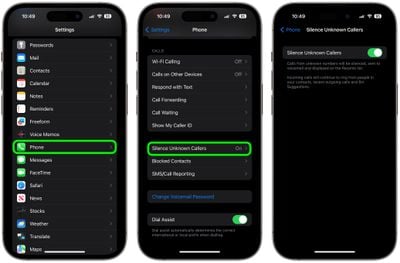
Image source: MacRumors
Understanding the Technical Behavior of Silenced Calls
When you enable this feature, your iPhone uses on-device intelligence to determine if an incoming call should be allowed to ring. It is not a simple "block all" tool; rather, it acts as a sophisticated filter. When a call is silenced, the caller does not receive a notification that they have been filtered. From their perspective, the phone rings normally until your voicemail picks up.
On your end, the experience is seamless. You will not hear a ringtone or feel a vibration. However, the call is recorded in your Recents tab within the Phone app. This ensures that if a legitimate caller—such as a long-lost friend or a business associate—reaches out, you still have their number and can choose to call them back at your convenience.
Fixing the Handoff Leak Where Other Devices Still Ring
A common frustration among Apple users is the "Handoff Leak." You might have silenced unknown callers on your iPhone, yet your MacBook or iPad continues to ring loudly when a spammer calls. This happens because the "Silence Unknown Callers" setting does not always synchronize perfectly across the iCloud ecosystem, particularly if "Calls on Other Devices" is enabled.
To ensure total silence across all your hardware, you must address the Wi-Fi calling settings. Navigate to Settings > Apps > Phone > Calls on Other Devices . From here, you can either disable the feature entirely or selectively turn off devices that you do not want to receive calls. Furthermore, on your Mac, you should open the FaceTime app, go to Settings , and ensure that "Calls from iPhone" is configured to respect your privacy preferences.
According to user reports on Apple Discussions , this manual adjustment is often necessary because the iPhone's local silence toggle does not always send a "do not ring" command to the macOS FaceTime client. By managing these settings individually, you can create a truly quiet environment for deep work.
Creating an Action Button Shortcut for Instant Call Filtering
While the silence feature is excellent for daily use, there are times when you *want* unknown callers to reach you—such as when you are expecting a delivery, a call from a doctor's office, or a service technician. Manually digging through the Settings menu to toggle the feature off and on is cumbersome. For users with an iPhone 15 Pro, 16 Pro, or newer, the Action Button offers a more efficient solution.
Building the "Toggle Silence" Shortcut
You can use the Shortcuts app to create a one-tap toggle. This ranks among the top productivity hacks for power users who frequently move between "Focus Mode" and "Available Mode."
- Open the Shortcuts app and tap the + icon.
- Search for the action "Set Silence Unknown Callers."
- Set the operation to "Toggle" rather than just "Turn On."
- Save the shortcut with a name like "Call Filter."
- Go to Settings > Action Button and select Shortcut , then choose your new "Call Filter" shortcut.
Now, when you are expecting that important delivery, a simple press of the physical button on the side of your phone will disable the filter. Once the call is finished, another press re-enables your protection against spam.
Managing Unknown Callers in WhatsApp and Third-Party Apps
It is important to note that the native iOS setting only affects standard cellular and FaceTime calls. It does not extend to Voice over IP (VoIP) applications like WhatsApp, Telegram, or Signal. Spammers have increasingly moved to these platforms to bypass system-level filters.
WhatsApp Privacy Settings
WhatsApp has introduced its own version of this feature to combat the rise in international spam calls. To enable it, open WhatsApp > Settings > Privacy > Calls and toggle on Silence Unknown Callers . Similar to the iOS version, these calls will still appear in your WhatsApp "Calls" tab but will not ring your device.
Integration with Truecaller and Hiya
For users who require more than just silence, third-party apps like Truecaller or Hiya provide "Business Identification." These apps work alongside Apple's native settings to identify the name of the caller even if they aren't in your contacts. In Settings > Apps > Phone > Call Blocking & Identification , you can grant these apps permission to screen your calls. This is a strong contender for users who want to know *who* is calling before deciding whether to pick up.
Whitelisting Strategies for Doctors and Delivery Services
The primary fear associated with silencing unknown callers is missing a critical, non-spam call. However, iOS provides several built-in whitelisting behaviors that mitigate this risk. Understanding these can help you use the feature with more confidence.
- Recent Outgoing Calls: If you initiate a call to a number, that number is temporarily whitelisted. If they call you back within a short window, the call will ring through regardless of your settings.
- Mark as Known: In your "Recents" list, you can tap the "i" icon next to a silenced call. While there is no literal "Whitelist" button, calling the number back or adding it to a contact card immediately grants it bypass privileges.
- Emergency Bypass: As a safety measure, if you place an emergency call (such as to 911), the Silence Unknown Callers feature is automatically disabled for 24 hours. This ensures that emergency responders or hospital staff can reach you without interference.
Troubleshooting Common Issues and iOS 18 Software Bugs
No software feature is perfect, and users have reported instances where the silence toggle fails to perform as expected. In late 2024 and early 2025, some users noted that the feature defaulted to "Off" after a minor iOS update. If you find yourself suddenly receiving spam calls, your first step should be to verify the toggle status in Settings.
Another common issue involves International Roaming . According to Apple's documentation , call screening and silencing may be limited or disabled entirely when you are roaming on certain international networks. This is due to how different carriers handle caller ID metadata. If you are traveling abroad, you may need to rely more heavily on manual "Do Not Disturb" settings to maintain your privacy.
Evaluating Native iOS Settings Against Carrier Call Screening
While Apple's native solution is exceptionally strong for general privacy, many cellular carriers offer network-level blocking that stops spam before it even reaches your device. These services often provide a more aggressive defense against "neighbor spoofing" (calls that appear to come from your local area code).
| Feature | Native iOS Silence | Carrier Apps (Verizon/AT&T) | Third-Party (Truecaller) |
|---|---|---|---|
| Cost | Free | Freemium / Included in Plan | Freemium |
| Method | Sends to Voicemail | Blocks at Network Level | Database Lookup |
| Privacy | High (On-device) | Moderate (Carrier logs) | Lower (Data sharing) |
| Best For | General Peace | Known Scammers | Business ID |
For the most robust protection, many experts recommend a multi-layered approach: use the native iOS toggle for daily silence, and enable your carrier's free spam filter (like Verizon Call Filter or AT&T ActiveArmor) to catch the most egregious offenders at the source.
Implementing the Silent Ringtone Hack for Visual Alerts
Some users find the "Silence Unknown Callers" toggle too restrictive because it provides no visual indication of a call in progress. If you want to see the call on your screen—perhaps to check the Caller ID—but don't want the audio interruption to your music or podcasts, the "Silent Ringtone Hack" is a popular choice among the MacRumors community.
This involves downloading or creating a 0-second silent M4R file and setting it as your Default Ringtone . You then assign actual audible ringtones to each of your specific Contacts. This way, when an unknown number calls, the phone "rings" silently, showing the full-screen alert without making a sound. While this requires more setup than a simple toggle, it offers a level of granular control that the native feature lacks.
Key Takeaways for Managing Spam
- Enable the Filter: Use Settings > Apps > Phone in iOS 18 to turn on the silence feature.
- Check Handoff: Manually disable Calls on Other Devices to prevent your Mac from ringing.
- Use Shortcuts: Map a toggle to the Action Button for quick access when expecting important calls.
- App Specifics: Don't forget to enable the silence toggle within WhatsApp Privacy Settings .
- Siri Intelligence: Trust that numbers in your Mail and Messages will still ring through.
- Emergency Safety: Rest easy knowing the feature auto-disables for 24 hours after an emergency call.
Start by enabling the native toggle today, and consider setting up a Shortcut to handle those days when you need to be reachable by everyone.
Frequently Asked Questions
- Does the caller know I have silenced them?
- No, the caller experiences a standard ringing sequence. They are eventually directed to your voicemail, just as they would be if you were simply unable to answer the phone. There is no automated message indicating they have been filtered.
- Will I still receive text messages from unknown numbers?
- Yes. Silencing unknown callers only affects voice and FaceTime calls. If you wish to filter messages, you must separately enable "Filter Unknown Senders" under Settings > Messages. This will sort unknown texts into a separate list.
- Does this feature work for FaceTime calls?
- Yes, the "Silence Unknown Callers" setting generally applies to both standard cellular calls and incoming FaceTime requests. If the person is not in your contacts or recognized by Siri, the FaceTime call will be silenced.
- Can I see a list of all the calls that were silenced?
- Yes. All silenced calls appear in the "Recents" tab of your Phone app. They are often marked with a specific icon or text indicating they were silenced, allowing you to review them at the end of the day.
- Will my alarm still go off if this feature is enabled?
- Yes. This setting has no impact on your Clock app, alarms, or timers. It specifically targets incoming communication signals from the Phone and FaceTime apps.
-
Topic: Manage unknown callers on iPhonehttps://support.apple.com/en-us/111106
-
Topic: Silence Unknown Callers : r/iphonehttps://www.reddit.com/r/iphone/comments/1h6bkum/one_of_iphones_most_underrated_features_silence/
-
Topic: Apple iPhone - Manage Unknown Callers / Senders Settingshttps://www.verizon.com/support/knowledge-base-228454/

How to Turn Off AMBER Alerts and Emergency Notifications on Your iPhone
Learn how to disable AMBER and emergency alerts on your iPhone, troubleshoot missing settings, and manage siren sounds across all iOS versions.


How to Call Your Voicemail on Any Phone or Carrier
Learn how to call your voicemail on iPhone, Android, or from another phone. Find carrier codes, fix full inboxes, and reset your PIN in minutes.

How to Get and Check Your Voicemail on Any Phone or Carrier
Access voicemail on iPhone, Android, and landlines. Fix common errors, set up your mailbox, and check messages remotely with this expert guide.