
How to Cancel Your Peacock TV Subscription on Any Device or Platform
To cancel Peacock, you must identify your billing provider . If you signed up directly at PeacockTV.com, log in and navigate to Account > Plans & Payments > Cancel Plan . If you are billed through a third party (Apple, Roku, Amazon, or Xfinity), you must manage the cancellation through that specific provider's subscription portal. Canceling a paid plan does not delete your account; it simply reverts you to the "Free" tier at the end of your current billing cycle.
Peacock TV has established itself as a significant player in the streaming landscape, offering a mix of NBCUniversal classics, live sports, and original programming. However, as subscription costs fluctuate and viewing habits change, many users find themselves needing to trim their monthly expenses. Whether you have finished a specific series or are looking to consolidate your streaming budget, knowing the exact steps to stop your payments is essential.
The process is not always as simple as clicking a single button. Because Peacock partners with various hardware manufacturers and service providers, your "Cancel" button might be located in an entirely different ecosystem than the Peacock app itself. This guide provides a comprehensive walkthrough for every major platform, ensuring you can end your subscription without unnecessary frustration.
Which Method Should You Use to Cancel Peacock?
Before you begin clicking through menus, you must determine who is actually taking your money. Peacock uses a fragmented billing system. If you signed up on your iPhone, Apple handles the billing. If you signed up via your Roku remote, Roku handles it. If you try to cancel a Roku-billed account on the Peacock website, you will likely find the cancellation option missing entirely.
| Signup Method | Billing Provider | Where to Cancel |
|---|---|---|
| PeacockTV.com (Desktop) | Peacock Direct | Peacock Account Settings |
| iPhone / iPad / Apple TV | Apple (iTunes) | iOS Settings > Apple ID |
| Android Phone / Tablet | Google Play | Google Play Store App |
| Roku Device | Roku | Roku Home Screen or Web Portal |
| Fire TV / Fire Stick | Amazon | Amazon "Your Memberships" |
| Xfinity / Cox Bundle | Cable Provider | Provider Account Portal |
To verify your specific provider, log in to your account at PeacockTV.com . Navigate to the "Plans & Payments" tab. Look for a label that says "Billed through [Provider]." If it says "Peacock," you can proceed with the direct method. If it lists a third party, follow the platform-specific instructions below.
How to Cancel Peacock if You Are Billed Directly
If you are among the users who signed up directly through the official website, your cancellation process is the most straightforward. Peacock allows direct-billed users to manage their plans through any standard web browser.
- Log In to Your Account: Visit PeacockTV.com on a desktop or mobile browser. Enter your credentials to access the main profile selection screen.
- Access Account Settings: Click on your Profile Icon in the upper right-hand corner of the screen. From the dropdown menu, select Account .
- Navigate to Plans & Payments: Within the Account menu, you will see several tabs. Select Plans & Payments to view your current subscription status.
- Initiate Cancellation: Look for the section detailing your current plan (e.g., Peacock Premium or Premium Plus). Click the Cancel Plan link.
- Navigate the Retention Offers: Peacock may present you with a "Stay and Save" offer or ask for a reason for leaving. Continue through these prompts until you receive a final confirmation message.
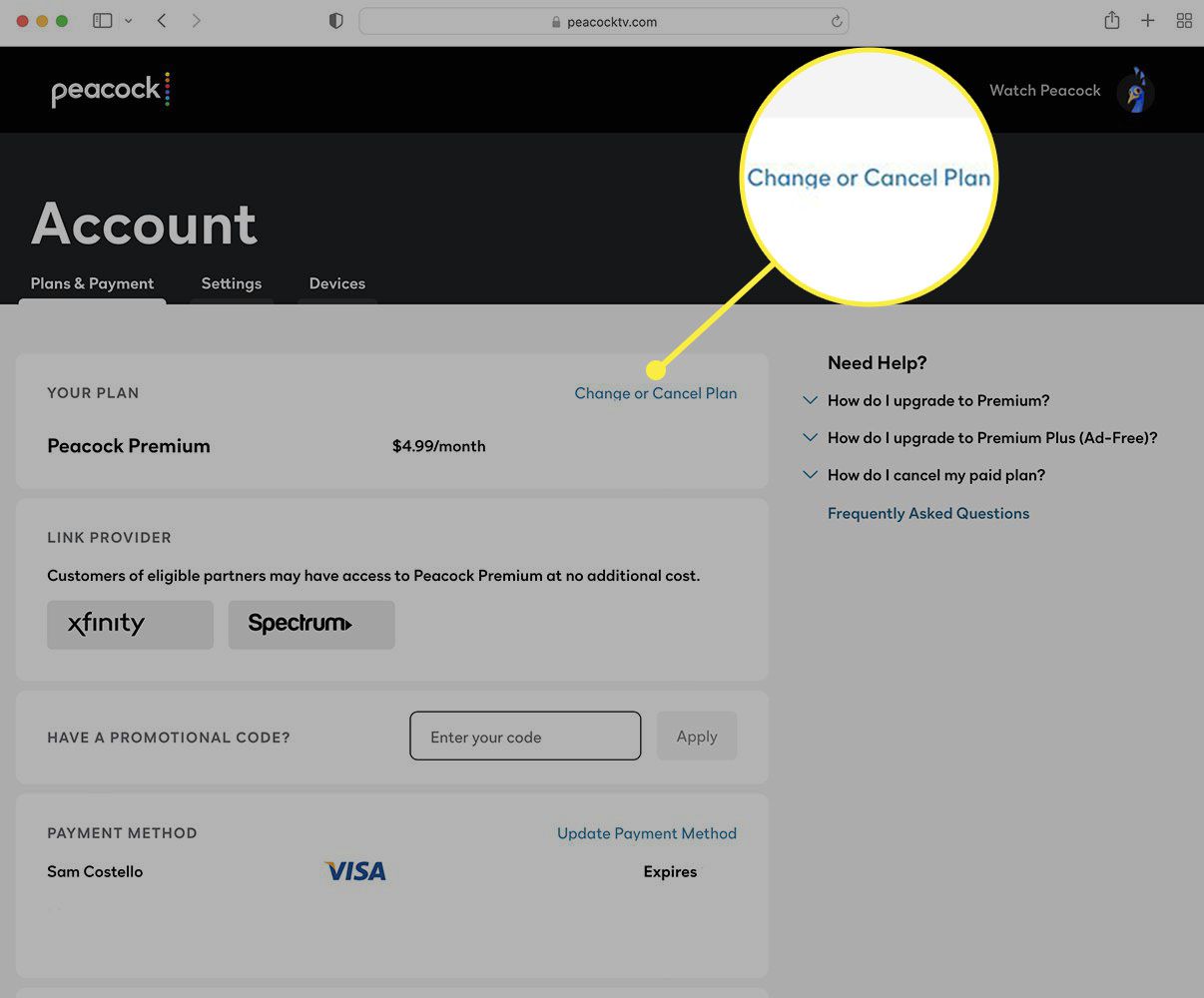
Image source: Lifewire
According to official Peacock documentation , your service will not terminate immediately. You will retain access to your paid features until the end of your current billing cycle. For example, if your month renewed on the 1st and you cancel on the 10th, you can continue watching until the 1st of the following month.
How to Cancel Peacock Through a Third-Party Service
Third-party billing is a common source of confusion. When you subscribe through an app store, Peacock does not have the legal authority to stop the recurring charge on your credit card; only the store owner (Apple, Google, Amazon) can do that.
Canceling on Apple Devices (iOS and Apple TV)
If you see "Billed through Apple" in your account settings, you must use your device settings to end the subscription. This applies to any signup performed on an iPhone, iPad, or Apple TV.
- Open the Settings app on your iOS device.
- Tap your Name/Apple ID at the very top of the menu.
- Select Subscriptions .
- Find Peacock in the list of active services.
- Tap Cancel Subscription and confirm your choice.
Canceling via the Google Play Store
Android users who subscribed via the app must manage their billing through the Play Store ecosystem. This is separate from the Peacock app settings.
- Open the Google Play Store app.
- Tap your profile icon in the top right corner.
- Select Payments & subscriptions > Subscriptions .
- Select Peacock and tap Cancel subscription .
Canceling on Roku
Roku offers two ways to cancel. The easiest method is using your remote directly on the television interface.
- On the Device: Highlight the Peacock app on your home screen. Press the Star (*) button on your remote. Select Manage Subscription and then Cancel Subscription .
- On the Web: Log in to my.roku.com, navigate to Manage Your Subscriptions , and locate Peacock to turn off auto-renew.
How to Break the Xfinity and Peacock Cancellation Loop
One of the most persistent issues reported by users involves the "Infinite Loop" between Peacock and Xfinity. This typically occurs when a user receives Peacock as part of an Xfinity internet or cable bundle. When the user tries to cancel on Peacock, they are sent to Xfinity. When they go to Xfinity, the portal sometimes directs them back to Peacock.
This issue often arises during "Subscription Lapses." If you are trying to switch from a bundled offer to a standalone paid plan (or vice versa), Peacock requires the old subscription to fully expire before the new one can be activated. You cannot "overwrite" an Xfinity-managed plan with a direct-billed plan while the Xfinity plan is still active.
Why Can't I Find the Cancel Button on My Account?
If you have logged in and are hunting for a "Cancel" button that simply isn't there, you are likely facing one of three scenarios:
Scenario 1: You Are Already on the Free Tier
Peacock is unique among streaming services because it maintains a "Free" tier. If you have already canceled your paid plan, or if you never signed up for Premium, there is no "subscription" to cancel. Your account status will simply show "Peacock Free." In this state, you are not being charged, and no further action is required to stop payments.
Scenario 2: Partner-Provided Plans
If your Peacock access is provided by a partner like Spectrum or Cox, the "Cancel" button is often hidden because the subscription is a line item on your cable bill. You must log in to your cable provider's primary dashboard—not the Peacock app—to remove the service from your package.
Scenario 3: Mobile App Limitations
The Peacock mobile app (iOS/Android) is designed for viewing, not necessarily for deep account management. Many users find that the app redirects them to a mobile browser. For the most reliable experience, always use a desktop browser or the specific App Store settings on your device to manage billing.
How to Remove Add-ons Without Canceling Your Whole Plan
Peacock offers various add-ons, such as Premium Plus (ad-free) or third-party channels like Starz. You do not have to cancel your entire Peacock subscription just to save a few dollars on an add-on.
To manage these, go to the Plans & Payments section. You will see a list of "Add-ons." You can toggle these off individually. Note that if you decide to cancel your base Peacock plan, the system will automatically trigger the cancellation of all associated add-ons. You cannot have a Starz add-on through Peacock if you do not have an active Peacock base plan.
How to Permanently Delete Your Peacock Account and Data
It is important to distinguish between canceling a subscription and deleting an account . Canceling stops the billing, but Peacock retains your email address, watch history, and credit card metadata for future marketing and easy re-activation.
If you want a complete "Right to be Forgotten," you must go beyond the standard cancellation button. Peacock utilizes a third-party privacy portal called OneTrust to handle data deletion requests. This is a significant advancement in user privacy compared to older streaming models.
- Access the Privacy Portal: Navigate to the Peacock Privacy Web Form .
- Select Your Request Type: Choose "Delete My Information" or "Close My Account."
- Verify Identity: You will need to provide the email address associated with the account. Peacock will send a verification link to ensure you are the actual owner.
- Wait for Processing: Unlike cancellation, which is instant, a full data purge can take several days to process. Once complete, you will no longer be able to log in, and all your "My Stuff" lists will be permanently erased.
What Is the Peacock Refund Policy?
Peacock maintains a strict "No Refunds" policy as outlined in Section 1.4 of their Terms of Use . If you cancel halfway through a month, you will not receive a prorated refund for the remaining 15 days. Your access simply continues until the cycle ends.
However, there are two exceptions to keep in mind:
- State Laws: Certain states (and international jurisdictions, though Peacock is currently US-only) have consumer protection laws that may mandate refunds under specific conditions.
- Price Hikes: Peacock is required to provide a 30-day notice before increasing your subscription price. If you cancel immediately following a price hike notice, you may have more leverage with customer support if a billing error occurs during the transition.
Alternatives to Canceling Your Subscription
If your primary reason for canceling is the cost, you might consider a few alternatives that offer better value without losing access to the content library.
- Switch to an Annual Plan: Peacock typically offers an annual rate that equates to "12 months for the price of 10." If you know you will use the service year-round, this is a top-tier option for saving roughly 17% annually.
- Student Discounts: Verified students can often secure a significantly reduced rate (currently $5.99/mo as of recent updates). This is widely regarded as one of the best values in streaming for those who qualify.
- Downgrade to the Ad-Supported Tier: If you are paying for "Premium Plus" (ad-free), switching back to the standard "Premium" tier can save you several dollars a month while keeping the full library intact.
Frequently Asked Questions
- Can I still watch Peacock after I cancel?
- Yes. Your subscription remains active until the end of your current billing period. You can check the exact "expiration date" in the Plans & Payments section of your account.
- Why did Peacock charge me after I canceled?
- This usually happens for one of two reasons: either you have a second account under a different email address, or you canceled via the Peacock website when you are actually billed through a third party (like Apple or Roku). Check your bank statement to see if the merchant is "Peacock" or an app store.
- How do I cancel Peacock on my Smart TV?
- Most Smart TVs (Samsung, LG, Vizio) do not allow you to manage billing directly through the TV app. You must log in to the Peacock website on a computer or phone, or manage the subscription through the platform that powers the TV (like Roku or Fire TV).
- What happens to 'My Stuff' and my watch history?
- If you simply cancel your paid plan, your history and "My Stuff" list stay saved on the Free tier. If you use the Privacy Form to delete your account entirely, all of this data is permanently erased.
- Can I pause my Peacock subscription instead of canceling?
- No. Unlike Hulu or Netflix, Peacock does not currently offer a "Pause" feature. Your only options are to remain active or cancel and revert to the Free tier.
The Bottom Line
Canceling Peacock is a manageable process as long as you identify the correct gatekeeper for your billing. By following these key steps, you can ensure you aren't charged for service you no longer want:
- Verify your billing provider in the "Plans & Payments" tab before attempting to cancel.
- Use the platform-specific path (Apple Settings, Roku Star button, etc.) if you didn't sign up on the web.
- Confirm the cancellation via the automated email Peacock sends; keep this for your records.
- Understand the Free Tier —you don't need to delete your account just to stop the monthly charges.
- Use the OneTrust form only if you want your personal data and watch history completely wiped from their servers.
- Check for "Notice of Change" emails to stay ahead of any future price adjustments.
Take a moment now to check your "Plans & Payments" tab to confirm exactly when your next billing cycle begins so you can time your cancellation perfectly.
How to Cancel Your Peacock Subscription and Stop Automatic Payments
Learn how to cancel Peacock on Roku, Apple, or Amazon. Fix the missing cancel button and get a refund using our troubleshooting guide.

How to Watch Free Movies and Live TV on Pluto TV Without a Subscription
Is Pluto TV free? Stream 100s of live channels and 1000s of movies legally without fees. Learn about hidden features and troubleshooting tips.

How to Create, Reset, and Manage Your Roku PIN Without Losing Your Data
Forgot your Roku PIN? Learn how to reset it without a factory reset, manage parental controls, and stop accidental purchases on your Roku account.