
How to Cancel Your Peacock Subscription and Stop Automatic Payments
If you are billed directly by Peacock, follow these three steps to end your subscription immediately:
Note: If the "Cancel" button is missing, you are likely billed through a third party like Apple, Roku, or Xfinity. See the troubleshooting section below.
Managing digital subscriptions can often feel like navigating a maze, especially when "dark patterns" or third-party billing agreements complicate the process. Whether you have finished your favorite series or are looking to cut back on monthly expenses, knowing how to effectively terminate your Peacock plan is essential to avoiding unwanted charges. While the process is generally straightforward for direct subscribers, those who signed up through mobile app stores or cable providers may face unique hurdles.
According to official Peacock documentation, your access typically continues until the end of your current billing cycle even after you cancel. This means you can stop future payments today without losing immediate access to the content you have already paid for. This guide provides a deep dive into every cancellation method, troubleshooting steps for the "missing button" glitch, and insider tips for securing refunds.
How to Cancel Peacock Directly Through a Web Browser
For users who signed up via the Peacock website using a credit card or PayPal, the web browser is widely considered the most reliable method for cancellation. While the mobile app provides viewing capabilities, it often lacks the robust billing controls found on the desktop site. Using a PC or a mobile browser (like Safari or Chrome) ensures you are seeing the full account dashboard without the limitations of a simplified app interface.
Log In to Your Account on a PC or Mobile Browser
Start by visiting the official Peacock TV website. Avoid attempting this through a smart TV app, as these versions are designed for content consumption rather than account management. Many users report frustration when trying to find billing settings on devices like Fire Stick or Samsung TVs, where these options are frequently omitted to comply with platform-specific hardware rules.
Navigate to the Plans and Payments Section
Once logged in, look for the profile icon in the top-right corner of the screen. Clicking this will reveal a menu where you should select "Account." Within the Account dashboard, you will see several tabs. Click on Plans & Payments . This section serves as the central hub for your subscription status, showing your current tier (Premium or Premium Plus) and your next renewal date.
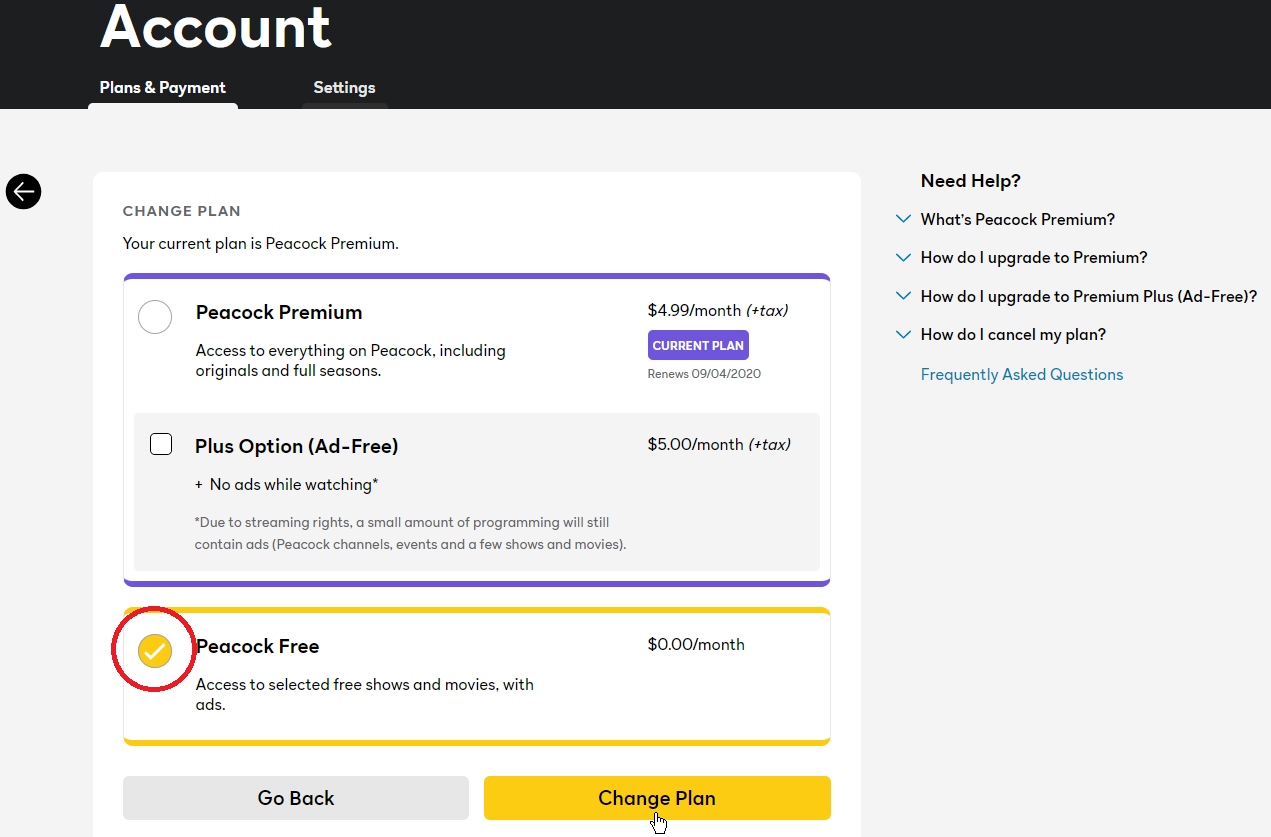
Image source: PCMag
Select Cancel All Subscriptions and Confirm the Change
Under your plan details, you should see a link or button labeled "Cancel All Subscriptions." Upon clicking this, Peacock will likely present a series of "retention offers" or ask for the reason you are leaving. This is a common industry practice. You must continue through these prompts—sometimes clicking "Next" or "Continue to Cancel" multiple times—until you reach the final confirmation screen. Your cancellation is not complete until you see a message stating that your plan has been successfully set to expire.
Verify Your Cancellation With the Confirmation Email
A critical final step is checking your inbox for a confirmation email. As noted in the Peacock Terms of Use , the service will send a notification to your registered email address once the status change is processed. If you do not receive this email within a few hours, log back into your account to ensure the "Cancel" button has been replaced by a "Restart Subscription" option. Saving this email is your primary defense if a billing error occurs in the future.
How to Cancel Peacock Through Third-Party Billing Services
If you signed up for Peacock through an app store or a streaming device, Peacock does not have the authority to stop your payments. In these cases, your financial relationship is with the platform provider (like Apple or Roku), and you must use their specific tools to end the service. This is a top-tier choice for security, but it adds a layer of complexity to the cancellation process.
Manage Your Subscription on an iPhone, iPad, or Apple TV
For those billed via Apple, the process is handled through your Apple ID settings. On an iOS device, open the Settings app, tap your name at the top, and select Subscriptions . Find Peacock in the list and tap Cancel Subscription . If you are on a Mac, you can manage this through the App Store by clicking your name in the bottom-left corner and selecting "Account Settings."
Cancel Your Peacock Plan Through the Roku Website
Roku users have two options: canceling on the device or via the web. On a Roku remote, highlight the Peacock app, press the
Star (*)
button, and select "Manage Subscription" to cancel. However, many users find the Roku website more reliable. Log in to your account at
my.roku.com
, navigate to "Manage your subscriptions," and locate Peacock to turn off auto-renew.
End Your Subscription via the Google Play Store
Android users who subscribed through the Play Store should open the Google Play app, tap the profile icon, and select Payments & subscriptions > Subscriptions . From there, you can select Peacock and hit "Cancel subscription." You will be asked to provide a reason, but this does not affect your ability to end the service.
Cancel Peacock Through Your Amazon Account
If you added Peacock as a channel or app through Amazon, go to the Amazon website and navigate to Account & Lists > Memberships & Subscriptions . Look for the "Appstore Subscriptions" section. You will see Peacock listed with an option to turn off auto-renewal. This ensures that Amazon stops processing the monthly fee on your behalf.
| Biller | Management Location | Key Action |
|---|---|---|
| Peacock Direct | PeacockTV.com | Plans & Payments Dashboard |
| Apple (iTunes) | iOS Settings / App Store | Apple ID Subscriptions |
| Roku | my.roku.com | Manage Subscriptions |
| Amazon | Amazon.com | Memberships & Subscriptions |
| Google Play | Play Store App | Payments & Subscriptions |
Troubleshooting: Why Is the Peacock Cancel Button Missing?
One of the most frequent complaints from users is that the "Cancel" button simply does not appear in their account settings. This is rarely a technical glitch and is usually a result of how the account was created. Addressing this requires identifying the "True Biller" linked to your email address.
Check Your Payment Method to Identify the True Biller
If you log in and see your plan details but no cancellation option, look closely at the "Payment Method" line. If it says "Billed via Roku," "Billed via iTunes," or "Billed via Xfinity," you are in the wrong place. Peacock hides the cancel button for these accounts to prevent confusion, as they cannot legally stop a charge initiated by a third party. You must go to the dashboard of the company listed in that payment line to proceed.
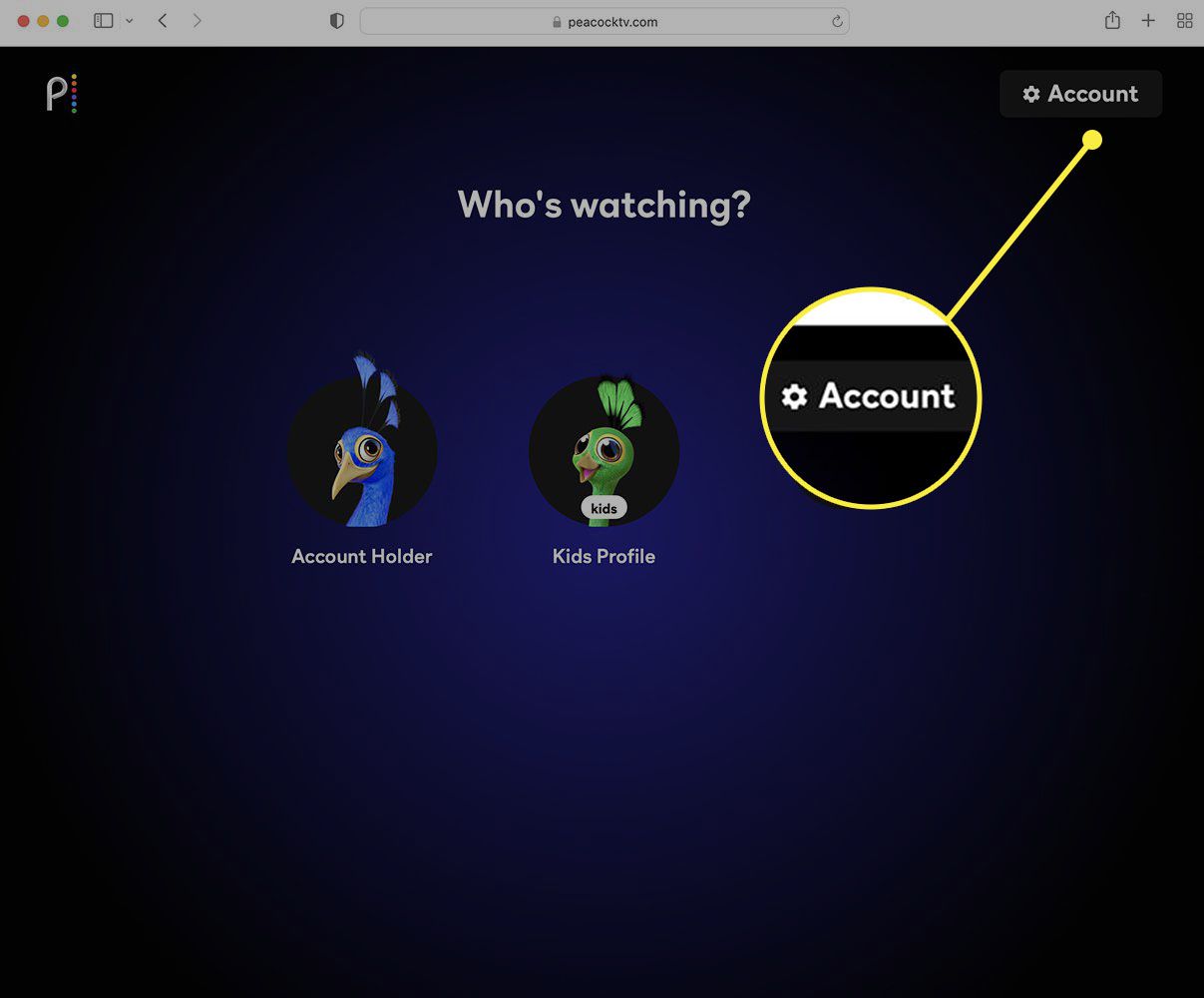
Image source: Lifewire
How to Break the Xfinity and Cox Subscription Loop
Users who receive Peacock through an Xfinity or Cox cable bundle often encounter an "infinite loop." Peacock tells them to manage the plan via their cable provider, while the cable provider's billing page points them back to Peacock. This typically happens when the subscription is part of a "Rewards" program or a specific internet tier.
To break this loop, do not look at your standard monthly bill. Instead, log in to your Xfinity or Cox account and search for the Rewards Dashboard or the App Management section. Often, the Peacock "link" must be deactivated there. If the service was included for free as part of a promotion, you may not be able to "cancel" it in the traditional sense, but you can ensure no secondary payment methods are attached to the account.
How to Get a Refund for an Accidental Peacock Renewal
Peacock's official stance on refunds is quite strict, but there is a path for users who act quickly. Understanding the difference between the written policy and real-world customer service practices can save you the cost of an unwanted annual renewal.
The Official Refund Policy and Legal Terms
The standard terms state that all payments are non-refundable and there are no credits for partially used billing periods. Once a charge is processed, the service is technically yours for the remainder of that month or year. However, consumer protection laws in certain regions may mandate a "cooling-off" period, though this is not universally applied in the United States.
Use the Live Chat Hack to Request a Manual Refund
Despite the "no refunds" policy, many users have successfully recovered funds by using the Live Chat feature immediately after an accidental charge. Community wisdom from platforms like Reddit suggests that speaking to a human representative is significantly more effective than sending an email or using the automated bot.
How to Cancel and Restart Your Plan for a Promo Deal
Many users cancel their current subscription specifically to take advantage of a significant advancement in pricing, such as the $19.99/year Black Friday deal or student discounts. However, the timing of this maneuver is critical to success.
The Timing Strategy for Promotional Re-entry
You cannot apply a new promo code to an active account, even if you have already hit the "cancel" button. You must wait for your current billing cycle to fully expire . Once the account reverts to a "Free" or "Inactive" status, the "Restart Subscription" option will appear. At this point, you can enter the new promotional code. If you try to restart even one day before the expiration, the system will likely charge you the full standard rate.
When to Use a Different Email Address
Some of Peacock's most aggressive promotions are reserved for "New Customers Only." If the system recognizes your email address as a returning user, it may block the promo code. In this scenario, creating a fresh account with a different email address is the most effective way to secure the discounted rate. Note that doing this will mean you lose your watch history and "My Stuff" list from the previous account.
Managing Peacock Add-ons and Premium Plus Upgrades
Sometimes you don't want to leave Peacock entirely; you just want to lower your bill by removing extra features. Managing these individual components requires a slightly different approach than a full cancellation.
How to Remove a Single Add-on Without Canceling Your Base Plan
If you subscribed to an add-on like Starz through Peacock, you can remove it by going to the "Subscriptions" section of your account. Instead of clicking "Cancel All," look for the specific add-on and select "Remove Add-on." This keeps your base Peacock Premium plan active while stopping the additional monthly charge for the extra channel.
What Happens to Add-ons When You Cancel Your Main Subscription?
If you decide to cancel your main Peacock plan, any associated add-ons are automatically set to expire at the end of the current billing cycle. You do not need to cancel them individually if you are terminating the entire account. However, if you are billed through a third party, it is a top-tier practice to double-check your platform's subscription list to ensure no "ghost" subscriptions remain active.
Frequently Asked Questions
How do I cancel Peacock if I don't have the login credentials?
Can I cancel my Peacock subscription through the mobile app?
Will I lose access to Peacock immediately after I cancel?
Does deleting the Peacock app cancel the subscription?
How do I cancel Peacock on my Xfinity X1 or Flex box?
Final Thoughts and Cancellation Checklist
Successfully ending a Peacock subscription requires a clear understanding of your billing source and a persistent approach to the cancellation prompts. By following the steps outlined above, you can ensure that your account is closed properly and that no surprise charges appear on your next statement.
- Identify your biller by checking the "Payment Method" in your account settings.
- Use a web browser rather than a smart TV app for the most reliable interface.
- Navigate to Plans & Payments to find the direct cancellation link.
- Click through all prompts until you reach the final confirmation screen.
- Save the confirmation email as proof of your request.
- Check your bank statement 48 hours after the supposed renewal date to verify no charge occurred.
- Use Live Chat if you need to request a refund for an accidental renewal.
Take a moment now to log in and verify your next billing date so you aren't caught off guard by an automatic renewal.
How to Cancel Your Peacock TV Subscription on Any Device or Platform
Learn how to cancel Peacock TV on Roku, Apple, Amazon, or Xfinity. Follow our steps to stop payments and delete your account data permanently.


How to Create, Reset, and Manage Your Roku PIN Without Losing Your Data
Forgot your Roku PIN? Learn how to reset it without a factory reset, manage parental controls, and stop accidental purchases on your Roku account.

How to Reset Your Fire TV Remote and Fix Pairing Issues Quickly
Fix your Fire TV remote with the 12-second reset trick. Learn how to pair, troubleshoot blinking lights, and fix unresponsive buttons in minutes.
