
How to Create, Reset, and Manage Your Roku PIN Without Losing Your Data
To reset a forgotten Roku PIN, do not use the physical reset button on your device. Instead, sign in to your account at my.roku.com using a web browser. Navigate to PIN Preference under Device Settings, select Change PIN , enter a new four-digit code, and save your changes. This updates your account instantly across all linked devices without wiping your apps or login data.
A Roku PIN serves as a critical security layer for your streaming experience. Whether you are trying to prevent accidental "one-click" purchases by children or looking to restrict mature content on The Roku Channel, this four-digit code acts as your digital gatekeeper. However, many users find themselves locked out or confused by the various types of PINs required by different Roku features.
In this guide, we will walk through the non-destructive methods for recovering a lost PIN, distinguish between account-level and hardware-level security, and provide a framework for setting up parental controls that actually work. By following these steps, you can maintain a secure household environment while avoiding the headache of a full factory reset.
How to Reset a Forgotten Roku PIN Without a Factory Reset
One of the most common misconceptions in Roku troubleshooting is the belief that a forgotten PIN requires a hardware reset. While some online guides suggest using the physical pinhole button on the back of your Roku player or TV, this is a significant mistake for PIN recovery. A physical factory reset will erase all your installed apps, saved passwords, and personalized settings, forcing you to set up the device from scratch.
Step-by-Step PIN Recovery via Web Browser
According to official Roku support documentation , the only way to manage your account PIN is through the web dashboard. Follow these steps to regain access:
-
Access the Dashboard:
Open a web browser on your computer or smartphone and go to
my.roku.com. - Sign In: Enter the email address and password associated with your Roku account. If you have forgotten your password, use the "Forgot password?" link to trigger an email reset first.
- Locate PIN Settings: Once logged in, scroll down to the Device Settings section and click on PIN Preference (sometimes labeled as PIN/Parental Controls).
- Update the Code: Click the Update or Change PIN button. You will be prompted to enter a new four-digit code.
- Save Preferences: Choose your preferred security level (e.g., "Always require a PIN to make purchases") and click Save Changes at the bottom of the page.
Finding Your Account Email Address
If you are unsure which email address is linked to your Roku device, you can find it directly on your TV screen. Navigate to Settings > System > About . The email address displayed here is the one you must use to log in to the web portal. Identifying the correct account is the first step in avoiding the "Incorrect PIN" errors that plague many users after a reset attempt.
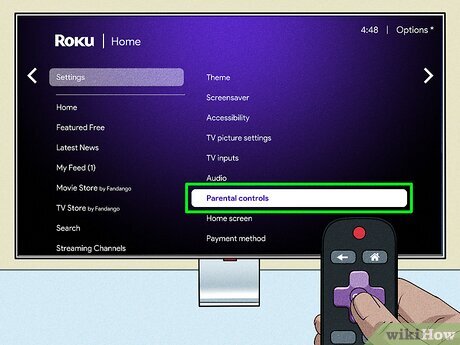
Image source: wikiHow
Understanding the Difference Between a Roku Account PIN and a Roku TV PIN
A major source of frustration for users is the distinction between the Account PIN and the Roku TV PIN . These are two separate systems that govern different parts of your hardware. If you set a PIN on the website but your TV is still asking for a different code when you try to watch local news via an antenna, you are likely dealing with a hardware-level restriction.
The Account PIN (Cloud-Based)
This is the PIN you manage at
my.roku.com
. It is tied to your email address and applies to every Roku device linked to that account. It primarily controls the Channel Store and The Roku Channel. If you have three Roku Express players in your house, they will all share this same PIN.
The Roku TV / Antenna PIN (Hardware-Based)
Specific to Roku-branded TVs (like those made by TCL, Hisense, or Philips), this PIN is managed locally on the television itself. It is used to block over-the-air (OTA) content received through the "Live TV" or "Antenna" input. This PIN is independent of your web account and must be configured using the Roku remote while sitting in front of the TV.
| Feature | Account PIN | Roku TV (Antenna) PIN |
|---|---|---|
| Managed Via | Web Browser (my.roku.com) | TV Settings Menu |
| Primary Use | Purchases & App Installs | OTA Antenna Content |
| Scope | All devices on the account | Only that specific TV |
| Parental Controls | The Roku Channel only | Live TV / Tuner inputs |
How to Create or Change Your Roku PIN for the First Time
If you have recently purchased a Roku device, you may not have a PIN yet. Roku does not assign a default PIN (like 0000 or 1234); it must be manually created by the user. Setting this up early is a top-tier strategy for preventing unauthorized charges to your credit card.
Choosing Your Security Tier
When you create a PIN, Roku offers three distinct levels of protection. Choosing the right one depends on your household dynamic:
- Tier 1: Maximum Security — "Always require a PIN to make purchases and add items from the Channel Store." This is a popular choice for families with young children who might accidentally download apps.
- Tier 2: Financial Security — "Always require a PIN to make purchases." This allows you to add free apps (like YouTube or Pluto TV) without a prompt, but requires a code for any paid subscription or movie rental.
- Tier 3: No Security — "A PIN is not required to make any purchase or add any item." This is suitable for solo households where accidental clicks are not a concern.
To set these up, visit your account dashboard and look for the "PIN Preference" section. Many users find that Tier 2 offers a strong balance between convenience and financial safety.
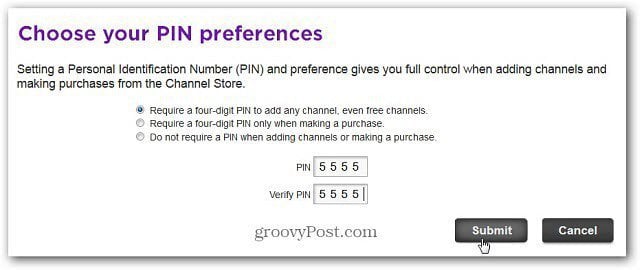
Image source: groovyPost
Why Does Roku Ask for a PIN for Free Channels?
A frequent complaint in community forums is the "Free Channel Prompt." Users often ask why they are being prompted for a PIN when trying to install a free app like Netflix, YouTube, or PBS Kids. This occurs because of how Roku categorizes "adding" an app.
In the Roku ecosystem, adding any channel from the Store is treated as a transaction, even if the cost is $0.00. If your PIN preference is set to "Always require a PIN to make purchases and add items ," the system will trigger a prompt for every single installation.
To stop this behavior while still protecting your wallet, you should change your setting to "Require PIN for purchases only." This allows you to freely explore the thousands of free channels available without entering a code, but keeps the gate locked if a child tries to sign up for a paid service like Paramount+ or Max.
Setting Up Parental Controls to Restrict Mature Content
While the PIN protects your wallet, Parental Controls protect your viewers. However, it is important to understand the limitations of Roku's built-in filters. The Roku PIN is a highly effective tool for certain areas, but it is not a universal "kill switch" for all content.
Filtering The Roku Channel
You can set rating limits (G, PG, TV-14, etc.) for content streamed through
The Roku Channel
. Once set, any movie or show exceeding that rating will require your 4-digit PIN to play. This is managed via the same web dashboard at
my.roku.com
.
The Limitation of Third-Party Apps
It is a significant advancement in user clarity to note that the Roku PIN does not control content inside third-party apps. If your child opens Netflix, Disney+, or YouTube, the Roku PIN will not stop them from watching mature content within those apps. You must set up individual parental controls inside each specific streaming service's settings menu.
Managing PINs for Guest Mode and Mobile Users
Roku offers unique features for travelers and mobile users that change how the PIN functions. Understanding these scenarios prevents confusion when the PIN prompt suddenly disappears or fails to work as expected.
How Guest Mode Bypasses Your PIN
If you are a host for a short-term rental or frequently have visitors, you might use Guest Mode (formerly Auto Sign-Out Mode). When a device is in Guest Mode, your account PIN is temporarily disabled. This allows guests to sign in to their own accounts and add their own apps without needing your private code. Once the guest's stay ends and the device is signed out, your original PIN settings will automatically reactivate.
Mobile App Age Verification
The Roku mobile app handles security differently. Instead of a manual PIN, Roku often relies on the age verification data from your Google Play Store or Apple App Store account. If the store account is registered to a minor, certain features in the Roku app may be restricted automatically. This is a notably innovative way to streamline security, but it means you cannot manually override mobile restrictions using your standard 4-digit TV PIN.
Troubleshooting Common Roku PIN Issues and Errors
Even with the correct settings, technology can sometimes falter. If you are experiencing issues with your PIN, consider these common fixes identified by technical experts :
"Incorrect PIN" Error After a Reset
If you just changed your PIN online but the TV still says it is incorrect, the device likely hasn't synced with the Roku servers yet. You can force a sync by going to Settings > System > System Update > Check Now . This refreshes the device's connection and pulls the new PIN data from your account.
PIN Prompt Not Appearing for Antenna TV
As discussed earlier, if you are trying to block antenna channels, the account PIN won't help. You must go to Settings > Parental Controls on the TV itself. If the option is grayed out, ensure your TV tuner is set up and you have scanned for local channels first.
Subscription Reminders as a Secondary Layer
If you are worried about recurring bills, you can enable email notifications. Roku allows you to receive an alert two days before a subscription renews. This provides a secondary safety net in case someone in your house knows the PIN but shouldn't be renewing services.
Key Takeaways for Roku Security
-
Reset via web:
Always use
my.roku.comto recover a forgotten PIN; never use the physical reset button for this purpose. - Distinguish PIN types: Remember that the Account PIN (for apps) and the Roku TV PIN (for antenna) are separate systems.
- Adjust for "Free" apps: Change your settings to "Require PIN for purchases only" to avoid prompts when downloading free channels.
- Sync manually: If a new PIN isn't working, perform a System Update check to force the device to refresh its data.
- App-specific controls: Set internal parental controls for Netflix and YouTube, as the Roku PIN cannot filter content inside third-party apps.
- Check your email: Verify the account email in the "About" menu to ensure you are logging into the correct web dashboard.
Log in to your Roku account today to verify your PIN preferences and ensure your financial settings are correctly configured.
Frequently Asked Questions
Is there a default Roku PIN I can use if I forgot mine?
No, Roku does not provide a default PIN. Unlike some electronics that use "0000" or "1234," a Roku PIN must be specifically created by the user during the initial account setup or via the web dashboard. If you have never set one, the system will not ask for one unless you have enabled specific purchase restrictions.
Can I find or change my PIN using the Roku mobile app?
Currently, you cannot manage your PIN directly within the Roku mobile app. For security reasons, Roku requires you to use a web browser to access your account dashboard at
my.roku.com
. This ensures that anyone with temporary access to your phone cannot easily change your financial security settings.
Does a Roku PIN stop my children from watching YouTube?
A Roku PIN can only stop children from installing the YouTube app if it isn't already on the device. Once YouTube is installed, the Roku PIN does not restrict what is watched inside the app. To limit YouTube content, you must use the "Restricted Mode" settings within the YouTube app itself or use a YouTube Kids profile.
What happens if I enter the wrong PIN too many times?
Roku does not typically "lock" the account after multiple failed PIN attempts, but it will continue to deny access to the restricted feature. If you are certain you are entering the correct numbers but they are being rejected, it is likely a sync issue. Try restarting your device or checking for a system update to refresh the connection to Roku's servers.
How do I remove the Roku PIN entirely?
To remove the PIN requirement, log in to
my.roku.com
, go to
PIN Preference
, and select the option
"A PIN is not required to make any purchase or add any item."
Note that this will also disable parental controls for The Roku Channel. You cannot delete the 4-digit code entirely from the system, but you can set the preference so it is never requested.
-
Topic: How to create, change, or remove your Roku PINhttps://support.roku.com/article/create-change-or-remove-your-roku-pin
-
Topic: Where do I find my Roku PIN if I forgot what it is?https://www.justanswer.com/recorders-and-players/otyhs-forgot-roku-pin-find-it.html
-
Topic: Is my Roku account PIN also used to restrict access to over ...https://support.roku.com/article/account-pin-not-restricting-antenna-tv-content
How to Reset Your Fire TV Remote and Fix Pairing Issues Quickly
Fix your Fire TV remote with the 12-second reset trick. Learn how to pair, troubleshoot blinking lights, and fix unresponsive buttons in minutes.


How to Cancel Your Peacock Subscription and Stop Automatic Payments
Learn how to cancel Peacock on Roku, Apple, or Amazon. Fix the missing cancel button and get a refund using our troubleshooting guide.


How to Fix a Fire Stick Remote That Is Not Working or Responding
Is your Fire Stick remote unresponsive? Learn how to reset, re-pair, and decode LED light colors to fix your remote in minutes.