How to Fix a Fire Stick Remote That Is Not Working or Responding
If your remote is unresponsive, try these three steps immediately to restore functionality in under 60 seconds:
- 1. Power Cycle: Unplug your Fire Stick from the wall for 60 seconds, then plug it back in.
- 2. Re-pair: Press and hold the Home button for a full 10 to 60 seconds.
- 3. Battery Check: Replace batteries with fresh Alkaline (not rechargeable) pairs.
Note: Most connectivity issues are resolved by the power cycle alone.
Few things are as frustrating as settling in for a movie night only to find your Fire Stick remote completely unresponsive. Whether the buttons aren't registering, the LED is flashing a mysterious color, or the device has simply "forgotten" its pairing, these issues are remarkably common. Fortunately, Amazon's hardware is designed with several built-in recovery protocols.
In this guide, we will explore the technical reasons why these remotes fail—from voltage gaps in rechargeable batteries to Bluetooth signal interference—and provide the exact sequences required to reset and re-pair your hardware. According to official Amazon support documentation , a specific combination of button holds can resolve nearly all software-based de-syncing issues.
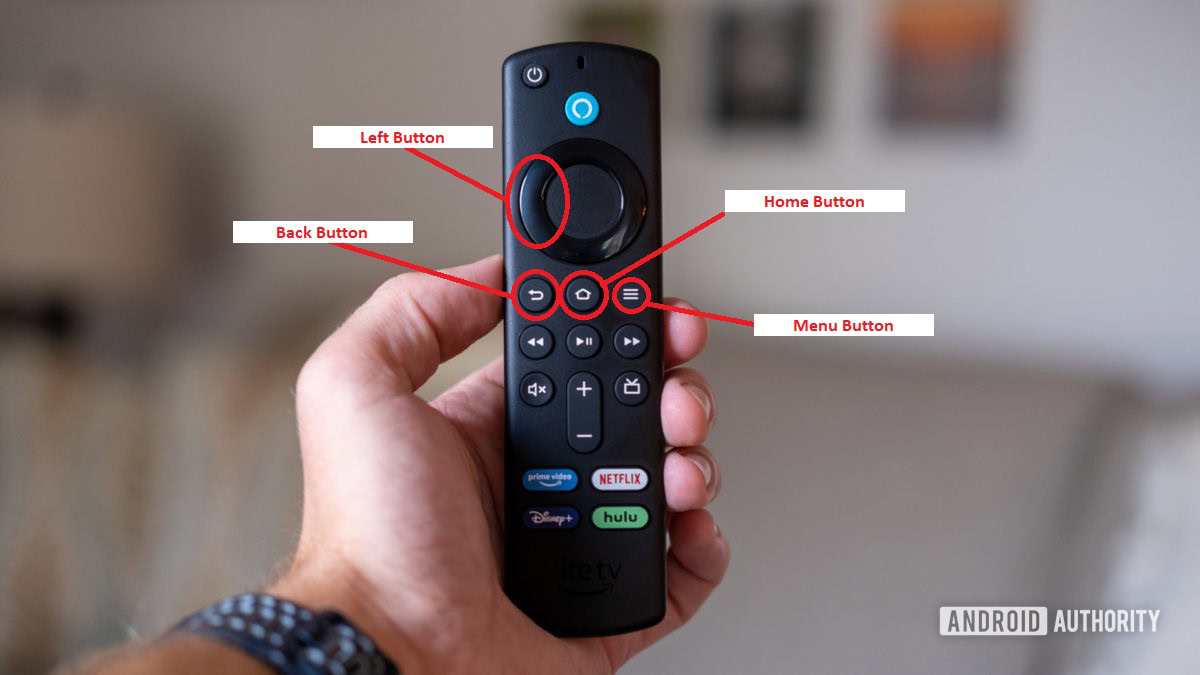
Image source: Android Authority
Try the 10-Second Home Button Trick to Re-pair Your Remote
The most frequent cause of a "broken" remote is actually a lost Bluetooth handshake. Because the Fire Stick uses Bluetooth rather than standard Infrared (IR) for navigation, the connection can occasionally drop due to software updates or signal congestion. The Home Button Trick is the primary method for forcing a new handshake.
To initiate this, ensure your Fire Stick is powered on and at the home screen. Point the remote toward the device (even though Bluetooth doesn't require line-of-sight, it helps during the pairing phase) and press and hold the Home button . While many guides suggest holding it for 10 seconds, community feedback on troubleshooting forums indicates that holding it for up to 60 seconds is often necessary for "stubborn" remotes that have been disconnected for a long period.
How to Perform a Full Factory Reset on Your Fire Stick Remote
If the simple pairing trick fails, you likely need a "Deep Reset." This process clears the remote's internal cache and forces it to look for a new host device from scratch. This is a highly effective solution when the remote is stuck in a loop or refuses to enter pairing mode.
- Disconnect the Fire TV: Unplug your Fire Stick or Fire TV Cube from the power source and wait at least 60 seconds. This ensures the device's Bluetooth receiver is fully discharged.
- The Button Combo: While the TV is still unplugged, press and hold the Left (on the navigation ring), Menu (three horizontal lines), and Back (curved arrow) buttons simultaneously.
- The 12-Second Hold: Keep these three buttons held down for exactly 12 seconds. Do not release them early, as the internal reset timer requires this duration.
- Release and Wait: Release the buttons and wait 5 seconds. Remove the batteries from the remote.
- Power Up: Plug your Fire TV device back into the power outlet and wait for the home screen to load.
- Reinsert and Pair: Put the batteries back into the remote and press the Home button for 10 seconds to finalize the connection.
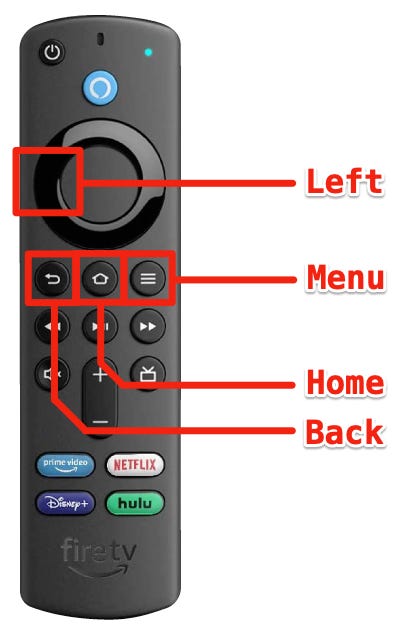
Image source: Business Insider
What Do the Flashing Lights on Your Remote Actually Mean?
Many users are unaware that Fire Stick remotes feature a Hidden Diagnostic Mode . This mode allows the remote to communicate its status through a series of LED color codes. To enter this mode, press the Rewind and Right buttons simultaneously for three seconds, then press the Menu button.
| LED Color/Pattern | Diagnostic Meaning | Recommended Action |
|---|---|---|
| Slow Blinking Red | Low Battery Voltage | Replace with fresh Alkaline batteries immediately. |
| Fast Blinking Red | Hardware Failure | The internal circuit board may be damaged; replacement likely. |
| Blinking Orange | Pairing Mode | The remote is searching for a Fire Stick; wait for connection. |
| Solid/Blinking White | No Signal from Device | Ensure the Fire Stick is plugged into power and turned on. |
| Blinking Blue | Successful Handshake | The remote is paired; check for software issues on the Stick. |
To exit this diagnostic mode once you have identified the issue, press Play/Pause + Up for three seconds, followed by the Menu button. This returns the remote to its standard operating state.
Why New Batteries Might Still Be Causing Your Remote to Fail
One of the most overlooked technical hurdles is the "Voltage Gap." Standard Alkaline batteries provide 1.5V of power. However, many eco-conscious users prefer NiMH rechargeable batteries. These rechargeables typically output only 1.2V. While this difference seems negligible, the Bluetooth chips in Fire Stick remotes are notably sensitive to voltage drops.
When the voltage dips below a certain threshold, the remote may still have enough power to light up the LED, but not enough to maintain a stable Bluetooth connection. This leads to "intermittent" behavior where the remote works for a few minutes and then disconnects. If you are experiencing frequent drops, switch to high-quality Alkaline batteries to ensure a consistent 1.5V supply.
How to Use Your Phone as a Temporary Fire Stick Remote
If your physical remote is completely dead, you can use the Amazon Fire TV App (available on iOS and Android) as a bridge. This app connects to your Fire Stick over your home Wi-Fi network rather than Bluetooth, bypassing the remote's hardware entirely.
However, there is a significant "Setup Screen Trap" to be aware of. If you have recently factory reset your Fire Stick and are stuck on the "Searching for Remote" screen, the mobile app will not work . The app requires the Fire Stick to already be connected to your Wi-Fi network. Since you cannot enter Wi-Fi credentials without a remote, you can find yourself in a catch-22 situation. In this scenario, a physical remote (or a USB keyboard connected via an OTG cable) is required to complete the initial setup.
Resetting Different Generations of Fire TV Remotes
Amazon has released several iterations of its remote hardware, and the reset process is not universal. Identifying which model you own is vital for choosing the correct troubleshooting path.
How to Reset the Alexa Voice Remote First Generation
The first-generation Alexa remote (which lacks power and volume buttons) requires a slightly different approach. You must hold the Left and Menu buttons for 12 seconds, but you do not need to hold the Back button. After releasing, wait 60 seconds before attempting to re-pair by holding the Home button.
How to Reset the Fire TV Stick Basic Edition Remote
The Basic Edition remote is the simplest model. To reset it, you simply need to hold the Home button for 15 seconds. If that fails, removing the batteries for a full 10 minutes is the only way to clear the internal capacitors, as this model lacks the advanced firmware of the Alexa-enabled versions.
Steps for the Alexa Voice Remote Pro and Newer Models
The Pro remote, which features backlit buttons and a remote finder speaker, follows the standard Left + Menu + Back sequence. However, because it has more complex firmware, it is highly recommended to check for "Remote Software Updates" in the Fire TV settings menu once you regain control. These updates often fix known bugs that cause the remote to "fall asleep" and fail to wake up.
Common Reasons Your Remote Won't Connect to the Fire Stick
If the software resets don't work, the issue may be environmental. Bluetooth operates on the 2.4GHz frequency, which is incredibly crowded. Your Wi-Fi router, microwave, and even baby monitors can interfere with the signal between your remote and the Fire Stick.
Furthermore, many users plug their Fire Stick directly into the back of their TV. The TV's chassis acts as a massive metal shield, blocking the Bluetooth signal. This is why Amazon includes a small HDMI Extender cable in the box. Using this extender to move the Fire Stick just two or three inches away from the TV's body can significantly improve signal reception and prevent the remote from disconnecting.
When Should You Give Up and Buy a Replacement Remote?
While most issues are fixable, hardware death is a reality. If you see a Fast Blinking Red light that persists even after a factory reset and new batteries, the internal Bluetooth chip has likely failed. This often happens due to "button mashing" or minor liquid spills that cause short circuits on the board.
When shopping for a replacement, official Amazon remotes are widely regarded as a top-tier choice for compatibility. However, many third-party Bluetooth remotes now offer strong value, often including extra programmable buttons. Just ensure any third-party option specifically lists "Fire TV" compatibility, as standard Bluetooth remotes may not support the Alexa voice features.
The Bottom Line
Fixing a Fire Stick remote is usually a matter of patience and following the correct timing for button holds. Before you spend money on a replacement, ensure you have exhausted these steps:
If your remote still shows a fast-blinking red light after these steps, it is time to consider a replacement hardware unit.
Frequently Asked Questions
- Why is my Fire Stick remote flashing orange?
- A flashing orange light indicates that the remote is in "Discovery Mode" and is actively looking for a Fire Stick to pair with. This usually happens after a reset or when the remote loses its connection. Simply wait for the process to complete, or hold the Home button for 10 seconds to nudge the pairing process along.
- Can I pair a new remote without the old one?
- Yes. You can use the Fire TV mobile app on your smartphone to navigate to Settings > Controllers & Bluetooth Devices > Amazon Fire TV Remotes > Add New Remote . Once the Fire Stick is searching, hold the Home button on your new physical remote to pair it. This is the most efficient way to swap hardware without a functioning original remote.
- Why does my remote work for volume but not for navigation?
- This is a common issue where the IR (Infrared) portion of the remote is working, but the Bluetooth portion is not. Volume and Power buttons often use IR to talk directly to your TV, while navigation buttons use Bluetooth to talk to the Fire Stick. This confirms that your batteries are likely fine, but you need to perform a Bluetooth re-pairing using the Home button trick.
- How do I exit the diagnostic mode?
- If you have entered the LED diagnostic mode to check your remote's health, you can exit by pressing the Play/Pause and Up buttons simultaneously for three seconds. Afterward, press the Menu button to return to normal operation. If you don't do this, the remote may not respond to standard navigation commands.
- Will a universal remote work with a Fire Stick?
- A standard universal remote will only work if it supports Bluetooth or if you use an IR receiver dongle. Most basic universal remotes use IR, which the Fire Stick does not natively support for navigation. For the best experience, look for remotes specifically labeled as "Fire TV Compatible" or use a high-end Bluetooth universal remote.
-
Topic: How to Reset Your Fire TV Remote When Not Workinghttps://www.amazon.com/gp/help/customer/display.html?nodeId=GMDKZSFRSX7NKKN3
-
Topic: Fire TV Remote not working/no lights/ reset and new batterieshttps://www.amazonforum.com/s/question/0D5at00000MINmUCAX/fire-tv-remote-not-workingno-lights-reset-and-new-batteries?language=en_US
-
Topic: r/firetvstick - Firestick 4K remote not working.https://www.reddit.com/r/firetvstick/comments/1hirkxk/firestick_4k_remote_not_working/

How to Reset Your Fire TV Remote and Fix Pairing Issues Quickly
Fix your Fire TV remote with the 12-second reset trick. Learn how to pair, troubleshoot blinking lights, and fix unresponsive buttons in minutes.

How to Factory Reset Your Chromecast Even If You Lost the Remote or Wi-Fi
Learn how to factory reset your Chromecast with Google TV, Ultra, or older models using the Google Home app, physical buttons, or remote shortcuts.

How to Create, Reset, and Manage Your Roku PIN Without Losing Your Data
Forgot your Roku PIN? Learn how to reset it without a factory reset, manage parental controls, and stop accidental purchases on your Roku account.