How to Reset Your Fire TV Remote and Fix Pairing Issues Quickly
To reset most modern Fire TV remotes, unplug your Fire TV from power for 60 seconds. While it is unplugged, press and hold the Left, Menu, and Back buttons simultaneously for 12 seconds . Release the buttons, wait 5 seconds, remove the batteries, plug your Fire TV back in, reinsert the batteries, and hold the Home button for 15 seconds to re-pair.
Few things are as frustrating as sitting down to watch your favorite show only to find your Fire TV remote completely unresponsive. Whether your remote is blinking orange, showing no lights at all, or simply refusing to communicate with your Fire Stick, a factory reset is often the most effective way to restore functionality. This process clears the remote's internal memory and forces a fresh handshake with your streaming device.
In this guide, we will walk through the precise sequences required for every generation of Fire TV hardware. We will also explore advanced troubleshooting steps that go beyond the basic manual, such as addressing the "Storage Trap" and managing device pairing limits that often cause these failures.
The Standard 12-Second Reset Sequence for Most Remotes
The vast majority of users own the Alexa Voice Remote (identifiable by the volume and power buttons). For these devices, a specific "Magic Combo" of buttons triggers a hardware reset. According to official Amazon support documentation , following this exact timing is critical for success.
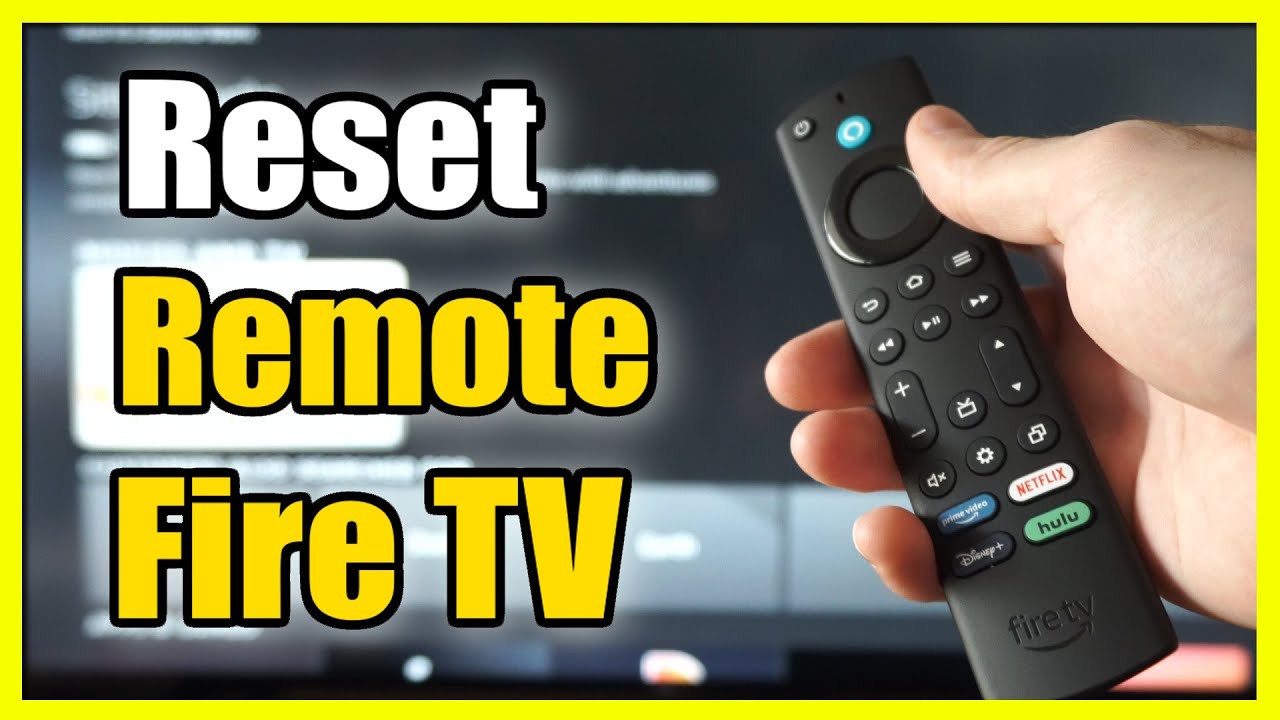
Image source: YouTube
Step-by-Step Instructions
- Power Down the Fire TV: Unplug your Fire TV device from both the power outlet and the HDMI port. Leave it disconnected for at least 60 seconds. This clears the HDMI-CEC handshake and ensures the device is ready for a new connection.
- The Button Combination: While the TV is still unplugged, pick up your remote. Press and hold the Left (on the directional ring), Menu (three horizontal lines), and Back (curved arrow) buttons at the same time.
- Hold for 12 Seconds: You must hold these three buttons for a full 12 seconds. Releasing too early may fail to trigger the reset.
- Release and Wait: Release the buttons and wait for 5 seconds.
- Remove Batteries: Take the batteries out of the remote compartment.
- Reconnect the Fire TV: Plug your Fire TV back into the power and HDMI port. Wait for the home screen to fully load.
- Reinsert and Pair: Put the batteries back into the remote. Press and hold the Home button for at least 15 seconds.
Resetting Specific Fire TV Remote Models and Generations
Not all Fire TV remotes use the same reset logic. Older generations or the "Basic Edition" remotes found in international markets require different button sequences. Identifying your remote is the first step in choosing the correct method.
Resetting the 1st Gen Alexa Voice Remote
The original Alexa Voice Remote lacks the volume and power buttons found on newer models. To reset this version, unplug your Fire TV for 60 seconds. Then, press and hold the Left and Menu buttons simultaneously for 12 seconds. Unlike newer models, you do not need to press the Back button. After waiting 60 seconds, remove the batteries, plug the TV back in, and reinsert the batteries to pair.
Resetting the Basic Edition Remote
The Basic Edition remote is often bundled with older Fire TV Sticks or sold in specific regions. To reset this model, press and hold the Home button, and while holding it, press the Menu button three times. Release the Home button and attempt to pair as usual.
Remote Model Comparison Table
| Remote Model | Identifying Features | Reset Combination |
|---|---|---|
| Alexa Voice Remote (Gen 2+) | Volume, Power, Mute buttons | Left + Menu + Back (12s) |
| Alexa Voice Remote Lite | No Power/Volume buttons | Left + Menu + Back (12s) |
| 1st Gen Alexa Remote | No Volume, No Power | Left + Menu (12s) |
| Basic Edition Remote | No Voice/Alexa button | Home + Menu (3 times) |
How to Re-Pair Your Remote After a Successful Reset
Once the reset is complete, the remote is in a "factory fresh" state and needs to find its host device. While the standard advice is to hold the Home button for 10 seconds, many users find that 15 to 20 seconds is a more reliable window for the Bluetooth handshake to complete.
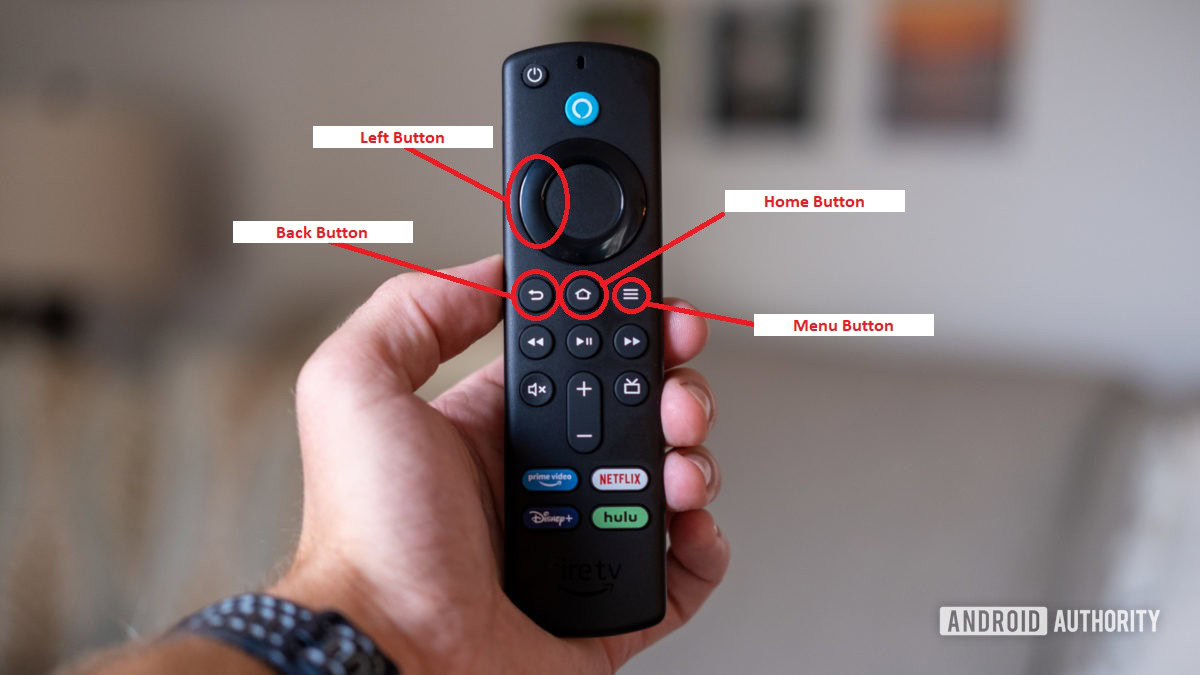
Image source: Android Authority
The "Detection Screen" Trigger
A specific nuance discovered by community experts involves the timing of battery insertion. If the standard pairing fails, try this: Unplug the Fire TV and remove the remote batteries. Plug the Fire TV back in and wait for the screen to display a message saying "Remote cannot be detected." Only *after* this message appears should you put the batteries back in. This forces the Fire OS into an active "search" mode, making it much more likely to pick up the remote's signal immediately.
If you are pairing a replacement remote, you may need to use the Fire TV mobile app to navigate to Settings > Controllers & Bluetooth Devices > Amazon Fire TV Remotes > Add New Remote . This is often necessary if the Fire TV is still trying to communicate with a previously paired (but broken) remote.
Understanding What the Flashing Lights on Your Remote Mean
Modern Fire TV remotes include a small LED at the top that provides diagnostic feedback. Understanding these signals can help you determine if the issue is a software sync problem or a hardware failure.
LED Status Decoder Table
| LED Behavior | What It Means | Action Required |
|---|---|---|
| Blinking Blue | Pairing Successful | None; remote is ready to use. |
| Blinking Amber/Orange | Discovery Mode | Wait for pairing; ensure remote is near the TV. |
| Blinking White | Not Paired / Searching | Perform the 12-second reset sequence. |
| No Light (after reset) | Hardware/Battery Failure | Replace batteries or check for corrosion. |
If your remote shows no lights even after installing fresh batteries and attempting a reset, the internal circuit may be damaged. You can verify if the remote is sending any signal by using a smartphone camera. Point the remote's IR emitter (the dark plastic at the top) at your phone's camera lens and press a button. If you see a faint purple or white flash on your phone screen, the IR transmitter is working, suggesting the issue lies with the Bluetooth pairing rather than the hardware itself.
Advanced Troubleshooting for Persistent Connection Failures
Sometimes, a reset isn't enough because the problem isn't actually the remote. Several "hidden" factors can prevent a Fire TV from accepting remote inputs, even from a perfectly functional controller.
The Hidden "Storage Trap"
One of the most overlooked causes of remote "failure" is low system storage on the Fire TV Stick itself. When a device has less than 500MB of available space, the Fire OS can become extremely sluggish or stop processing input interrupts entirely. To the user, it looks like the remote is broken, but in reality, the OS is simply too busy trying to manage system cache to listen to the remote. If your remote works intermittently or with severe lag, use the mobile app to check your storage and uninstall unused apps.
The 7-Device Pairing Limit
According to Amazon's device specifications , a Fire TV can only have a maximum of 7 Bluetooth controllers paired at once. This includes old remotes, gamepads, and keyboards. If you have reached this limit, the Fire TV will silently reject any new pairing attempts. You must use the mobile app to "Unpair" or "Forget" old devices before the reset remote will connect.
HDMI-CEC and Signal Interference
The Fire TV Stick is often tucked behind the TV, where it is surrounded by metal shielding and electronic interference. This can weaken the Bluetooth signal. Using the HDMI extender (the short, flexible cable included in the box) can move the Stick away from the TV's back panel, improving signal reception and preventing overheating, both of which are known to cause remote disconnects.
Controlling Your Fire TV Without a Physical Remote
If your physical remote is truly dead, you don't have to stop watching. The Fire TV mobile app is a highly effective alternative that works over your home Wi-Fi network. It is also an essential tool for navigating the settings menu to pair a new replacement remote.
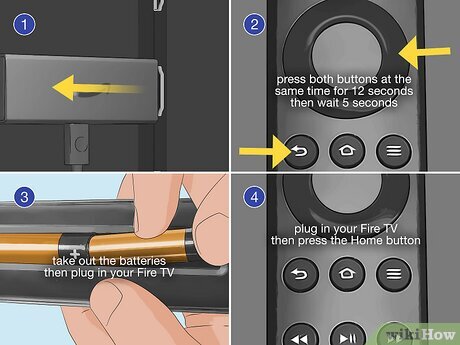
Image source: wikiHow
- Download the App: Install the "Amazon Fire TV" app from the Apple App Store or Google Play Store.
- Connect to Wi-Fi: Ensure your phone is on the same Wi-Fi network as your Fire TV.
- Select Your Device: Open the app and select your Fire TV from the list of available devices.
- Enter the Code: A 4-digit code will appear on your TV screen. Enter this into the app to pair your phone.
- Navigate to Settings: Use the digital D-pad in the app to go to Settings > Controllers & Bluetooth Devices to manage your physical remotes.
Key Takeaways for Fixing Your Remote
- Perform the 12-second reset by holding Left + Menu + Back while the Fire TV is unplugged.
- Hold the Home button for 15+ seconds to ensure the Bluetooth handshake completes.
- Check for the 7-device limit if you have multiple controllers paired to one Stick.
- Clear system storage if the remote feels laggy or unresponsive despite being paired.
- Use the HDMI extender to reduce signal interference from the back of your television.
- Watch the LED colors: Blue means success, Amber means searching, and White means a reset is needed.
- Use the mobile app as a bridge to pair new hardware or troubleshoot settings.
If these steps do not restore functionality, it is likely that your remote has suffered a hardware failure and requires replacement.
Frequently Asked Questions
How do I reset my Fire TV remote if the buttons are unresponsive?
If the buttons don't seem to register, the best approach is a full power cycle of the Fire TV device itself. Unplug the Fire TV from the wall for 60 seconds. While it is off, remove the batteries from the remote and press every button on the remote once or twice to discharge any remaining capacitance. Reinsert the batteries and plug the TV back in. This often "wakes up" a remote that has become stuck in a software loop.
Why is my Fire Stick remote flashing orange?
A flashing orange (or amber) light indicates that the remote is in "Discovery Mode." It is actively searching for a Fire TV device to pair with. If it continues to flash orange without connecting, it means the Fire TV isn't "listening." You may need to restart the Fire TV or use the mobile app to manually trigger the "Add New Remote" command in the settings menu.
Can I pair a new Fire TV remote without the original one?
Yes, you can. The most effective way to do this is by using the Fire TV mobile app on your smartphone. Once the app is connected to your Fire TV, you can use it as a temporary remote to navigate to the Bluetooth settings and select "Add New Remote." Then, put your new physical remote into pairing mode by holding the Home button for 15 seconds.
How do I reset the volume control on my Fire TV remote?
Volume and power controls use Infrared (IR) rather than Bluetooth. If these specific buttons stop working, go to Settings > Equipment Control > Manage Equipment > TV > Change TV on your Fire TV. This will walk you through a setup process where the Fire TV sends different IR codes to your remote until it finds the one that matches your specific TV brand.
What do I do if the 'Left + Menu + Back' trick doesn't work?
If the standard reset fails, check for external factors. Ensure your batteries are brand new (alkaline batteries are highly recommended over rechargeable ones for Fire remotes). Also, check if you have reached the 7-device pairing limit. Finally, try moving the Fire TV Stick to a different HDMI port or using the HDMI extender to rule out physical signal blockage or interference from the TV's internal components.
-
Topic: How to Reset Your Fire TV Remote When Not Workinghttps://www.amazon.com/gp/help/customer/display.html?nodeId=GMDKZSFRSX7NKKN3
-
Topic: Fire TV Remote not working/no lights/ reset and new batterieshttps://www.amazonforum.com/s/question/0D5at00000MINmUCAX/fire-tv-remote-not-workingno-lights-reset-and-new-batteries?language=en_US
-
Topic: Pair Your Fire TV Remotehttps://www.amazon.com/gp/help/customer/display.html?nodeId=GEARX33JWH4K6WHJ

How to Fix a Fire Stick Remote That Is Not Working or Responding
Is your Fire Stick remote unresponsive? Learn how to reset, re-pair, and decode LED light colors to fix your remote in minutes.


How to Factory Reset Your Chromecast Even If You Lost the Remote or Wi-Fi
Learn how to factory reset your Chromecast with Google TV, Ultra, or older models using the Google Home app, physical buttons, or remote shortcuts.


How to Set Up and Play Jackbox.tv on Your Smart TV or Console
Learn to set up Jackbox.tv, fix lag, and play on Netflix or RV antennas. Get your room code and start your party game night now.