
How to Factory Reset Your Chromecast Even If You Lost the Remote or Wi-Fi
To factory reset a Chromecast, you have two primary options: use the Google Home app (Settings > Device Information > Factory Reset) or hold the physical button on the side of the device while it is powered on. For most modern models, hold the button until the LED light turns solid white , then release. This process erases all data and prepares the device for a fresh setup.
Whether you are dealing with persistent connectivity issues, preparing to sell your device, or simply moving to a new home with a different Wi-Fi network, knowing how to perform a factory reset is essential. A factory reset, often called a "hard reset," returns your Chromecast to its original out-of-the-box state. This is distinct from a "soft reset" or reboot, which simply restarts the hardware without deleting your preferences.
According to official Google documentation , a factory reset is a permanent action. Once completed, you will need to set up the device again from scratch using the Google Home app. This guide covers every generation of Chromecast, ensuring you can restore your streaming capabilities regardless of which hardware version you own.
Identifying Which Chromecast Model You Are Currently Using
Before you reach for the reset button, it is vital to identify your specific model. Google has released several iterations of the Chromecast since its debut, and the reset procedures—specifically the LED light behaviors—vary significantly between generations. Following the wrong instructions might lead to confusion or an incomplete reset.
| Model Name | Physical Appearance | Key Feature |
|---|---|---|
| Chromecast with Google TV | Oval, matte finish, includes a remote | Dedicated UI and Voice Remote |
| Chromecast Ultra | Circular, glossy finish, heavy puck | 4K Support & Ethernet on power brick |
| Chromecast (3rd Gen) | Circular, matte finish, "G" logo | 1080p at 60fps |
| Chromecast (1st Gen) | Shaped like a thumb drive/stick | Original 2013 legacy hardware |
If your device is tucked behind a wall-mounted television, you can also identify it via the Google Home app. However, if the device is no longer connecting to your network, physical identification is the only reliable method. Note that the Chromecast with Google TV is widely considered one of the top choices for modern streaming due to its standalone interface, whereas older models rely entirely on "casting" from a phone or tablet.
Resetting Your Device Through the Google Home Application
The software method is the most convenient way to wipe your device, provided the Chromecast is still connected to your Wi-Fi network and visible in your app. This method is preferred because it allows you to initiate the reset from the comfort of your couch without fumbling with cables behind the TV.
- Open the Google Home App: Ensure your smartphone or tablet is connected to the same Wi-Fi network as the Chromecast.
- Select Your Device: Tap and hold the tile representing your Chromecast (e.g., "Living Room TV").
- Access Settings: Tap the Settings gear icon located in the top-right corner of the screen.
- Navigate to More Options: Tap the three vertical dots (More) in the top-right corner.
- Initiate Factory Reset: Select Factory Reset and confirm your choice. The device will begin the wipe process and reboot automatically.
Using the Physical Reset Button on the Chromecast Hardware
If you have changed your Wi-Fi password or moved to a new home, the app method will not work because the device cannot communicate with your phone. In these scenarios, you must use the physical button located on the Chromecast dongle itself. This method is exceptionally strong for troubleshooting "orphaned" devices that are no longer recognized by any account.
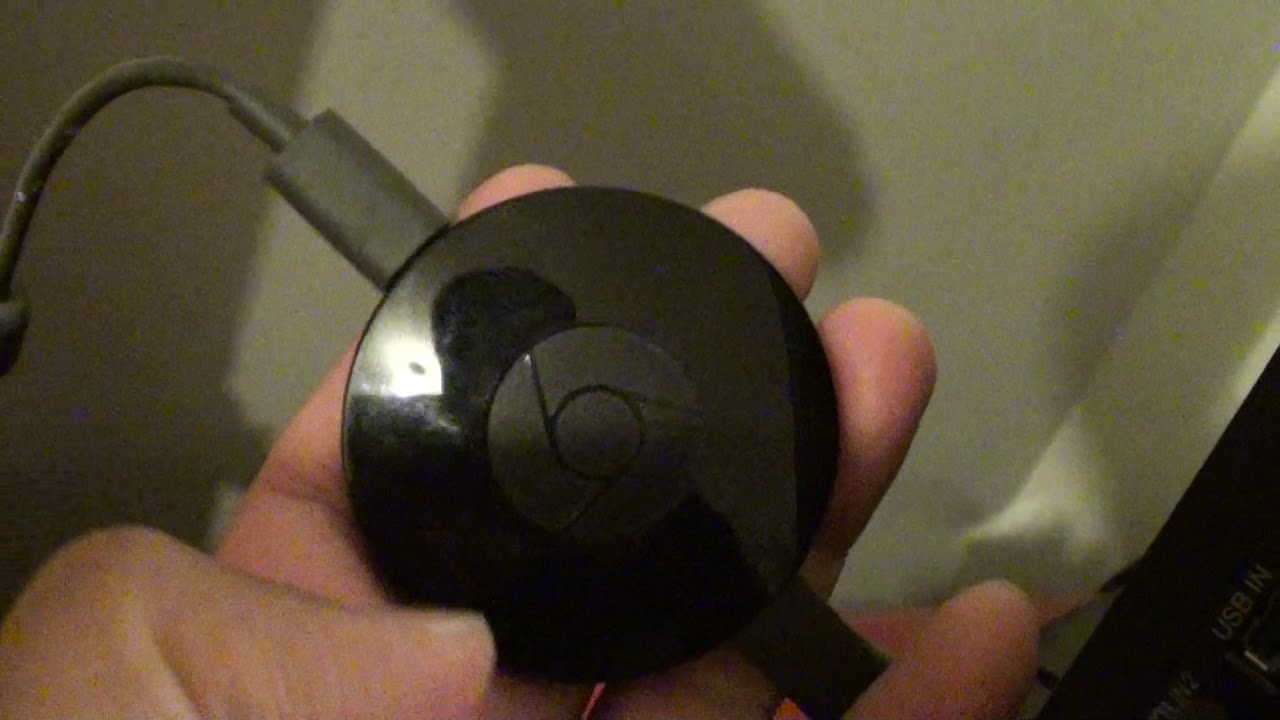
Image source: YouTube
Instructions for Chromecast with Google TV (4K and HD)
The latest generation of Chromecast features a small, circular button on the back of the device. To reset it:
- Ensure the Chromecast is plugged into a power source and connected to the TV.
- Press and hold the button on the back of the device.
- Watch the LED light: it will begin to blink yellow .
- Continue holding the button until the LED light turns solid white .
- Release the button. The device will now restart and enter setup mode.
Steps for Chromecast 2nd Gen, 3rd Gen, and Ultra
These disc-shaped models have a button on the side of the circular housing. The process is similar but uses different color indicators:
- While the device is powered on, hold down the side button.
- The LED will begin to flash orange .
- Hold the button until the LED turns solid white .
- Release the button and wait for the reboot sequence to finish.
Resetting the Original 1st Generation Chromecast Stick
The legacy "stick" model requires a longer hold time. According to Google's legacy support pages , you must hold the button for at least 25 seconds. The LED will flash red during this time. Do not release the button until the light flashes white and the TV screen goes blank. Note that the 1st Gen model is no longer receiving active security updates, so a reset may be a good time to consider upgrading to a newer version.
How to Perform a Separate Factory Reset on the Voice Remote
Sometimes the Chromecast itself is functioning perfectly, but the voice remote has become unresponsive or refuses to pair. In these cases, resetting the dongle won't help; you need to reset the remote hardware independently. This is a common fix for "Remote not found" errors on the Google TV interface.
- Remove the Batteries: Take both batteries out of the remote and wait for 30 seconds to clear the internal capacitors.
- Hold the Home Button: While the batteries are still out, press and hold the Home button .
- Reinsert Batteries: While continuing to hold the Home button, put the batteries back in.
- Watch the LED: Continue holding the button until the LED light on the remote starts pulsing or stays solid.
- Release and Pair: The remote is now reset. You may need to use the button on the Chromecast dongle to trigger the on-screen pairing menu if the remote doesn't pair automatically.
An alternative shortcut for the remote is to hold the Mute and Center (Select) buttons simultaneously until the LED pulses. This forces the remote into pairing mode without a full battery pull, which is often sufficient for minor glitches.
Connecting to a New Wi-Fi Network Without the Physical Button
A common pain point occurs when a user moves to a new house and the Chromecast is buried behind a heavy, wall-mounted TV, making the physical button inaccessible. If you cannot reach the button and the app cannot see the device (because the Wi-Fi has changed), you can use the "SSID Spoofing" trick.
This method involves temporarily changing your new router's name (SSID) and password to match your old network's credentials. Once you do this, the Chromecast will automatically connect to the "fake" old network. You can then use the Google Home app to perform a soft factory reset. After the reset is initiated, you can change your router settings back to your preferred new name and set up the Chromecast normally. This clever workaround saves significant physical labor and is a favorite among community forums like Reddit.
Troubleshooting Common Factory Reset Failures and Errors
Even with the correct steps, you may encounter the "Orphaned Device" loop. This happens when you "Forget" or remove the device from the Google Home app before physically resetting the hardware. The app thinks the device is gone, but the device still thinks it belongs to the old home. If this happens, the physical button method is your only recourse.
Another frequent issue is a "mushy" or jammed reset button. If the physical button does not click or feel responsive, the device may have suffered heat damage over years of use. In this case, try using a different power brick. Sometimes, the USB port on a TV does not provide enough amperage to complete a factory reset, which is a resource-intensive process. Using the original wall outlet adapter can often resolve "stuck" reset cycles.
Finally, if you see a black screen after a reset, don't panic. The device may be downloading a mandatory "out-of-box" firmware update. Give it at least 10 minutes to finish its background tasks before assuming the reset failed. If the device remains unresponsive, Soundcore's troubleshooting guide suggests a full power cycle: unplug the device from both the HDMI port and power for 60 seconds to clear the cache.
Frequently Asked Questions About Chromecast Resets
Does a factory reset delete my Google account?
How long should I hold the reset button?
Can I reset a Chromecast without the Google Home app?
Why is my Chromecast light red?
Will I lose my paid apps on Google TV after a reset?
Summary of the Chromecast Factory Reset Process
Performing a factory reset is a highly effective way to resolve 90% of common streaming issues. Here are the key takeaways to remember:
- Identify your model first to know which LED colors to look for during the reset.
- Use the Google Home app if the device is still on your Wi-Fi for the most convenient experience.
- Hold the physical button until the LED turns solid white for a hardware-level wipe.
- Keep the power connected throughout the entire process to avoid damaging the firmware.
- Reset the remote separately if you are only experiencing navigation or pairing issues.
- Try SSID spoofing if the physical button is inaccessible and your Wi-Fi has changed.
Once the LED turns solid white and the device reboots, simply open your Google Home app and follow the prompts to set up your "new" device.
-
Topic: How to factory reset a Chromecast once I "Forgot The ...https://www.reddit.com/r/Chromecast/comments/1afx946/how_to_factory_reset_a_chromecast_once_i_forgot/
-
Topic: How to Reset Chromecast - Soft & Hard Reset Stepshttps://www.soundcore.com/blogs/projectors/how-to-reset-chromecast
-
Topic: Factory Reset Options for Google Chromecasthttps://www.lifewire.com/factory-reset-chromecast-11777318
How to Reset Your Fire TV Remote and Fix Pairing Issues Quickly
Fix your Fire TV remote with the 12-second reset trick. Learn how to pair, troubleshoot blinking lights, and fix unresponsive buttons in minutes.

How to Fix a Fire Stick Remote That Is Not Working or Responding
Is your Fire Stick remote unresponsive? Learn how to reset, re-pair, and decode LED light colors to fix your remote in minutes.
How to Create, Reset, and Manage Your Roku PIN Without Losing Your Data
Forgot your Roku PIN? Learn how to reset it without a factory reset, manage parental controls, and stop accidental purchases on your Roku account.