
How to Enable and Use Picture in Picture on Every Device
Understanding Picture in Picture and How It Works
Picture-in-Picture (PiP) is a multitasking feature that allows a video to play in a small, floating window while you continue to use other applications or browse different websites. This "always on top" window can be moved around the screen and resized, ensuring that your media remains visible even when you are drafting an email, taking notes during a lecture, or following a complex software tutorial. According to Wikipedia , the core value of PiP lies in its ability to maintain a continuous visual stream without sacrificing the utility of the primary display area.
While we often view PiP as a modern mobile convenience, its roots extend deep into the history of broadcast television. The technology was first showcased during the 1976 Summer Olympics, where it allowed viewers to keep track of multiple events simultaneously. By 1980, NEC introduced the "Popvision" television, which featured a secondary 6-inch screen specifically for a "picture-aside-picture" experience. At the time, this hardware was a significant investment, costing approximately ¥298,000 (roughly $1,200 in 1980 currency). Today, this functionality is standard across virtually all modern operating systems, powered by sophisticated software APIs rather than expensive dual-tuner hardware.
First public demonstration of PiP during the Montreal Summer Olympics.
NEC releases the Popvision, the first consumer TV with a dedicated secondary screen.
Android 8.0 (Oreo) introduces native PiP support for mobile devices.
Apple releases iOS 14, bringing native PiP to the iPhone for the first time.
Activating Picture in Picture in Your Web Browser
Desktop browsers have become the primary hub for PiP usage, especially for users who watch long-form content while working. Google Chrome, Mozilla Firefox, and Apple Safari all support native PiP APIs, meaning many websites can trigger the floating window without any additional software. However, for a consistent experience across all sites, the official Google PiP extension is widely regarded as a top choice, boasting over 4 million active users.
Using the Official Chrome Extension
The official extension provides a dedicated button in your browser toolbar, making it easy to pop out videos from sites that might not have a native PiP button in their player. Once installed, you simply click the icon while a video is playing, and the window will detach. This tool is particularly useful for platforms like Netflix or HBO Max, which sometimes use custom players that hide the standard browser controls.
When searching for PiP tools, always prioritize official extensions from known developers. Some third-party "floating player" extensions are listed by "non-trader" developers and may request excessive permissions to read your browsing data. Stick to the official Google or browser-native options to ensure your data remains secure.
The Native "Double Right-Click" Method
If you prefer not to install extensions, you can often trigger PiP manually on sites like YouTube. Because YouTube uses a custom right-click menu for its own features (like "Loop" or "Copy video URL"), the browser's native menu is hidden. To bypass this, right-click once to open the YouTube menu, then right-click a second time immediately after. This will reveal the standard browser context menu, where you can select "Picture in Picture."
Essential Keyboard Shortcuts for Desktop Multitasking
For power users, keyboard shortcuts are the most efficient way to manage floating windows without breaking your workflow. These shortcuts are typically tied to the official browser extensions or the native OS controls.
| Operating System | Shortcut | Requirement |
|---|---|---|
| Windows / Linux | Alt + P | Google PiP Extension installed |
| macOS | Option (⌥) + P | Google PiP Extension installed |
| macOS (Safari) | Right-click volume icon | Native Safari functionality |
| Windows (Global) | Win + Shift + Arrow Keys | Used to recover "lost" PiP windows |
These shortcuts allow you to toggle the window on and off instantly. In recent browser updates, developers have also integrated Media Session API support, meaning your PiP window may even show "Next Track" or "Skip" buttons if the website has implemented those controls correctly.
Enabling Picture in Picture on iPhone and iPad
Apple introduced native PiP support with iOS 14, transforming the multitasking capabilities of the iPhone. Unlike desktop browsers, iOS PiP is designed to be highly automated. When configured correctly, the video window will follow you as you exit an app to check your messages or scroll through social media.
How to Configure iOS Settings
- Open the Settings app on your iPhone or iPad.
- Navigate to General .
- Tap on Picture in Picture .
- Ensure the toggle for Start PiP Automatically is turned ON.
Once this is enabled, you can trigger PiP by simply swiping up from the bottom of the screen (or pressing the Home button) while a video is playing in a supported app like Safari, Apple TV, or Netflix. The video will shrink into a corner, allowing you to drag it to any of the four corners of your display. You can also "hide" the window by dragging it off the side of the screen; a small tab will remain visible so you can pull the video back when needed.
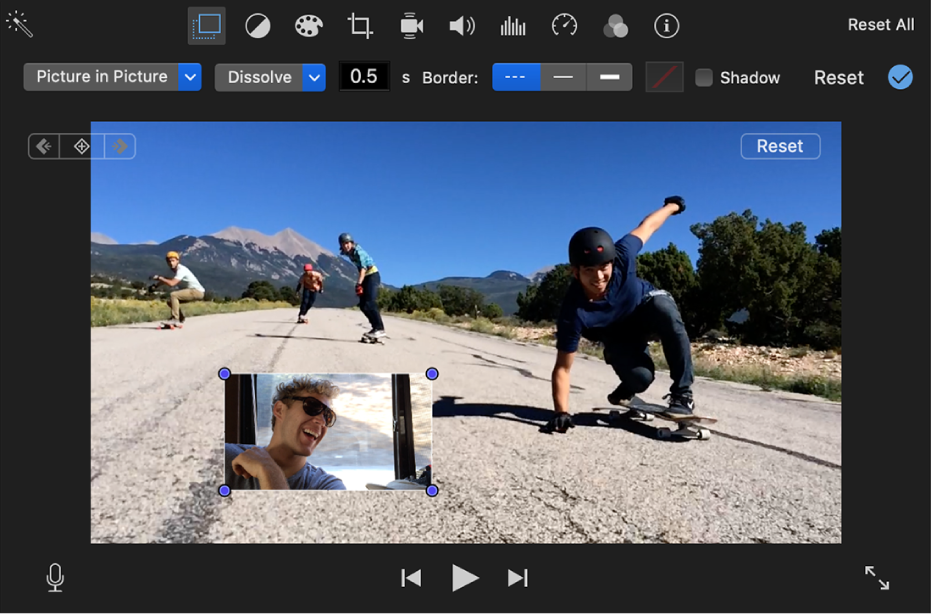
Image source: Apple Support
Mastering Picture in Picture Gestures on Android
Android has supported PiP since version 8.0 (API level 26), but recent updates in Android 12 and later have introduced advanced interaction techniques that many users overlook. These gestures make the floating window much more dynamic and easier to manage on smaller screens.
Advanced Interaction Techniques
- Stashing: You can "stash" a PiP window by dragging it to the left or right edge of the screen. The window will slide mostly off-screen, leaving only a small handle visible. This is an excellent choice for when you want to listen to a video's audio but need the full screen for another task.
- Pinch-to-Zoom Resizing: Instead of relying on fixed sizes, modern Android versions allow you to pinch the PiP window to resize it to your exact preference.
- Double-Tap Toggle: A quick double-tap on the PiP window will instantly toggle it between its minimum and maximum sizes, which is much faster than manual dragging.
- Single-Tap Controls: Tapping the window once reveals the play/pause buttons, a settings shortcut, and the button to return to full-screen mode.
According to Android Developers documentation , these features are designed to provide a seamless transition between the app and the home screen. If PiP isn't working for a specific app, you may need to check the "Special App Access" settings, which we will cover in the troubleshooting section below.
Troubleshooting YouTube Picture in Picture Restrictions
YouTube is the most common platform where users encounter PiP issues. The availability of the feature depends on a complex mix of your geographic location, the type of content you are watching, and whether you have a paid subscription. In the United States, PiP is generally free for all users watching non-music content. However, the global rollout for free users is ongoing and varies significantly by territory.
YouTube Free Users
- Available in the U.S. for non-music videos.
- Rolling out globally for select content.
- Music videos usually blocked.
- Includes advertisements.
YouTube Premium Users
- Available globally for all content.
- Supports official music videos.
- Ad-free experience.
- Background audio play included.
If you are trying to watch a music video (such as an official Vevo upload or a song cover), YouTube typically restricts PiP to Premium subscribers. This is a business decision rather than a technical limitation. For non-music content, if PiP isn't working, ensure you have enabled it within the YouTube app settings by tapping your profile picture > Settings > General > Picture-in-picture .
Solutions for Common Picture in Picture Technical Issues
Even with the right settings, PiP can occasionally glitch. Below are solutions for the most frequent user complaints, ranging from "ghost windows" to permission hurdles.
The "Ghost Window" Multi-Monitor Bug
Users with multiple monitors often report that the PiP window disappears or turns into a black box. This usually happens when the window "remembers" a position on a monitor that has since been disconnected. To fix this, click the browser icon in your taskbar to ensure the PiP window is focused, then press Windows Key + Shift + Left/Right Arrow . This command forces the active window to snap back to your primary display.
Fixing Black Screen Issues
If your PiP window opens but only displays a black screen while the audio continues to play, the culprit is often
Hardware Acceleration
. In Chrome, go to
Settings > System
and toggle "Use graphics acceleration when available" to OFF. Restart your browser and try again. If this fixes the issue, your graphics drivers may need an update.
Missing Toggles on Android
On some Android devices, the PiP toggle is hidden deep within the system settings. If an app should support PiP but doesn't, follow this path:
Settings > Apps > Special app access > Picture-in-picture
.
From here, you can manually grant permission to specific apps like YouTube, Netflix, or WhatsApp.
Implementation Guide for Web Developers and Designers
For those building websites, implementing PiP is a significant advancement in user experience. The MDN Web Docs provide a comprehensive look at the Picture-in-Picture API, which allows you to programmatically control the video window.
Basic JavaScript Implementation
To trigger PiP via a custom button, you can use the following logic:
const video = document.getElementById('myVideo');
const toggleBtn = document.getElementById('pipBtn');

toggleBtn.addEventListener('click', async () => {
  if (document.pictureInPictureElement) {
    await document.exitPictureInPicture();
  } else {
    await video.requestPictureInPicture();
  }
});
CSS Styling for PiP Mode
Web designers can use the
:picture-in-picture
pseudo-class to change the layout of the page when the video leaves the main frame. For example, you might want to show a placeholder image or a "Video is playing in PiP" message in the original video container to prevent the layout from collapsing.
Frequently Asked Questions
- Check OS Compatibility: Ensure you are running at least iOS 14 or Android 8.0 for mobile support.
- Use Keyboard Shortcuts: Master Alt + P on desktop to toggle windows instantly.
- YouTube Music Restriction: Remember that official music videos usually require a Premium subscription for PiP.
- Advanced Android Gestures: Use "stashing" to hide the video while keeping the audio active.
- Fix Ghost Windows: Use Win + Shift + Arrow Keys to recover windows lost on secondary monitors.
-
Developer Tools:
Utilize the
:picture-in-pictureCSS pseudo-class for better site layouts. - Privacy First: Only use official browser extensions to protect your personal browsing data.
Start by enabling the auto-PiP setting on your mobile device today to experience a more fluid way of handling video content while you work.
-
Topic: Picture-in-Picture Extension (by Google)https://chromewebstore.google.com/detail/picture-in-picture-extens/hkgfoiooedgoejojocmhlaklaeopbecg?hl=en
-
Topic: Picture-in-picturehttps://en.wikipedia.org/wiki/Picture-in-picture
-
Topic: Use picture-in-picture (PiP) | Viewshttps://developer.android.com/develop/ui/views/picture-in-picture

Is Photoshop Free on Web and How to Access It Without a Subscription
Get Photoshop free on web for 6 months. Learn about technical limits, AI features, and top browser-based alternatives like Photopea.

How to Test Your Webcam and Fix Common Video Quality Issues
Quickly test your webcam online, troubleshoot black screens, and optimize video quality for Zoom or Teams on Windows, Mac, and Linux.

How to Find Create and Manage Images Using Search Engines and AI Tools
Master image search, AI generation, and professional editing. Learn to use Google Images, AI tools, and fix common display bugs in 2026.