
How to Enter the BIOS on an Acer Aspire E15 and Access Hidden Settings
Accessing the BIOS (Basic Input/Output System) or UEFI firmware on an Acer Aspire E15 is a fundamental skill for troubleshooting hardware issues, upgrading components, or installing a new operating system. Whether you are looking to change the boot order to start from a USB drive or need to enable virtualization for software development, the process requires precise timing and knowledge of specific hardware interrupts.
Modern Acer laptops, including the popular E15 series (such as the E5-575G and E5-576G), often utilize UEFI firmware which integrates closely with Windows. This integration, while improving boot speeds, can sometimes make it difficult to enter the BIOS using traditional keyboard methods. This guide covers every verified method to gain access, including shortcuts to reveal hidden advanced settings that are not documented in the standard user manual.
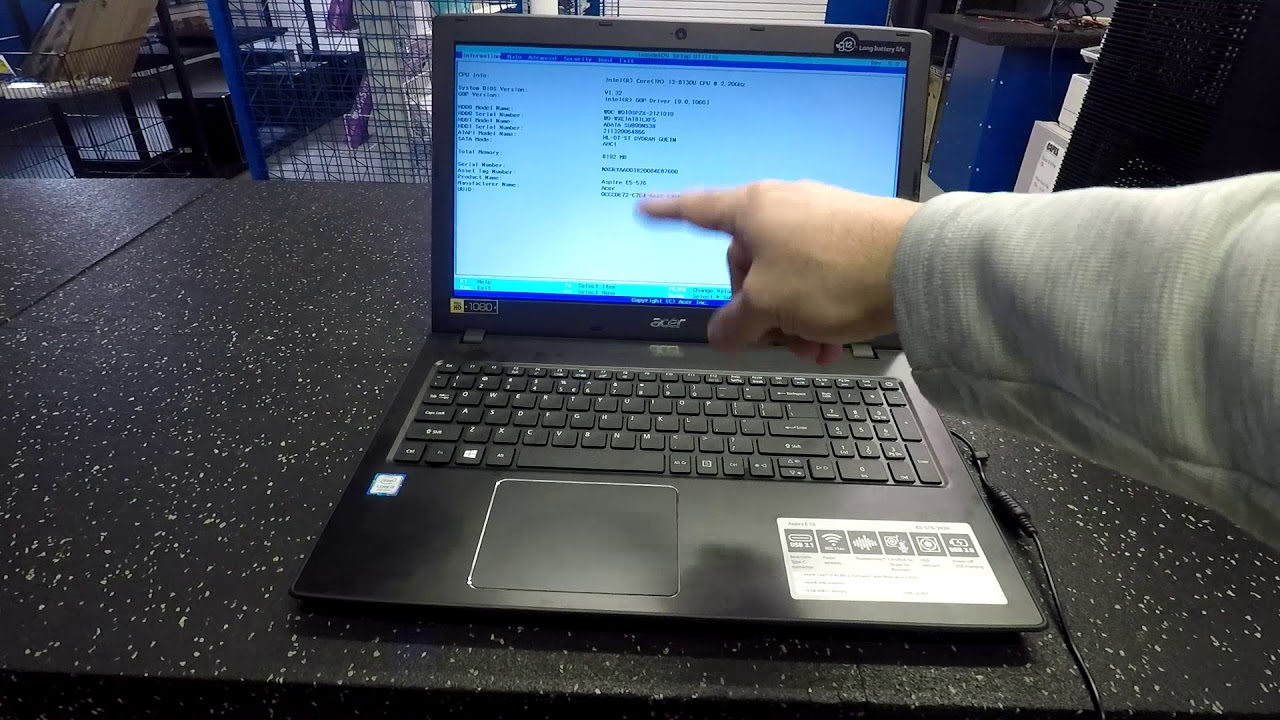
Image source: YouTube
The Standard Method to Access BIOS Using the F2 Key
For the vast majority of Acer Aspire E15 models, the F2 key stands out as a top choice for entering the setup utility. This method works at the hardware level before the operating system begins to load. However, the window of opportunity is narrow—often less than two seconds.
To execute this successfully, follow these steps:
- Perform a Full Shutdown: Do not simply put the laptop to sleep or hibernate. In Windows, click Start > Power > Shut Down. For a more reliable "cold boot," hold the Shift key while clicking Shut Down.
- Power On: Press the Power button on the top right of the keyboard deck.
- The Tapping Technique: Immediately start tapping the F2 key once every half-second. Do not wait for the Acer logo to appear; by then, it is often too late.
- Enter Setup: If successful, the screen will transition to a blue or grey interface titled "InsydeH2O Setup Utility."
According to official Acer support documentation , the Delete key is an alternative for some desktop models, but for the E15 laptop line, F2 remains the primary standard. If F2 fails after multiple attempts, ensure you are not accidentally holding the key down, as the system requires discrete "press and release" signals to register the interrupt.
Troubleshooting Why the BIOS Key Is Not Working
If you find that tapping F2 simply leads you straight to the Windows login screen, you are likely encountering one of three common hurdles. Modern firmware is designed for speed, which often sacrifices the user's ability to manually intervene during startup.
The Fast Startup Obstacle
Windows 10 and Windows 11 use a feature called "Fast Startup." This is essentially a hybrid between a shutdown and hibernation. When you turn off your computer, Windows saves the state of the OS kernel to the hard drive. Upon the next boot, it loads this saved state rather than performing a full hardware initialization. Because the hardware doesn't "reset" fully, the BIOS interrupt window is often skipped entirely.
The Fn Key Conflict
Many Acer Aspire E15 laptops are configured with "Action Keys" or "Media Keys" as the default behavior for the top row. This means pressing F2 might actually be sending a command to lower the volume or dim the screen brightness. To bypass this, try holding the Fn key while tapping F2 . Many users find this is the missing step in their troubleshooting process.
The Restart vs. Shutdown Difference
Interestingly, clicking "Restart" in Windows often triggers a more thorough hardware reset than clicking "Shut Down" (due to the Fast Startup feature mentioned above). If you are struggling to hit the timing, try selecting Restart and begin tapping F2 the moment the screen goes black.
Pro Tip: If your keyboard is unresponsive during boot, try connecting an external USB keyboard. Occasionally, the integrated keyboard driver initialization happens slightly after the BIOS interrupt window, especially on older firmware versions.
Accessing UEFI Firmware Settings Through Windows 11 and 10
When the keyboard method proves unreliable, Windows provides a software-based path to reboot directly into the BIOS. This is a highly recommended approach for users who find the startup timing too difficult to master. This method utilizes the UEFI (Unified Extensible Firmware Interface) protocol to communicate directly with the motherboard.
Steps for Windows 11 Users
- Open Settings (Windows Key + I).
- Navigate to System > Recovery .
- Locate the Advanced startup section and click the Restart now button.
- Your laptop will reboot to a blue screen menu. Select Troubleshoot .
- Choose Advanced options .
- Select UEFI Firmware Settings and click Restart .
Steps for Windows 10 Users
The path is slightly different but follows the same logic. Go to Settings > Update & Security > Recovery . Under Advanced startup, click Restart now . Once the blue menu appears, follow the same path: Troubleshoot > Advanced options > UEFI Firmware Settings .
This software-based entry is widely considered one of the most reliable ways to access the BIOS because it removes the human error associated with key-press timing. It is particularly useful if you have a fast NVMe SSD that boots the system in under five seconds.

Image source: YouTube
Enabling the F12 Boot Menu in Acer BIOS Settings
A common frustration for Acer Aspire E15 owners is the inability to use the F12 Boot Menu. By default, Acer ships many of these laptops with the F12 menu disabled for security reasons. This creates a "Catch-22" where you need the BIOS to enable the boot menu, but you wanted the boot menu to avoid the BIOS.
To enable this feature, follow these steps once you have successfully entered the BIOS using the F2 method:
- Use the right arrow key to navigate to the Main tab.
- Scroll down using the arrow keys until you find F12 Boot Menu .
- Press Enter and change the value from [Disabled] to [Enabled] .
- Press F10 to save your changes and exit.
Once enabled, you can simply tap F12 during startup to see a list of available bootable devices, such as a Windows installation USB or a Linux Live drive. This is a significant advancement in convenience for users who frequently switch between operating systems or perform maintenance tasks.
| Feature | BIOS Menu (F2) | Boot Menu (F12) |
|---|---|---|
| Primary Purpose | Change hardware settings, security, and clock. | One-time selection of boot device (USB, HDD, PXE). |
| Default Status | Always Enabled | Usually Disabled by Acer |
| Complexity | High (Many tabs and settings) | Low (Simple list of drives) |
| Risk Level | Moderate (Can affect system stability) | Low (Only affects the current boot) |
Unlocking Hidden Advanced BIOS Menus with Secret Shortcuts
Power users often find the standard Acer BIOS to be somewhat limited. Many settings, such as the VMD Controller (essential for certain SSD configurations) or advanced touchpad modes, are hidden by default. However, the Acer Aspire E15 series contains "secret" keyboard sequences that reveal these options.
The Ctrl + S Shortcut
While inside the BIOS on the Main tab, press Ctrl + S . On many firmware versions (specifically v1.31 and newer), this will instantly reveal hidden options. The most common revealed setting is the VMD Controller or SATA Mode . If you are trying to install Windows and the installer cannot find your hard drive, switching the VMD controller settings after using this shortcut is often the solution.
The Fn + Tab Sequence
For those needing to access virtualization settings (like SVM or VT-x) that appear missing, there is a more complex "pro secret." According to community experts on iFixit , you can try the following:
- Shut down the laptop.
- Hold Fn + Tab simultaneously for about 3 seconds.
- While still holding them (or immediately after releasing), press the Power button and start tapping F2 .
- If successful, a new "Advanced" tab may appear in the BIOS utility, offering deeper control over CPU and chipset features.
These hidden menus are not officially supported for general users, so proceed with caution. Changing settings in these menus can lead to boot failures if you are unfamiliar with the parameters.
Managing Boot Priority and Disabling Secure Boot
If you are attempting to boot from a non-Windows operating system, you will likely need to interact with the Security and Boot tabs. Acer's implementation of Secure Boot is notably strict, often preventing any unauthorized bootloaders from executing.
The Supervisor Password Requirement
On many E15 models, the "Secure Boot" option is greyed out and cannot be changed. To unlock it, you must first set a Supervisor Password . Navigate to the Security tab, select "Set Supervisor Password," and enter a simple password (don't forget it!). Once a password is set, you will find that the Secure Boot option on the Boot tab is now toggleable.
Legacy vs. UEFI Mode
While older E15 models allowed for a "Legacy" boot mode, newer versions (like the E5-576G) are almost exclusively UEFI. If you are trying to boot an older utility that requires Legacy mode, you may need to disable Secure Boot first. However, for modern versions of Windows and Linux, keeping the system in UEFI mode is a top-tier choice for security and performance.

Image source: YouTube
Resolving Common Acer BIOS and Startup Issues
Even with the correct key, things can go wrong. Here are the most frequent issues encountered by E15 users and how to resolve them based on community wisdom and technical standards.
- Black Screen After Entering BIOS
- This can occur if the BIOS is trying to output to an external monitor that isn't connected or if the CMOS battery is failing. Try disconnecting all peripherals and performing a battery reset (using the pinhole on the bottom of the laptop) before trying again.
- Forgotten BIOS Password
- If you set a Supervisor Password and forgot it, the laptop will lock you out after three failed attempts and provide a "Hint Code." You can sometimes use this code with authorized backdoor generators, but the most reliable fix is contacting Acer support with proof of purchase.
- BIOS Settings Not Saving
- If your clock resets or your boot order reverts every time you unplug the laptop, your CMOS battery (a small CR2032 coin cell inside the chassis) likely needs replacement. This is a common issue for E15 models that are several years old.
- Resetting to Factory Defaults
- If you have changed settings and the laptop no longer boots correctly, enter the BIOS and press F9 . This is the standardized key to "Load Setup Defaults." Follow this by pressing F10 to save and exit.
For users looking for a visual walkthrough, Silicon Direct's video guide provides an excellent demonstration of the F2 timing on the E15 series.
Key Takeaways for Acer Aspire E15 BIOS Access
- Primary Access: Use the F2 key repeatedly during the initial power-on phase.
- Boot Menu: The F12 key handles one-time boot selection but must be enabled in the BIOS "Main" tab first.
- Windows Shortcut: Use Settings > Recovery > Advanced Startup to bypass timing issues and boot directly into UEFI.
- Hidden Settings: Press Ctrl + S on the Main tab to reveal advanced options like the VMD Controller.
- Secure Boot: You must set a Supervisor Password in the Security tab before you can disable Secure Boot.
- Function Keys: If F2 fails, try holding the Fn key simultaneously to ensure the function command is sent.
- Resetting: Use F9 to restore factory default settings if you encounter stability issues.
By following these steps, you can gain full control over your Acer Aspire E15 hardware and customize the system to your specific needs.
Frequently Asked Questions
Why is F2 not working on my Acer Aspire E15?
The most common reason F2 fails is Windows "Fast Startup," which skips the BIOS interrupt window. To fix this, hold the Shift key while clicking "Shut Down" to force a full power cycle. Additionally, check if your laptop requires the Fn key to be held (Fn + F2) to register function key inputs.
How do I enable the F12 boot menu?
Enter the BIOS using the F2 method, navigate to the "Main" tab, and look for the "F12 Boot Menu" option. Change it from Disabled to Enabled, then press F10 to save and exit. You can now tap F12 during startup to select your boot device.
What is the BIOS key for Acer Aspire E15 on Windows 11?
The hardware key remains F2 regardless of the operating system. However, Windows 11 users can also go to Settings > System > Recovery > Advanced Startup > Restart Now, then navigate to Troubleshoot > Advanced Options > UEFI Firmware Settings to enter BIOS.
How do I boot from a USB drive on an Acer E15?
First, enable the F12 Boot Menu in the BIOS. Then, plug in your bootable USB, restart the laptop, and tap F12. Select your USB drive from the list. If it doesn't appear, you may need to disable "Secure Boot" in the BIOS Security tab (which requires setting a Supervisor Password first).
How do I access hidden advanced BIOS settings?
Once inside the BIOS, navigate to the "Main" tab and press Ctrl + S . This reveals hidden options like SATA Mode or VMD Controller. For even deeper settings, some users hold Fn + Tab for three seconds before powering on the device and tapping F2.
Can I reset my BIOS password if I forgot it?
If you forget the Supervisor Password, you will be prompted for a code after three failed attempts. You can provide this code to Acer Support to receive a master reset key. There is no simple "reset button" on the motherboard for modern UEFI passwords due to security protocols.
-
Topic: access BIOS ACER Aspire E15 E5-573 with windows 10https://community.acer.com/en/discussion/462808/access-bios-acer-aspire-e15-e5-573-with-windows-10
-
Topic: Acer Aspire E 15 laptop - How to Get into the BIOShttps://www.youtube.com/watch?v=jUUsGWQS-B4
-
Topic: How to open BIOS or Boot Options menu on an Acer Laptop.https://www.reddit.com/r/techsupport/comments/4fpkyz/how_to_open_bios_or_boot_options_menu_on_an_acer/

How to Install and Optimize Linux on Acer Laptops for Better Performance
Learn how to install Linux on Acer laptops. Fix BIOS issues, enable AHCI with Ctrl+S, and choose a distro for Aspire, Nitro, and Swift models.


How to Fix an Acer Laptop Stuck on the Loading Screen Without Losing Your Data
Stuck on the Acer logo? Fix boot loops with battery pinhole resets, Alt+F10 recovery, and data-safe repairs for Nitro and Aspire models.

What Does Alt+F4 Do and How Do You Use It Correctly?
Learn what Alt+F4 does, why it fails on laptops, and how to avoid gaming pranks. Covers Windows shortcuts, technical signals, and troubleshooting.