How to Fix an Acer Laptop Stuck on the Loading Screen Without Losing Your Data
If your Acer laptop is frozen on the logo, perform a Hard Reset immediately. This drains residual static electricity that often prevents the BIOS from handing off control to Windows. Follow these steps:
- Unplug the power adapter and remove all USB devices, mice, or SD cards.
- Press and hold the Power Button for exactly 30 seconds.
- Plug the power adapter back in (leave peripherals disconnected).
- Press the power button normally to reboot.
According to Asurion technical experts , this simple discharge resolves a significant percentage of boot hangs without further intervention.
Seeing your Acer Nitro, Aspire, or Swift laptop freeze at the splash screen is a frustrating experience that often occurs at the most inconvenient times. Whether the loading circle is spinning infinitely or the screen is completely static, the issue typically stems from a "handshake" failure between your hardware (BIOS/UEFI) and your operating system (Windows). This guide provides a tiered troubleshooting approach, moving from non-invasive power resets to advanced data recovery techniques, ensuring you can restore your device while keeping your precious files safe.
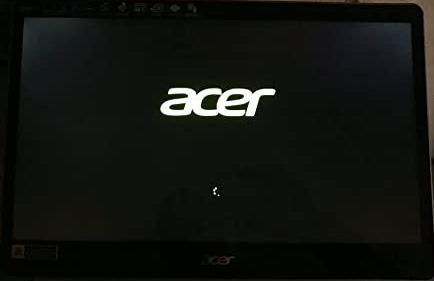
Image source: MiniTool Software
Why Is Your Acer Laptop Stuck on the Logo?
Understanding the root cause of a boot loop is essential for choosing the right fix. When you press the power button, the laptop performs a Power-On Self-Test (POST). If the hardware passes, the BIOS looks for the "Boot Loader" on your SSD or HDD. A freeze at the Acer logo suggests the hardware is functional, but the software handoff is failing.
Common culprits include:
- Corrupted Windows Updates: A partial installation can leave system files in an unstable state.
- Static Buildup: Capacitors on the motherboard can hold a charge that interferes with the boot sequence.
- Peripheral Interference: A faulty USB drive or external hard drive can confuse the boot priority.
- Failing Secondary Drives: If you have a dual-drive setup (SSD + HDD), a dying mechanical HDD can hang the entire system even if Windows is on the SSD.
- BIOS Misconfiguration: Changes in boot mode (Legacy vs. UEFI) can prevent the OS from being recognized.
How to Perform a Battery Reset Using the Pinhole Method
Many modern Acer laptops feature an internal battery that cannot be easily removed. To simulate a battery pull, Acer engineers included a dedicated reset pinhole on the chassis. This is a top-tier troubleshooting step for models like the Aspire 5 or Swift series.
To perform this reset, follow these precise steps:
- Power off the laptop completely and disconnect the AC adapter.
- Flip the laptop over and look for a small hole with a battery icon next to it.
- Insert a small paperclip into the hole and press down gently. You should feel a slight click.
- Hold the button for 10 seconds, then release it.
- Leave the laptop unplugged and untouched for 5 minutes to allow the circuits to fully discharge.
- Plug the charger back in and attempt to start the device.
Where to Find the Reset Pinhole on Your Specific Acer Model
The location of the reset hole varies significantly across the Acer lineup. Use the table below to locate yours:
| Acer Model Series | Typical Pinhole Location | Alternative if Missing |
|---|---|---|
| Acer Nitro 5 / Predator | Near the RAM compartment or center-back. | Hold Power Button for 30 seconds. |
| Acer Aspire 3 / 5 / 7 | Bottom panel, usually near the right-side hinge. | Check for a battery latch on older models. |
| Acer Swift / Spin | Side edge near the USB ports or bottom center. | Hold Power for 15-20 seconds. |
| Acer Chromebooks | Rarely present. | Refresh + Power button combo. |
What to Do If Your Acer Laptop Has No Pinhole
Some newer versions of the Acer Nitro 5 (such as the N20C1) have phased out the physical pinhole. In these cases, the motherboard is designed to trigger a battery reset through a timed power button sequence. With the laptop unplugged, hold the power button for a full 30 to 45 seconds. This method is widely regarded as one of the most effective ways to clear "stuck" BIOS states on modern gaming laptops.
How to Trigger the Acer Recovery Management Using Alt and F10
If the power resets fail, the issue likely resides within the Windows boot files. Acer provides a built-in recovery environment accessible via a keyboard shortcut. This allows you to repair the startup process without needing a separate USB recovery drive.
The secret to success here is timing . You must begin the key sequence before the Acer logo even appears. Follow this rhythm:
- Press the Power button.
- Immediately start tapping the F10 key while holding down the Alt key .
- Continue tapping until you see a message stating "Please Wait" or the screen transitions to a blue "Choose an option" menu.
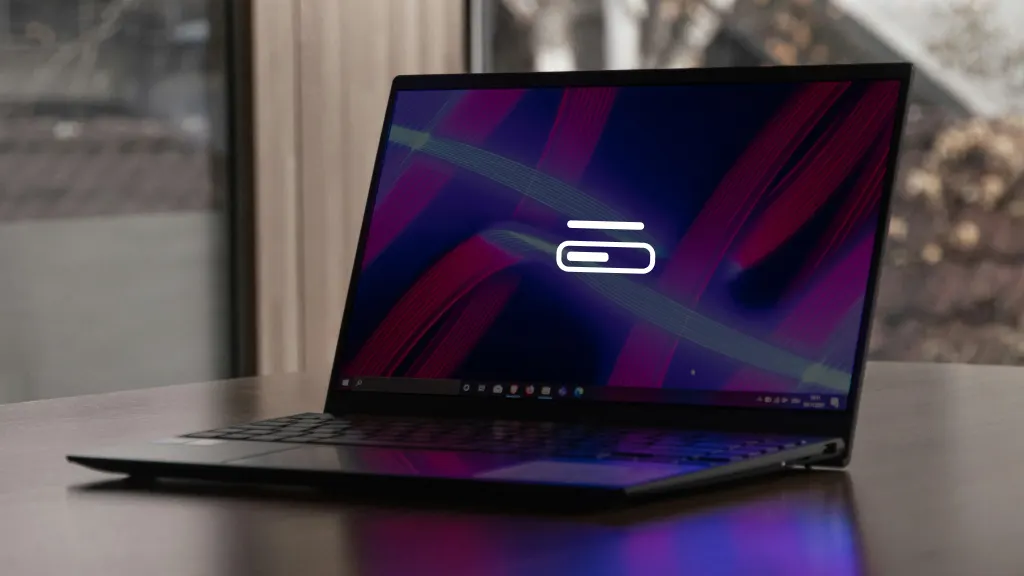
Image source: Asurion
What to Do If Alt and F10 Is Not Working
If your laptop ignores the Alt+F10 command and continues to the frozen logo, the "D2D Recovery" setting might be disabled in your BIOS. To fix this:
- Restart and tap F2 repeatedly to enter the BIOS Setup.
- Navigate to the Main tab using the arrow keys.
- Find D2D Recovery and ensure it is set to Enabled .
- Press F10 to save and exit, then immediately try the Alt+F10 shortcut again.
Why You Should Disconnect the Internet Before Running a System Repair
One of the most common reasons for a failed "Startup Repair" is an active internet connection. When Windows attempts to repair itself, it often tries to communicate with Microsoft's update servers. If the original boot failure was caused by a buggy update, the system may attempt to re-download the same problematic file during the repair process, leading to a secondary crash.
For a more reliable fix, turn off your Wi-Fi router or unplug the Ethernet cable before selecting "Startup Repair" or "System Restore" from the Alt+F10 menu. This forces Windows to use the local, stable versions of system files stored on your recovery partition. This "offline repair" strategy is a significant advancement in troubleshooting update-related boot loops.
How to Save Your Files Using the Notepad Command Prompt Trick
Before you commit to a "Factory Reset" that might wipe your data, use this insider trick to back up your files. Even if Windows won't load, the Command Prompt in the recovery environment can act as a bridge to your data.
- In the Alt+F10 menu, go to Troubleshoot > Advanced Options > Command Prompt .
-
In the black box, type
notepad.exeand press Enter. - When Notepad opens, go to File > Open .
- In the "Files of type" dropdown at the bottom, select All Files .
-
You can now use this window like a mini File Explorer. Plug in a USB flash drive, navigate to
C:\Users\[YourName]\Documents, right-click your folders, and Copy them. - Navigate to your USB drive in the same window and Paste the files. Note: There will be no progress bar, and the window may freeze momentarily while copying.
This method ranks among the top ways to preserve data when the operating system is completely unresponsive.
How to Fix the Preparing Automatic Repair Loop
Sometimes, the Acer logo is replaced by a message saying "Preparing Automatic Repair," but the screen stays there forever. This indicates that the repair tool itself is corrupted or cannot access the drive. You can bypass this loop using the 3-Cycle Method :
"Forcing a hard shutdown three times in a row during the boot process signals to the UEFI that the local recovery tools are failing, often triggering a deeper 'Advanced Startup' mode that bypasses the standard repair hang." — Tom's Guide Community Discussion .
To do this, turn the laptop on, and as soon as you see the Acer logo, hold the power button until it shuts off. Repeat this three times. On the fourth boot, the system should enter a different recovery state that allows you to access Safe Mode.
Advanced Hardware Fixes for a Frozen Acer Logo
If software repairs and power resets yield no results, the issue may be physical. Hardware-level freezes often occur because the BIOS cannot communicate with a specific component, such as the RAM or the storage drive.
How to Reset the BIOS by Removing the CMOS Battery
The CMOS battery is a small, coin-shaped battery on the motherboard that powers the BIOS chip's memory. If the BIOS settings become "scrambled," a standard reset might not be enough. By removing this battery, you force the BIOS to return to its factory-shipped state.
- Open the back panel of your Acer laptop (Note: This may void your warranty).
- Locate the small CR2032 coin battery.
- Carefully pop it out for 30 seconds.
- Reinsert the battery and try to boot. This clears deep-seated hardware flags that software fixes cannot reach.
Checking for Secondary Drive Interference
Many Acer Nitro 5 users add a secondary HDD for extra storage. According to Acer Community reports , if this secondary drive develops "bad sectors," the Windows bootloader may hang while trying to mount all available drives. If you are comfortable opening your laptop, try disconnecting the secondary SATA drive and booting with only the primary M.2 SSD connected. If the laptop boots instantly, your secondary drive requires replacement.
The F9 and F10 BIOS Sequence to Clear Stuck Boot Flags
Sometimes the BIOS is simply "confused" about which device to boot from. Acer technicians use a specific sequence to refresh these settings:
- Enter BIOS by tapping F2 at startup.
- Press F9 . This is the "Load Setup Defaults" command. Press Enter to confirm.
- Press F10 . This is the "Save and Exit" command. Press Enter to confirm.
This sequence ensures that any accidental changes to the boot priority or secure boot settings are reverted to a known-working configuration.
Comparison of Recovery Options: Which One Should You Choose?
When you finally reach the recovery menu, you are faced with several choices. Use this matrix to decide which path is appropriate for your situation:
| Recovery Tool | Best For... | Data Risk |
|---|---|---|
| Startup Repair | Fixing missing or broken system files. | None. No files are changed. |
| System Restore | Rolling back to a time before a recent update. | Low. Removes recently installed apps. |
| Reset This PC (Keep Files) | Fixing a heavily corrupted Windows OS. | Medium. Keeps docs, but wipes all apps. |
| Factory Reset | Severe malware or selling the laptop. | High. Wipes everything completely. |
Frequently Asked Questions
How long should the Acer loading screen take?
Under normal conditions, an Acer laptop with an SSD should boot into Windows within 15 to 30 seconds. If the logo remains on the screen for more than 5 minutes, the system is officially in a "stuck" state and requires troubleshooting.
Will I lose my photos if I fix the loading screen?
Not necessarily. If you use the Hard Reset, Pinhole Reset, or Startup Repair, your photos remain untouched. Only the "Factory Reset" or "Remove Everything" options will delete your personal files. Always try the Notepad trick mentioned above to back up data first.
Why is my Acer Nitro 5 stuck on the logo after an update?
This is usually caused by a conflict between the new Windows update and the Acer hardware drivers. Disconnecting from the internet and performing a "System Restore" to a point before the update is the most effective solution for this specific scenario.
Where is the battery reset pinhole on an Acer Aspire 5?
On most Aspire 5 models, the pinhole is located on the bottom of the laptop, near the center or toward the right side. It is marked with a small icon that looks like a battery with a line through it. Do not confuse it with the microphone hole, which is usually on the side or near the webcam.
Can a dead CMOS battery cause the Acer logo to freeze?
Yes. If the CMOS battery is dead, the BIOS may lose its configuration every time the laptop loses power. This can lead to the BIOS failing to recognize the boot drive, causing the system to hang at the splash screen indefinitely.
Key Takeaways for Fixing a Stuck Acer Screen
- Start with a Hard Reset: Disconnect all peripherals and hold the power button for 30 seconds to drain static.
- Use the Pinhole: For modern laptops, the battery reset pinhole is a highly effective way to clear BIOS errors.
- Master the Alt+F10 Timing: Tap F10 repeatedly while holding Alt before the logo appears to enter recovery.
- Go Offline for Repairs: Disconnect the internet to prevent Windows from re-downloading buggy updates during a repair.
- Save Data with Notepad: Use the Command Prompt to open Notepad and copy your files to a USB drive before resetting.
- Check Hardware: If software fixes fail, consider re-seating your RAM or disconnecting secondary hard drives.
If none of these steps resolve the issue, your primary SSD may have reached the end of its lifespan, and you should consult a professional technician for a hardware replacement.
-
Topic: My Acer laptop ( windows 10) is stuck on this loading ...https://www.reddit.com/r/computers/comments/obn69r/my_acer_laptop_windows_10_is_stuck_on_this/
-
Topic: What do I do if my acer laptop is stuck on the loading screen?https://techcommunity.microsoft.com/discussions/windowsinsiderprogram/what-do-i-do-if-my-acer-laptop-is-stuck-on-the-loading-screen/4507205
-
Topic: How to fix Acer laptop stuck on loading screenhttps://www.asurion.com/connect/tech-tips/acer-laptop-stuck-on-loading-screen/

How to Install and Optimize Linux on Acer Laptops for Better Performance
Learn how to install Linux on Acer laptops. Fix BIOS issues, enable AHCI with Ctrl+S, and choose a distro for Aspire, Nitro, and Swift models.


How to Identify and Repair a Dead Pixel on Your Laptop Screen
Fix stuck or dead pixels on your laptop screen with software, pressure, and warranty tips. Expert DIY repair guide for all display types.


How to Fix the HP Product Information Not Valid Error on Your Laptop
Resolve the HP System Board 00A error. Learn how to unlock MPM, use DMI tools, and re-enter Feature Bytes to restore your laptop's identity.