
How to Identify and Repair a Dead Pixel on Your Laptop Screen
Most colored dots on a laptop screen are stuck pixels , which are often fixable using software tools like JScreenFix or gentle physical pressure. However, solid black dots are usually dead pixels , indicating a hardware failure that typically requires a screen replacement. If the defect is visible in your laptop's BIOS menu, it is a hardware issue; if not, it may be a software or GPU driver artifact.
Discovering a tiny, persistent dot on your laptop screen can be incredibly frustrating, especially on high-resolution displays where every pixel counts. Whether you are a creative professional or a casual gamer, that single point of failure can feel like a glaring defect. The good news is that not all screen defects are permanent. Depending on the nature of the failure, you may be able to restore your display to its original state without spending a dime.
In this guide, we will explore the technical differences between various pixel defects and provide a structured approach to repairing them. According to industry data, approximately 80% of stuck pixels can be resolved within 20 minutes using the right techniques. We will cover everything from browser-based flashing tools to manufacturer warranty thresholds, ensuring you have the information needed to make an informed decision about your hardware.
Is Your Laptop Pixel Actually Dead or Just Stuck?
Before attempting any repairs, you must accurately identify the type of defect you are facing. Laptop screens are composed of millions of tiny sub-pixels (Red, Green, and Blue). When these sub-pixels fail to behave correctly, they manifest in different ways. Misdiagnosing the issue can lead to wasted time or, in the case of physical methods, unnecessary risk to your panel.
The Visual Identification Guide
- Stuck Pixels: These appear as bright, persistent dots of a single color—usually red, green, blue, yellow, cyan, or magenta. They occur when one or more sub-pixels remain in an "on" state, failing to cycle with the rest of the display. These are the most likely candidates for a successful DIY repair.
- Dead Pixels: A dead pixel is a solid black spot that never lights up. This usually indicates a failed transistor or a complete lack of power to that specific pixel. While some community members report success in "reviving" them, they are widely considered hardware failures that are difficult to fix via software.
- Bright Pixels: Also known as "hot pixels," these are constant white dots where all three sub-pixels are stuck in the "on" position. These are often covered under more generous warranty policies than standard stuck pixels.
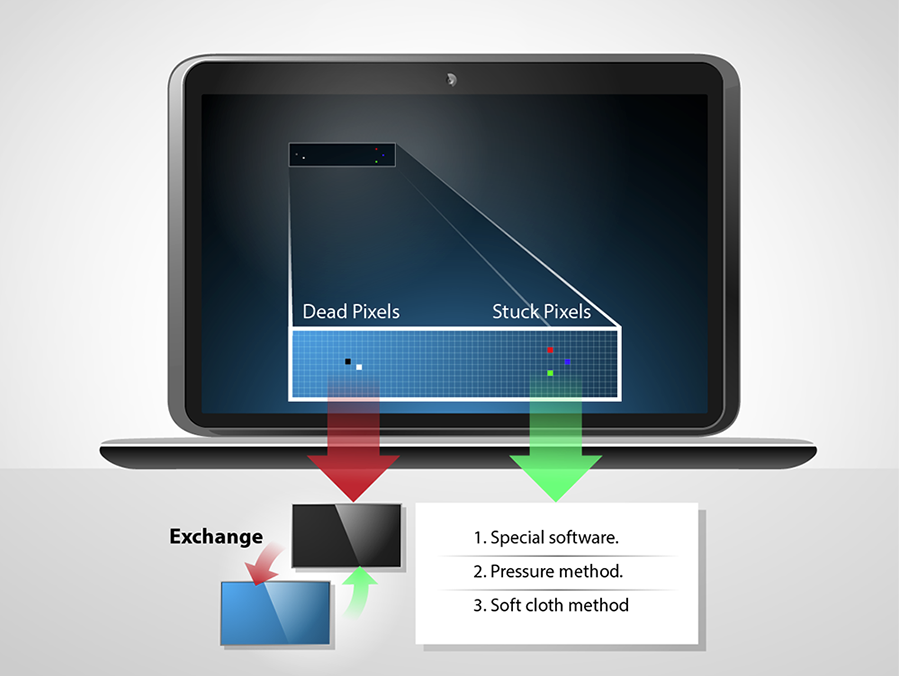
Image source: Laptop screens
How to Use Software to Fix a Stuck Pixel for Free
The most common and safest method for repairing a stuck pixel is "pixel massaging" via software. This process involves rapidly cycling the affected area through various colors at high frequencies. The goal is to "exercise" the liquid crystal within the pixel, encouraging it to unstick and respond to the display controller's signals once again.
Recommended Browser-Based Tools
You do not need to install complex software to attempt this fix. Several web-based utilities are widely regarded as top choices for this task:
- JScreenFix: This is a highly respected industry standard. It uses a specialized HTML5 and JavaScript algorithm to cycle colors in a small, movable window. It is particularly effective because it doesn't require you to flash your entire screen, allowing you to continue using your laptop while the repair runs.
- Online Mic Test (Stuck Pixel Fixer): This tool offers a full-screen flashing mode, which is useful if you have multiple stuck pixels across different areas of the panel.
Step-by-Step Software Repair Process
| Time Invested | Success Probability (Stuck Pixels) | Success Probability (Dead Pixels) |
|---|---|---|
| 10 Minutes | ~40% | <1% |
| 60 Minutes | ~70% | ~2% |
| Overnight (8 Hours) | ~85% | ~5% |
What to Do if Software Tools Fail to Repair the Pixel
If software flashing doesn't yield results, you may consider physical intervention. These methods are based on the idea that physical pressure can sometimes realign the liquid crystals or reseat a loose internal connection. However, these techniques carry a risk of causing "bruising" or permanent damage to the panel, so they should only be used as a last resort.
The Physical Pressure Method
This technique involves applying targeted pressure to the specific area of the defect. It is one of the most common community-vetted methods found on tech forums.
- Turn off your laptop and the display.
- Get a damp microfiber cloth (to avoid scratching) and a blunt, rounded object like a stylus or the cap of a pen.
- Fold the cloth over the object and apply gentle pressure directly to the stuck pixel.
- While maintaining pressure, turn the laptop back on.
- Remove the pressure and check if the pixel has cleared.
The "Flexing" Method for Loose Connections
Sometimes, a pixel appears stuck or dead because the internal ribbon cable (LVDS or eDP cable) is slightly loose or the panel itself is under uneven tension. Some users have found success by gently—very gently—twisting or flexing the laptop lid. This can occasionally reseat a connection or relieve pressure points that are causing sub-pixel malfunctions. If the pixel flickers or changes color when you move the lid, the issue is likely a cable problem rather than a pixel defect.
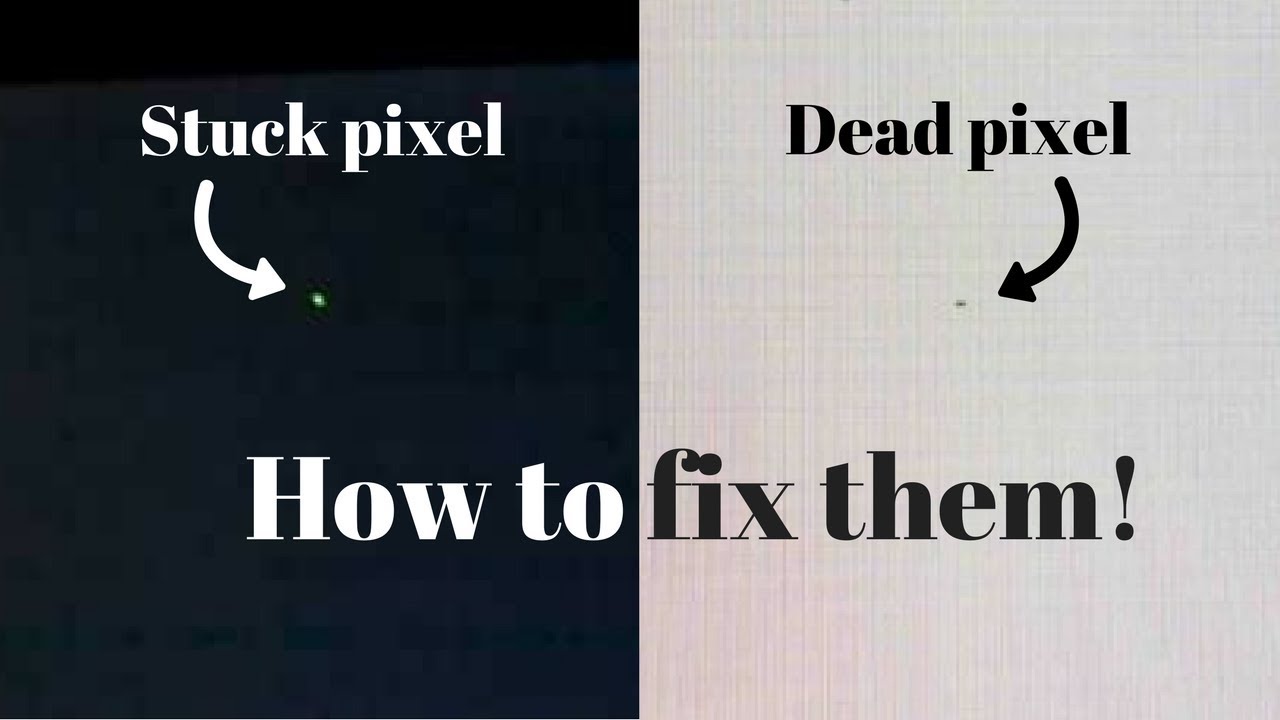
Image source: YouTube
Why OLED and Mini-LED Laptops Require a Different Approach
Modern laptops, such as the MacBook Pro or high-end Dell XPS models, often use OLED or Mini-LED technology. These displays function differently than traditional LCDs, and as a result, the repair strategies must be adapted.
In an OLED (Organic Light Emitting Diode) display, each pixel produces its own light. There is no liquid crystal to "unstick." A stuck pixel on an OLED is usually a sub-pixel failure or a result of "burn-in" (image retention). Software flashing tools are generally less effective on OLED hardware failures because the issue is often related to the degradation of the organic material rather than a mechanical sticking of crystals.
The "Pixel Refresh" Feature
Many OLED laptop manufacturers include built-in tools to combat pixel artifacts. For example, Dell and Alienware laptops often feature a "Pixel Refresh" or "Panel Refresh" option in the display settings or BIOS. This process runs a specific voltage sweep across the entire panel to clear temporary artifacts and balance the wear on the organic diodes. If you have an OLED screen, always check for these manufacturer-provided tools before attempting third-party software or physical pressure.
When Is a Dead Pixel Actually a Failing Laptop GPU?
It is crucial to distinguish between a screen defect and a Graphics Processing Unit (GPU) failure. If the "dead pixels" are not static, you are likely dealing with a GPU issue. GPU artifacts often appear as "green snow," random flickering lines, or blocks of pixels that move when you drag a window across the screen.
If you notice the following symptoms, the problem is likely your GPU or its drivers:
- The pixels change position or disappear when you change the screen resolution.
- The artifacts only appear during graphically intensive tasks, such as gaming or video editing.
- The "dead pixels" appear in screenshots (a true dead pixel on a screen will not show up in a digital screenshot).
In these cases, the solution involves updating your graphics drivers, cleaning your laptop's cooling fans to prevent overheating, or, in severe cases, seeking a motherboard repair.
Understanding Your Laptop Manufacturer’s Dead Pixel Warranty Policy
If DIY methods fail, your next step is to check your warranty. Most consumers are surprised to learn that a single dead pixel does not always qualify for a free replacement. Manufacturers follow the ISO 9241-307 standard, which categorizes displays into different "classes" based on the number of acceptable defects.
Most consumer laptops are considered "Class II," which allows for a certain number of stuck or dead pixels per million. For a standard 1080p screen, this might mean you need 3 to 5 defects before the manufacturer considers the panel "defective."
| Brand | Minimum Pixels for Replacement | Special Notes |
|---|---|---|
| Dell | 1 (Bright) / 6 (Dark) | "Premium Panel Guarantee" covers bright pixels on specific models. |
| Apple | Varies by Model | Typically requires a cluster or a specific count based on screen size. |
| HP | 3 to 5+ | Depends on the "Class" of the display and location of the pixel. |
| Lenovo | 5+ | Follows standard ISO Class II guidelines for most ThinkPads. |
| ASUS | 3 to 5 | Zero Bright Dot (ZBD) policy applies to select high-end models. |
According to Lenovo's official documentation , the impact on touchscreens can also be a factor. A dead pixel in a critical area, such as the taskbar or a navigation menu, may sometimes be prioritized for repair if it interferes with touch input functionality.
Frequently Asked Questions
Generally, no. A dead or stuck pixel is an isolated hardware failure of a specific transistor or sub-pixel. It is not a "contagious" condition. However, if your screen was damaged by impact, the surrounding area might be weakened, leading to more failures over time. If you see a growing black "ink stain," that is a cracked LCD substrate, which is a much more serious issue than a single dead pixel.
The "eraser method" is simply a variation of the pressure method using the soft rubber end of a pencil. While it can work by providing a soft, grippy surface to massage the pixel, it is no more effective than using a microfiber cloth and a blunt object. The same risks of panel bruising apply, so proceed with extreme caution.
This is a personal decision often referred to as the "panel lottery." If you return a laptop for one dead pixel, the replacement unit might have two, or it might have worse backlight bleed. If the pixel is near the edge and barely visible, many users choose to keep the device. If it is in the center of the screen, most retailers will allow a return within the initial 14-30 day window regardless of the official manufacturer warranty policy.
For a standard 1080p non-touch display, professional replacement typically costs between $150 and $250, including parts and labor. High-end 4K, OLED, or touchscreen panels can easily cost $400 to $600. If you are comfortable with DIY repair, you can often purchase the panel itself for $60 to $150 and perform the swap yourself using guides from sites like iFixit.
It is rare, but not impossible. Changes in environmental temperature or the physical expansion and contraction of the laptop materials can occasionally "unstick" a pixel. However, you should not rely on this happening. If software tools don't work within the first 24 hours of attempts, the pixel is likely to remain in its current state indefinitely.
Key Takeaways for Laptop Pixel Repair
- Identify the type: Stuck pixels (colored) are often fixable; dead pixels (black) are usually permanent hardware failures.
- Perform a BIOS test: If the pixel is visible in BIOS, it is a hardware issue. If not, check your GPU drivers.
- Try software first: Use a tool like JScreenFix for at least 60 minutes before attempting riskier methods.
- Use caution with pressure: Physical massaging can work but risks permanent "bruising" of the display panel.
- Check OLED settings: Use built-in "Pixel Refresh" tools for OLED screens rather than aggressive flashing.
- Review your warranty: Most brands require 3-5 dead pixels before they will authorize a free screen replacement.
If your stuck pixel remains after an overnight software treatment, your most reliable next step is to contact your manufacturer to see if your specific model qualifies for a panel replacement under their current quality standards.
-
Topic: JScreenFix - Stuck Pixel Repairhttps://www.jscreenfix.com/
-
Topic: Solved! - Fixing a Stuck Pixel On a Laptop?https://forums.tomsguide.com/threads/fixing-a-stuck-pixel-on-a-laptop.267624/
-
Topic: Stuck Pixel Fixer - A easy and free tool to fix ...https://www.onlinemictest.com/stuck-pixel-fixer/

How to Remove Dead Pixels from Your Laptop Screen Safely and Effectively
Learn how to fix stuck or dead pixels on your laptop screen using software, heat, and pressure methods. Check warranties and avoid common mistakes.


How to Identify and Fix Different Types of Spots on Your Laptop Screen
Identify white pressure marks, dead pixels, or LCD leaks. Learn which spots are fixable and when to seek professional repair for your laptop screen.


How to Diagnose and Fix Black Lines on Your Laptop Screen
Fix black lines on your laptop screen with our diagnostic guide. Learn costs, brand-specific tests for Dell, HP, Lenovo, and repair vs replace tips.