
What Does Alt+F4 Do and How Do You Use It Correctly?
Alt+F4 is a standard Windows keyboard shortcut primarily used to close the currently active window or application . When no windows are open, pressing it on the desktop triggers the Windows Shutdown dialog box. Unlike a "force quit," it sends a request to the software to close, allowing you to save your work before the program exits.
The Primary Function of the Alt+F4 Shortcut
At its core, Alt+F4 is one of the most fundamental navigation tools in the Windows operating system. When you press these two keys simultaneously, you are instructing Windows to send a termination signal to the application currently in focus. This shortcut has been a staple of personal computing since the late 1980s, providing a quick way to exit software without reaching for the mouse to click the "X" in the top-right corner.
Closing Active Windows and Applications
The most common use case for Alt+F4 is simply exiting a program. Whether you are browsing the web, writing a document, or playing a game, this shortcut acts as a universal "exit" command. According to technical documentation from GeeksforGeeks , the shortcut is designed to target the window that currently has "focus"—meaning the one you are actively interacting with. If you have multiple windows open, only the one in the foreground will be affected.
The Windows Shutdown Dialog
A lesser-known but highly practical function occurs when you use Alt+F4 while on the Windows desktop. If all applications are minimized or closed, or if you specifically click on the desktop wallpaper before pressing the keys, Windows will open the "Shut Down Windows" menu. From here, you can quickly choose to shut down, restart, sleep, or sign out. This remains a popular workflow for users who prefer keyboard-driven navigation over the Start menu.
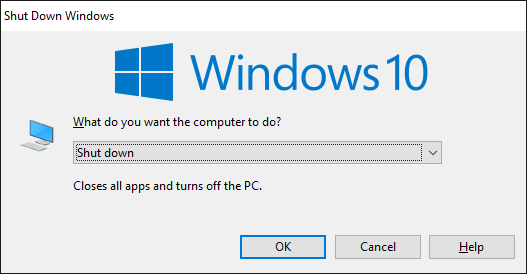
Image source: MiniTool Partition Wizard
Why Alt+F4 Might Not Work on Your Laptop
If you have recently purchased a modern laptop and found that Alt+F4 does nothing—or perhaps it just changes your screen brightness—you are not alone. This is one of the most frequent points of confusion for new users. The issue stems from how hardware manufacturers configure the top row of keys on portable devices.
The Role of the Function (Fn) Key
Most modern laptops prioritize "Media Keys" or "Action Keys" over standard Function keys (F1-F12). This means that pressing the F4 key by itself might trigger a secondary feature, such as projecting to a second screen or adjusting volume. To use the traditional Alt+F4 command on these devices, you must often press Alt + Fn + F4 . The "Fn" key acts as a toggle that tells the hardware to register the F4 signal rather than the media command.
Toggling Function Lock and BIOS Settings
If you find the three-key combination cumbersome, you can usually change the default behavior. Many laptops feature an "Fn Lock" (often shared with the Esc key) that allows you to swap the priority. Alternatively, you can enter your computer's BIOS or UEFI settings during startup to change the "Action Key Mode" or "Function Key Behavior." This ensures that F4 always acts as F4 without needing the extra modifier.
How Alt+F4 Behaves Across Different Applications
While the general goal of Alt+F4 is to close a program, different types of software handle the command in unique ways. Understanding these nuances can prevent accidental data loss or frustration.
Microsoft Word vs. Microsoft Excel
In the Microsoft Office suite, the behavior is notably distinct between applications. In Microsoft Word , pressing Alt+F4 typically closes the active document. If you have only one document open, it will exit the entire application. Crucially, Word will always prompt you to save your changes if there is unsaved work.
In contrast, Microsoft Excel often treats the command as a request to quit the entire application instance. If you have multiple workbooks open in one window, Alt+F4 may attempt to close all of them at once, though it will still provide save prompts for each individual file. This makes it a more "aggressive" exit than the standard "Close" button for some users.
Web Browsers and Tab Management
When using browsers like Chrome, Edge, or Firefox, Alt+F4 closes the entire window , including all open tabs. This is a common point of error for users who intended to close only the current tab. To close a single tab, the correct shortcut is Ctrl+W or Ctrl+F4 . Using Alt+F4 is essentially the same as clicking the "X" in the top corner of the browser window.
| Shortcut | Action in Browser | Action in Word | Action on Desktop |
|---|---|---|---|
| Alt + F4 | Closes entire window/all tabs | Closes document/exits app | Opens Shutdown menu |
| Ctrl + W | Closes only the active tab | Closes only the active document | No action |
| Ctrl + F4 | Closes only the active tab | Closes active document | No action |
Technical Mechanics: Is Alt+F4 a Force Quit Command?
There is a common misconception that Alt+F4 is a "hard" kill command similar to pulling the plug on a machine. In reality, it is a sophisticated software request that respects the application's internal logic.
Understanding the WM_CLOSE Signal
Technically, when you press Alt+F4, Windows sends a message known as
WM_CLOSE
to the application's message queue. As explained in discussions on
SuperUser
, this is a "soft" request. The application "hears" the request and can choose how to respond. This is why you see "Do you want to save changes?" prompts. The program is essentially saying, "I hear you want to close, but let me finish these tasks first."
Why Frozen Applications Ignore the Command
This "soft" nature is also why Alt+F4 often fails when a program is "Not Responding." If an application is frozen, its message loop is stuck. It cannot process the
WM_CLOSE
signal because it is too busy (or crashed) to check its inbox. In these scenarios, Alt+F4 is ineffective because the application never "sees" the command to close. This is when users must turn to Task Manager, which uses a more forceful
TerminateProcess
command that bypasses the application's permission.
The Cultural History of Alt+F4 in Gaming
Beyond its utility, Alt+F4 has a storied history in internet culture, particularly within the gaming community. It is frequently used as a tool for "trolling" or as a symbol of frustration.
Pranks, Trolls, and the "Free Items" Myth
In competitive online games like Minecraft , Counter-Strike , or Among Us , veteran players often play a classic prank on newcomers. When a new player asks how to perform a specific action—like "How do I get free skins?" or "How do I open the cheat console?"—the veteran might reply, "Just press Alt+F4." Unsuspecting players who follow this advice find themselves staring at their desktop, having accidentally quit the game and often losing their progress in the match. This has made Alt+F4 a widely recognized meme in digital spaces.
The Valve Exception in Source Engine Games
Interestingly, some developers have taken steps to protect users from accidental exits. Games built on the Source engine (developed by Valve), such as Half-Life 2 or Team Fortress 2 , often ignore the Alt+F4 command by default. As noted in Steam Community discussions , this "Valve Exception" prevents players from accidentally closing their game during intense matches where they might be using the F4 key for in-game menus or voice commands. In these games, users must typically use the in-game menu or the developer console to exit.
Troubleshooting Steps When Alt+F4 Fails
When the standard shortcut fails to close a window, it usually indicates a deeper software or hardware issue. Follow these steps to regain control of your system.
-
Try the Fn Modifier:
As discussed, many laptops require
Alt + Fn + F4. This is the most common fix for hardware-level issues. -
Use Task Manager:
If the application is frozen, press
Ctrl + Shift + Esc. Locate the process, right-click it, and select "End Task." This sends aSIGKILLsignal that forces the app to close immediately. -
The Alt+Space+C Alternative:
Press
Alt + Spaceto open the window's system menu (the small icon in the top-left). Then pressCto select "Close." This can sometimes bypass issues where the F4 key itself is malfunctioning. - Check for Keyboard Drivers: If no shortcuts are working, open Device Manager , find "Keyboards," and select "Update Driver." A corrupted driver can prevent the OS from recognizing multi-key inputs.
- Run the Windows Troubleshooter: Go to Settings > Update & Security > Troubleshoot > Additional troubleshooters and run the "Keyboard" troubleshooter to detect hardware-software communication errors.
The Historical Origins of the F4 Key
Why F4? Why not Alt+E for Exit or Alt+Q for Quit? The answer lies in the early days of standardized computing and the influence of IBM.
IBM CUA Standards and System Application Architecture
The Alt+F4 shortcut is a legacy of the Common User Access (CUA) standards developed by IBM in the late 1980s. CUA was an attempt to create a consistent user interface across different operating systems, including OS/2 and Windows. Before CUA, every program had its own shortcuts; one might use F3 to exit, while another used Esc. IBM chose Function keys because they were distinct from the letter keys, reducing the risk of accidental triggers while typing.
Raymond Chen and the Logic of Availability
According to Raymond Chen, a long-time Microsoft developer and author of The Old New Thing , the choice of F4 wasn't based on a deep philosophical meaning. As documented on StackExchange , F4 was simply the next "available" key when the "Close" command was being mapped. F1 was reserved for Help, F2 for Rename/Edit, and F3 for Search. F4 was the logical next step for the "Close" function in the CUA hierarchy.
Safe Alternatives and Related Keyboard Shortcuts
While Alt+F4 is a top-tier choice for closing apps, other shortcuts offer more granular control depending on your specific needs.
Ctrl+F4 vs. Alt+F4
The difference between these two is the "scope" of the closure. Alt+F4 targets the "Parent" application (the whole program). Ctrl+F4 targets the "Child" window. For example, in an older version of Excel that used a Multiple Document Interface (MDI), Ctrl+F4 would close just one workbook while keeping Excel open. In modern browsers, Ctrl+F4 closes the active tab, while Alt+F4 closes the whole browser.
Mac and Linux Equivalents
If you are moving between operating systems, you will need to learn the local equivalents:
-
macOS:
The equivalent of Alt+F4 is
Command + Q(Quit). To close just a window but keep the app running, useCommand + W. -
Linux (GNOME/KDE):
Most Linux distributions follow the Windows standard and use Alt+F4. However, because Linux is highly customizable, users often remap this to
Super + Qor other combinations.
Key Takeaways for Using Alt+F4
- Primary Use: It is a "soft" request to close the active window or application.
- Laptop Fix: On most modern laptops, you must use Alt + Fn + F4 to trigger the command.
- Data Safety: It generally prompts you to save work, but avoid using it during active "Save" sequences to prevent corruption.
- Desktop Trick: Pressing it on the desktop opens the Windows Shutdown menu.
- Frozen Apps: If a program is "Not Responding," Alt+F4 will likely fail; use Ctrl + Shift + Esc instead.
- Gaming Warning: Never trust someone in a game chat who tells you Alt+F4 unlocks a secret feature.
Next time you need to wrap up your work quickly, try using the Alt+F4 shortcut to see how much faster your workflow becomes compared to using a mouse.
Frequently Asked Questions
Does Alt+F4 damage my computer hardware?
No, Alt+F4 does not cause any physical damage to your RAM, CPU, or hard drive. It is a software-level command that tells the operating system to close a program. The only risk is "software-level" data loss—if you close a program without saving your work, that data may be lost. However, modern applications almost always prompt you to save before they actually exit.
Can I change the Alt+F4 shortcut to something else?
Windows does not have a built-in setting to change system-level shortcuts like Alt+F4. However, you can use third-party tools like Microsoft PowerToys (specifically the Keyboard Manager) or AutoHotkey to remap the keys. This allows you to set a different combination, such as Alt+Q, to perform the "Close Window" function if you find F4 difficult to reach.
Why does Alt+F4 just change my volume or brightness?
This happens because your laptop is in "Media Key" mode. The F4 key is being read as a hardware shortcut for volume or brightness rather than a software function key. To fix this, press Alt + Fn + F4 . You can also look for an "Fn Lock" key on your keyboard to permanently switch the behavior so that F4 works without the Fn modifier.
Does Alt+F4 work on a Mac?
No, Alt+F4 is a Windows-specific shortcut. On a Mac, the equivalent command to quit an application is Command (⌘) + Q . If you only want to close the current window but keep the application running in the background (a common behavior in macOS), you should use Command (⌘) + W instead.
What is the difference between Alt+F4 and "End Task" in Task Manager?
Alt+F4 is a "request" (WM_CLOSE) sent to the application, giving it a chance to save data and shut down gracefully. "End Task" in Task Manager is a "command" (TerminateProcess) that tells Windows to stop the process immediately. Use Alt+F4 for normal exits and Task Manager only when a program is frozen or unresponsive.
-
Topic: I was 32 years old (today) when I realized that "alt-F4" is ...https://www.reddit.com/r/gaming/comments/qkxd6u/i_was_32_years_old_today_when_i_realized_that/
-
Topic: what does alt + f4 do?https://www.youtube.com/shorts/ysK8kD7FIMI
-
Topic: What does Alt+F4 do?https://computer.howstuffworks.com/question266.htm

How to Use the Windows + L Shortcut to Instantly Lock Your PC
Learn to use the Windows + L shortcut, fix it when not working, and manage lock settings on Windows 10 and 11 for better PC security.


How to Fix a Scrambled Surface Pro 4 Screen and When to Replace It
Fix your scrambled Surface Pro 4 screen with registry hacks and hardware tips. Learn if a 2026 repair is worth the cost or if it's time to upgrade.

How to Understand and Use More Options in Language and Technology
Learn the meaning of more options, find professional synonyms, identify UI icons like the kebab menu, and fix Windows 11 menu bugs.