How to Fix a Scrambled Surface Pro 4 Screen and When to Replace It
If your Surface Pro 4 screen is scrambling, shaking, or ghosting, first perform the UEFI Test (Hold Volume Up + Power). If the screen is scrambled in the UEFI menu, it is a hardware failure caused by thermal stress on the display controller. While a permanent fix requires a screen replacement using a Surface Pro 5 LG-made panel, you can mitigate the issue by using the "Seconds in Clock" registry hack or keeping a small video playing in the background to force constant screen refreshes.
The Surface Pro 4 was widely regarded as a top-tier productivity tool upon its release, but it has since become synonymous with a specific hardware defect known in the community as "Flickergate." This issue manifests as a scrambled display, where images appear to jump, overlap, or become interlaced with fuzzy horizontal lines. For many users in 2026, this problem is just now appearing as older units reach their thermal limits after years of service.
Understanding whether your device is suffering from a temporary software glitch or a terminal hardware failure is the first step toward recovery. Because the Surface Pro 4 is now several generations behind the current hardware standard, the decision to repair or replace involves a careful look at modern performance requirements and repair costs.
How to Tell if Your Surface Pro 4 Screen Is Actually Broken
Defining the Scramble and Visual Symptoms
A "scrambled" screen on a Surface Pro 4 is distinct from a cracked LCD or a loose video cable. According to Microsoft Support , the issue is characterized by images shifting horizontally or vertically at a rapid pace. You might notice that the taskbar appears to "ghost" or double itself at the top of the screen, or that text becomes unreadable due to interlaced fuzziness.
In many cases, the scramble is not constant. It often begins as a subtle vibration at the edges of the display. As the device remains powered on, the shaking intensifies until the entire image becomes a garbled mess. Interestingly, many users report that moving the mouse cursor or touching the screen temporarily stabilizes the image, only for the scramble to return the moment the screen becomes static.
The 20-Minute Heat Soak Test
One of the most frustrating aspects of this defect is its intermittent nature. Most defective units appear perfectly normal when first turned on in the morning. However, as the internal components reach operating temperature—a state known as "heat soak"—the display controller begins to fail. Tom's Guide reports that symptoms typically begin 20 to 30 minutes after startup, depending on the intensity of the tasks being performed.
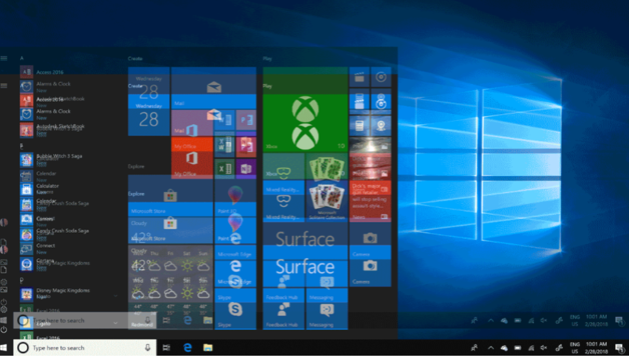
Image source: Microsoft Learn
The Definitive UEFI Diagnostic Test
To determine if your issue is hardware-based, you must bypass the Windows operating system and its drivers. The UEFI (Unified Extensible Firmware Interface) environment is a highly effective environment for this test because it uses basic firmware to drive the display.
- Shut down your Surface Pro 4 completely.
- Press and hold the Volume Up button on the top edge of the device.
- While holding Volume Up, press and release the Power button.
- Continue holding Volume Up until the Surface logo disappears and the UEFI menu (a simple screen with a blue or black background) appears.
The Logic: If the screen remains scrambled or continues to shake while you are in the UEFI menu, the failure is definitely hardware-related. If the screen is perfectly clear in UEFI but scrambles once you boot into Windows, you are likely dealing with a driver conflict or a software refresh rate issue that can be fixed without opening the device.
Why Does the Surface Pro 4 Screen Scramble When It Gets Hot?
The Thermal Design Flaw in Early Surface Models
The root cause of the scramble is a significant advancement in miniaturization that unfortunately led to a thermal bottleneck. In the Surface Pro 4, the CPU and GPU are positioned directly behind the display assembly. Unlike traditional laptops with more internal volume, the Surface Pro 4's thin chassis leaves very little room for heat dissipation. Over time, the sustained heat cycles cause the adhesive and the delicate silicon in the display controller to degrade.
Component Sensitivity and the Samsung Panel Issue
Most Surface Pro 4 units were shipped with Samsung-made display panels. These specific panels have proven to be exceptionally sensitive to heat. Research from community enthusiasts suggests that once the internal temperature of the display controller reaches approximately 72°C, the synchronization signals that keep the image steady begin to drift. This is why the issue is widely regarded as a manufacturing defect rather than user-inflicted damage. It was this specific failure rate that led to the "Flickergate" movement and Microsoft's subsequent (though now expired) replacement program.
Try These Software Workarounds Before Giving Up on Your Device
If your UEFI test was clear, or if you have a hardware failure but cannot afford a repair, these community-driven hacks can often extend the usable life of the device. These methods work by forcing the display hardware to stay "active," which prevents the controller from falling into the desynchronized state that causes scrambling.
The Seconds in Clock Registry Hack
This is one of the most popular fixes found on Microsoft Learn . By default, the Windows taskbar clock only updates every minute. By forcing it to update every second, you ensure the screen buffer is refreshed constantly, which can prevent the "ghosting" from settling in.
-
Press
Win + R, typeregedit, and hit Enter. -
Navigate to:
HKEY_CURRENT_USER\Software\Microsoft\Windows\CurrentVersion\Explorer\Advanced - Right-click in the right pane, select New > DWORD (32-bit) Value .
-
Name it
ShowSecondsInSystemClock. -
Double-click the new value and set it to
1. - Restart your Surface.
The Driver M3 Graphics Workaround
Some users have found success by rolling back to or specifically installing the "Driver M3" version of the Intel HD Graphics drivers. These older drivers handle thermal throttling and refresh cycles differently than the modern Windows 10/11 updates. While this may slightly reduce gaming performance, it can significantly stabilize a shaking screen for office work. You can find these drivers in the Microsoft Update Catalog by searching for specific Intel HD Graphics 520 versions from the 2017-2018 era.
The Mouse Jiggler Strategy for Image Stability
Because the scramble often occurs when the screen is static, keeping the pixels in motion is a top choice for a temporary fix. You can use a "software mouse jiggler" to keep the cursor moving by one pixel every second, or simply keep a small, muted YouTube video playing in a corner window. This forces the GPU to send a constant stream of new data to the display controller, often bypassing the desync issue entirely.
"The freezer trick—putting your Surface in the freezer for 10 minutes—is a popular but dangerous myth. While it stops the flickering temporarily by cooling the components, it creates internal condensation that can lead to a short circuit and permanent motherboard failure."
Check for External Interference and EMI Issues
In rare cases, what looks like a scrambled screen is actually Electromagnetic Interference (EMI). This is especially common if you notice "ghost touches" (where the screen reacts as if you are touching it when you aren't) alongside the scrambling.
- Powerline Ethernet (PowerLan) Conflict
- If you use adapters that send internet signals through your home's electrical wiring, they can create "noise" that interferes with the Surface's unshielded display digitizer. Try using the device in a different room to see if the scramble persists.
- Third-Party Chargers
- Cheap replacement power bricks often lack the proper grounding and shielding found in official Microsoft chargers. If your screen only scrambles while plugged in, your charger is likely the culprit.
- The Unplugged Test
- Always test your device while running on battery power. If the scramble disappears when the charger is removed, the issue is electrical interference rather than a failing display panel.
Can You Still Get a Free Replacement From Microsoft?
As of 2026, the official Microsoft replacement program for Surface Pro 4 screen flickering has officially expired. The program originally covered devices for up to three years from the date of purchase. Since the Surface Pro 4 was discontinued years ago, virtually every unit in existence is now outside this window.
If you contact Microsoft Support today, they will likely offer a "Standard Exchange." This involves sending in your broken unit and paying a flat fee (typically between $400 and $600) to receive a refurbished unit. In the current market, this is rarely a wise financial move, as a refurbished Surface Pro 7 or Pro 8 can often be purchased for less than the cost of the exchange fee.
The Permanent Hardware Fix That Requires a Surface Pro 5 Screen
If you are committed to keeping your Surface Pro 4, the only way to truly "cure" the scramble is to replace the screen. However, replacing it with another Surface Pro 4 screen is a mistake, as you will likely just run into the same Samsung thermal flaw again.
Why the LG Screen Solution Works
The Surface Pro 5 (Model 1796) used an LG-made display panel that does not suffer from the Flickergate defect. Enthusiasts have discovered that these LG panels are physically compatible with the Surface Pro 4 chassis. By installing an LG screen from a newer model, you remove the defective component entirely. This is widely considered one of the best ways to future-proof an older Surface.
The Adapter Requirement and Installation Risks
You cannot simply plug a Surface Pro 5 screen into a Pro 4 motherboard. The ribbon cable connectors are slightly different. You will need a specific "SP4 to SP5 Screen Adapter Cable," which is readily available on sites like eBay or AliExpress.
Is It Worth Repairing a Surface Pro 4 in 2026?
Before spending money on parts or professional labor, consider the 2026 financial landscape for these devices. The Surface Pro 4 uses 6th-generation Intel processors (Skylake), which are now over a decade old. They lack the core count and efficiency of modern chips, making them struggle with 2026-era web browsers and multitasking.
| Repair / Upgrade Path | Estimated Cost | Risk Level | Expected Lifespan |
|---|---|---|---|
| DIY SP5 Screen Swap | $120 - $150 | High (Screen breakage) | 2-3 Years |
| Professional Repair | $250 - $300 | Low | 2-3 Years |
| Refurbished Surface Pro 7 | $250 - $350 | None | 3-4 Years |
| Refurbished Surface Pro 8 | $400 - $550 | None | 5+ Years |
As the table demonstrates, a professional repair often costs as much as buying a newer, refurbished Surface Pro 7. The Pro 7 is a significant step forward because it features a much more efficient processor and, crucially, does not suffer from the Flickergate hardware defect. If you are not comfortable performing a DIY repair, your money is better spent on an upgrade.
Frequently Asked Questions
Does the Surface Pro 4 screen flicker program still exist?
No, the official replacement program has expired. It was designed to cover units for three years after the original purchase date. Since the Pro 4 was released in 2015 and discontinued shortly after the Pro 5 launch, all units are now well beyond the eligibility window as of 2026.
Can a Windows 11 update fix the scrambled screen?
Unfortunately, no. While certain drivers can mitigate the symptoms by changing how the screen refreshes, the underlying issue is a physical degradation of the hardware caused by heat. No software update can repair damaged silicon or failing display controller components.
Why does my screen only scramble when I stop moving the mouse?
This is a classic symptom of the Flickergate defect. When the screen is static, the display controller doesn't have to work as hard to process new data, which allows the "ghosting" or desynchronization to become visible. Moving the mouse forces a refresh of the screen buffer, which temporarily "wakes up" the controller and stabilizes the image.
Will an external monitor work if my Surface screen is scrambled?
Yes! The GPU (Graphics Processing Unit) itself is usually healthy. The scramble is limited to the internal display's hardware controller. If you connect your Surface Pro 4 to an external monitor via the Mini DisplayPort, the image on the external monitor will be perfectly clear. This is a great way to continue using the device as a desktop PC.
Is the "freezer trick" safe for my Surface?
It is highly discouraged. While cooling the device can temporarily stop the flickering, the transition from a cold freezer to a warm room causes moisture to condense inside the chassis. This water can destroy the motherboard, battery, and other sensitive electronics, turning a repairable screen issue into a total device failure.
Key Takeaways for Fixing Your Surface
- Perform the UEFI test to confirm if your issue is hardware or software.
- Use the Registry Hack to force a per-second clock refresh as a zero-cost mitigation.
- Avoid the freezer at all costs to prevent permanent water damage.
- Check for EMI by testing the device in different rooms and on battery power.
- Consider an upgrade if repair costs exceed $200, as newer models offer much better value.
- Use an external monitor to turn a scrambled Surface into a functional desktop workstation.
If your registry tweaks fail to stabilize the image, your most practical next step is to back up your data and transition the device to a permanent desktop setup using an external monitor.
-
Topic: Surface pro 4 screen jumping/flickering fixhttps://www.reddit.com/r/Surface/comments/1aih4yy/surface_pro_4_screen_jumpingflickering_fix/
-
Topic: Surface Pro 4 screen flickers or is scrambledhttps://support.microsoft.com/en-us/surface/surface-pro-4-screen-flickers-or-is-scrambled
-
Topic: Surface Pro 4 Flicker Repairhttps://www.youtube.com/watch?v=eD3bAn8nI8c

How to Identify and Repair a Dead Pixel on Your Laptop Screen
Fix stuck or dead pixels on your laptop screen with software, pressure, and warranty tips. Expert DIY repair guide for all display types.


How to Identify and Fix a Cloud Patch on Your Laptop Screen
Diagnose and fix cloud patches on laptop screens. Learn to distinguish water damage from pressure marks with this expert-backed repair guide.


What Do the Icons in the Top Right of Your Surface UEFI Screen Mean?
Identify the SSD X, blue shield, and red bar in your Surface UEFI. Learn to fix bootloops and Secure Boot errors on all Surface models.