
What Do the Icons in the Top Right of Your Surface UEFI Screen Mean?
If your Microsoft Surface is stuck on a black screen with icons in the top-right corner, it indicates a firmware-level status or error. These symbols are part of the Unified Extensible Firmware Interface (UEFI), which manages your hardware before Windows loads.
Seeing these icons usually means your device has failed to boot into the Windows operating system. This often triggers "tech anxiety," as the UEFI screen is unfamiliar to most users. However, these symbols are diagnostic tools designed to help you identify whether the issue is a simple setting change or a physical hardware failure. According to Microsoft Learn , the Surface UEFI is a custom-engineered firmware environment that replaces the traditional BIOS found on other PCs.
A Visual Glossary of Surface UEFI Icons and Symbols
The top-right corner of your Surface screen serves as a dashboard for critical hardware health. Understanding these symbols is the first step in troubleshooting a device that refuses to load Windows.
What Does the SSD Icon with a Red X Mean?
The SSD icon featuring a small red "X" is perhaps the most concerning symbol a user can encounter. It signifies that the UEFI firmware is unable to detect a bootable storage device. In many cases, this results in a "bootloop," where the Surface logo appears briefly before the device returns to the UEFI screen. While this can indicate a total hardware failure of the solid-state drive, it is not always a death sentence for the device.
Expert analysis of community reports suggests that this icon can also appear due to a corrupted partition table. If the UEFI cannot find the "Windows Boot Manager" on the drive because the partition structure is damaged, it may report the drive as missing. This is a common occurrence during failed enterprise deployments or interrupted system resets. Before assuming the hardware is dead, users should attempt to boot from a USB recovery drive to see if the SSD is visible to disk management tools.
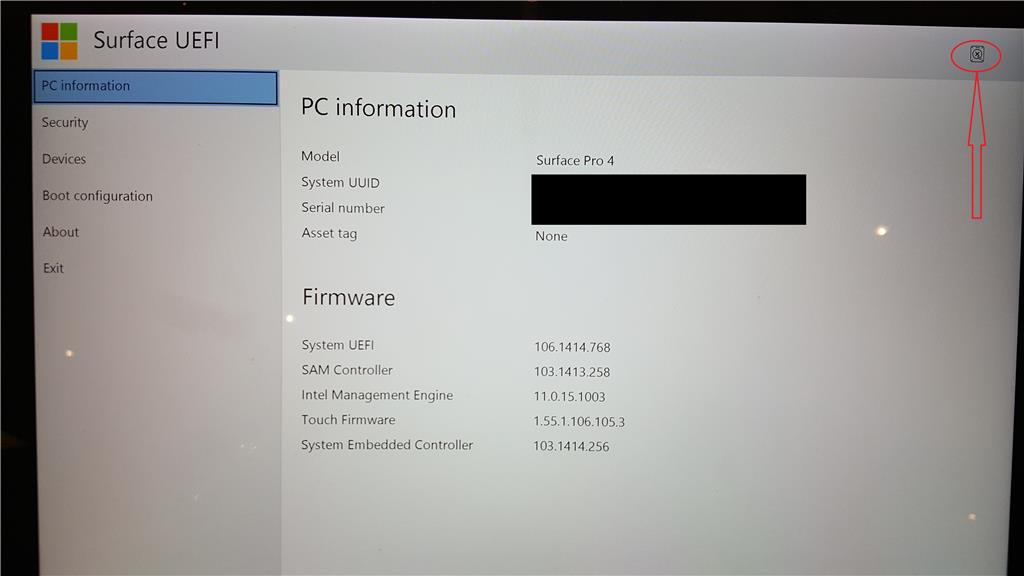
Image source: Microsoft Learn
Why Is There a Blue Shield Icon on the Screen?
The blue shield icon is the Trusted Platform Module (TPM) indicator. TPM is a specialized chip that provides hardware-based security functions, such as generating and storing cryptographic keys. On modern Surface devices, the blue shield is generally a "healthy" indicator, showing that the security processor is active and engaged. However, if this icon appears alone while the device fails to boot, it may suggest a firmware synchronization issue between the TPM and the main processor.
What Does the Unlocked Padlock and Red Bar Represent?
If you see a solid red stripe across the top of your screen with an open padlock icon, your device's Secure Boot feature has been disabled. Secure Boot is a security standard that ensures your PC boots using only software that is trusted by the Original Equipment Manufacturer (OEM). When disabled, the red bar serves as a visual warning that the device could potentially load unauthorized or malicious operating systems.
This visual is a top-tier security feature designed by Microsoft to prevent rootkits and other low-level malware from compromising the system. If you did not intentionally disable this setting to install an alternative operating system like Linux, you should re-enable it immediately to restore the system's integrity and remove the red warning bar.
Why Do Two Overlapping Squares Appear in the Corner?
The overlapping squares symbol is less of an error and more of a status indicator. It typically appears when the system has been intentionally directed to enter the UEFI environment. This happens most frequently when a user selects "Advanced Startup" within Windows settings or when an IT administrator triggers a remote restart into firmware via management software. It confirms that the device is in "Configuration Mode" rather than an error state.
How to Fix a Surface Stuck in a UEFI Bootloop
A bootloop occurs when the device repeatedly loads the UEFI screen instead of the Windows desktop. This is often caused by a misconfigured boot order or a temporary firmware glitch.
Check Your Boot Configuration Order First
The most frequent cause of a UEFI loop is the firmware looking in the wrong place for the operating system. Follow these steps to verify your configuration:
- Navigate to the Boot Configuration menu on the left-hand sidebar.
- Locate the Windows Boot Manager entry.
- Ensure the checkbox next to "Windows Boot Manager" is selected.
- Use the touch screen or mouse to drag "Windows Boot Manager" to the very top of the list.
- Click Exit and then Restart Now .
According to user feedback on Reddit's Surface community , many bootloops are resolved simply by re-prioritizing the boot manager, especially after a firmware update has reset the default values.
How to Re-enable Secure Boot to Remove the Red Bar
To remove the red bar and secure your device, you must toggle the Secure Boot setting back to its factory default:
- Select the Security tab in the UEFI menu.
- Find the Secure Boot section and select Change Configuration .
- Choose the Microsoft only option from the list.
- Confirm the change and restart your device.
This process is widely considered one of the best ways to resolve the "Red Bar" phenomenon on all Surface models, from the Pro 4 to the latest Surface Laptop Studio.
Advanced Troubleshooting for SSD and Hardware Errors
When basic setting changes fail to resolve the UEFI icons, you may be facing a more significant hardware or software corruption issue.
Distinguishing Between a Dead Drive and a Corrupted Partition
The presence of the SSD X icon does not always mean you need a new device. A "False Positive" SSD error can occur if the boot partition is wiped but the hardware remains functional. This is common during enterprise re-imaging. To test this, you should attempt to boot from a USB drive containing the official Surface Recovery Image. If the recovery environment can "see" the drive and allow you to format it, the issue was purely software-based.
Understanding WHEA-Logger ID 1 and Hardware Failures
In some cases, a Surface may be stuck in a UEFI loop due to a WHEA-Logger ID 1 error. This is a Windows Hardware Error Architecture event that signifies a fatal hardware error has occurred. Even if the SSD appears healthy in external diagnostic tests, a failure in the motherboard's communication bus can prevent the UEFI from handing off control to Windows. If you consistently see the SSD X icon despite multiple recovery attempts, the internal storage controller has likely failed.
Triage Decision Framework
| Symptom | Likely Cause | Recommended Action |
|---|---|---|
| Red Bar + Unlocked Icon | Secure Boot Disabled | Change Security to "Microsoft Only" |
| SSD X + UEFI Loop | Drive Failure or Partition Loss | Try Surface USB Recovery Image |
| Blue Shield + Boot Failure | TPM Sync Error | Perform Two-Button Shutdown |
| No Icons + UEFI Loop | Incorrect Boot Order | Move Windows Boot Manager to Top |
Differences Between Consumer and Commercial Surface UEFI
Microsoft offers two distinct versions of Surface hardware: Consumer and Surface for Business. While they look identical on the outside, their UEFI capabilities differ significantly.
Standard UEFI settings focused on basic security and boot order. Users have full control over all toggles unless a BIOS password is set.
Includes DFCI support, allowing IT admins to disable specific hardware like cameras, Wi-Fi, or Bluetooth at the firmware level via Microsoft Intune.
Commercial SKUs also feature a "Management" page that displays the enrollment status of the device. If a business device is retired but not properly removed from the company's management portal, the UEFI icons may reflect a "Locked" state that prevents the user from changing boot settings or disabling Secure Boot.
How to Enter and Exit UEFI on Every Surface Model
If you need to access these settings manually to troubleshoot, the method varies slightly depending on your specific Surface form factor.
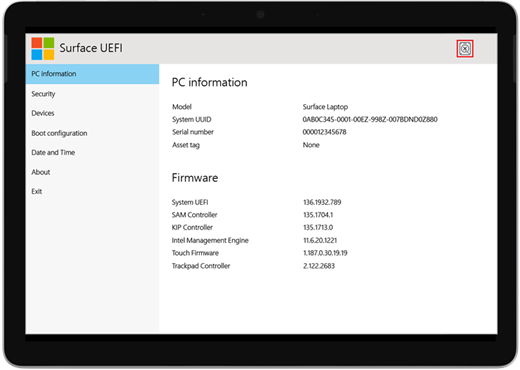
Image source: Microsoft Support
Frequently Asked Questions
The Bottom Line
Navigating the Surface UEFI doesn't have to be intimidating. By identifying the icons in the top-right corner, you can quickly determine your next steps.
- Identify the icon: SSD X means drive issues; Red Bar means Secure Boot is off.
- Verify Boot Order: Ensure Windows Boot Manager is at the top of the list.
- Toggle Security: Re-enable Secure Boot to remove the red warning bar.
- Reset Firmware: Use the two-button shutdown (Power + Vol Up) to clear glitches.
- Try USB Recovery: Always attempt a Surface-specific recovery image before assuming hardware failure.
- Check Management: Be aware of DFCI locks in enterprise environments.
If the SSD X icon persists after a full recovery attempt, your device likely requires a professional hardware repair or a service request through Microsoft Support.
-
Topic: Surface UEFI icons top righthttps://techcommunity.microsoft.com/discussions/surfacepro/surface-uefi-icons-top-right/3612867
-
Topic: Keeps booting to UEFI, ran out of solutions : r/Surfacehttps://www.reddit.com/r/Surface/comments/ky8usj/keeps_booting_to_uefi_ran_out_of_solutions/
-
Topic: Manage Surface UEFI settingshttps://learn.microsoft.com/en-us/surface/manage-surface-uefi-settings

How to Fix a Scrambled Surface Pro 4 Screen and When to Replace It
Fix your scrambled Surface Pro 4 screen with registry hacks and hardware tips. Learn if a 2026 repair is worth the cost or if it's time to upgrade.


How to Fix the Alert! TPM Device is not Detected Error on Dell PCs
Stuck on a Dell boot screen? Learn how to fix the TPM not detected error, recover BitLocker keys, and restore Windows 11 security settings.

What Is BIOS Boot Order and How Do You Change It?
Learn what BIOS boot order is, how to change it on ASUS, Dell, or HP, and why your PC might skip your SSD. Fix boot priority issues today.
