
What Is BIOS Boot Order and How Do You Change It?
The BIOS boot order (or boot priority) is a sequential list that tells your computer's motherboard which hardware devices to search for an operating system. When you press the power button, the BIOS/UEFI checks the first device in the list (e.g., an SSD). If it finds a bootloader, the PC starts; if not, it moves to the second device (e.g., a USB drive). For modern performance, your primary SSD or "Windows Boot Manager" should always be the first entry to ensure the fastest possible startup.
Every time you flip the switch on your PC, a silent, high-speed negotiation takes place between your hardware and your firmware. Before you see the Windows logo or your desktop icons, your motherboard must answer one critical question: Where is the operating system? The answer lies within the BIOS boot order.
Understanding this sequence is not just for IT professionals. Whether you are trying to install a new version of Windows from a USB stick, troubleshooting a "No Bootable Device" error, or simply trying to shave 10 seconds off your morning startup time, knowing how to manipulate the boot priority is a fundamental skill for any computer user. In this guide, we will explore the technical mechanics of the boot sequence, how to optimize it for modern hardware, and how to fix common conflicts that can leave your PC hanging on a black screen.
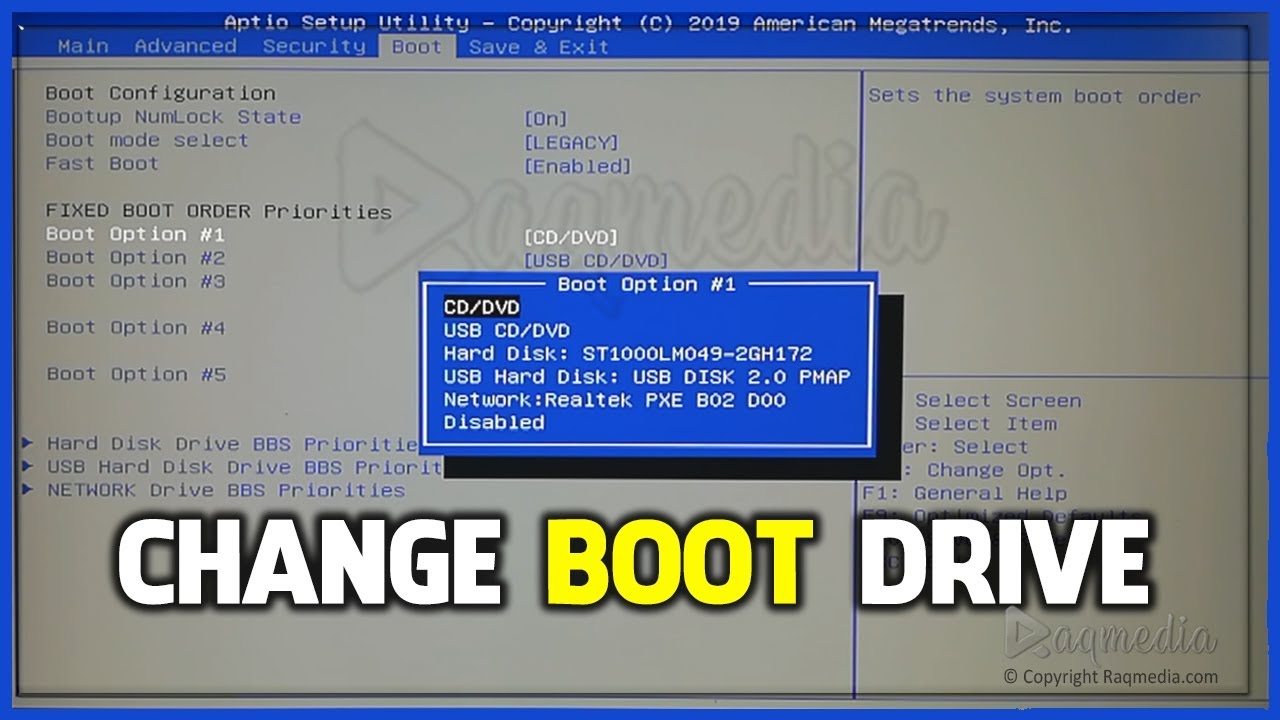
Image source: YouTube
Understanding the Basics of the BIOS Boot Sequence
At its core, the boot order is a "search list." Think of it as a set of instructions for a librarian who is looking for a specific book. If the book isn't on the first shelf, they check the second, then the third. In computing terms, the "book" is the bootloader—a small piece of software that tells the computer how to load the rest of the operating system.
The Power-On Self-Test (POST)
Before the BIOS even looks at your boot order, it performs what is known as the POST (Power-On Self-Test) . According to technical documentation, the POST verifies that your hardware—RAM, CPU, and essential peripherals—is functioning correctly. If the POST fails, you might hear a series of beeps or see an error code. If it passes, the BIOS hands control over to the boot sequence.
Sequential Logic in Action
The BIOS queries devices one by one. This is a strictly linear process. If your boot order is set to 1) USB Drive, 2) Optical Drive, and 3) Internal SSD, the computer will first check the USB ports. If no bootable USB is found, it will spin up the CD/DVD drive. Only after those two fail will it attempt to load Windows from your SSD. This is why a sub-optimal boot order can make a fast computer feel sluggish during the initial startup phase.
Common Bootable Devices
- Solid State Drives (SSD): The most common primary boot device in modern PCs due to their high speed.
- Hard Disk Drives (HDD): Older mechanical drives often used for bulk storage.
- USB Flash Drives: Typically used for installing new operating systems or running diagnostic tools.
- Optical Drives (CD/DVD): Increasingly rare, but still used for legacy software installation.
- Network Boot (PXE): Used primarily in corporate environments to boot a computer from a central server.
Why You Should Put Your SSD First in the Boot Priority
In the era of NVMe drives, startup times should be measured in seconds, not minutes. However, many users unknowingly leave their boot order in a "legacy" configuration that wastes time. If your BIOS is set to check an empty optical drive or a disconnected network path before reaching your SSD, you are experiencing what experts call the mechanical delay .
The 30-Second Delay Phenomenon
Leaving an empty DVD drive as the #1 priority can add significant time to every startup. The motherboard must send power to the drive, wait for the mechanical components to spin up, and wait for the laser to confirm there is no disc. This process can take anywhere from 5 to 30 seconds depending on the age of the hardware. By moving your SSD to the top of the list, you bypass these checks entirely, allowing the system to jump straight into the Windows kernel.
Optimizing for Windows 11 and UEFI
For modern systems running Windows 11, you will often see an entry called "Windows Boot Manager" rather than the name of the physical SSD. This is a feature of UEFI (Unified Extensible Firmware Interface). Selecting "Windows Boot Manager" as your first priority is widely considered a top choice for performance, as it allows the firmware to communicate directly with the Windows EFI partition, bypassing the slower legacy search methods used in the 1990s and 2000s.
How to Enter Your BIOS or UEFI Settings
To change the boot order, you must first enter the BIOS setup utility. This is done during the very first few seconds of the startup process, often before the monitor even fully wakes up. Because modern PCs boot so quickly, you may need to "spam" the key (tap it repeatedly) as soon as you press the power button.
The Universal Access Keys
While every manufacturer is different, most use one of five keys. According to Lenovo Support and other major manufacturers, these are the most common shortcuts:
| Manufacturer | Common BIOS Key(s) | One-Time Boot Menu |
|---|---|---|
| ASUS | F2 or DEL | F8 |
| Dell | F2 | F12 |
| HP | F10 or ESC | F9 |
| Lenovo | F2 or Fn+F2 | F12 |
| MSI | DEL | F11 |
| Gigabyte | DEL | F12 |
Entering BIOS from Within Windows 10/11
If your computer uses "Ultra Fast Boot" settings, it might be impossible to catch the keypress window. In this case, you can enter the BIOS from the Windows desktop:
- Go to Settings > System > Recovery .
- Find Advanced Startup and click Restart Now .
- After the PC restarts to a blue screen, select Troubleshoot > Advanced Options > UEFI Firmware Settings .
- Click Restart to boot directly into the BIOS.
Step-by-Step Instructions to Change Your Boot Sequence
Once you are inside the BIOS, the interface will vary. Older "Legacy" BIOS screens are usually blue and grey and require keyboard-only navigation. Modern "UEFI" dashboards (like those from ASUS or MSI) are colorful, support mouse input, and often have an "EZ Mode" for quick changes.
- Locate the Boot Menu: Use the arrow keys to navigate to the "Boot" tab. In some modern UEFIs, this might be a sub-menu under "Advanced Settings."
- Identify the Priority List: Look for a section labeled "Boot Option Priorities," "Boot Device Priority," or "Boot Order." You will see a list labeled Option #1, Option #2, etc.
-
Adjust the Order:
- Legacy BIOS: Highlight the device you want to move and use the + / - keys or F5 / F6 to move it up or down.
- Modern UEFI: Many systems allow you to simply drag and drop the icons with your mouse to rearrange them.
- Save and Exit: This is the most important step. If you simply turn off the PC, your changes will be lost. Press F10 to "Save and Exit." A confirmation box will appear; select "Yes" or "OK."
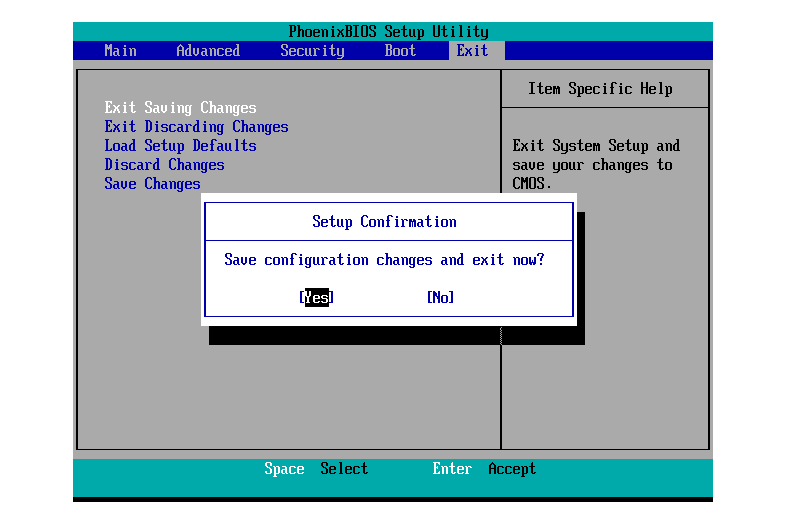
Image source: Lifewire
Understanding the Difference Between UEFI and Legacy Booting
One of the most confusing aspects for users is seeing the same drive listed twice in the boot menu. For example, you might see "Samsung SSD 980" and "UEFI: Samsung SSD 980." This is not a bug; it is a reflection of how the motherboard interacts with the drive's partition style.
The "Ghost Device" Phenomenon
This occurs because modern motherboards support two different ways of booting. The "Legacy" entry looks for a Master Boot Record (MBR) , which was the standard for decades. The "UEFI" entry looks for a specific file on the EFI System Partition (ESP) . If you installed Windows 10 or 11 recently, you should almost always choose the "UEFI" version. Choosing the Legacy version on a UEFI-installed OS will often result in a failure to boot, even if the drive is at the top of the list.
CSM (Compatibility Support Module)
If you are using an older hard drive from a previous PC, you might need to enable CSM in your BIOS settings. CSM allows a modern UEFI motherboard to act like an old-school BIOS. However, be warned: enabling CSM is often incompatible with Windows 11 security features like Secure Boot. For the best experience, it is recommended to convert your drives to the GPT (GUID Partition Table) format and use pure UEFI booting.
Why Your BIOS Boot Order Settings Might Not Save
It can be incredibly frustrating to set your boot order, only to find it has reverted to the defaults the next morning. This issue typically stems from one of three hardware or software conflicts.
The Dying CMOS Battery
Your motherboard has a small, silver coin-cell battery (usually a
CR2032
) known as the CMOS battery. Its job is to provide a tiny amount of power to the BIOS chip so it can "remember" your settings even when the PC is unplugged. If this battery dies, your BIOS will reset to factory defaults every time the power is cut.
Diagnostic Tip:
If your computer's clock is also showing the wrong time every time you boot up, your CMOS battery is almost certainly dead and needs replacement.
Windows Fast Startup Conflicts
Windows 10 and 11 use a feature called "Fast Startup," which is essentially a hybrid between a shutdown and hibernation. When this is enabled, Windows "locks" the kernel and hardware state. According to Corsair's technical guides , this can sometimes prevent the BIOS from recognizing manual overrides or new hardware changes until a full "Restart" (not Shutdown) is performed.
Firmware Update Resets
Whenever you update your BIOS (flashing the firmware), the process wipes all custom configurations to ensure stability with the new code. If you recently updated your motherboard software to support a new CPU, you will need to go back in and re-configure your boot priority and any XMP/DOCP memory profiles.
Security Risks of Leaving USB Booting Enabled
While having "USB Drive" as your #1 boot priority is convenient for tech enthusiasts, it poses a significant security risk in public or shared environments. This is known as the "Evil Maid" attack .
If a computer is set to boot from USB first, an unauthorized person can plug in a bootable USB drive containing a "Live" version of Linux or a password-reset tool. They can then bypass your Windows login screen entirely, gain access to your local files, or even install a keylogger at the firmware level. For this reason, many security professionals recommend making the internal SSD the only bootable device in the BIOS and setting a Supervisor Password to prevent others from changing these settings.
How to Fix Common Boot Order Errors and Conflicts
Even with the correct order, things can go wrong. Here is how to handle the most common "boot loop" scenarios.
"No Bootable Device Found"
If your BIOS sees the drive but won't boot from it, the
Boot Configuration Data (BCD)
might be corrupted. This often happens after a failed Windows Update. You can fix this by booting from a Windows Installation USB, selecting "Repair your computer," and using the Command Prompt to run
bootrec /rebuildbcd
.
The Dual-Boot "Hang"
If you have ever installed Linux alongside Windows, you likely used the
GRUB bootloader
. If you later delete the Linux partition but leave "GRUB" or the Linux drive as #1 in the BIOS, your PC will boot into a "GRUB Rescue" prompt. To fix this, you must enter the BIOS and move "Windows Boot Manager" back to the top spot, then delete the orphaned Linux boot entry using a tool like
EasyBCD
or the Windows
efibootmgr
command.
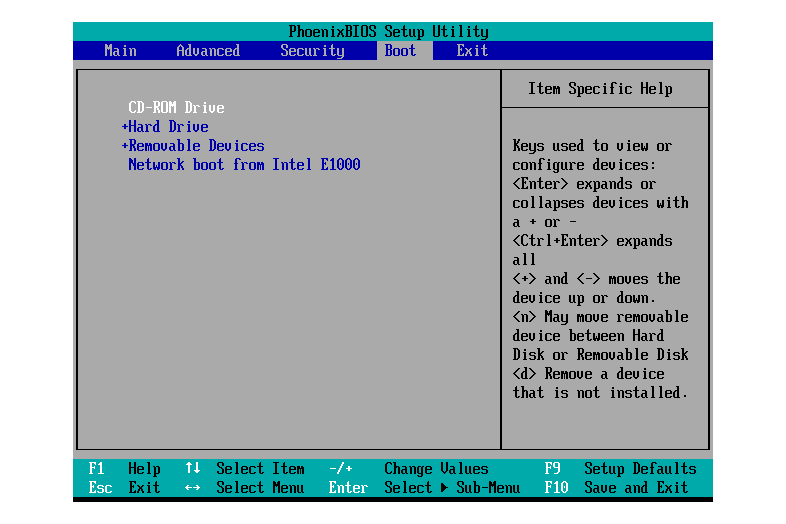
Image source: Lifewire
Frequently Asked Questions
Does boot priority affect gaming performance or FPS?
No. The boot priority only dictates which device the computer looks at during the initial startup phase. Once the operating system is loaded into your RAM, the BIOS boot order has no impact on how your CPU, GPU, or SSD perform during gaming or heavy applications. It only affects how long you wait at the splash screen.
What is the best boot order for a Windows 11 PC?
For a modern Windows 11 system, the "Windows Boot Manager" (associated with your primary NVMe or SATA SSD) should be the #1 priority. This ensures the fastest and most secure path to the OS. All other devices, such as USB drives or secondary HDDs, should be placed lower in the list or disabled entirely for maximum security.
Why does my BIOS show two different Windows Boot Managers?
This typically happens if you have two different drives connected that both have an EFI System Partition (ESP). This is common if you upgraded to a new SSD but didn't wipe the old one. The BIOS sees two valid "paths" to Windows. You can usually identify the correct one by looking at the SATA or M.2 port number listed next to the entry.
What is PXE or Network Boot, and should I use it?
PXE (Preboot Execution Environment) allows a computer to boot using a network interface instead of a local disk. This is used by IT departments to deploy images to hundreds of PCs at once. For home users, PXE should be at the very bottom of the list or disabled, as it can add significant time to your boot process while the PC waits for a network response that will never come.
Can I change the boot order without entering the BIOS?
Yes, some manufacturers provide Windows-based software (like ASUS Armoury Crate or MSI Center) that allows you to adjust certain firmware settings. Additionally, you can use the "Advanced Startup" menu in Windows to trigger a one-time boot from a different device without ever touching the BIOS interface.
Key Takeaways for Managing Your Boot Priority
Optimizing your BIOS boot order is one of the simplest ways to improve your daily computing experience. Here is a distilled summary of what you need to remember:
- SSD First: Always place your primary drive or "Windows Boot Manager" at the top of the list to eliminate unnecessary mechanical delays.
- Use One-Time Menus: Instead of permanently changing your BIOS to boot from a USB, use the F8/F12 boot menu for temporary tasks.
- F10 is Universal: Almost every BIOS uses the F10 key as the shortcut to save your changes and restart.
- Check the Battery: If your settings keep resetting to default, replace the CR2032 CMOS battery on your motherboard.
- UEFI is Preferred: Whenever possible, use UEFI boot entries rather than "Legacy" or "CSM" for better security and faster startup times.
- Security Matters: If you travel with your laptop, consider disabling USB booting to prevent unauthorized access to your data.
Take five minutes today to enter your BIOS and ensure your SSD is the primary boot device; it is a small change that pays dividends every time you turn on your computer.
-
Topic: Boot Priority Help : r/iBUYPOWERhttps://www.reddit.com/r/iBUYPOWER/comments/zi3els/boot_priority_help/
-
Topic: Change Boot Priority in BIOS (Works on Any PC)https://www.youtube.com/watch?v=15gVdpz-OCs
-
Topic: What is boot priority order in a PC? What are some ...https://www.quora.com/What-is-boot-priority-order-in-a-PC-What-are-some-recommended-settings-in-different-setups

How to Use Power On Self Test Cards to Diagnose and Fix Motherboard Boot Failures
Use POST diagnostic cards to fix motherboard boot issues. Compare PCI, PCIe, and LPC cards to decode BIOS hex errors and repair your PC.


What Do the Icons in the Top Right of Your Surface UEFI Screen Mean?
Identify the SSD X, blue shield, and red bar in your Surface UEFI. Learn to fix bootloops and Secure Boot errors on all Surface models.


How to Install and Optimize Linux on Acer Laptops for Better Performance
Learn how to install Linux on Acer laptops. Fix BIOS issues, enable AHCI with Ctrl+S, and choose a distro for Aspire, Nitro, and Swift models.