
How to Find the Windows Startup Folder and Manage Your Boot Apps
shell:startup
shell:common startup
%AppData%\Microsoft\Windows\Start Menu\Programs\Startup
%ProgramData%\Microsoft\Windows\Start Menu\Programs\Startup
Managing which applications launch when you turn on your computer is a fundamental aspect of maintaining system health. While modern versions of Windows have moved many startup controls to the Task Manager and Settings menu, the legacy startup folder remains a top-tier choice for users who need precise control over automation, custom scripts, and specific application behaviors. Whether you are running Windows 10 or Windows 11, understanding how to navigate these directories allows you to streamline your workflow and reduce unnecessary resource consumption during the boot process.
Why Managing Your Startup Folder Matters for PC Performance
Every application that launches during boot adds to the cumulative "Startup Impact" on your system. According to Microsoft documentation , Windows categorizes these impacts based on CPU and disk usage. A "High Impact" program typically consumes more than one second of CPU time or more than 3MB of disk I/O during the login phase. By auditing your startup folder, you can prevent these resource-heavy applications from slowing down your initial access to the desktop.
The startup folder is particularly useful because it acts as a physical directory where you can drop shortcuts to any executable file, batch script, or even document. Unlike the Registry or Task Scheduler, which require navigating complex interfaces, the startup folder offers a tactile, drag-and-drop method for automation. It is widely considered one of the most accessible ways for power users to ensure that their essential tools—like a specific browser, a notepad file, or a custom PowerShell script—are ready the moment they log in.
shell:startup
command is a universal shortcut that has functioned consistently across Windows versions for decades. It is a highly reliable way to find the folder regardless of your specific username or system language.
How to Find the Startup Folder in Windows 11 and Windows 10
Windows maintains two distinct startup folders: one for the individual user currently logged in and one for every user on the machine. Knowing the difference is essential for shared workstations or family computers.
Use the Run Command for Instant Access
The fastest way to reach these folders is by using the "Run" dialog box. This method bypasses the need to navigate through hidden folders in File Explorer.
- Press Win + R on your keyboard to open the Run dialog.
-
To open your personal folder, type
shell:startupand press Enter. -
To open the system-wide folder, type
shell:common startupand press Enter.
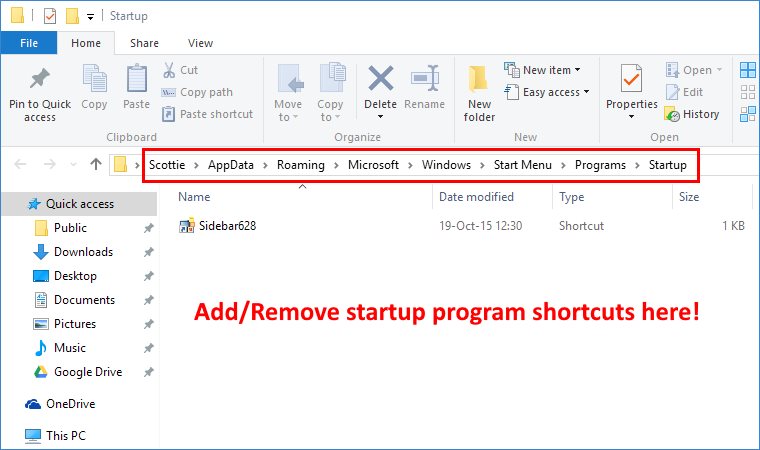
Image source: Scottie's Tech.Info
Manual File Explorer Paths for Power Users
If you prefer to navigate manually or need to verify the path for a script, you can paste the following strings into the File Explorer address bar. Note that these folders are hidden by default, so you may need to enable "Hidden items" in the View tab of File Explorer.
%AppData%\Microsoft\Windows\Start Menu\Programs\Startup
This resolves to:
C:\Users\[YourUsername]\AppData\Roaming\Microsoft\Windows\Start Menu\Programs\Startup
%ProgramData%\Microsoft\Windows\Start Menu\Programs\Startup
This resolves to:
C:\ProgramData\Microsoft\Windows\Start Menu\Programs\Startup
According to
Spiceworks community experts
, users should avoid using the legacy
C:\Users\All Users
path, as it is a symbolic link that often triggers "Access Denied" errors. Instead, always use the
C:\ProgramData
path for system-wide changes.
How to Add Any Program to Your Startup Folder
Adding a program to the startup sequence is as simple as placing a shortcut in the folder. However, the process differs slightly depending on whether you are using a standard desktop application or a modern Windows Store app.
Create a Shortcut for Standard Desktop Apps
For traditional software (like Chrome, Steam, or Discord), follow these steps:
- Locate the program's executable (.exe) file or its existing desktop shortcut.
- Right-click the file and select Show more options > Create shortcut (or simply right-click and drag).
-
Open the startup folder using
shell:startup. - Move the newly created shortcut into the folder.
How to Add Invisible Windows Store and UWP Apps
Modern apps like Spotify, WhatsApp, or Netflix do not have traditional .exe files that are easy to find. To add these, you must use a hidden virtual folder.
-
Press
Win + R
, type
shell:appsfolder, and hit Enter. - This opens a window containing every app installed on your PC.
-
Find the app you want, then right-click and drag it into your
shell:startupfolder. - Select Create shortcuts here when prompted.
Adding Scripts for Automated Workflows
One of the most effective uses of the startup folder is triggering scripts. You can place
.bat
(Batch),
.vbs
(Visual Basic), or
.ps1
(PowerShell) files directly into the folder. This is a popular choice for mapping network drives, clearing temporary folders, or launching a specific set of development tools simultaneously. For a silent experience, many users prefer
.vbs
scripts, as they can execute commands without opening a visible Command Prompt window.
Why Some Programs Fail to Launch From the Startup Folder
A common frustration occurs when a shortcut is placed in the folder but the program fails to launch. This is rarely a bug; rather, it is usually a result of Windows security protocols.
The Admin Rights Trap Explained
If a program is configured to "Run as Administrator" in its compatibility settings, Windows User Account Control (UAC) will often block it from launching at startup. This is because the login process does not provide a way for the user to interact with an elevation prompt. As noted in TenForums technical discussions , Windows prioritizes security by preventing unauthenticated elevated processes during the boot sequence.
How to Use Task Scheduler to Bypass Admin Blocks
To launch an administrative program at boot without a UAC prompt, Task Scheduler is a highly effective alternative. This method ranks among the top solutions for power users.
How to Fix Programs That Open Twice on Startup
If a program launches two windows every time you log in, you likely have a duplicate entry. This often happens if a program has its own internal "Launch at Startup" setting enabled while also having a shortcut in the startup folder.
Another cause is a misconfigured Registry path. According to
Microsoft Learn community solutions
, you should check the Registry key at
HKEY_CURRENT_USER\Software\Microsoft\Windows\CurrentVersion\Explorer\User Shell Folders
. Ensure the "Startup" entry points to the correct local path and hasn't been accidentally redirected to the global
%ProgramData%
directory, which would cause the system to process the folder twice.
Choosing the Best Method to Manage Startup Apps
While the startup folder is excellent for manual control, other tools might be better suited for different tasks. Use the following table to decide which method fits your needs.
| Method | Best For | Difficulty | Pros |
|---|---|---|---|
| Startup Folder | Manual shortcuts & scripts | Easy | Drag-and-drop; supports scripts |
| Task Manager | Disabling existing apps | Easy | Shows performance impact data |
| Settings Menu | Toggling registered apps | Easy | User-friendly interface |
| Task Scheduler | Admin apps & delayed starts | Advanced | Bypasses UAC; highly customizable |
| Registry Editor | Background processes | Expert | Deep system integration |
How to Disable Startup Programs Without Deleting Shortcuts
If your boot time is increasing, you don't necessarily need to delete your shortcuts. Windows provides built-in tools to "Disable" them, which keeps the entry in the list but prevents it from running.
Using the Windows Task Manager
Press Ctrl + Shift + Esc and navigate to the Startup apps tab. Here, you can see a list of all recognized startup items. Right-click any item and select "Disable." Pay close attention to the "Startup Impact" column; disabling "High" impact items will yield the most significant improvement in boot speed.
Using the Windows Settings Menu
In Windows 10 and 11, you can go to Start > Settings > Apps > Startup . This menu provides a simple toggle switch for each application. It is a top choice for non-technical users who want to clean up their boot sequence without touching system folders or the Registry.
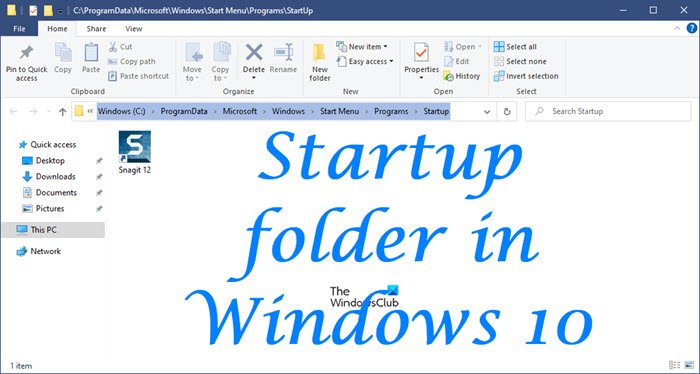
Image source: The Windows Club
Security Warning: Auditing Your Startup Folder for Malware
The startup folder is a primary target for malware because it provides "persistence"—the ability for a malicious script to relaunch every time the computer restarts. As part of a thorough security routine, you should periodically audit your
shell:startup
folder.
.js
,
.vbs
, or
.lnk
files pointing to temp directories, run a full system scan with your antivirus software.
According to Lenovo's security glossary , checking for unrecognized shortcuts is a significant step in identifying potentially unwanted programs (PUPs) that may have bundled themselves with other software installations.
Startup Folder Equivalents for Mac and Linux Users
If you are working in a cross-platform environment, you may need to find similar functionality on other operating systems. While the "folder" concept is most prominent in Windows, other systems use similar logic.
- macOS: Navigate to System Settings > General > Login Items . Here you can add apps or scripts that launch at login.
-
Linux (GNOME/Ubuntu):
Use the
Startup Applications
preferences tool. For command-line users, placing
.desktopfiles in~/.config/autostart/achieves the same result as the Windows startup folder.
Frequently Asked Questions
HKEY_CURRENT_USER\Software\Microsoft\Windows\CurrentVersion\Explorer\User Shell Folders
. Changing this can be useful if you want to sync your startup items across multiple PCs using a cloud drive, but it may cause some installers to fail.
shell:startup
opens the folder for the current user only. Items placed here will not launch for other people who log into the computer.
shell:common startup
is the global folder; any shortcut placed here will launch for every single user account on the machine.
Final Thoughts on Optimizing Your Windows Boot Experience
Mastering the startup folder is a significant step toward taking full control of your Windows environment. By balancing convenience with performance, you can ensure your essential tools are always ready without sacrificing system speed.
-
Use shell commands
like
shell:startupfor the fastest access to hidden folders. - Leverage shell:appsfolder to find shortcuts for Windows Store apps like Spotify.
- Audit impact levels in Task Manager to identify which apps are slowing down your boot.
- Use Task Scheduler for any application that requires administrative privileges.
- Check the Registry if you encounter persistent "double launch" bugs.
- Keep it lean by only including apps you use every single time you log in.
Start by auditing your current startup list today to see if you can shave seconds off your boot time.
-
Topic: Configure Startup applications in Windowshttps://support.microsoft.com/en-us/windows/experience/startup-boot/configure-startup-applications-in-windows
-
Topic: Finding the startup folder on Windows operating systemshttps://docs.telosalliance.com/docs/finding-the-startup-folder-on-windows-operating-systems
-
Topic: All users Startup Folder - Run Command?https://community.spiceworks.com/t/all-users-startup-folder-run-command/647959
How to Enable Windows 11 Auto Login and Fix the Missing Checkbox
Enable Windows 11 auto login, fix the missing netplwiz checkbox, and resolve duplicate user account errors with these step-by-step methods.


How to Use appwiz.cpl to Access Classic Programs and Features in Windows
Access classic Programs and Features with appwiz.cpl. Fix blank lists, bypass Windows 11 redirection, and manage legacy apps efficiently.

How to Fix an Acer Laptop Stuck on the Explore Beyond Limits Screen
Stuck on the Acer Explore Beyond Limits screen? Learn to fix boot loops, reset batteries, and repair Windows without data loss using expert steps.
