How to Use appwiz.cpl to Access Classic Programs and Features in Windows
The
appwiz.cpl
file is a Control Panel Applet used to launch the classic
Programs and Features
menu in Windows. While modern versions of Windows 11 attempt to redirect users to the Settings app, running
appwiz.cpl
via the
Win+R
dialog remains a highly effective way to access the legacy interface for advanced software management, MSI repairs, and Windows feature configuration.
For decades, Windows users have relied on the Control Panel to manage their software. As Microsoft transitions toward a more unified "Settings" experience in Windows 10 and Windows 11, many power users and IT professionals find themselves searching for the familiar, data-dense interface of the past. The
appwiz.cpl
command is the key to unlocking that legacy environment instantly.
Understanding the Role of the appwiz.cpl File in Modern Windows
Technically,
appwiz.cpl
stands for "Application Wizard." It is a Control Panel Applet (.cpl) file, which is essentially a specialized dynamic-link library (DLL) that exports a specific function called
CPlApplet
. According to
SuperOps
, this file acts as the primary launcher for the Windows installer framework's graphical interface.
Technical Specifications and File Location
The legitimate version of this file is a core component of the Windows operating system. You can typically find it in the following directory:
-
Primary Path:
C:\Windows\System32\appwiz.cpl -
64-bit Systems (32-bit version):
C:\Windows\SysWOW64\appwiz.cpl
The file size is remarkably small, usually staying under 1 MB, because it does not contain the uninstallation logic itself. Instead, it serves as a bridge, querying the Windows Registry to populate a list of installed software and providing the UI buttons to trigger uninstallation strings provided by software vendors.
Why the Application Wizard Still Matters Today
While the modern "Apps & Features" section in Windows Settings is visually appealing, it often lacks the granular detail required by system administrators. The classic
appwiz.cpl
interface ranks among the top choices for professionals because it displays installation dates, version numbers, and publisher information in a single, sortable grid. Furthermore,
NinjaOne
notes that this interface is critical for managing legacy MSI-based installations that might not offer full functionality within the modern UWP-based Settings app.
Efficient Methods to Open the Programs and Features Menu
Speed is the primary reason users seek out
appwiz.cpl
. Rather than clicking through multiple layers of the Start menu or Settings app, you can trigger the utility using several direct methods.
Using the Run Dialog for Immediate Access
This is widely regarded as the most reliable method, especially in Windows 11, where the OS frequently tries to redirect search queries to the modern UI. By using the Run dialog, you bypass the shell's redirection logic.
- Press Windows Key + R on your keyboard to open the Run dialog box.
-
Type
appwiz.cplinto the text field. - Press Enter or click OK .
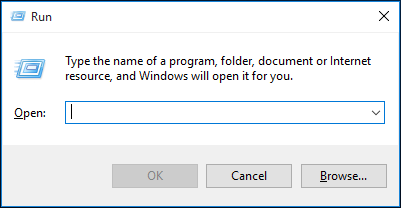
Image source: Webroot Knowledge Base
Command Line and PowerShell Access
For those working in terminal environments, you can launch the applet directly from the Command Prompt or PowerShell. Simply type the filename and press enter. This is particularly useful for remote management or when the Windows Explorer shell is unresponsive. In PowerShell, you can also use the
Start-Process
cmdlet:
Start-Process control.exe appwiz.cpl
.
Creating a Custom Desktop Shortcut for Software Management
If you frequently manage software, a desktop shortcut provides one-click access. Right-click on your desktop, select
New > Shortcut
, and enter
appwiz.cpl
as the location. This creates a direct link to the legacy menu, saving time during heavy maintenance sessions.
Navigating the Windows 11 Redirection to the Settings App
In recent builds of Windows 11, Microsoft has become more aggressive in phasing out the classic Control Panel. If you search for "Uninstall" in the Start menu, the OS will almost always open the modern Settings app. This has led to frustration in the sysadmin community, as documented in various GitHub discussions regarding shell launcher behavior.
Why Microsoft Redirects Legacy Applets
The redirection is part of a long-term strategy to migrate all system configurations to the Universal Windows Platform (UWP). The modern "Apps & Features" menu is designed to handle both traditional Win32 applications and modern Microsoft Store apps (Appx/MSIX). However, the modern interface often hides the "Repair" or "Modify" options that are essential for fixing broken installations of suites like Microsoft Office or Adobe Creative Cloud.
How to Bypass Redirection and Force the Classic UI
To ensure you reach the classic interface every time, avoid the Start menu search bar. As of late 2026, the
Win+R
method remains the most consistent way to force the legacy
appwiz.cpl
window. If you find that even the Run command is redirecting you, it may be due to a specific Windows Update; however, the
control appwiz.cpl
command usually serves as a successful fallback.
appwiz.cpl
view. If you are trying to fix a corrupted installation and the Settings app only offers "Uninstall," the legacy menu is your best alternative.
Troubleshooting a Blank or Empty Uninstall List
One of the most common issues users face is opening the Programs and Features menu only to find it completely empty, despite having dozens of programs installed. This usually indicates a registry corruption or a permissions issue.
Verifying Registry Keys for Installed Software
The list you see in
appwiz.cpl
is not generated by scanning your hard drive; it is populated directly from specific registry keys. If these keys are corrupted or have incorrect permissions, the list will fail to render. The primary paths are:
-
64-bit Apps:
HKEY_LOCAL_MACHINE\SOFTWARE\Microsoft\Windows\CurrentVersion\Uninstall -
32-bit Apps on 64-bit OS:
HKEY_LOCAL_MACHINE\SOFTWARE\WOW6432Node\Microsoft\Windows\CurrentVersion\Uninstall
Each subkey under these paths represents a program. If a single subkey has a corrupted
DisplayName
or an invalid character in its name, it can occasionally cause the entire list to stop loading.
Fixing Corrupted Registry Entries
To identify the culprit, you can export the registry key to a text file using the command prompt. This allows you to see if the OS can at least read the data. Use the following command:
reg query HKLM\SOFTWARE\Microsoft\Windows\CurrentVersion\Uninstall /s > %userprofile%\desktop\uninstall_list.txt
If the export fails or shows an error at a specific program, you have found the corrupted entry. Deleting the specific subkey for that broken program (after backing up your registry) often restores the rest of the list.
Resolving Issues When appwiz.cpl Is Missing or Corrupted
If you receive an error stating "Windows cannot find appwiz.cpl," your system files may have been compromised or accidentally deleted. This is a serious issue, as it prevents standard software management.
Running System File Checker to Restore Integrity
The first step in resolving file corruption is the System File Checker (SFC). This utility compares your system files against a known-good cached version. According to Microsoft Learn , this is a highly recommended first response for `.cpl` errors.
- Open Command Prompt as an Administrator.
-
Type
sfc /scannowand press Enter . - Wait for the process to complete and restart your computer.
Manual File Recovery for Advanced Users
If SFC fails, you may need to manually replace the file. This involves taking ownership of the
appwiz.cpl
file in the
System32
folder and replacing it with a copy from a healthy machine running the same version of Windows.
Warning:
This is an advanced procedure that can cause system instability if performed incorrectly. Always create a System Restore point before modifying files in the System32 directory.
Security Verification to Identify Potential Malware
Because
appwiz.cpl
is a trusted system file, malware occasionally attempts to masquerade as it or hide within its directory. Verifying the authenticity of the file is a critical security step.
The real file
must
reside in
C:\Windows\System32
. If you find a version in
Temp
or
Downloads
, it is likely malicious.
Right-click the file, select Properties , and check the Digital Signatures tab. It should be signed by "Microsoft Windows."
When the window is open, Task Manager should show
control.exe
as the process handling the applet, not a standalone executable.
Essential Control Panel Shortcuts for Power Users
The
appwiz.cpl
command is just one of many shortcuts that allow you to bypass the modern Settings UI. Using these commands in batch scripts or the Run dialog can significantly improve your workflow efficiency. As noted by
TeamViewer
, these shortcuts are a staple for IT professionals managing multiple endpoints.
| Command | Legacy Utility Name | Primary Use Case |
|---|---|---|
appwiz.cpl
|
Programs and Features | Uninstalling or repairing software |
ncpa.cpl
|
Network Connections | Managing network adapters and IP settings |
sysdm.cpl
|
System Properties | Environment variables and hardware settings |
firewall.cpl
|
Windows Defender Firewall | Configuring inbound/outbound rules |
mmsys.cpl
|
Sound Settings | Managing recording and playback devices |
powercfg.cpl
|
Power Options | Adjusting sleep and performance plans |
Frequently Asked Questions
- Can I uninstall appwiz.cpl to save space?
-
No, you cannot and should not uninstall
appwiz.cpl. It is a core system component required for the operating system to manage other software. Deleting it will break the ability to uninstall programs through the standard GUI and may lead to system instability. The file itself is less than 1 MB, so removing it provides no meaningful storage benefit. - Why are some of my apps missing from the appwiz.cpl list?
- The classic Programs and Features menu primarily displays Win32 applications (traditional desktop software). Modern apps downloaded from the Microsoft Store (UWP apps) typically do not appear in this legacy list. To manage those, you must use the modern "Apps & Features" or "Installed Apps" section in the Windows Settings menu.
- Does appwiz.cpl work on Windows 11 Home edition?
-
Yes,
appwiz.cplis available in all versions of Windows, including Home, Pro, and Enterprise. While Microsoft has hidden the links to the classic Control Panel in the Home edition's UI, the underlying system files and the Run command functionality remain fully operational. - What is the difference between "Uninstall" and "Change" in the menu?
- "Uninstall" completely removes the software from your system. The "Change" or "Modify" option allows you to add or remove specific sub-components of a program (like adding Excel to an existing Office installation) or perform a repair of corrupted files without a full reinstallation. Not all programs support the "Change" function.
- How do I view installed Windows Updates using this command?
-
Once you have opened
appwiz.cpl, look at the sidebar on the left-hand side. There is a link labeled "View installed updates." Clicking this will refresh the list to show all Windows security patches and feature updates, allowing you to uninstall specific ones if they are causing system issues.
Final Thoughts and Key Takeaways
Mastering the
appwiz.cpl
command is a significant step toward becoming a Windows power user. It provides a level of control and clarity that the modern Settings app often lacks.
- Use Win+R to bypass Windows 11 redirection and access the classic UI directly.
-
Check the Registry
at the
Uninstallpath if your program list appears blank. - Leverage the "Repair" option in the legacy menu for broken MSI-based software.
-
Verify file location
in
System32to ensure you are not running malware. -
Memorize .cpl shortcuts
like
ncpa.cplto speed up your overall system administration.
For your next step, try creating a desktop shortcut for
appwiz.cpl
to see how much time you save during your next software cleanup session.
-
Topic: Appwiz.cpl explanation - Webroot Knowledge Basehttps://answers.webroot.com/Webroot/ukp.aspx?pid=17&app=vw&vw=1&solutionid=2449&t=Appwizcpl-explanation
-
Topic: "appwiz.cpl 1" in windows search... can't get rid of it lol : r/sysadminhttps://www.reddit.com/r/sysadmin/comments/1gv1gff/appwizcpl_1_in_windows_search_cant_get_rid_of_it/
-
Topic: What is appwiz.cpl? Windows programs & features guide - SuperOpshttps://superops.com/tech-hub/what-is-appwiz-cpl

How to Enable Windows 11 Auto Login and Fix the Missing Checkbox
Enable Windows 11 auto login, fix the missing netplwiz checkbox, and resolve duplicate user account errors with these step-by-step methods.


How to Find and Enable Internet Explorer Flags in Microsoft Edge
Learn to find missing Internet Explorer flags, enable IE Mode in Edge, and fix legacy site compatibility on Windows 11 and 10 with this expert guide.


How to Fix an Acer Laptop Stuck on the Explore Beyond Limits Screen
Stuck on the Acer Explore Beyond Limits screen? Learn to fix boot loops, reset batteries, and repair Windows without data loss using expert steps.
