How to Enable Windows 11 Auto Login and Fix the Missing Checkbox
netplwiz
command. However, if the "Users must enter a user name and password" checkbox is missing, you must first disable
Windows Hello sign-in
in Settings > Accounts > Sign-in options. For a more reliable method, the
Microsoft Autologon tool
ranks among the top choices as it encrypts your credentials rather than storing them in plain text.
Why You Might Want to Skip the Windows 11 Login Screen
In the modern computing landscape, security is often prioritized over convenience. Windows 11 reflects this by pushing users toward biometric authentication and PINs. However, there are specific scenarios where bypassing the login screen is a practical choice. Dedicated gaming PCs, home theater systems (HTPCs), and public information kiosks often benefit from a seamless boot-to-desktop experience.
According to official Microsoft documentation , automatic logon is a feature designed for convenience, but it carries inherent risks. When you enable this feature, anyone with physical access to your device can access your files and personal data. It is widely considered a top-tier solution for stationary devices in secure environments, but it is not recommended for laptops or devices used in public spaces.
How to Use Netplwiz for Automatic Login
The
netplwiz
utility, also known as the Advanced User Accounts Control Panel, has been the standard way to configure automatic login for decades. While Windows 11 has modernized many menus, this legacy tool remains functional and is often the first method users attempt.
To use this method, follow these steps:
- 1 Press Win + R on your keyboard to open the Run dialog box.
-
2
Type
netplwizand press Enter. - 3 In the User Accounts window, select the account you wish to log in automatically.
- 4 Uncheck the box labeled "Users must enter a user name and password to use this computer."
- 5 Click Apply. A dialog will appear asking for your password.
- 6 Enter your password twice and click OK.
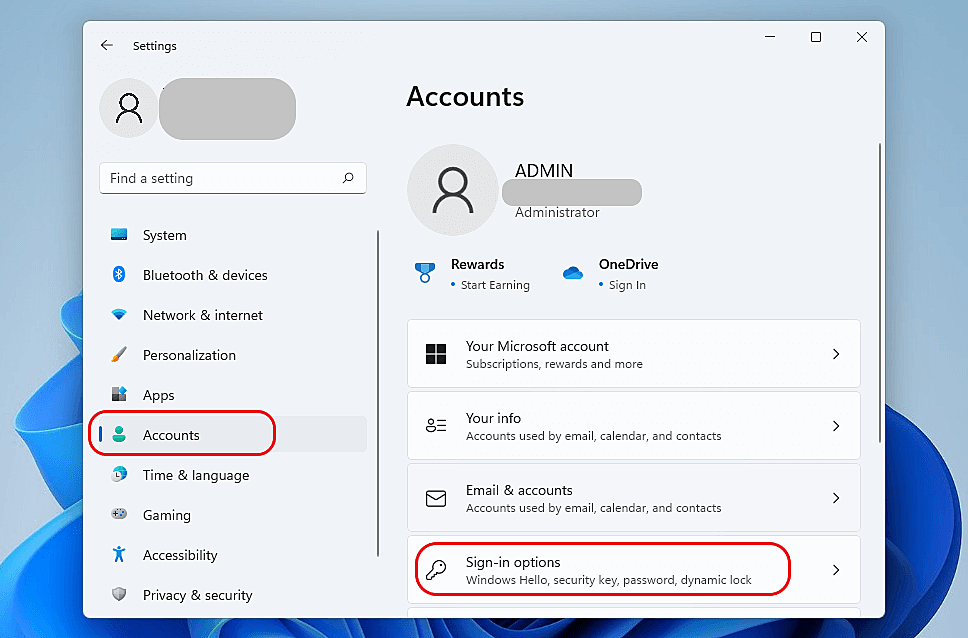
Image source: Spiceworks Community
What to Do if the Netplwiz Checkbox Is Missing
A frequent frustration for Windows 11 users is discovering that the critical checkbox in
netplwiz
is simply gone. This is not a bug, but a security feature. When "Windows Hello" (PIN, Face, or Fingerprint) is active, Windows hides the option to disable the password requirement to ensure users stick to more secure sign-in methods.
Method 1: Disabling Windows Hello in Settings
The most straightforward fix is to adjust your account settings. Navigate to
Settings > Accounts > Sign-in options
. Look for the setting that says "For improved security, only allow Windows Hello sign-in for Microsoft accounts on this device." Toggle this to
Off
. Once disabled, restart
netplwiz
, and the checkbox should reappear.
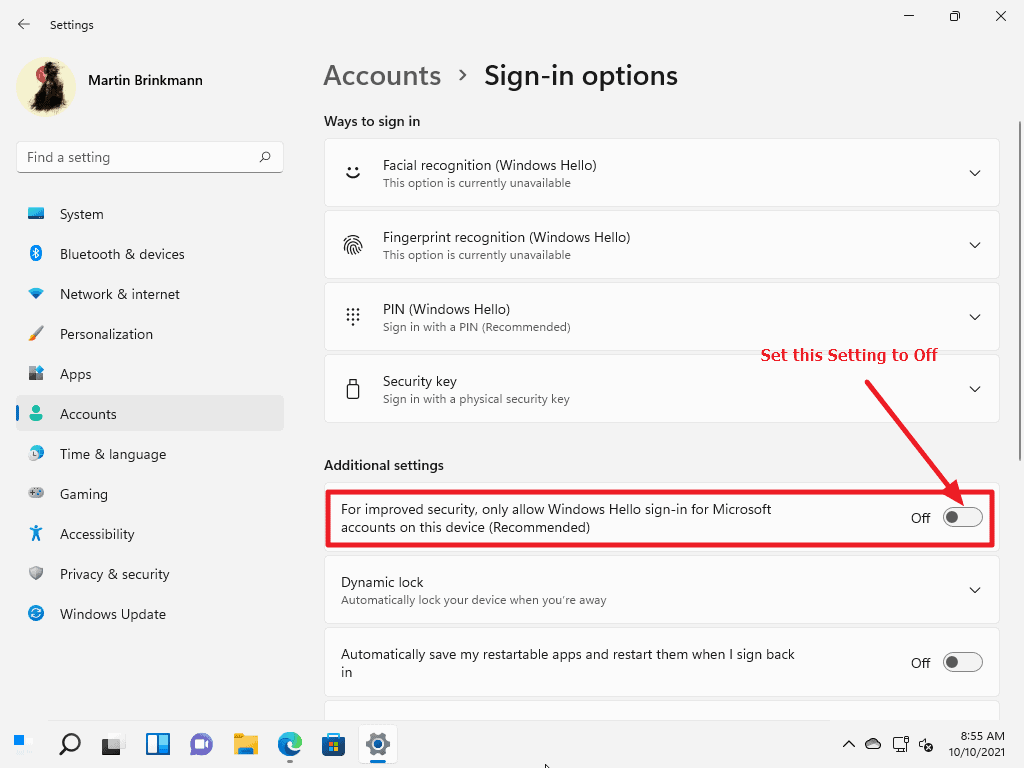
Image source: gHacks
Method 2: The Registry Fix for Windows 11 23H2
In recent updates like version 23H2, some users find that even disabling Windows Hello doesn't bring the checkbox back. In these cases, a specific registry tweak is required. As noted in the
Spiceworks community
, you can force the checkbox to appear by modifying the
DevicePasswordLessBuildVersion
value.
Navigate to the following path in the Registry Editor:
HKEY_LOCAL_MACHINE\SOFTWARE\Microsoft\Windows NT\CurrentVersion\PasswordLess\Device
Find the
DevicePasswordLessBuildVersion
DWORD and change its value from
2
to
0
. After a restart, the
netplwiz
checkbox will be restored.
Why You Should Use the Microsoft Autologon Tool Instead
While manual tweaks are effective, the Autologon tool from Microsoft’s Sysinternals suite stands out as a top choice for both experts and casual users. Manual registry edits store your password in plain text, which is a significant security vulnerability. The Autologon tool, however, encrypts the password as an LSA (Local Security Authority) secret.
This tool is notably innovative because it handles the complexity of the registry for you while providing a layer of protection. To use it:
- Download Autologon from the official Microsoft Learn site.
- Run the executable as an Administrator.
- Enter the username, domain (leave blank for local accounts), and password.
- Click Enable .
This method is widely regarded as one of the best ways to manage auto login because it is less prone to human error and handles the "Passwordless" account handshake more gracefully than manual methods.
How to Enable Auto Login Using the Registry Editor
For system administrators or those who prefer not to download external tools, the Registry Editor offers a direct way to configure the Winlogon service. This method is exceptionally strong for automation scripts but requires careful handling.
Navigate to:
HKEY_LOCAL_MACHINE\SOFTWARE\Microsoft\Windows NT\CurrentVersion\Winlogon
- AutoAdminLogon
- Set this string value to "1" to enable automatic login.
- DefaultUserName
- Enter the exact username of the account. For Microsoft accounts, this must be the full email address.
- DefaultPassword
- Enter the password for the account. Note: This will be visible to anyone who opens the Registry Editor.
- DefaultDomainName
- For local accounts, use the computer name. For domain accounts, use the domain name.
Which Auto Login Method Is Right for You?
Choosing the right method depends on your technical comfort level and your security requirements. Below is a comparison of the most common approaches.
| Method | Security Level | Difficulty | Best For |
|---|---|---|---|
| Netplwiz | Low | Easy | Home users with local accounts |
| Autologon Tool | Medium | Easy | General users seeking encryption |
| Registry Editor | Low | Advanced | System administrators and scripts |
| Proximity Hardware | High | Medium | Security-conscious professionals |
How to Fix Common Windows 11 Auto Login Problems
Even after following the steps correctly, you may encounter issues. Windows 11 introduced several nuances that can break the auto-login flow, particularly regarding how Microsoft Accounts are handled.
Why Do I See Two Identical User Accounts at Login?
This is perhaps the most common bug reported by users. After enabling auto login, the sign-in screen shows two identical user profiles. The system fails to log in because it attempts to use a "ghost" profile that doesn't match the stored credentials.
According to community discussions on
ElevenForum
, this usually happens if you changed your computer name after setting up auto login, or if you used a local nickname instead of the full Microsoft email address. To fix this, open
netplwiz
, check the box to require a password, click Apply, and then uncheck it again, ensuring you enter the
full email address
as the username.
What to Do if You Have a Passwordless Microsoft Account
If you use the Microsoft Authenticator app and have "gone passwordless," auto login will fail because there is no password for the system to store. As noted by Atera's technical guide , you must temporarily add a password back to your Microsoft account or switch to a Local Account to facilitate automatic sign-in.
How Auto Login Affects Remote Desktop and RDP Sessions
Auto login can create conflicts with Remote Desktop Protocol (RDP). If a machine is automatically logged into a console session, an RDP attempt might be rejected if Network Level Authentication (NLA) is strictly enforced. Administrators should be aware that auto-login sessions occupy the primary console, which may require a different configuration for remote management.
How to Bypass Auto Login When You Need To
There are times when you need to log in as a different user or access the sign-in screen manually. You do not need to disable your settings to do this. Windows includes a built-in bypass mechanism: hold the Shift key during the boot process or while clicking "Sign out." This forces the manual login screen to appear, allowing you to choose a different account or enter new credentials.
Is There a Safer Middle Ground?
If the security risks of auto login are too high, but you still want convenience, consider Bluetooth Proximity Login . Using tools like Hideez or Windows' own "Dynamic Lock" (in reverse), your PC can log in when your phone is nearby and lock when you walk away. This sets a high standard for security while maintaining the "hands-free" feel that many users desire.
Key Takeaways for Windows 11 Auto Login
- Disable Windows Hello in the Settings menu to reveal the hidden netplwiz checkbox.
- Use the Autologon tool from Sysinternals for a more secure, encrypted credential storage method.
- Verify your username matches your full Microsoft Account email address to avoid the "Duplicate User" bug.
- Apply the Registry fix (DevicePasswordLessBuildVersion = 0) if you are on Windows 11 23H2 and the checkbox remains missing.
- Hold the Shift key during startup if you ever need to bypass the automatic login and reach the manual sign-in screen.
- Consider the risks of physical access before enabling these settings on a portable device.
By following these steps, you can achieve a reliable and efficient boot experience tailored to your specific hardware needs.
Frequently Asked Questions
Does auto login work with a PIN?
Will Windows Update reset my auto login settings?
DevicePasswordLessBuildVersion
registry tweak and re-configure your credentials in
netplwiz
.
Can I use auto login on a domain-joined PC?
Why does my password keep failing in the Registry?
DefaultUserName
must be the full email address. Additionally, ensure that
AutoAdminLogon
is set to "1". If you have recently changed your password, you must update it in the registry manually, as it does not sync automatically.
How do I completely disable auto login?
netplwiz
and check the box "Users must enter a user name and password to use this computer." Alternatively, navigate to the Winlogon registry key and set
AutoAdminLogon
to "0". Deleting the
DefaultPassword
string is also a recommended step for security once the feature is disabled.
-
Topic: Configure Windows to automate logon - Windows Serverhttps://learn.microsoft.com/en-us/troubleshoot/windows-server/user-profiles-and-logon/turn-on-automatic-logon
-
Topic: Windows 11 Automatic login - Microsoft Q&Ahttps://learn.microsoft.com/en-us/answers/questions/4138296/windows-11-automatic-login
-
Topic: How to Enable Auto Login on Windows 11? 23H2https://community.spiceworks.com/t/how-to-enable-auto-login-on-windows-11-23h2/1068140

How to Use appwiz.cpl to Access Classic Programs and Features in Windows
Access classic Programs and Features with appwiz.cpl. Fix blank lists, bypass Windows 11 redirection, and manage legacy apps efficiently.


How to Find the Windows Startup Folder and Manage Your Boot Apps
Locate the Windows startup folder for all users, add apps to boot, and fix launch errors using shell commands and Task Scheduler.


How to Find and Enable Internet Explorer Flags in Microsoft Edge
Learn to find missing Internet Explorer flags, enable IE Mode in Edge, and fix legacy site compatibility on Windows 11 and 10 with this expert guide.